Select platform: [HTML5](https://developers.google.com/ad-manager/dynamic-ad-insertion/sdk/html5/get-started/pod-serving.md.txt "View this page for the HTML5 platform docs.") [Android](https://developers.google.com/ad-manager/dynamic-ad-insertion/sdk/android/get-started/pod-serving.md.txt "View this page for the Android platform docs.") [iOS](https://developers.google.com/ad-manager/dynamic-ad-insertion/sdk/ios/get-started/pod-serving.md.txt "View this page for the iOS platform docs.") [tvOS](https://developers.google.com/ad-manager/dynamic-ad-insertion/sdk/tvos/get-started/pod-serving.md.txt "View this page for the tvOS platform docs.") [Cast](https://developers.google.com/ad-manager/dynamic-ad-insertion/sdk/cast/get-started/pod-serving.md.txt "View this page for the Cast platform docs.") [Roku](https://developers.google.com/ad-manager/dynamic-ad-insertion/sdk/roku/get-started/pod-serving.md.txt "View this page for the Roku platform docs.")
This guide covers integrating the IMA DAI SDK into a video
player app. If you want to view or follow along with a completed sample
integration, download the
[PodServingExample](https://github.com/googleads/googleads-ima-ios-dai) from
GitHub.
**Note:** Apple only provides frameworks to support [HTTP Live Streaming (HLS)](https://developer.apple.com/documentation/http_live_streaming), such as AVKit, AVFoundation, and WebKit. These frameworks won't work with DASH stream format.
> [!IMPORTANT]
> To use IMA DAI, you must have an [Ad Manager 360 Advanced](https://support.google.com/admanager/answer/3485387) account. If you have an Ad Manager account, contact your account manager for more details. For information about signing up for Ad Manager, visit the [Ad Manager Help Center](https://support.google.com/admanager/answer/7084151).
**Note:** For information on integrating with other platforms, or on using the IMA client-side SDKs, see [Interactive Media Ads SDKs](https://developers.google.com/interactive-media-ads).
## IMA DAI overview
Implementing IMA DAI involves four main SDK components, as this guide
demonstrates:
- `
IMAAdDisplayContainer` -- A container object that sits on top of the video playback element and houses the ad UI elements.
- `
IMAAdsLoader` -- An object that requests streams and handles events triggered by stream request response objects. You should only instantiate one ads loader, which can be reused throughout the life of the application.
- `
IMAStreamRequest` -- either an `
IMAPodVODStreamRequest` or an `
IMAPodStreamRequest`.
- `
IMAStreamManager` -- An object that handles dynamic ad insertion streams and interactions with the DAI backend. The stream manager also handles tracking pings and forwards stream and ad events to the publisher.
In addition, to play pod serving streams, implement a
**custom VTP handler**. This custom VTP handler sends the stream ID
to your video technical partner (VTP) along with any other information that it
requires to return a stream manifest containing both content and stitched ads.
Your VTP provides instructions on how to implement your custom VTP handler.
## Prerequisites
Before you begin, you need the following:
- Xcode 13 or later
- Method for installing the IMA SDK:
- [Swift Package Manager](https://docs.swift.org/swiftpm/documentation/packagemanagerdocs/) (preferred)
- A download copy of [IMA SDK for iOS](https://developers.google.com/interactive-media-ads/docs/sdks/ios/dai/download)
You also need the parameters to request your stream from the IMA SDK.
| Livestream parameters ||
|---|---|
| **Network code** | The network code for your Ad Manager 360 account. |
| **Custom Asset Key** | The custom asset key that identifies your Pod Serving event in Ad Manager 360. Your manifest manipulator or 3rd party Pod Serving partner creates this. |
| **Network code** | The network code for your Ad Manager 360 account. |
## Create a new Xcode project
In Xcode, create a new iOS project using Objective-C named
"PodServingExample".
## Add the IMA DAI SDK to the Xcode project
To install IMA SDK, choose a preferred method.
### Recommended: Install the SDK using Swift Package Manager
The Interactive Media Ads SDK supports [Swift Package
Manager](https://swift.org/package-manager/) starting in version 3.18.4. Follow these
steps to import the Swift package.
1. In Xcode, install the IMA DAI SDK Swift Package: navigate to
**File \> Add Packages**.
2. In the prompt that appears, search for the IMA DAI SDK Swift Package GitHub
repository:
https://github.com/googleads/swift-package-manager-google-interactive-media-ads-ios
3. Select the version of the IMA DAI SDK Swift Package you want to use. For new
projects, use the **Up to Next Major Version**.
When you're done, Xcode resolves your package dependencies and downloads them in
the background. For more details on how to add package dependencies, see
[Apple's article](https://developer.apple.com/documentation/swift_packages/adding_package_dependencies_to_your_app).
### Manually download and install the SDK
If you don't want to use Swift Package Manager, download and manually add
IMA SDK to your project.
#### Show instructions
1. From the [iOS IMA Download page](https://developers.google.com/ad-manager/dynamic-ad-insertion/sdk/ios/download.md.txt), download and extract the latest version of the IMA DAI SDK.
2. Open **BasicExample.xcodeproj**.
3. In the left pane, click the project name.
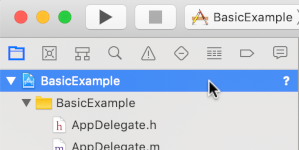
4. In the center pane, click **Build Phases** .

5. Expand the **Link Binary With Libraries** section.
6. At the bottom of the libraries list, click the plus icon **\[+\]**.
7. Click **Add Other**.
8. In the directory where you extracted the downloaded SDK, select **GoogleInteractiveMediaAds.framework** and click **Open**.
9. At the bottom of the libraries list, click the plus icon **\[+\]** again.
10. In the **Status** column, verify that `GoogleInteractiveMediaAds.framework` shows `Required`.
11. Include the `-ObjC` linker flag in your build settings. For more information, see [Apple QA1490](https://developer.apple.com/library/content/qa/qa1490/_index.html).
## Create a video player
Implement a video player in your main view controller; wrap an AV player
in a UI view. The IMA SDK uses the UI view to display ad
UI elements.
### Objective-C
```objective-c
#import "ViewController.h"
#import
/// Content URL.
static NSString *const kBackupContentUrl =
@"http://devimages.apple.com/iphone/samples/bipbop/bipbopall.m3u8";
@interface ViewController ()
/// Play button.
@property(nonatomic, weak) IBOutlet UIButton *playButton;
@property(nonatomic, weak) IBOutlet UIView *videoView;
/// Video player.
@property(nonatomic, strong) AVPlayer *videoPlayer;
@end
@implementation ViewController
- (void)viewDidLoad {
[super viewDidLoad];
self.view.backgroundColor = [UIColor blackColor];
// Load AVPlayer with the path to your content.
NSURL *contentURL = [NSURL URLWithString:kBackupContentUrl];
self.videoPlayer = [AVPlayer playerWithURL:contentURL];
// Create a player layer for the player.
AVPlayerLayer *playerLayer = [AVPlayerLayer playerLayerWithPlayer:self.videoPlayer];
// Size, position, and display the AVPlayer.
playerLayer.frame = self.videoView.layer.bounds;
[self.videoView.layer addSublayer:playerLayer];
}
- (IBAction)onPlayButtonTouch:(id)sender {
[self.videoPlayer play];
self.playButton.hidden = YES;
}
@end
```
### Swift
```swift
// Copyright 2024 Google LLC. All rights reserved.
//
//
// Licensed under the Apache License, Version 2.0 (the "License"); you may not use this
// file except in compliance with the License. You may obtain a copy of the License at
//
// http://www.apache.org/licenses/LICENSE-2.0
//
// Unless required by applicable law or agreed to in writing, software distributed under
// the License is distributed on an "AS IS" BASIS, WITHOUT WARRANTIES OR CONDITIONS OF
// ANY KIND, either express or implied. See the License for the specific language governing
// permissions and limitations under the License.
import AVFoundation
import UIKit
class ViewController: UIViewController {
/// Content URL.
static let backupStreamURLString =
"http://devimages.apple.com/iphone/samples/bipbop/bipbopall.m3u8"
/// Play button.
@IBOutlet private weak var playButton: UIButton!
@IBOutlet private weak var videoView: UIView!
/// Video player.
private var videoPlayer: AVPlayer?
override func viewDidLoad() {
super.viewDidLoad()
playButton.layer.zPosition = CGFloat(MAXFLOAT)
// Load AVPlayer with path to our content.
// note: this unwrap is safe because the URL is a constant string.
let contentURL = URL(string: ViewController.backupStreamURLString)!
videoPlayer = AVPlayer(url: contentURL)
// Create a player layer for the player.
let playerLayer = AVPlayerLayer(player: videoPlayer)
// Size, position, and display the AVPlayer.
playerLayer.frame = videoView.layer.bounds
videoView.layer.addSublayer(playerLayer)
}
@IBAction func onPlayButtonTouch(_ sender: Any) {
videoPlayer?.play()
playButton.isHidden = true
}
}
```
## Initialize the ads loader
Import the IMA SDK into your view controller and adopt the
[`IMAAdsLoaderDelegate`](https://developers.google.com/ad-manager/dynamic-ad-insertion/sdk/ios/reference/Protocols/IMAAdsLoaderDelegate.md.txt)
and
[`IMAStreamManagerDelegate`](https://developers.google.com/ad-manager/dynamic-ad-insertion/sdk/ios/reference/Protocols/IMAStreamManagerDelegate.md.txt)
protocols to handle ads loader and stream manager events.
Add these private properties to store key IMA SDK components:
- [`IMAAdsLoader`](https://developers.google.com/ad-manager/dynamic-ad-insertion/sdk/ios/reference/Classes/IMAAdsLoader.md.txt)
- Manages stream requests across the lifetime of your app.
- [`IMAAdDisplayContainer`](https://developers.google.com/ad-manager/dynamic-ad-insertion/sdk/ios/reference/Classes/IMAAdDisplayContainer.md.txt)
- Handles inserting and managing ad user interface elements.
- [`IMAAVPlayerVideoDisplay`](https://developers.google.com/ad-manager/dynamic-ad-insertion/sdk/ios/reference/Protocols/IMAAVPlayerVideoDisplay) - Communicates between the IMA SDK and your media player and handles timed metadata.
- [`IMAStreamManager`](https://developers.google.com/ad-manager/dynamic-ad-insertion/sdk/ios/reference/Protocols/IMAStreamManager) - Manages stream playback and fires ad-related events.
Initialize the ads loader, ad display container, and video display after the
view loads.
### Objective-C
```objective-c
@import GoogleInteractiveMediaAds;
// ...
@interface ViewController ()
/// The entry point for the IMA DAI SDK to make DAI stream requests.
@property(nonatomic, strong) IMAAdsLoader *adsLoader;
/// The container where the SDK renders each ad's user interface elements and companion slots.
@property(nonatomic, strong) IMAAdDisplayContainer *adDisplayContainer;
/// The reference of your video player for the IMA DAI SDK to monitor playback and handle timed
/// metadata.
@property(nonatomic, strong) IMAAVPlayerVideoDisplay *imaVideoDisplay;
/// References the stream manager from the IMA DAI SDK after successful stream loading.
@property(nonatomic, strong) IMAStreamManager *streamManager;
// ...
@end
@implementation ViewController
- (void)viewDidLoad {
[super viewDidLoad];
// ...
self.adsLoader = [[IMAAdsLoader alloc] initWithSettings:nil];
self.adsLoader.delegate = self;
// Create an ad display container for rendering each ad's user interface elements and companion
// slots.
self.adDisplayContainer =
[[IMAAdDisplayContainer alloc] initWithAdContainer:self.videoView
viewController:self
companionSlots:nil];
// Create an IMAAVPlayerVideoDisplay to give the SDK access to your video player.
self.imaVideoDisplay = [[IMAAVPlayerVideoDisplay alloc] initWithAVPlayer:self.videoPlayer];
}
```
### Swift
```swift
import GoogleInteractiveMediaAds
// ...
class ViewController: UIViewController, IMAAdsLoaderDelegate, IMAStreamManagerDelegate {
// ...
/// The entry point for the IMA DAI SDK to make DAI stream requests.
private var adsLoader: IMAAdsLoader?
/// The container where the SDK renders each ad's user interface elements and companion slots.
private var adDisplayContainer: IMAAdDisplayContainer?
/// The reference of your video player for the IMA DAI SDK to monitor playback and handle timed
/// metadata.
private var imaVideoDisplay: IMAAVPlayerVideoDisplay!
/// References the stream manager from the IMA DAI SDK after successfully loading the DAI stream.
private var streamManager: IMAStreamManager?
// ...
override func viewDidLoad() {
super.viewDidLoad()
// ...
adsLoader = IMAAdsLoader(settings: nil)
adsLoader?.delegate = self
// Create an ad display container for rendering each ad's user interface elements and companion
// slots.
adDisplayContainer = IMAAdDisplayContainer(
adContainer: videoView,
viewController: self,
companionSlots: nil)
// Create an IMAAVPlayerVideoDisplay to give the SDK access to your video player.
imaVideoDisplay = IMAAVPlayerVideoDisplay(avPlayer: videoPlayer)
}
```
## Make a stream request
When a user presses the play button, make a new stream request.
Use the
[`IMAPodStreamRequest`](https://developers.google.com/ad-manager/dynamic-ad-insertion/sdk/ios/reference/Classes/IMAPodStreamRequest.md.txt)
class for Live streams. For VOD streams, use the
[`IMAPodVODStreamRequest`](https://developers.google.com/ad-manager/dynamic-ad-insertion/sdk/ios/reference/Classes/IMAPodVODStreamRequest.md.txt)
class.
The stream request requires your stream parameters, as well as a reference to
your ad display container and video display.
> [!TIP]
> **Tip:** The `userContext` parameter lets you pass request-specific data from the stream request to the associated ads loader delegate methods. Use user context to differentiate between multiple concurrent stream requests.
### Objective-C
```objective-c
- (IBAction)onPlayButtonTouch:(id)sender {
[self requestStream];
self.playButton.hidden = YES;
}
- (void)requestStream {
// Create a stream request.
IMAStreamRequest *request;
if (kStreamType == StreamTypeLive) {
// Live stream request. Replace the network code and custom asset key with your values.
request = [[IMAPodStreamRequest alloc] initWithNetworkCode:kNetworkCode
customAssetKey:kCustomAssetKey
adDisplayContainer:self.adDisplayContainer
videoDisplay:self.imaVideoDisplay
pictureInPictureProxy:nil
userContext:nil];
} else {
// VOD request. Replace the network code with your value.
request = [[IMAPodVODStreamRequest alloc] initWithNetworkCode:kNetworkCode
adDisplayContainer:self.adDisplayContainer
videoDisplay:self.imaVideoDisplay
pictureInPictureProxy:nil
userContext:nil];
}
[self.adsLoader requestStreamWithRequest:request];
}
```
### Swift
```swift
@IBAction func onPlayButtonTouch(_ sender: Any) {
requestStream()
playButton.isHidden = true
}
func requestStream() {
// Create a stream request. Use one of "Livestream request" or "VOD request".
if ViewController.requestType == StreamType.live {
// Livestream request.
let request = IMAPodStreamRequest(
networkCode: ViewController.networkCode,
customAssetKey: ViewController.customAssetKey,
adDisplayContainer: adDisplayContainer!,
videoDisplay: self.imaVideoDisplay,
pictureInPictureProxy: nil,
userContext: nil)
adsLoader?.requestStream(with: request)
} else {
// VOD stream request.
let request = IMAPodVODStreamRequest(
networkCode: ViewController.networkCode,
adDisplayContainer: adDisplayContainer!,
videoDisplay: self.imaVideoDisplay,
pictureInPictureProxy: nil,
userContext: nil)
adsLoader?.requestStream(with: request)
}
}
```
## Listen to stream load events
The [`IMAAdsLoader`](https://developers.google.com/ad-manager/dynamic-ad-insertion/sdk/ios/reference/Classes/IMAAdsLoader.md.txt)
class calls the
[`IMAAdsLoaderDelegate`](https://developers.google.com/ad-manager/dynamic-ad-insertion/sdk/ios/reference/Protocols/IMAAdsLoaderDelegate.md.txt)
methods on successful initialization or failure of the stream request.
In the [`adsLoadedWithData`](https://developers.google.com/ad-manager/dynamic-ad-insertion/sdk/ios/reference/Protocols/IMAAdsLoaderDelegate.md.txt#-adsloader:adsloadedwithdata:)
delegate method, set your
[`IMAStreamManagerDelegate`](https://developers.google.com/ad-manager/dynamic-ad-insertion/sdk/ios/reference/Protocols/IMAStreamManagerDelegate.md.txt).
Pass the stream ID to your custom VTP handler, and retrieve the stream
manifest URL. For livestreams, load the manifest URL into your video display,
and start playback. For VOD streams, pass the manifest URL to the stream
manager's
[`loadThirdPartyStream`](https://developers.google.com/ad-manager/dynamic-ad-insertion/sdk/ios/reference/Classes/IMAVODStreamRequest.md.txt)
method. This method requests ad event data from Ad Manager 360, then loads the
manifest URL and starts playback.
In the
[`failedWithErrorData`](https://developers.google.com/ad-manager/dynamic-ad-insertion/sdk/ios/reference/Protocols/IMAAdsLoaderDelegate.md.txt#-adsloader:failedwitherrordata:)
delegate method, log the error. Optionally, play the backup stream. See
[DAI best practices](https://support.google.com/admanager/answer/7321214).
### Objective-C
```objective-c
- (void)adsLoader:(IMAAdsLoader *)loader adsLoadedWithData:(IMAAdsLoadedData *)adsLoadedData {
NSLog(@"Stream created with: %@.", adsLoadedData.streamManager.streamId);
self.streamManager = adsLoadedData.streamManager;
self.streamManager.delegate = self;
// Build the Pod serving Stream URL.
NSString *streamID = adsLoadedData.streamManager.streamId;
// Your custom VTP handler takes the stream ID and returns the stream manifest URL.
NSString *urlString = gCustomVTPHandler(streamID);
NSURL *streamUrl = [NSURL URLWithString:urlString];
if (kStreamType == StreamTypeLive) {
// Load live streams directly into the AVPlayer.
[self.imaVideoDisplay loadStream:streamUrl withSubtitles:@[]];
[self.imaVideoDisplay play];
} else {
// Load VOD streams using the `loadThirdPartyStream` method in IMA SDK's stream manager.
// The stream manager loads the stream, requests metadata, and starts playback.
[self.streamManager loadThirdPartyStream:streamUrl streamSubtitles:@[]];
}
}
- (void)adsLoader:(IMAAdsLoader *)loader failedWithErrorData:(IMAAdLoadingErrorData *)adErrorData {
// Log the error and play the backup content.
NSLog(@"AdsLoader error, code:%ld, message: %@", adErrorData.adError.code,
adErrorData.adError.message);
[self.videoPlayer play];
}
```
### Swift
```swift
func adsLoader(_ loader: IMAAdsLoader, adsLoadedWith adsLoadedData: IMAAdsLoadedData) {
print("DAI stream loaded. Stream session ID: \(adsLoadedData.streamManager!.streamId!)")
streamManager = adsLoadedData.streamManager!
streamManager!.delegate = self
// Initialize the stream manager to handle ad click and user interactions with ad UI elements.
streamManager!.initialize(with: nil)
// Build the Pod serving Stream URL.
let streamID = streamManager!.streamId
// Your custom VTP handler takes the stream ID and returns the stream manifest URL.
let urlString = ViewController.customVTPParser(streamID!)
let streamUrl = URL(string: urlString)
if ViewController.requestType == StreamType.live {
// Live streams can be loaded directly into the AVPlayer.
imaVideoDisplay.loadStream(streamUrl!, withSubtitles: [])
imaVideoDisplay.play()
} else {
// VOD streams are loaded using the IMA SDK's stream manager.
// The stream manager loads the stream, requests metadata, and starts playback.
streamManager!.loadThirdPartyStream(streamUrl!, streamSubtitles: [])
}
}
func adsLoader(_ loader: IMAAdsLoader, failedWith adErrorData: IMAAdLoadingErrorData) {
print("Error loading DAI stream. Error message: \(adErrorData.adError.message!)")
// Play the backup stream.
videoPlayer.play()
}
```
## Implement your custom VTP handler
The custom VTP handler sends the viewer's stream ID to your video technical
partner (VTP) along with any other information that your VTP requires to return
a stream manifest containing both content and stitched ads. Your VTP
provides specific instructions on how to implement your custom VTP handler.
For example, a VTP may include a manifest template URL containing the macro
`[[STREAMID]]`. In this example, the handler inserts the Stream ID in place of
the macro and returns the resulting manifest URL.
### Objective-C
```objective-c
/// Custom VTP Handler.
///
/// Returns the stream manifest URL from the video technical partner or manifest manipulator.
static NSString *(^gCustomVTPHandler)(NSString *) = ^(NSString *streamID) {
// Insert synchronous code here to retrieve a stream manifest URL from your video tech partner
// or manifest manipulation server.
// This example uses a hardcoded URL template, containing a placeholder for the stream
// ID and replaces the placeholder with the stream ID.
NSString *manifestUrl = @"YOUR_MANIFEST_URL_TEMPLATE";
return [manifestUrl stringByReplacingOccurrencesOfString:@"[[STREAMID]]"
withString:streamID];
};
```
### Swift
```swift
/// Custom VTP Handler.
///
/// Returns the stream manifest URL from the video technical partner or manifest manipulator.
static let customVTPParser = { (streamID: String) -> (String) in
// Insert synchronous code here to retrieve a stream manifest URL from your video tech partner
// or manifest manipulation server.
// This example uses a hardcoded URL template, containing a placeholder for the stream
// ID and replaces the placeholder with the stream ID.
let manifestURL = "YOUR_MANIFEST_URL_TEMPLATE"
return manifestURL.replacingOccurrences(of: "[[STREAMID]]", with: streamID)
}
```
## Listen to ad events
The [`IMAStreamManager`](https://developers.google.com/ad-manager/dynamic-ad-insertion/sdk/ios/reference/Classes/IMAStreamManager.md.txt)
calls the
[`IMAStreamManagerDelegate`](https://developers.google.com/ad-manager/dynamic-ad-insertion/sdk/ios/reference/Protocols/IMAStreamManagerDelegate.md.txt)
methods to pass stream events and errors to your application.
For this example, log the primary ad events to the console:
### Objective-C
```objective-c
- (void)streamManager:(IMAStreamManager *)streamManager didReceiveAdEvent:(IMAAdEvent *)event {
NSLog(@"Ad event (%@).", event.typeString);
switch (event.type) {
case kIMAAdEvent_STARTED: {
// Log extended data.
NSString *extendedAdPodInfo = [[NSString alloc]
initWithFormat:@"Showing ad %ld/%ld, bumper: %@, title: %@, description: %@, contentType:"
@"%@, pod index: %ld, time offset: %lf, max duration: %lf.",
(long)event.ad.adPodInfo.adPosition, (long)event.ad.adPodInfo.totalAds,
event.ad.adPodInfo.isBumper ? @"YES" : @"NO", event.ad.adTitle,
event.ad.adDescription, event.ad.contentType,
(long)event.ad.adPodInfo.podIndex, event.ad.adPodInfo.timeOffset,
event.ad.adPodInfo.maxDuration];
NSLog(@"%@", extendedAdPodInfo);
break;
}
case kIMAAdEvent_AD_BREAK_STARTED: {
NSLog(@"Ad break started");
break;
}
case kIMAAdEvent_AD_BREAK_ENDED: {
NSLog(@"Ad break ended");
break;
}
case kIMAAdEvent_AD_PERIOD_STARTED: {
NSLog(@"Ad period started");
break;
}
case kIMAAdEvent_AD_PERIOD_ENDED: {
NSLog(@"Ad period ended");
break;
}
default:
break;
}
}
- (void)streamManager:(IMAStreamManager *)streamManager didReceiveAdError:(IMAAdError *)error {
NSLog(@"StreamManager error with type: %ld\ncode: %ld\nmessage: %@", error.type, error.code,
error.message);
[self.videoPlayer play];
}
```
### Swift
```swift
func streamManager(_ streamManager: IMAStreamManager, didReceive event: IMAAdEvent) {
print("Ad event \(event.typeString).")
switch event.type {
case IMAAdEventType.STARTED:
// Log extended data.
if let ad = event.ad {
let extendedAdPodInfo = String(
format: "Showing ad %zd/%zd, bumper: %@, title: %@, "
+ "description: %@, contentType:%@, pod index: %zd, "
+ "time offset: %lf, max duration: %lf.",
ad.adPodInfo.adPosition,
ad.adPodInfo.totalAds,
ad.adPodInfo.isBumper ? "YES" : "NO",
ad.adTitle,
ad.adDescription,
ad.contentType,
ad.adPodInfo.podIndex,
ad.adPodInfo.timeOffset,
ad.adPodInfo.maxDuration)
print("\(extendedAdPodInfo)")
}
break
case IMAAdEventType.AD_BREAK_STARTED:
print("Ad break started.")
break
case IMAAdEventType.AD_BREAK_ENDED:
print("Ad break ended.")
break
case IMAAdEventType.AD_PERIOD_STARTED:
print("Ad period started.")
break
case IMAAdEventType.AD_PERIOD_ENDED:
print("Ad period ended.")
break
default:
break
}
}
func streamManager(_ streamManager: IMAStreamManager, didReceive error: IMAAdError) {
print("StreamManager error with type: \(error.type)")
print("code: \(error.code)")
print("message: \(error.message ?? "Unknown Error")")
}
```
## Clean up IMA DAI assets
To stop stream playback, stop all ad tracking, and release all
of the loaded stream assets, call `IMAStreamManager.destroy()`.
Run your app. If successful, request and play Google DAI streams
with the IMA SDK. To learn about more advanced SDK features, see other
guides listed in the left-hand sidebar or
[samples on GitHub](https://github.com/googleads/googleads-ima-ios-dai).