[Video](https://www.youtube.com/watch?v=EwcrESnAYEI)
The Google User Messaging Platform (UMP) SDK is a privacy and messaging tool to
help you manage privacy choices. For more information, see
[About Privacy \& messaging](https://support.google.com/admob/answer/10107561).
## Create a message type
Create user messages with one of the
[Available user message types](https://support.google.com/admob/answer/10114020)
under the **Privacy \& messaging** tab of your
AdMob
account. The UMP SDK attempts to display a
privacy message created from the AdMob Application ID
set in your project.
For more details, see [About privacy and messaging](https://support.google.com/admob/answer/10107561).
## Import the SDK
### Recommended: Use Swift Package Manager
To import the UMP SDK Swift package, follow these steps:
1. In Xcode, install the UMP SDK Swift Package by navigating to
**File \> Add Packages...**.
2. In the prompt that appears, search for the UMP SDK Swift Package GitHub
repository:
https://github.com/googleads/swift-package-manager-google-user-messaging-platform.git
3. Select the version of the UMP SDK Swift Package you want to use. For new
projects, we recommend using the **Up to Next Major Version**.
Xcode then resolves your package dependencies and downloads them in the
background. For more details on how to add package dependencies, see [Apple's
article](https://developer.apple.com/documentation/xcode/adding-package-dependencies-to-your-app).
### Manual download
The other way of importing the SDK is doing it manually.
[Download the SDK](https://developers.google.com/admob/ios/privacy/download.md.txt)
Then, drag the framework into your Xcode project, ensuring you select **Copy
items if needed**.
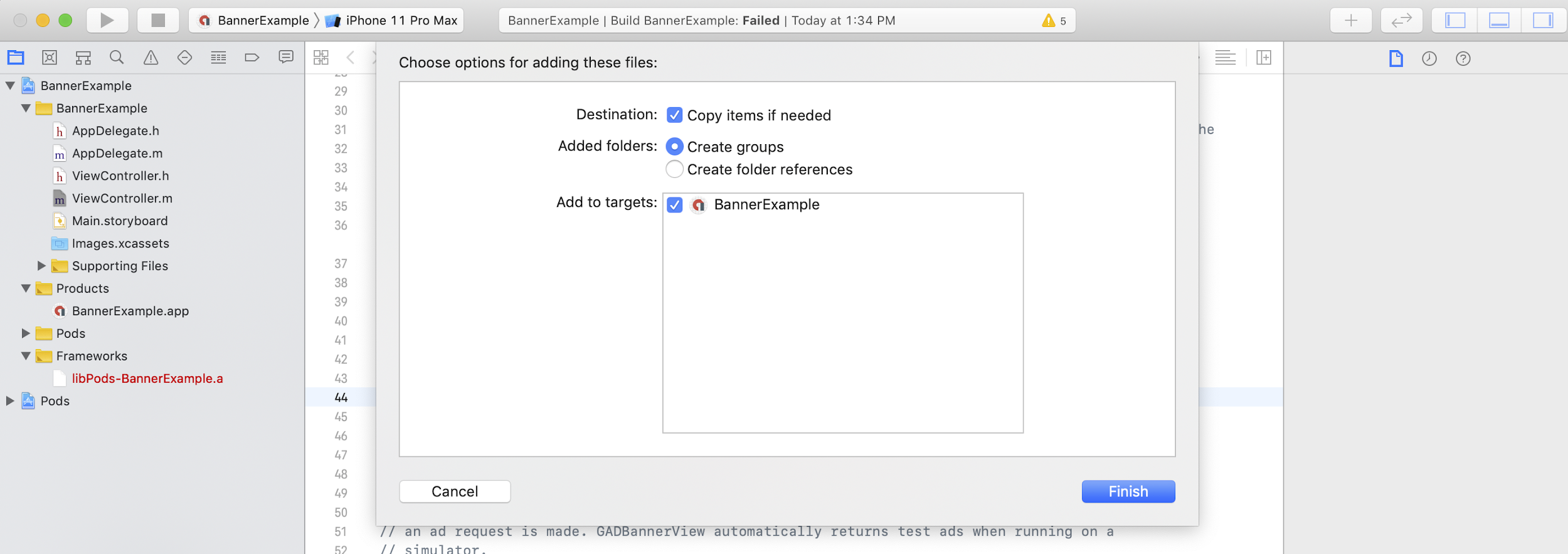
You can then include the framework in any file you need using:
### Swift
```swift
import UserMessagingPlatform
```
### Objective-C
```objective-c
#include
```
### CocoaPods
> [!CAUTION]
> **Caution:** Starting December 2, 2026, the [CocoaPods Specs repository](https://blog.cocoapods.org/CocoaPods-Specs-Repo/) is in read-only mode. As of this date, Google no longer publishes new versions of the UMP SDK to CocoaPods.
To use [CocoaPods](https://guides.cocoapods.org/using/getting-started), open your
project's Podfile and add this line to your app's target:
pod 'GoogleUserMessagingPlatform'
Then, run the following command:
```bash
pod install --repo-update
```
If you're new to CocoaPods, see [Using
CocoaPods](https://guides.cocoapods.org/using/using-cocoapods) for details on how to
create and use Podfiles.
## Add the application ID
You can find your application ID in the
[AdMob UI](https://support.google.com/admob/answer/7356431#find-an-app-id).
Add the ID to your
`Info.plist`
with the following code snippet:
```xml
GADApplicationIdentifier
ca-app-pub-xxxxxxxxxxxxxxxx~yyyyyyyyyy
```
## Get the user's consent information
You should request an update of the user's consent information at every app
launch, using `
requestConsentInfoUpdate(with:completionHandler:)`. This request checks the following:
- **Whether consent is required**. For example, consent is required for the first time, or the previous consent decision expired.
- **Whether a privacy options entry point is required**. Some privacy messages require apps to allow users to modify their privacy options at any time.
### Swift
```swift
// Requesting an update to consent information should be called on every app launch.
ConsentInformation.shared.requestConsentInfoUpdate(with: parameters) {
requestConsentError in
// ...
}
```
### SwiftUI
```swift
// Requesting an update to consent information should be called on every app launch.
ConsentInformation.shared.requestConsentInfoUpdate(with: parameters) {
requestConsentError in
// ...
}
```
### Objective-C
```objective-c
// Requesting an update to consent information should be called on every app launch.
[UMPConsentInformation.sharedInstance
requestConsentInfoUpdateWithParameters:parameters
completionHandler:^(NSError *_Nullable requestConsentError) {
// ...
}];
```
> [!WARNING]
> **Warning:** We don't recommend that you check consent status in another way, such as the cache in your app or a previously saved consent string. These methods might return outdated user consent data.
## Load and present the privacy message form
After you have received the most up-to-date consent status, call
`
loadAndPresentIfRequired(from:)` to load any forms required to
collect user consent. After loading, the forms present immediately.
> [!IMPORTANT]
> **Key Point:** If no privacy message forms require collection of user consent prior to requesting ads, the callback is invoked immediately.
### Swift
```swift
try await ConsentForm.loadAndPresentIfRequired(from: viewController)
```
### SwiftUI
```swift
try await ConsentForm.loadAndPresentIfRequired(from: nil)
```
### Objective-C
```objective-c
[UMPConsentForm
loadAndPresentIfRequiredFromViewController:viewController
completionHandler:^(NSError *_Nullable loadAndPresentError) {
// Consent gathering process is complete.
}];
```
## Privacy options
Some privacy message forms are presented from a publisher-rendered privacy
options entry point, letting users manage their privacy options at any time.
To learn more about which message your users see at the privacy options
entry point, see
[Available user message types](https://support.google.com/admob/answer/10114020).
### Check if a privacy options entry point is required
After you have called `
requestConsentInfoUpdate(with:completionHandler:)`, check `
UMPConsentInformation.sharedInstance.privacyOptionsRequirementStatus` to
determine if a privacy options entry point is required for your app. If an entry
point is required, add a visible and interactable UI element to your app that
presents the privacy options form. If a privacy entry point is not required,
configure your UI element to be not visible and interactable.
### Swift
```swift
var isPrivacyOptionsRequired: Bool {
return ConsentInformation.shared.privacyOptionsRequirementStatus == .required
}
```
### Objective-C
```objective-c
- (BOOL)isPrivacyOptionsRequired {
return UMPConsentInformation.sharedInstance.privacyOptionsRequirementStatus ==
UMPPrivacyOptionsRequirementStatusRequired;
}
```
For the full list of privacy options requirement statuses, see
`
UMPPrivacyOptionsRequirementStatus`.
### Present the privacy options form
When the user interacts with your element, present the privacy options form:
### Swift
```swift
try await ConsentForm.presentPrivacyOptionsForm(from: viewController)
```
### SwiftUI
```swift
try await ConsentForm.presentPrivacyOptionsForm(from: nil)
```
### Objective-C
```objective-c
[UMPConsentForm presentPrivacyOptionsFormFromViewController:viewController
completionHandler:completionHandler];
```
## Request ads with user consent
Before requesting ads, use `
UMPConsentInformation.sharedInstance.canRequestAds` to check if you've
obtained consent from the user:
### Swift
```swift
ConsentInformation.shared.canRequestAds
```
### Objective-C
```objective-c
UMPConsentInformation.sharedInstance.canRequestAds;
```
Listed are the following places to check if you can request ads while gathering
consent:
- After the UMP SDK gathers consent in the current session.
- Immediately after you have called `
requestConsentInfoUpdate(with:completionHandler:)`. The UMP SDK might have obtained consent in the previous app session.
> [!IMPORTANT]
> **Important:** `
> UMPConsentInformation.sharedInstance.canRequestAds` always returns `false` until you have called `
>
> requestConsentInfoUpdate(with:completionHandler:)`
If an error occurs during the consent gathering process, check if you can
request ads. The UMP SDK uses the consent status from the previous app session.
#### Prevent redundant ad request work
As you check `
UMPConsentInformation.sharedInstance.canRequestAds` after gathering consent and after calling
`
requestConsentInfoUpdate(with:completionHandler:)`, ensure your logic prevents redundant ad requests that
might result in both checks returning `true`. For example, with a boolean
variable.
## Testing
If you want to test the integration in your app as you're developing, follow
these steps to programmatically register your test device. Be sure to remove the
code that sets these test device IDs before you release your app.
> [!NOTE]
> **Note:** Simulators don't need to be added to your device ID list as they are test devices by default.
1. Call `
requestConsentInfoUpdate(with:completionHandler:)`.
2. Check the log output for a message similar to the following example, which
shows your device ID and how to add it as a test device:
To enable debug mode for this device, set: UMPDebugSettings.testDeviceIdentifiers = @[2077ef9a63d2b398840261c8221a0c9b]
3. Copy your test device ID to your clipboard.
4. Modify your code to call
`UMPDebugSettings().testDeviceIdentifiers` and pass in
a list of your test device IDs.
### Swift
```swift
let parameters = RequestParameters()
let debugSettings = DebugSettings()
debugSettings.testDeviceIdentifiers = ["TEST-DEVICE-HASHED-ID"]
parameters.debugSettings = debugSettings
// Include the UMPRequestParameters in your consent request.
ConsentInformation.shared.requestConsentInfoUpdate(
with: parameters,
completionHandler: { error in
// ...
})
```
### Objective-C
```objective-c
UMPRequestParameters *parameters = [[UMPRequestParameters alloc] init];
UMPDebugSettings *debugSettings = [[UMPDebugSettings alloc] init];
debugSettings.testDeviceIdentifiers = @[ @"TEST-DEVICE-HASHED-ID" ];
parameters.debugSettings = debugSettings;
// Include the UMPRequestParameters in your consent request.
[UMPConsentInformation.sharedInstance
requestConsentInfoUpdateWithParameters:parameters
completionHandler:^(NSError *_Nullable error){
// ...
}];
```
### Force a geography
The UMP SDK provides a way to test your app's behavior as though the device
were located in various regions, such as the European Economic Area (EEA), the
United Kingdom (UK), and Switzerland using
[`geography`](https://developers.google.com/admob/ios/privacy/api/reference/Classes/UMPDebugSettings.md.txt#geography). Note that
debug settings only work on test devices.
### Swift
```swift
let parameters = RequestParameters()
let debugSettings = DebugSettings()
debugSettings.testDeviceIdentifiers = ["TEST-DEVICE-HASHED-ID"]
debugSettings.geography = .EEA
parameters.debugSettings = debugSettings
// Include the UMPRequestParameters in your consent request.
ConsentInformation.shared.requestConsentInfoUpdate(
with: parameters,
completionHandler: { error in
// ...
})
```
### Objective-C
```objective-c
UMPRequestParameters *parameters = [[UMPRequestParameters alloc] init];
UMPDebugSettings *debugSettings = [[UMPDebugSettings alloc] init];
debugSettings.testDeviceIdentifiers = @[ @"TEST-DEVICE-HASHED-ID" ];
debugSettings.geography = UMPDebugGeographyEEA;
parameters.debugSettings = debugSettings;
// Include the UMPRequestParameters in your consent request.
[UMPConsentInformation.sharedInstance
requestConsentInfoUpdateWithParameters:parameters
completionHandler:^(NSError *_Nullable error){
// ...
}];
```
### Reset consent state
When testing your app with the UMP SDK, you might find it helpful to reset the
state of the SDK so that you can simulate a user's first install experience.
The SDK provides the `reset` method to do this.
### Swift
```swift
ConsentInformation.shared.reset()
```
### Objective-C
```objective-c
[UMPConsentInformation.sharedInstance reset];
```
> [!CAUTION]
> **Caution:** This method is intended to be used for testing purposes only. You shouldn't call `reset` in production code.
## Examples on GitHub
See a full example of the UMP SDK integration covered in this page in
- [Swift BannerExample](https://github.com/googleads/googleads-mobile-ios-examples/tree/main/Swift/admob/BannerExample)
- [SwiftUIDemo](https://github.com/googleads/googleads-mobile-ios-examples/tree/main/Swift/advanced/SwiftUIDemo/SwiftUIDemo)
- [Objective-C BannerExample](https://github.com/googleads/googleads-mobile-ios-examples/tree/main/Objective-C/admob/BannerExample)