After going through [validating events](https://developers.google.com/analytics/devguides/collection/protocol/ga4/validating-events), you'll want to verify your
implementation. The validation server validates that your events have the
correct structure, but to verify that they are being sent correctly to your
property, you'll need to do the following:
- [Send an event from a client](https://developers.google.com/analytics/devguides/collection/protocol/ga4/verify-implementation#client_send)
- [Send an event to your property](https://developers.google.com/analytics/devguides/collection/protocol/ga4/verify-implementation#send)
- [Check the Realtime view](https://developers.google.com/analytics/devguides/collection/protocol/ga4/verify-implementation#realtime)
- [Check DebugView](https://developers.google.com/analytics/devguides/collection/protocol/ga4/verify-implementation#debugview)
If you're not seeing your events after going through these steps, check
[troubleshooting](https://developers.google.com/analytics/devguides/collection/protocol/ga4/troubleshooting) for common implementation errors.
## Send an event from a client
Choose your client:
In order for an event to be valid, it must have an `app_instance_id` that has
already been used to send an event from the Google Analytics for Firebase SDK.
Capture this ID client-side, and include it in your call to the
Measurement Protocol. In [send an event to your property](https://developers.google.com/analytics/devguides/collection/protocol/ga4/verify-implementation#send), we use
`"app_instance_id"` as the `app_instance_id`. You will need to replace this with
a real `app_instance_id` that comes from the SDK. See
[are you using the correct app_instance_id](https://developers.google.com/analytics/devguides/collection/protocol/ga4/troubleshooting#correct_app_instance_id) for how to
make sure you're using a valid value.
> [!NOTE]
> **Note:** Be careful not to mix up `app_instance_id` and `firebase_app_id`. `firebase_app_id` is same for all users, but `app_instance_id` varies for every installation.
## Send an event to your property
After you have sent an event from a client and captured a valid
`app_instance_id`, you'll be ready to send an event using the Measurement
Protocol. When verifying your implementation, you should send the exact event
that you're trying to measure using the Measurement Protocol.
For example, the following sends a [refund](https://developers.google.com/analytics/devguides/collection/protocol/ga4/reference/events#refund) event:
const firebaseAppId = "FIREBASE_APP_ID";
const apiSecret = "API_SECRET";
fetch(`https://www.google-analytics.com/mp/collect?firebase_app_id=${firebaseAppId}&api_secret=${apiSecret}`, {
method: "POST",
headers: {
"Content-Type": "application/json"
},
body: JSON.stringify({
"app_instance_id": "APP_INSTANCE_ID",
"events": [{
"name": "refund",
"params": {
"currency": "USD",
"value": "9.99",
"transaction_id": "ABC-123"
}
}]
})
});
## Check the Realtime view
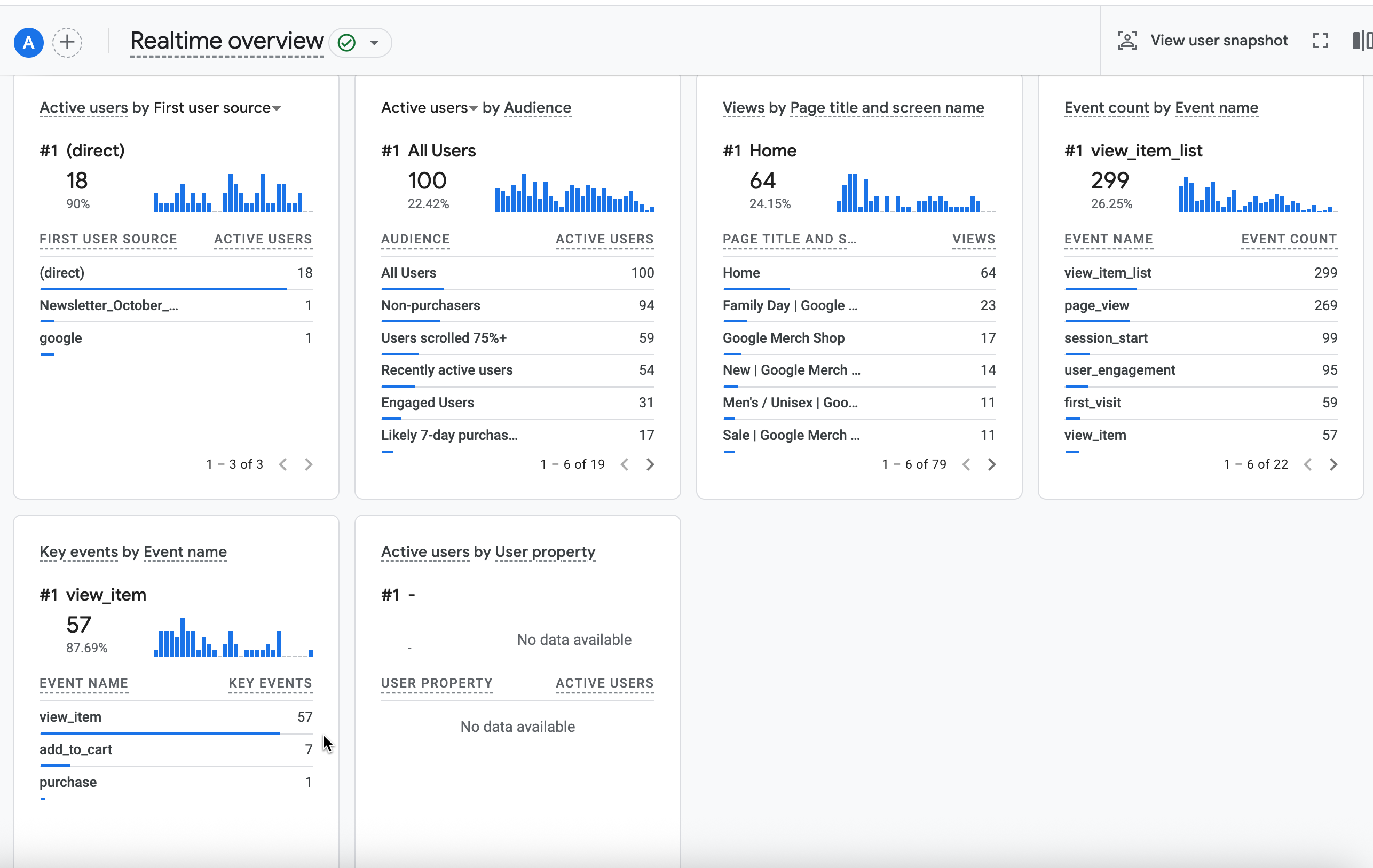
After sending an event using the Measurement Protocol, check the Realtime view
for your property. Events typically show up within a few seconds.
Go to the Realtime view by opening [Google Analytics](https://analytics.google.com), then going to
**Reports** \> **Realtime** in the left navigation. You'll want to focus on the
bottom charts, such as "Event count by Event name" and "Key Events by Event
name."
## Check DebugView
If the Realtime view doesn't provide enough detail for you to verify your
implementation, enable debug mode in some test events by including the following
parameters in the `params` collection so you can monitor and review the events
in **DebugView**:
1. `"debug_mode": true` or `"debug_mode": 1`
2. `"engagement_time_msec"` set to a positive number
For example, the following sends a [refund](https://developers.google.com/analytics/devguides/collection/protocol/ga4/reference/events#refund) with debug mode enabled:
const firebaseAppId = "FIREBASE_APP_ID";
const apiSecret = "API_SECRET";
fetch(`https://www.google-analytics.com/mp/collect?firebase_app_id=${firebaseAppId}&api_secret=${apiSecret}`, {
method: "POST",
headers: {
"Content-Type": "application/json"
},
body: JSON.stringify({
"app_instance_id": "APP_INSTANCE_ID",
"events": [{
"name": "refund",
"params": {
"currency": "USD",
"value": "9.99",
"transaction_id": "ABC-123",
"engagement_time_msec": 1200,
"debug_mode": true
}
}]
})
});
After you send events with debug mode enabled, follow the instructions for
[monitoring events using **DebugView**](https://support.google.com/analytics/answer/7201382) to verify your implementation.