# Create an enterprise binding
To enroll a new organization through your EMM console, you need to create an
enterprise binding. An
[`Enterprises` resource](https://developers.google.com/android/work/play/emm-api/v1/enterprises) represents
the binding between an EMM and an organization. You use an instance of it to
invoke operations on behalf of the organization.
The Play EMM API provides three ways to create an enterprise binding instance:
- [Managed Google domain sign-up](https://developers.google.com/android/work/play/emm-api/create-enterprise#managed_google_domain_sign-up)
---This method can be used in place of both other methods. Organizations with an
existing managed Google domain and organization that are new to working with
Google will use the same sign-up UI. The journey they take through the UI will
vary according to their situation and needs. The organization does not need to
obtain an EMM token in advance.
- [Managed Google Play Accounts sign-up](https://developers.google.com/android/work/play/emm-api/create-enterprise#managed_google_play_accounts_sign-up)
---An organization wants to use managed Google Play Accounts. You can integrate
Google's Android sign-up UI with your EMM console and provide organizations a
quick way to create an enterprise binding instance that binds them to
your EMM. This enables managed Google Play Accounts for users and devices.
This approach is sometimes referred to as *EMM-initiated* in the API
documentation. This method is deprecated in favor of the managed Google domain
sign-up method preceding.
- [Managed Google domain enrollment](https://developers.google.com/android/work/play/emm-api/create-enterprise#managed_google_domain_enrollment)
---An organization has an existing managed Google domain. IT admins complete
several manual tasks, such as verifying domain ownership with Google, obtaining
an EMM token, and creating an enterprise service account. This approach is
sometimes referred to as *Google-initiated* in the API documentation.
You can support either approach in your EMM console using the
[`Enterprises`](https://developers.google.com/android/work/play/emm-api/v1/enterprises) resource. Table 1
shows the relevant fields and operations of this resource for binding
organizations to EMMs.
#### Table 1: Enterprises APIs and the alternative binding processes
| | Managed Google Play Accounts enterprise | Managed Google domain | Description |
|---|---|---|---|
| Field ||||
| id | Yes | Yes | Unique identifier for the organization, returned from [enroll](https://developers.google.com/android/work/play/emm-api/v1/enterprises/enroll) and [completeSignup](https://developers.google.com/android/work/play/emm-api/v1/enterprises/completeSignup) calls. |
| kind | Yes | Yes | Identifies the type of resource using a fixed string value, "androidenterprise#enterprise". |
| name | Yes | Yes | Organization associated with the `enterprise` object. |
| primaryDomain | Not set | Yes | Because managed Google Play Accounts enterprises are not tied to the Google domain model, this field is relevant only for managed Google domains. |
| administrator\[\] | Yes | Not set | The IT admin who signs up for Android using the EMM-initiated sign-up process becomes the administrator (owner) of the enterprise binding. Using the managed Google Play console, the IT admin can invite other users in the organization to participate in administration tasks. See [Managed Google Play Help Center](https://support.google.com/googleplay/work#topic=6137720). |
| administrator\[\].email | Yes | Not set | The IT admin who signs up for Android using the EMM-initiated sign-up process becomes the administrator (owner) of the enterprise binding. Using the managed Google Play console, the IT admin can invite other users in the organization to participate in administration tasks. See [Managed Google Play Help Center](https://support.google.com/googleplay/work#topic=6137720). |
| Methods ||||
| completeSignup | Yes | Yes | Given a `completionToken` and an `enterpriseToken`, returns an Enterprises resource in the response body. |
| generateSignupUrl | Yes | Yes | Given a `callbackUrl`, returns a URL and a `completionToken`. |
| enroll | No | Yes | Enrolls the caller with the EMM whose token is submitted with the request. |
| getServiceAccount | Yes | Yes | Returns a service account and credentials. |
| setAccount | Yes | Yes | Sets the account that will be used to authenticate to the API as the enterprise. |
| unenroll | Yes | Yes | EMMs can sever the binding to either type of enterprise using unenroll. Must be invoked using the EMM's credentials for the MSA, not the ESA credentials. |
## Managed Google Play Accounts sign-up
This sign-up method is deprecated. Use the
[managed Google domain sign-up](https://developers.google.com/android/work/play/emm-api/create-enterprise#managed_google_domain_sign-up) method instead.
## Managed Google domain sign-up
You can integrate the sign-up process in your EMM console:
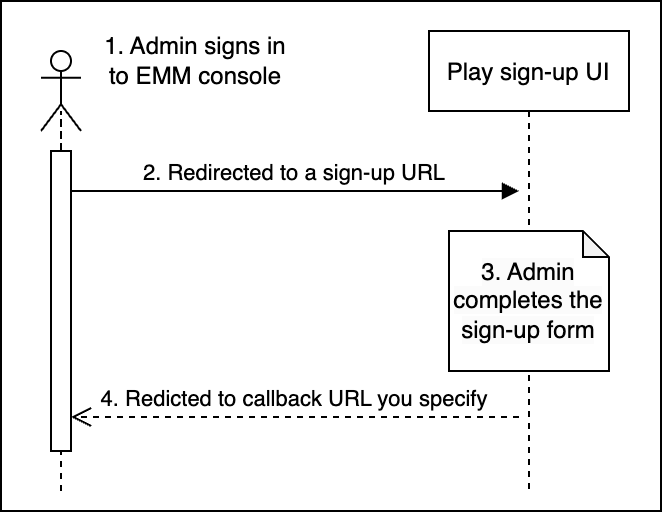 **Figure 1.** Managed Google domain sign-up workflow
An IT admin initiates the process of creating an enterprise. To do this, the IT
admin:
1. Signs in to your EMM console.
2. Clicks or selects *Configure Android* (for example) and is redirected to a sign-up UI hosted by Google.
3. Provides details about the enterprise in the sign-up UI.
4. Is redirected to your EMM console.
The IT admin's email address is now linked to a Google Account which is an admin
account for a managed Google domain.
**Best practice** : Follow the [Google security
guidelines](https://support.google.com/accounts/answer/46526) to help keep the
admin account secure.
### Prerequisites
**For IT admins**
- Access to your EMM console and the permissions needed to make the appropriate
selection in your console (*Manage Android* for example, as a menu choice).
- A work email address. This should be part of a domain owned by the
organization, not a shared domain such as Gmail.com
> [!NOTE]
> **Note:** if the IT admin does not have an email address belonging to a private domain, they will be guided through the sign-up UI to create a managed Google Play Accounts enterprise. This will have no impact on their ability to manage Android devices, but it will restrict their usage to Android only, and prevent their users from using cross-device experiences in the future.
**For your EMM console**
To implement the managed Google domain sign-up flow, your EMM console
must be able to:
- Use your MSA credentials when invoking calls on the Play EMM APIs. Your MSA
is used to invoke many of the operations on behalf of an IT admin until the
organization's enterprise service account (ESA) is set.
- Handle redirection via a secure URL to a Google-provided external site to
initiate the sign-up flow and complete the enrollment process.
- Be configurable with ESA credentials after enrollment. Because your EMM
console can be used to create many enterprises within any given organization's
site, you'll need a way to associate each `enterpriseId` with its own service
account and credentials. Consider creating service accounts for the
organization by calling [`Enterprises.getServiceAccount`](https://developers.google.com/android/work/play/emm-api/v1/enterprises/getServiceAccount)
and handling key management using
[`Serviceaccountkeys`](https://developers.google.com/android/work/play/emm-api/v1/serviceaccountkeys) APIs.
See [Create enterprise service accounts programmatically](https://developers.google.com/android/work/play/emm-api/create-enterprise#prog-esa-gen)
for more details.
The Android sign-up process requires you to provide a secure (https) service for
your console's use at runtime. The URL to this secure service can be a local URL
and can include session or other unique identifying information, as long as it's
well-formed so that the system can parse it. For example:
`https://localhost:8080/enrollmentcomplete?session=12345`
### Enrollment process
The sign-up process is designed to take less than 5 minutes. The steps below
assume that the server hosting the `callbackUrl` is up and running. These steps
also assume that your console includes a UI component, such as a menu selection
with *Manage Android* as an option, that starts the sign-up process when an
authenticated IT admin selects the option.
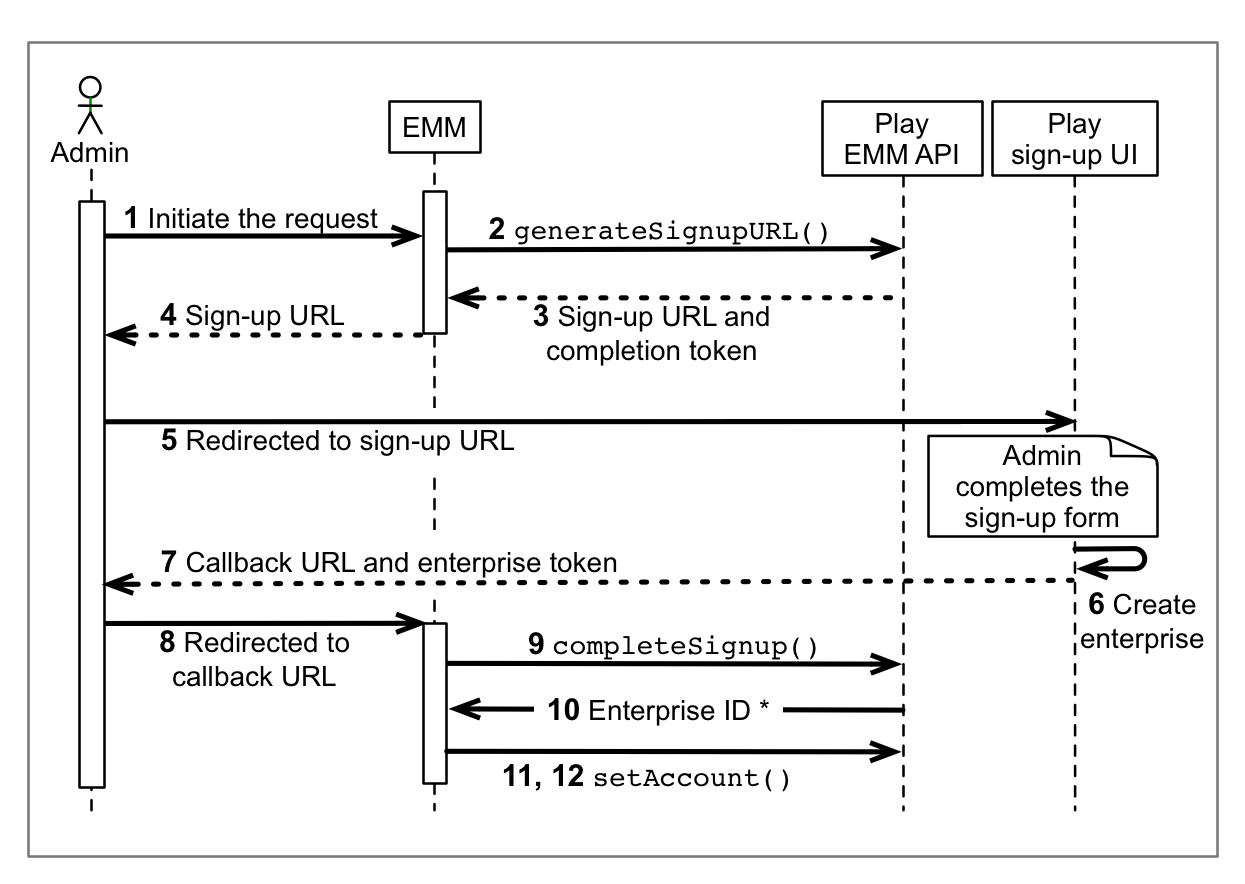 **Figure 2.** 12-step process to create a binding to a managed Google domain
1. An IT admin initiates an enrollment request in your EMM console.
2. Call [`Enterprises.generateSignupUrl`](https://developers.google.com/android/work/play/emm-api/v1/enterprises/generateSignupUrl)
with `callbackURL` as the only parameter. Example:
```
https://localhost:8080/enrollcomplete?session=12345
```
3. The response will contain a sign-up URL (valid for 30 minutes) and a
completion token. Extract and save the completion token.
**Best practice:** Associate the completion token with the IT admin that
initiated the sign-up.
4. Extract the `url` from the `generateSignupURL` response.
5. Redirect to the URL extracted in step 4.
6. The IT admin follows the setup flow in the sign-up UI to create an
enterprise binding:
1. The IT admin enters details about themselves and their organization and
sets a password if they don't already have a Google Account.
2. The IT admin is shown the EMM name, and they confirm that the
organization will be bound with this EMM.
3. The IT admin agrees to the Google terms of service.
7. The sign-up UI generates a callback URL based on the URL specified in step 2.
8. The sign-up UI redirects the IT admin to the callback URL. Extract and save
the enterprise token to the URL. Example:
```
https://localhost:8080/enrollcomplete?session=12345&enterpriseToken=5h3jCC903lop1
```
9. Call [`Enterprises.completeSignup`](https://developers.google.com/android/work/play/emm-api/v1/enterprises/completeSignup),
passing the `completionToken` (step 3) and `enterpriseToken` (step 8).
10. The call returns an
[`Enterprises` instance](https://developers.google.com/android/work/play/emm-api/v1/enterprises#resource)
in the response body. Store the `id`, `name`, and administrator email (if
present) for future use.
11. Create an enterprise service account (ESA). ESA credentials take the form of
an email address and a private key. There are two ways to create an ESA:
- **Best practice:** [Create the ESA programmatically](https://developers.google.com/android/work/play/emm-api/create-enterprise#prog-esa-gen), using the Play EMM API.
- Display a page that instructs the IT admin to create an ESA in the Google API Console. See [Creating a Service
Account](https://cloud.google.com/iam/docs/creating-managing-service-accounts#creating_a_service_account) for more detailed information (instruct the administrator to select **project \> Editor** as their role and check the private key download box). After the IT admin creates an ESA, configure your console with the ESA's private-key credentials
12. Using your MSA credentials, call
[`setAccount`](https://developers.google.com/android/work/play/emm-api/v1/enterprises/setAccount) to set
the ESA for this organization.
**The enrollment process is complete**
- The new managed Google domain is bound to your EMM.
- The IT admin's Google Account is configured as an admin of the domain and can access to manage the organization's apps.
- Your EMM console can use the ESA to manage the organization's data through the Google Play EMM API.
### Create ESAs programmatically
To simplify key management for ESAs, use the Google Play EMM API to generate
service accounts for organizations instead of the Google Cloud Console. Service
accounts generated through the Play EMM API:
- Are not visible on any Cloud Console project that belongs to you or the organization; they must be managed programmatically.
- Are deleted when you [unenroll](https://developers.google.com/android/work/play/emm-api/create-enterprise#unenroll_re-enroll_or_delete_an_enterprise_binding) the organization.
To generate a service account programmatically:
1. Call [`Enterprises.getServiceAccount`](https://developers.google.com/android/work/play/emm-api/v1/enterprises/getServiceAccount)
with the `enterpriseId` (see step 10 in the [Enrollment
process](https://developers.google.com/android/work/play/emm-api/create-enterprise#enrollment_process))
and specify the type of key (`keyType`) you want (googleCredentials, pkcs12).
The system returns a service account name and a private key for the service
account (in the same formats returned by the Google API Console).
2. Call [`Enterprises.setAccount`](https://developers.google.com/android/work/play/emm-api/v1/enterprises/setAccount)
and set the service account for the organization.
**Best practice:** Support having the IT admin change the ESA credentials. To do
this in your EMM console, use the existing ESA to call `setAccount`.
#### Manage service account keys
The service accounts returned from
[`Enterprises.getServiceAccount`](https://developers.google.com/android/work/play/emm-api/v1/enterprises/getServiceAccount)
are created transparently by Google. As an EMM, you don't have access to these
accounts. However, you can integrate the
[`Serviceaccountkeys`](https://developers.google.com/android/work/play/emm-api/v1/serviceaccountkeys)
API into your console to allow organizations to manage their own
programmatically generated ESAs and keys.
The [Serviceaccountkeys](https://developers.google.com/android/work/play/emm-api/v1/serviceaccountkeys) API
allows an organization to insert, delete, and list the active credentials for
their service accounts. These APIs must be invoked while authorized as the ESA
that's been set for the organization, and that ESA must have been generated
from `getServiceAccount`. In other words, after an organization calls
[`Enterprises.setAccount`](https://developers.google.com/android/work/play/emm-api/v1/enterprises/setAccount)
(using the service account generated by
[`Enterprises.getServiceAccount`](https://developers.google.com/android/work/play/emm-api/v1/enterprises/getServiceAccount)),
only that organization is authorized to invoke calls on the
[Serviceaccountkeys](https://developers.google.com/android/work/play/emm-api/v1/serviceaccountkeys) API to
manage the account.
#### Table 2. Serviceaccountkeys API
|---|---|
| Fields ||
| id | An opaque unique string identifier for the ServiceAccountKey assigned by the server. |
| kind | Identifies the resource using the fixed string `androidenterprise#serviceAccountKey`. |
| type | File format of the generated key data. Acceptable values: - googleCredentials - pkcs12 |
| data | A string comprising the body of the private credentials file. Populated upon creation. Not stored by Google. |
| Methods ||
| delete | Remove and invalidate specified credentials for the service account (specified with `enterpriseId` and `keyId`). |
| insert | Generate new credentials for the service account associated with the enterprise. |
| list | List all active credentials for the service account associated with the enterprise. Returns only the ID and key type. |
#### Notifications
You can obtain notifications from programmatically generated ESAs by
calling [`Enterprises.pullNotificationSet`](https://developers.google.com/android/work/play/emm-api/v1/enterprises/pullNotificationSet).
See [Set up EMM notifications](https://developers.google.com/android/work/play/emm-api/about-notifications)
for more information.
## Managed Google domain enrollment
> [!NOTE]
> **Note:** this enrollment method is no longer required. The [managed Google domain sign-up method](https://developers.google.com/android/work/play/emm-api/create-enterprise#managed_google_domain_sign-up) can be used to bind your EMM to an existing managed Google domain.
To manage devices belonging to a managed Google domain, you need to establish a
connection (known as a binding) between your EMM console, the organization, and
Google.
### Prerequisites
The organization must have a managed Google domain, EMM enrollment token, and
enterprise service account (ESA). Instructions for IT admins on how to obtain
these details are available in the [Android Enterprise Help
Center](https://support.google.com/work/android/answer/6174046).
**Managed Google domain**
If the organization's IT admin claimed a managed
domain when they signed up for Google Workspace, they can enable Android
management from the Google Admin console. If the organization doesn't have a
managed Google domain, their IT admin must go through a one-time web
registration process with Google.
**EMM token**
IT admins can obtain an EMM token from the
[Google Admin console](http://admin.google.com) (under **Devices \> Mobile \&
Endpoints \> Settings \> Third-party integrations**).
**ESA**
Your organization's IT admin can create the ESA, typically through
the Google Cloud Console on a project associated with your EMM console. ESAs
have a name, an ID, and a key that authenticates the account for actions taken
on their behalf. The ID is formatted similarly to an email address, with the
name of the service account preceding the @ symbol and the project name
following, along with Google services information (for example,
some-orgs-esa@myemmconsole313302.iam.gserviceaccount.com).
### Enrollment process
1. An IT admin gets an EMM token from the Google Admin console.
2. The IT admin shares the EMM token with you, which authorizes you to manage Android on their domain.
3. Through your EMM console, use the EMM token to call [`Enterprises.enroll`](https://developers.google.com/android/work/play/emm-api/v1/enterprises/enroll). This binds the organization's Android solution to their Google domain.
- The `enroll` method returns a unique `enterpriseId`, which you can retrieve later (for managed Google domains only) using the [`list`](https://developers.google.com/android/work/play/emm-api/v1/enterprises/list) method.
- Optionally, you can store information about the binding (`enterpriseId`, `primaryDomain`) in a datastore to avoid making API calls to obtain these details. In a Google Accounts scenario, the organization's `primaryDomain` is the unique key that identifies the organization to the EMM and to Google.
4. To make organization-specific calls to the Google Play EMM API:
- Either you create an ESA on behalf of the organization, or an admin creates the ESA, then shares it with you.
- Through your EMM console, call [`setAccount`](https://developers.google.com/android/work/play/emm-api/v1/enterprises/setAccount), using the `enterpriseId` and the email address of the ESA. This enables the ESA to authenticate to the API as the enterprise.
### Example
Here's an example that enrolls an organization, given a `primaryDomainName`,
`serviceAccountEmail`, and `authenticationToken`:
```
public void bind(String primaryDomainName, String serviceAccountEmail,
String authenticationToken) throws IOException {
Enterprise enterprise = new Enterprise();
enterprise.setPrimaryDomain(primaryDomainName);
Enterprise result = androidEnterprise.enterprises()
.enroll(authenticationToken, enterprise)
.execute();
EnterpriseAccount enterpriseAccount = new EnterpriseAccount();
enterpriseAccount.setAccountEmail(serviceAccountEmail);
androidEnterprise.enterprises()
.setAccount(result.getId(), enterpriseAccount)
.execute();
}
```
This example uses the client library for Java and the
`AndroidEnterprise` service class from the
[`com.google.api.services.androidenterprise.model`](https://developers.google.com/resources/api-libraries/documentation/androidenterprise/v1/java/latest/)
package. The procedure shown in the sample can be summarized in these steps:
1. Create a new `AndroidEnterprise` object with the parameters provided by `bind`, a model class containing the primary domain name, the service account email address, and the EMM enrollment token.
2. Specify the primary domain name of the newly created enterprise object.
3. Call the enroll method, providing the enterprise object and the enrollment token.
4. Create a new EnterpriseAccount object with the customer's ESA ID (`serviceAccountEmail`).
5. Set the account by providing both the `enterpriseId` (returned in step 3) and `enterpriseAccount` fields.
Optionally, you can store information about the binding (`enterpriseId`,
`primaryDomain`) in a datastore to avoid making API calls to obtain these
details. In a Google Accounts scenario, the organization's `primaryDomain` is
the unique key that identifies the organization to the EMM and to Google.
## Set up an on-premises deployment
If an organization requires its data to remain on site, inaccessible to you, you
need to make sure your servers never see an active set of credentials for the
ESA. To do this, generate and store a set of ESA credentials on site:
1. Complete the [enrollment flow](https://developers.google.com/android/work/play/emm-api/create-enterprise#enrollment_process):
1. As shown in step 11, use your MSA to call `getServiceAccount`. This generates ESA credentials.
2. As shown in step 12, use `setAccount` on the ESA to set it as the ESA for this organization.
2. Pass the ESA to the organization's on-premises server.
3. Take the following steps on the on-premises server :
1. Call [`Serviceaccountkeys.insert`](https://developers.google.com/android/work/play/emm-api/v1/serviceaccountkeys/insert) to create a new key for the ESA. This private key is not stored on Google servers and is only returned once, when the account is created. It is not accessible any other way.
2. Use the new ESA credentials to call [`Serviceaccountkeys.list`](https://developers.google.com/android/work/play/emm-api/v1/serviceaccountkeys/list). This returns the active service account credentials.
3. Call [`Serviceaccountkeys.delete`](https://developers.google.com/android/work/play/emm-api/v1/serviceaccountkeys/delete) to delete all credentials *except* the ESA credentials that were just created on premises.
4. (Optional) Call [`Serviceaccountkeys.list`](https://developers.google.com/android/work/play/emm-api/v1/serviceaccountkeys/list) to verify that the credentials currently being used on premises are the only valid credentials for the service account.
The on-premises server is now the only server with the ESA credentials. Only an
ESA generated through `getServiceAccount` can access
`ServiceAccountKeys`---your MSA is not allowed to call it.
**Best practice**: Don't store your master service account (MSA) credentials on
premises. Use a separate ESA for each on-premises deployment.
## Unenroll, re-enroll, or delete an enterprise binding
### Unenroll
To unbind an organization from your EMM solution, use
[`unenroll`](https://developers.google.com/android/work/play/emm-api/v1/enterprises/unenroll). An enterprise
binding isn't deleted when it's unenrolled, but its EMM-managed users and all
their related user data are deleted after 30 days. Here's an example
implementation:
public void unbind(String enterpriseId) throws IOException {
androidEnterprise.enterprises().unenroll(enterpriseId).execute();
}
**Best practice:** If you have a datastore for organization name and enterprise
binding ID mappings, delete the information from your datastore after calling
`unenroll`.
### Re-enroll
An IT admin can re-enroll an enterprise using their existing `enterpriseId`. To
do this, they sign in with an owner-level account and follow the [enrollment
process](https://developers.google.com/android/work/play/emm-api/create-enterprise#enrollment_process).
The re-enrollment flow is transparent from your perspective: there's no way to
determine if the enterprise token returned in the redirect URL (step 8) is from
a new organization or an organization that was previously enrolled with another
EMM.
If an organization was previously enrolled with your EMM solution, you might be
able to recognize the enterprise binding ID. You can restore EMM-managed users
and related user data if an IT admin re-enrolls an organization no more than 30
days after it was unenrolled from you. If an organization was previously
enrolled with a different EMM, the user IDs of EMM-managed users created by the
other EMM won't be accessible to you. This is because these user IDs are
EMM-specific.
### Delete
An IT admin can delete their organization from managed Google Play. Within 24
hours the organization's data, accounts, license assignments, and other
resources are made inaccessible to the admin, the end users, and you. As a
result, your API calls will return an HTTP `404 Not Found` response status code
for the `enterpriseId` parameter. To handle this error in your EMM console,
prompt the IT admin for confirmation before removing any association with the
organization.