# Zero-touch iframe
With the **Zero-touch iframe**, you can embed zero-touch directly into your EMM
console to allow customers to easily configure zero-touch enabled devices with
your DPC. The iframe allows you to configure the DPC and provisioning extras
used during zero-touch device setup.
 **Figure 1.** The zero-touch iframe showing the zero-touch home page.
The first time an IT admin opens the iframe, they'll be prompted to link their
zero-touch account to their enterprise.
Once an IT admin has linked a zero-touch account to their enterprise, the iframe
will display the list of linked zero-touch accounts. They can also see the
default zero-touch configuration set for enterprise devices.
*** ** * ** ***
## Features
This section describes the features available in the Zero-touch iframe. For
information on how to embed the iframe and implement these features, see
[Add the iframe to your console](https://developers.google.com/android/work/play/emm-api/zero-touch-iframe#add_the_iframe_to_your_console).
### Link a zero-touch account to an enterprise
The iframe allows an IT admin to link their zero-touch account and their
enterprise. As part of this process, the IT admin creates a default zero-touch
profile to be used for devices inside of the zero-touch account. This flow is
detailed below.
If the IT admin has not previously linked a zero-touch account to their
enterprise, they are prompted to do so when they open the iframe.
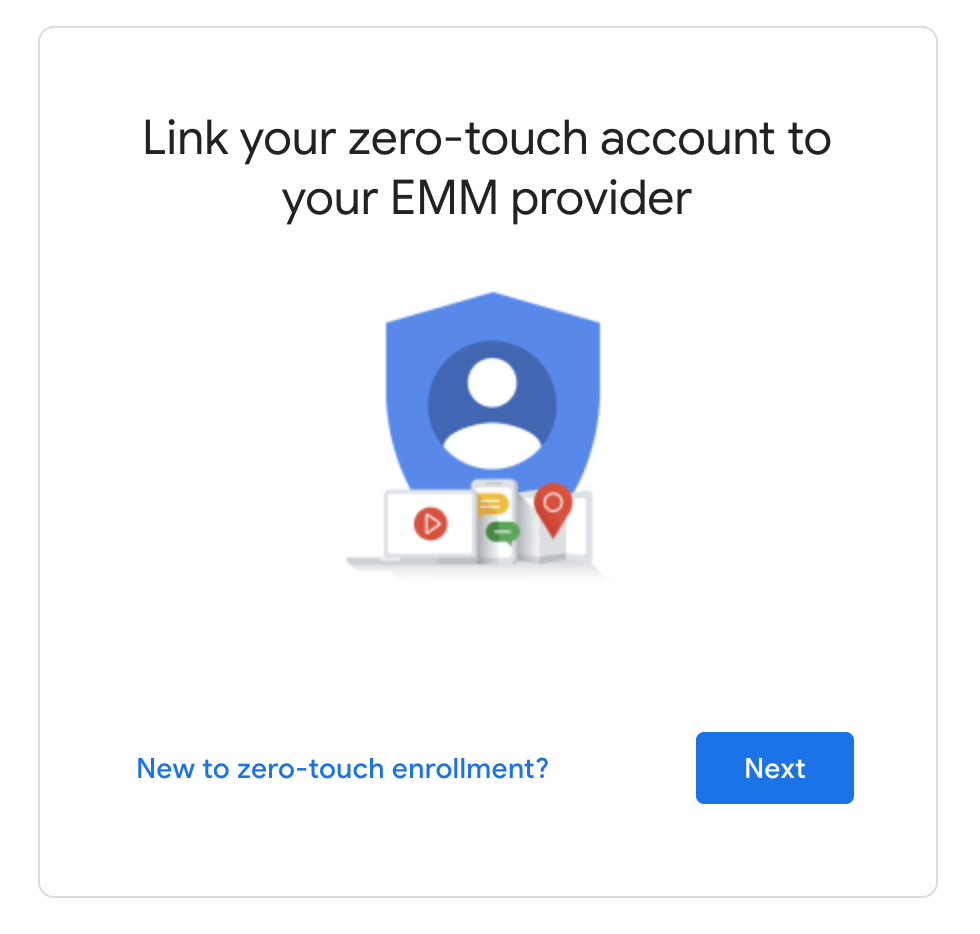 **Figure 2.** Start of the zero-touch iframe linking flow.
The IT admin sees a list of zero-touch accounts and can choose one or more to
link to their enterprise.
 **Figure 3.** Account list screen  **Figure 4.** Configuration screen
The Zero-touch iframe automatically generates a zero-touch configuration. This
configuration is not modifiable by the IT admin. You can customize the DPC or
provisioning extras to be used in this configuration. For more information on
how to do this, see [iframe URL parameters](https://developers.google.com/android/work/play/emm-api/zero-touch-iframe#iframe_url_parameters).
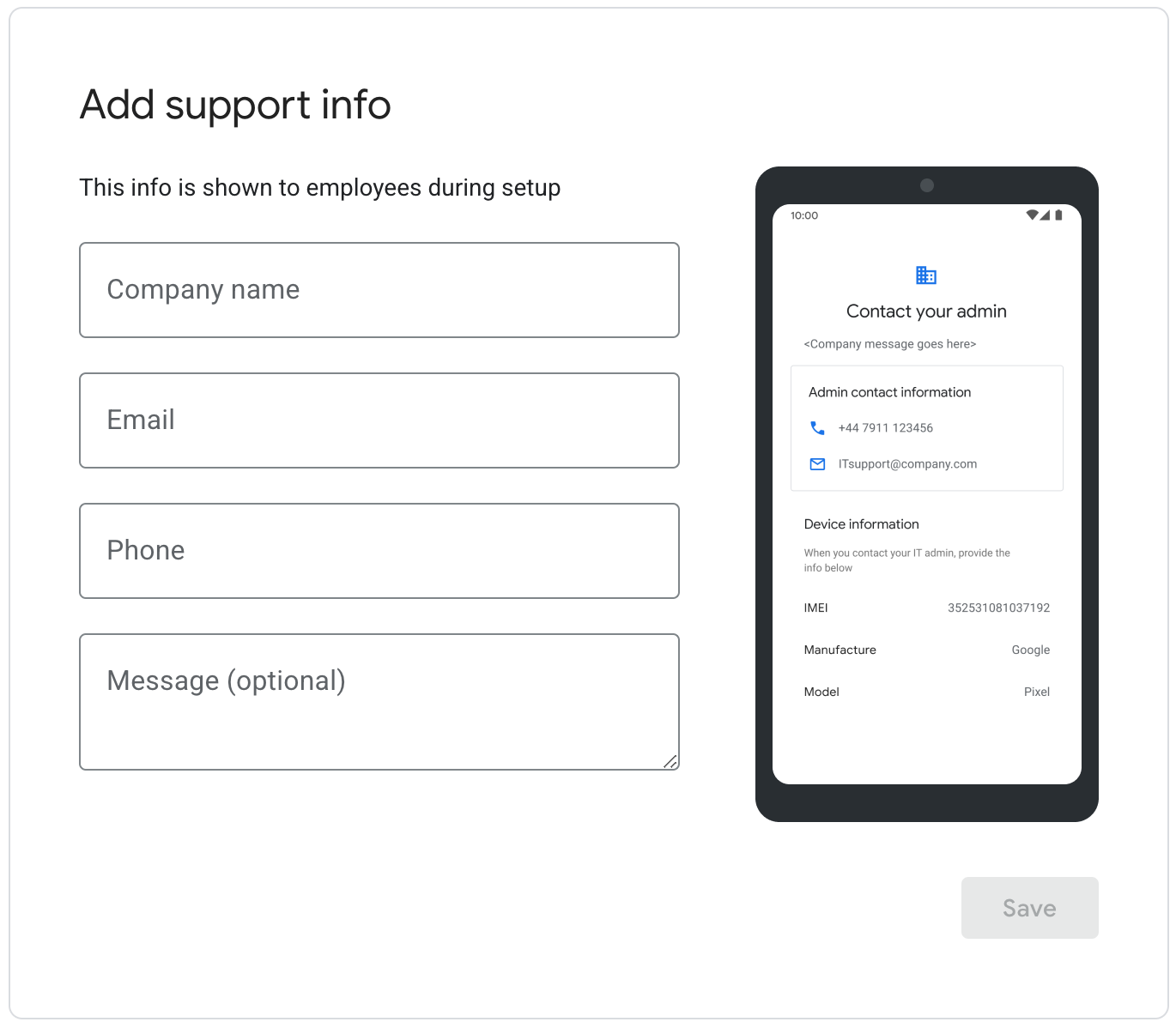 **Figure 5.** Support info entry screen
The IT admin enters support information that appears when zero-touch enabled
devices are set up. When the IT admin clicks "save", the linking process
completes and the user is redirected to the zero-touch iframe home page, where
they can manage their linked accounts.
### View and manage linked zero-touch accounts
The iframe allows an IT admin to view their linked zero-touch accounts and their
default zero-touch profile and support information. In addition, they can link
additional zero-touch accounts and unlink zero-touch accounts.
See Figure 1 for an example view of the Zero-touch iframe home page.
### Viewing devices for linked accounts in the zero-touch portal
When a zero-touch account is linked to an enterprise, all devices in the
zero-touch account that are not configured with a zero-touch profile are
automatically configured with the Enterprise zero-touch profile.
Inside of the zero-touch console, these devices are shown with the "Enterprise
default profile" configuration. The IT admin can set and unset this profile on
any device in the zero-touch account. However, the profile cannot be modified.
If the zero-touch account is unlinked, all devices configured with the
"Enterprise default profile" will have this profile unset. These devices can be
configured with a different profile.
*** ** * ** ***
## Add the iframe to your console
### Step 1: Generate a web token
To generate a web token that identifies the enterprise, call
[`Enterprises.createWebToken`](https://developers.google.com/android/work/play/emm-api/v1/enterprises/createWebToken).
The following example shows how to retrieve the token using the
[Google Play EMM API Client Library for Java](https://developers.google.com/api-client-library/java/apis/androidenterprise/v1).
Note that the Zero-touch iframe must be enabled separately from the managed Play
iframe.
```
public AdministratorWebToken getAdministratorWebToken(
String enterpriseId) throws IOException {
AdministratorWebTokenSpec tokenSpec = new AdministratorWebTokenSpec();
tokenSpec.setParent("https://my-emm-console.com");
tokenSpec.setZeroTouch(new AdministratorWebTokenSpecZeroTouch());
return androidEnterprise
.enterprise()
.createWebToken(enterpriseId, tokenSpec)
.execute();
}
```
You need to include the returned token, along with other parameters, when
rendering the iframe in your console.
### Step 2: Render the iframe
Here's an example of how to render the Zero-touch iframe:
This code generates an iframe inside the container div. Attributes to be applied
to the iframe tag can be set with the 'attributes' option, as above.
### iframe URL parameters
The table below lists all the available parameters for the iframe that can be
added to the URL as URL parameters, e.g:
```
https://enterprise.google.com/android/zero-touch/embedded/companyhome?token=TOKEN&dpcId=com.afwsamples.testdpc
```
| Parameter | Required | Description |
|---|---|---|
| `token` | Yes | The token returned from [Step 1](https://developers.google.com/android/work/play/emm-api/zero-touch-iframe#step_1_generate_a_web_token). |
| `dpcId` | Yes | The package name of the DPC app, i.e. `com.example.app`. Setting this is required. The DPC must be associated with your EMM already. |
| `dpcExtras` | No | URL-encoded JSON object containing provisioning extras. These are passed to the DPC during device setup. |
Example URL, assuming:
- Web Token from API: `abcde`
- DPC: `com.example`
- DPC Extras: `{"server":"www.example.com","enterprise":"example_id"}`
```
https://enterprise.google.com/android/zero-touch/embedded/companyhome?token=abcde&dpcId=com.example&dpcExtras={“server”:“www.example.com”,“enterprise”:”example_id”}
```
URL encoded, this URL would be:
```
https://enterprise.google.com/android/zero-touch/embedded/companyhome?token=abcde&dpcId=com.example&dpcExtras=%7B%E2%80%9Cserver%E2%80%9D%3A%E2%80%9Cwww.example.com%E2%80%9D%2C%E2%80%9Centerprise%E2%80%9D%3A%E2%80%9Dexample_id%E2%80%9D%7D
```