**Coding level** : Beginner
**Duration** : 15 minutes
**Project type** : Automation with an [event-driven trigger](https://developers.google.com/apps-script/guides/triggers/installable#event-driven_triggers)
## Objectives
- Understand what the solution does.
- Understand what the Apps Script services do within the solution.
- Set up the script.
- Run the script.
## About this solution
Automatically create agenda documents in Google Docs and attach them to your
Google Calendar meetings.

### How it works
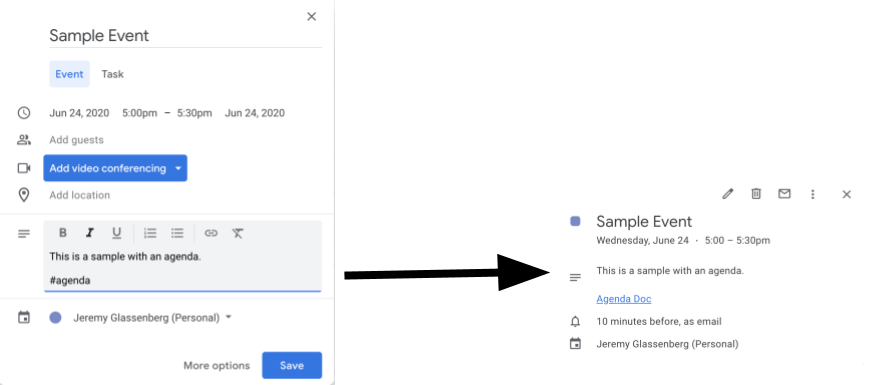
The script creates a document template for an agenda. When you update your
calendar, the script checks to see if any events you own include "#agenda" in
the description. If the tag is present, the script makes a copy of the template,
adds it to the calendar event, and shares it with the event attendees.
### Google Apps Script services
This solution uses the following services:
- [Google Drive service](https://developers.google.com/apps-script/reference/drive): Checks to see if the template document exists. If it doesn't, the script creates a new folder for the template document and creates a copy of the template document for each new agenda.
- [Document service](https://developers.google.com/apps-script/reference/document): Creates the agenda template.
- [Calendar service](https://developers.google.com/apps-script/reference/calendar): Checks for events with the "#agenda" tag and updates the event description with a link to the agenda doc.
- [Base service](https://developers.google.com/apps-script/reference/base): Uses the `Session` class to get the user's email. This helps build the trigger for the current user.
- [Script service](https://developers.google.com/apps-script/reference/script): Creates a trigger that runs whenever there's a change to the user's calendar.
## Prerequisites
To use this sample, you need the following prerequisites:
- A Google Account (Google Workspace accounts might require administrator approval).
- A web browser with access to the internet.
## Set up the script
1. Click the following button to open the sample **Make an agenda for
meetings** Apps Script project:
[Open the project](https://script.google.com/d/147xVWUWmw8b010zbiDMIa3eeKATo3P2q5rJCZmY3meirC-yA_XucdZlp/edit)
2. Click **Overview** .
3. On the overview page, click Make a copy
.
4. In your copied project, in the function drop-down, select **setUp**.
5. Click **Run**.
6. When prompted, authorize the script.
\<\<../_snippets/oauth.md\>\>
## Run the script
1. Open [Calendar](https://calendar.google.com/).
2. Create a new event or edit an existing one.
3. In the description, add `#agenda` and save the event.
4. Check your email for an email notification that a document has been shared with you, or refresh Calendar and click the event again to see the link to the agenda document.
All attendees receive the email notification to view the agenda. The script
gives attendees permission to edit, but you can edit the script to
[update the agenda document permissions for attendees](https://developers.google.com/apps-script/samples/automations/agenda-maker#permissions).
## Review the code
To review the Apps Script code for this solution, click
**View source code**:
#### View source code
### Code.gs
solutions/automations/agenda-maker/Code.js [View on GitHub](https://github.com/googleworkspace/apps-script-samples/blob/main/solutions/automations/agenda-maker/Code.js)
```javascript
// To learn how to use this script, refer to the documentation:
// https://developers.google.com/apps-script/samples/automations/agenda-maker
/*
Copyright 2022 Google LLC
Licensed under the Apache License, Version 2.0 (the "License");
you may not use this file except in compliance with the License.
You may obtain a copy of the License at
https://www.apache.org/licenses/LICENSE-2.0
Unless required by applicable law or agreed to in writing, software
distributed under the License is distributed on an "AS IS" BASIS,
WITHOUT WARRANTIES OR CONDITIONS OF ANY KIND, either express or implied.
See the License for the specific language governing permissions and
limitations under the License.
*/
/**
* Checks if the folder for Agenda docs exists, and creates it if it doesn't.
*
* @return {*} Drive folder ID for the app.
*/
function checkFolder() {
const folders = DriveApp.getFoldersByName("Agenda Maker - App");
// Finds the folder if it exists
while (folders.hasNext()) {
const folder = folders.next();
if (
folder.getDescription() ===
"Apps Script App - Do not change this description" &&
folder.getOwner().getEmail() === Session.getActiveUser().getEmail()
) {
return folder.getId();
}
}
// If the folder doesn't exist, creates one
const folder = DriveApp.createFolder("Agenda Maker - App");
folder.setDescription("Apps Script App - Do not change this description");
return folder.getId();
}
/**
* Finds the template agenda doc, or creates one if it doesn't exist.
*/
function getTemplateId(folderId) {
const folder = DriveApp.getFolderById(folderId);
const files = folder.getFilesByName("Agenda TEMPLATE##");
// If there is a file, returns the ID.
while (files.hasNext()) {
const file = files.next();
return file.getId();
}
// Otherwise, creates the agenda template.
// You can adjust the default template here
const doc = DocumentApp.create("Agenda TEMPLATE##");
const body = doc.getBody();
body
.appendParagraph("##Attendees##")
.setHeading(DocumentApp.ParagraphHeading.HEADING1)
.editAsText()
.setBold(true);
body.appendParagraph(" ").editAsText().setBold(false);
body
.appendParagraph("Overview")
.setHeading(DocumentApp.ParagraphHeading.HEADING1)
.editAsText()
.setBold(true);
body.appendParagraph(" ");
body.appendParagraph("- Topic 1: ").editAsText().setBold(true);
body.appendParagraph(" ").editAsText().setBold(false);
body.appendParagraph("- Topic 2: ").editAsText().setBold(true);
body.appendParagraph(" ").editAsText().setBold(false);
body.appendParagraph("- Topic 3: ").editAsText().setBold(true);
body.appendParagraph(" ").editAsText().setBold(false);
body
.appendParagraph("Next Steps")
.setHeading(DocumentApp.ParagraphHeading.HEADING1)
.editAsText()
.setBold(true);
body.appendParagraph("- Takeaway 1: ").editAsText().setBold(true);
body.appendParagraph("- Responsible: ").editAsText().setBold(false);
body.appendParagraph("- Accountable: ");
body.appendParagraph("- Consult: ");
body.appendParagraph("- Inform: ");
body.appendParagraph(" ");
body.appendParagraph("- Takeaway 2: ").editAsText().setBold(true);
body.appendParagraph("- Responsible: ").editAsText().setBold(false);
body.appendParagraph("- Accountable: ");
body.appendParagraph("- Consult: ");
body.appendParagraph("- Inform: ");
body.appendParagraph(" ");
body.appendParagraph("- Takeaway 3: ").editAsText().setBold(true);
body.appendParagraph("- Responsible: ").editAsText().setBold(false);
body.appendParagraph("- Accountable: ");
body.appendParagraph("- Consult: ");
body.appendParagraph("- Inform: ");
doc.saveAndClose();
folder.addFile(DriveApp.getFileById(doc.getId()));
return doc.getId();
}
/**
* When there is a change to the calendar, searches for events that include "#agenda"
* in the decrisption.
*
*/
function onCalendarChange() {
// Gets recent events with the #agenda tag
const now = new Date();
const events = CalendarApp.getEvents(
now,
new Date(now.getTime() + 2 * 60 * 60 * 1000000),
{ search: "#agenda" },
);
const folderId = checkFolder();
const templateId = getTemplateId(folderId);
const folder = DriveApp.getFolderById(folderId);
// Loops through any events found
for (i = 0; i < events.length; i++) {
const event = events[i];
// Confirms whether the event has the #agenda tag
let description = event.getDescription();
if (description.search("#agenda") === -1) continue;
// Only works with events created by the owner of this calendar
if (event.isOwnedByMe()) {
// Creates a new document from the template for an agenda for this event
const newDoc = DriveApp.getFileById(templateId).makeCopy();
newDoc.setName(`Agenda for ${event.getTitle()}`);
const file = DriveApp.getFileById(newDoc.getId());
folder.addFile(file);
const doc = DocumentApp.openById(newDoc.getId());
const body = doc.getBody();
// Fills in the template with information about the attendees from the
// calendar event
const conf = body.findText("##Attendees##");
if (conf) {
const ref = conf.getStartOffset();
for (const i in event.getGuestList()) {
const guest = event.getGuestList()[i];
body.insertParagraph(ref + 2, guest.getEmail());
}
body.replaceText("##Attendees##", "Attendees");
}
// Replaces the tag with a link to the agenda document
const agendaUrl = `https://docs.google.com/document/d/${newDoc.getId()}`;
description = description.replace(
"#agenda",
`Agenda Doc`,
);
event.setDescription(description);
// Invites attendees to the Google doc so they automatically receive access to the agenda
newDoc.addEditor(newDoc.getOwner());
for (const i in event.getGuestList()) {
const guest = event.getGuestList()[i];
newDoc.addEditor(guest.getEmail());
}
}
}
return;
}
/**
* Creates an event-driven trigger that fires whenever there's a change to the calendar.
*/
function setUp() {
const email = Session.getActiveUser().getEmail();
ScriptApp.newTrigger("onCalendarChange")
.forUserCalendar(email)
.onEventUpdated()
.create();
}
```
## Modifications
You can edit the sample as much as you'd like to fit your needs. The following
are a few optional changes you can make.
#### Update agenda document permissions for attendees
The script gives attendees permission to edit. If you want to
limit the permissions to view only, replace the `addEditor` method
with the `addViewer` method in the following part of the code:
```
for (let i in event.getGuestList()) {
let guest = event.getGuestList()[i];
newDoc.addEditor(guest.getEmail());
```
#### Edit the agenda document template
To update the agenda document template, take the following steps:
1. After you create your first agenda in a calendar event, open Google Drive.
2. Open the folder called **Agenda Maker - App**.
3. Open the **Agenda TEMPLATE##** document and make your edits.
## Contributors
This sample was created by Jeremy Glassenberg, Product Management and Platform
Strategy Consultant. Find Jeremy on Twitter
[@jglassenberg](https://twitter.com/jglassenberg).
This sample is maintained by Google with the help of Google Developer Experts.
## Next steps
- [Event-driven triggers](https://developers.google.com/apps-script/guides/triggers/installable#event-driven_triggers)
- [Calendar service reference](https://developers.google.com/apps-script/reference/calendar)