**Coding level** : Beginner
**Duration** : 5 minutes
**Project type** : [Custom function](https://developers.google.com/apps-script/guides/sheets/functions)
## Objectives
- Understand what the solution does.
- Understand what the Apps Script services do within the solution.
- Set up the script.
- Run the script.
## About this solution
If you have similarly structured data on multiple sheets in a spreadsheet, such
as customer support metrics for team members, you can use this custom function
to create a summary of each sheet. This solution focuses on customer support
tickets, but you can customize it to fit your needs.

### How it works
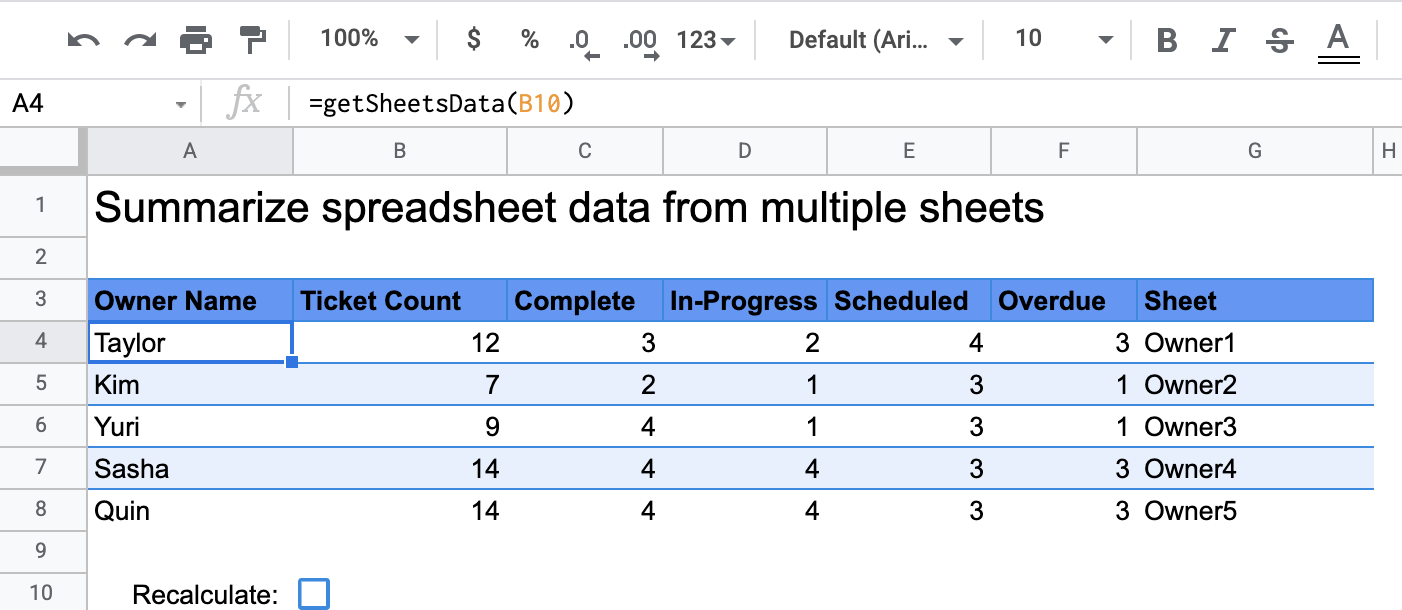
The custom function, called `getSheetsData()`, summarizes data from each sheet
in the spreadsheet based on a sheet's **Status** column. The script ignores
sheets that shouldn't be included in the aggregation, such as the **ReadMe** and
**Summary** sheets.
### Apps Script services
This solution uses the following service:
- [Spreadsheet service](https://developers.google.com/apps-script/reference/spreadsheet)--Gets the sheets that need to be summarized and counts the number of items that match a specified string. Then, the script adds the calculated information to a range relative to where the custom function was called in the spreadsheet.
## Prerequisites
To use this sample, you need the following prerequisites:
- A Google Account (Google Workspace accounts might require administrator approval).
- A web browser with access to the internet.
## Set up the script
To make a copy of the **Summarize spreadsheet data custom function**
spreadsheet, click the following button:
[Make a copy](https://docs.google.com/spreadsheets/d/1ZyhrTm9q98oOWzKgD6OVb31Yc38ODEHINOOjgVwQpCg/copy)
The Apps Script project for this solution is attached to the
spreadsheet.
## Run the script
1. In your copied spreadsheet, go to the **Summary** sheet.
2. Click cell `A4`. The `getSheetsData()` function is in this cell.
3. Go to one of the owner sheets and update or add data to the sheet. Some actions you can try include the following:
- Add a new row with sample ticket information.
- In the **Status** column, change the status of an existing ticket.
- Change the position of the **Status** column. For example, in the **Owner1** sheet, move the **Status** column from column C to column D.
4. Go to the **Summary** sheet and review the updated summary table that `getSheetsData()` created from cell `A4`. You might need to check the checkbox in row 10 to [refresh the cached results](https://developers.google.com/apps-script/samples/custom-functions/summarize-sheets-data#cache) of the custom function. Google caches custom functions to optimize performance.
- If you added or updated rows, the script updates the ticket and status counts.
- If you moved the position of the **Status** column, the script still works as intended with the new column index.
## Review the code
To review the Apps Script code for this solution, click
**View source code**:
#### View source code
### Code.gs
solutions/custom-functions/summarize-sheets-data/Code.js [View on GitHub](https://github.com/googleworkspace/apps-script-samples/blob/main/solutions/custom-functions/summarize-sheets-data/Code.js)
```javascript
// To learn how to use this script, refer to the documentation:
// https://developers.google.com/apps-script/samples/custom-functions/summarize-sheets-data
/*
Copyright 2022 Google LLC
Licensed under the Apache License, Version 2.0 (the "License");
you may not use this file except in compliance with the License.
You may obtain a copy of the License at
https://www.apache.org/licenses/LICENSE-2.0
Unless required by applicable law or agreed to in writing, software
distributed under the License is distributed on an "AS IS" BASIS,
WITHOUT WARRANTIES OR CONDITIONS OF ANY KIND, either express or implied.
See the License for the specific language governing permissions and
limitations under the License.
*/
/**
* Gets summary data from other sheets. The sheets you want to summarize must have columns with headers that match the names of the columns this function summarizes data from.
*
* @return {string} Summary data from other sheets.
* @customfunction
*/
// The following sheets are ignored. Add additional constants for other sheets that should be ignored.
const READ_ME_SHEET_NAME = "ReadMe";
const PM_SHEET_NAME = "Summary";
/**
* Reads data ranges for each sheet. Filters and counts based on 'Status' columns. To improve performance, the script uses arrays
* until all summary data is gathered. Then the script writes the summary array starting at the cell of the custom function.
*/
function getSheetsData() {
const ss = SpreadsheetApp.getActiveSpreadsheet();
const sheets = ss.getSheets();
const outputArr = [];
// For each sheet, summarizes the data and pushes to a temporary array.
for (const s in sheets) {
// Gets sheet name.
const sheetNm = sheets[s].getName();
// Skips ReadMe and Summary sheets.
if (sheetNm === READ_ME_SHEET_NAME || sheetNm === PM_SHEET_NAME) {
continue;
}
// Gets sheets data.
const values = sheets[s].getDataRange().getValues();
// Gets the first row of the sheet which is the header row.
const headerRowValues = values[0];
// Finds the columns with the heading names 'Owner Name' and 'Status' and gets the index value of each.
// Using 'indexOf()' to get the position of each column prevents the script from breaking if the columns change positions in a sheet.
const columnOwner = headerRowValues.indexOf("Owner Name");
const columnStatus = headerRowValues.indexOf("Status");
// Removes header row.
values.splice(0, 1);
// Gets the 'Owner Name' column value by retrieving the first data row in the array.
const owner = values[0][columnOwner];
// Counts the total number of tasks.
const taskCnt = values.length;
// Counts the number of tasks that have the 'Complete' status.
// If the options you want to count in your spreadsheet differ, update the strings below to match the text of each option.
// To add more options, copy the line below and update the string to the new text.
const completeCnt = filterByPosition(
values,
"Complete",
columnStatus,
).length;
// Counts the number of tasks that have the 'In-Progress' status.
const inProgressCnt = filterByPosition(
values,
"In-Progress",
columnStatus,
).length;
// Counts the number of tasks that have the 'Scheduled' status.
const scheduledCnt = filterByPosition(
values,
"Scheduled",
columnStatus,
).length;
// Counts the number of tasks that have the 'Overdue' status.
const overdueCnt = filterByPosition(values, "Overdue", columnStatus).length;
// Builds the output array.
outputArr.push([
owner,
taskCnt,
completeCnt,
inProgressCnt,
scheduledCnt,
overdueCnt,
sheetNm,
]);
}
// Writes the output array.
return outputArr;
}
/**
* Below is a helper function that filters a 2-dimenstional array.
*/
function filterByPosition(array, find, position) {
return array.filter((innerArray) => innerArray[position] === find);
}
```
## Modifications
You can edit the custom function as much as you'd like to fit your needs. To see
an optional addition to manually refresh custom function results,
click **Refresh cached results**:
#### Refresh cached results
Unlike built-in functions, Google caches custom functions to optimize
performance. This means that if you change something within your custom
function, such as a value that's being calculated, it might not immediately
force an update. To refresh the function result manually, take the following
steps:
1. Add a checkbox to an empty cell by clicking **Insert** \> **Checkbox**.
2. Add the cell that has the checkbox as a parameter of the custom function, for example, `getSheetsData(B11)`.
3. Check or uncheck the checkbox to refresh the custom function results.
## Contributors
This sample is maintained by Google with the help of Google Developer Experts.
## Next steps
- [Custom functions in Sheets](https://developers.google.com/apps-script/guides/sheets/functions)
- [Extending Sheets](https://developers.google.com/apps-script/guides/sheets)