> [!NOTE]
> **Try the snippets:** Import, deploy, and explore code snippets in context using a new
> Dialogflow agent.
>
### Explore in Dialogflow
Click **Continue** to import our Responses sample in Dialogflow. Then, follow the
steps below to deploy and test the sample:
1. Enter an agent name and create a new Dialogflow agent for the sample.
2. After the agent is done importing, click **Go to agent**.
3. From the main navigation menu, go to **Fulfillment**.
4. Enable the **Inline Editor** , then click **Deploy**. The editor contains the sample code.
5. From the main navigation menu, go to **Integrations** , then click **Google
Assistant**.
6. In the modal window that appears, enable **Auto-preview changes** and click **Test** to open the Actions simulator.
7. In the simulator, enter `Talk to my test app` to test the sample!
[Continue](https://console.dialogflow.com/api-client/#/oneclick?templateUrl=https:%2F%2Fstorage.googleapis.com%2Fdialogflow-oneclick%2Fone_click_artifacts%2FresponsesOneClick.zip)
Simple responses take the form of a chat bubble visually and use text-to-speech
(TTS) or Speech Synthesis Markup Language (SSML) for sound.
TTS text is used as chat bubble content by default. If the visual aspect of that
text meets your needs, you won't need to specify any display text for a chat
bubble.
You can also review our [conversation design guidelines](https://designguidelines.withgoogle.com/conversation/visual-components/overview.html) to learn
how to incorporate these visual elements in your Action.
## Properties
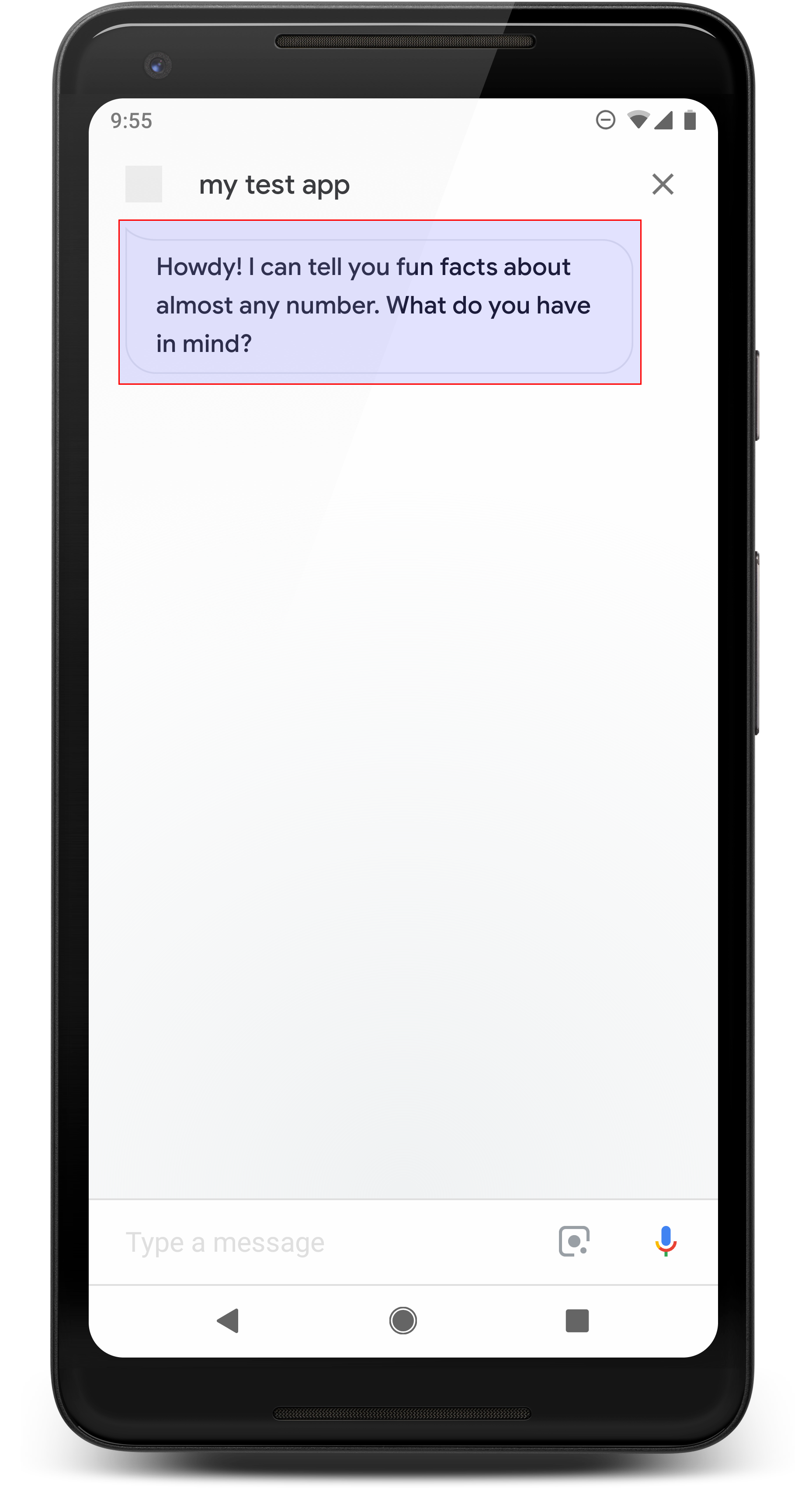 **Figure 1.** Simple response example (smartphone)
Simple responses have the following requirements and optional
properties that you can configure:
- Supported on surfaces with the `actions.capability.AUDIO_OUTPUT` or `actions.capability.SCREEN_OUTPUT` capabilities.
- 640 character limit per chat bubble. Strings longer than the limit are
truncated at the first word break (or whitespace) before 640 characters.
> [!NOTE]
> **Recommended**: Less than 300 characters for each dialog turn. This limit helps keep users engaged and makes your visual and audio interface feel clear and fast. It also prevents the content from going beyond the fold of the screen, especially when you start pairing the chat bubble with a card or other interactive visual elements.
- Chat bubble content must be a phonetic subset or a complete transcript of the
TTS/SSML output. This helps users map out what you are saying and increases
comprehension in various conditions.
- At most two chat bubbles per turn.
- Chat head (logo) that you submit to Google must be 192x192 pixels and
cannot be animated.
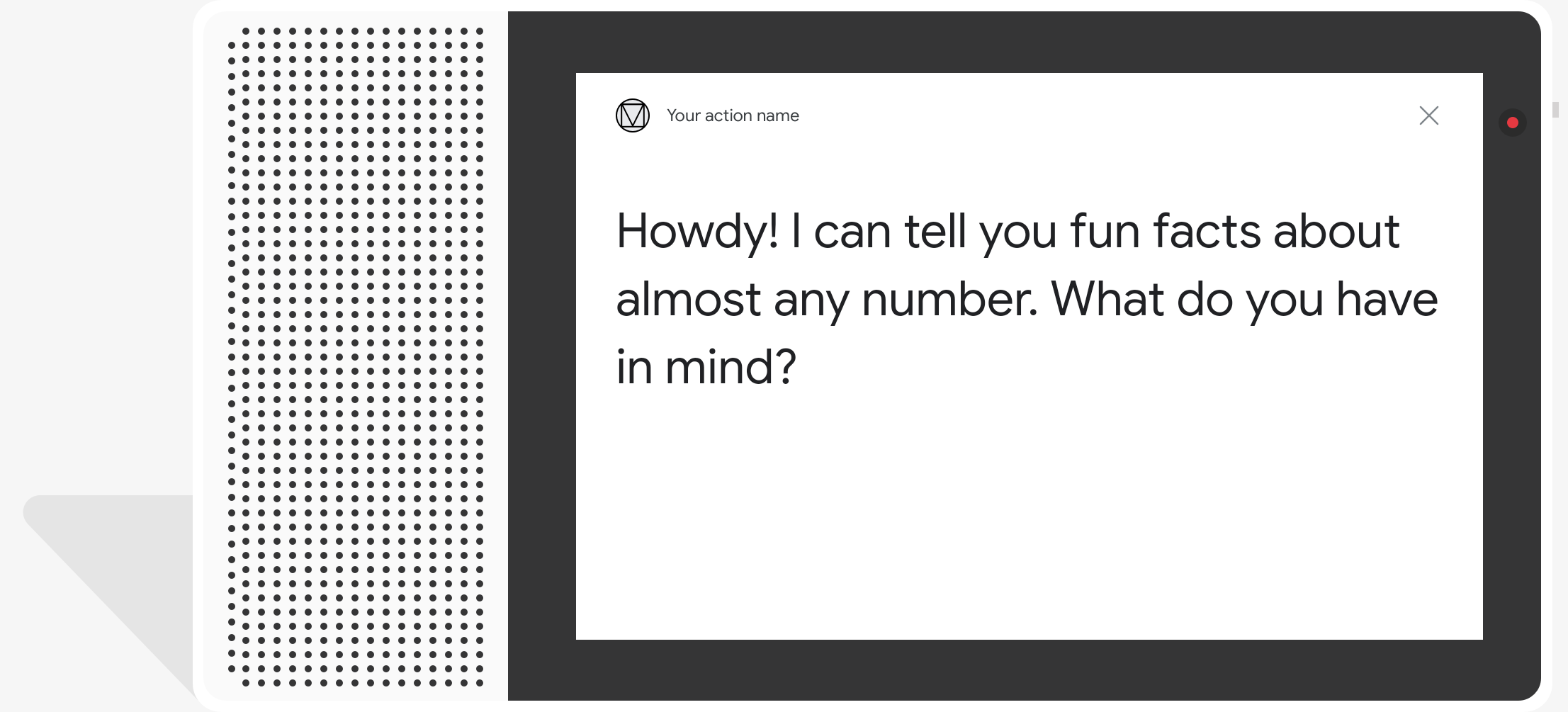 **Figure 2.** Simple response example (smart display)
## Sample code
### Node.js
```javascript
app.intent('Simple Response', (conv) => {
conv.ask(new SimpleResponse({
speech: `Here's an example of a simple response. ` +
`Which type of response would you like to see next?`,
text: `Here's a simple response. ` +
`Which response would you like to see next?`,
}));
});
```
### Java
```java
@ForIntent("Simple Response")
public ActionResponse welcome(ActionRequest request) {
ResponseBuilder responseBuilder = getResponseBuilder(request);
responseBuilder.add(
new SimpleResponse()
.setTextToSpeech(
"Here's an example of a simple response. "
+ "Which type of response would you like to see next?")
.setDisplayText(
"Here's a simple response. Which response would you like to see next?"));
return responseBuilder.build();
}
```
### Node.js
```javascript
conv.ask(new SimpleResponse({
speech: `Here's an example of a simple response. ` +
`Which type of response would you like to see next?`,
text: `Here's a simple response. ` +
`Which response would you like to see next?`,
}));
```
### Java
```java
ResponseBuilder responseBuilder = getResponseBuilder(request);
responseBuilder.add(
new SimpleResponse()
.setTextToSpeech(
"Here's an example of a simple response. "
+ "Which type of response would you like to see next?")
.setDisplayText(
"Here's a simple response. Which response would you like to see next?"));
return responseBuilder.build();
```
### JSON
Note that the JSON below describes a webhook response.
```
{
"payload": {
"google": {
"expectUserResponse": true,
"richResponse": {
"items": [
{
"simpleResponse": {
"textToSpeech": "Here's an example of a simple response. Which type of response would you like to see next?",
"displayText": "Here's a simple response. Which response would you like to see next?"
}
}
]
}
}
}
}
```
### JSON
Note that the JSON below describes a webhook response.
```
{
"expectUserResponse": true,
"expectedInputs": [
{
"possibleIntents": [
{
"intent": "actions.intent.TEXT"
}
],
"inputPrompt": {
"richInitialPrompt": {
"items": [
{
"simpleResponse": {
"textToSpeech": "Here's an example of a simple response. Which type of response would you like to see next?",
"displayText": "Here's a simple response. Which response would you like to see next?"
}
}
]
}
}
}
]
}
```
## SSML and sounds
Using SSML and sounds in your responses gives them more polish and enhances the
user experience. The following code snippets show you how to create a response
that uses SSML:
### Node.js
```javascript
app.intent('SSML', (conv) => {
conv.ask(`` +
`Here are SSML examples.` +
`Here is a buzzing fly ` +
`` +
`and here's a short pause ` +
``);
conv.ask('Which response would you like to see next?');
});
```
### Java
```java
@ForIntent("SSML")
public ActionResponse ssml(ActionRequest request) {
ResponseBuilder responseBuilder = getResponseBuilder(request);
responseBuilder.add(
""
+ "Here are SSML examples."
+ "Here is a buzzing fly "
+ ""
+ "and here's a short pause "
+ "");
return responseBuilder.build();
}
```
### Node.js
```javascript
conv.ask(`` +
`Here are SSML examples.` +
`Here is a buzzing fly ` +
`` +
`and here's a short pause ` +
``);
conv.ask('Which response would you like to see next?');
```
### Java
```java
ResponseBuilder responseBuilder = getResponseBuilder(request);
responseBuilder.add(
""
+ "Here are SSML examples."
+ "Here is a buzzing fly "
+ ""
+ "and here's a short pause "
+ "");
return responseBuilder.build();
```
### JSON
Note that the JSON below describes a webhook response.
```
{
"payload": {
"google": {
"expectUserResponse": true,
"richResponse": {
"items": [
{
"simpleResponse": {
"textToSpeech": "Here are SSML examples.Here is a buzzing fly and here's a short pause "
}
},
{
"simpleResponse": {
"textToSpeech": "Which response would you like to see next?"
}
}
]
}
}
}
}
```
### JSON
Note that the JSON below describes a webhook response.
```
{
"expectUserResponse": true,
"expectedInputs": [
{
"possibleIntents": [
{
"intent": "actions.intent.TEXT"
}
],
"inputPrompt": {
"richInitialPrompt": {
"items": [
{
"simpleResponse": {
"textToSpeech": "Here are SSML examples.Here is a buzzing fly and here's a short pause "
}
},
{
"simpleResponse": {
"textToSpeech": "Which response would you like to see next?"
}
}
]
}
}
}
]
}
```
See the [SSML reference documentation](https://developers.google.com/assistant/df-asdk/ssml.md.txt) for more information.
## Sound library
We provide a variety of free, short sounds in our [sound library](https://developers.google.com/assistant/df-asdk/reference/sound-library.md.txt). These
sounds are hosted for you, so all you need to do is include them in your SSML.