# Configure a Developer Project and Account Settings
> [!WARNING]
> **Warning:** The Google Assistant Library for Python is deprecated as of June 28th, 2019. Use the [Google Assistant Service](https://developers.google.com/assistant/sdk/guides/service/python) instead.
## Configure an Actions Console project
A Google Cloud Platform project, managed by the Actions Console, gives your
project access to the Google Assistant API. The project tracks quota usage and
gives you valuable metrics for the requests made from your hardware.
To enable access to the Google Assistant API, perform the following steps:
1. Open the Actions Console.
[Go
to the Actions Console](https://console.actions.google.com/)
2. Click **Add/import project**.
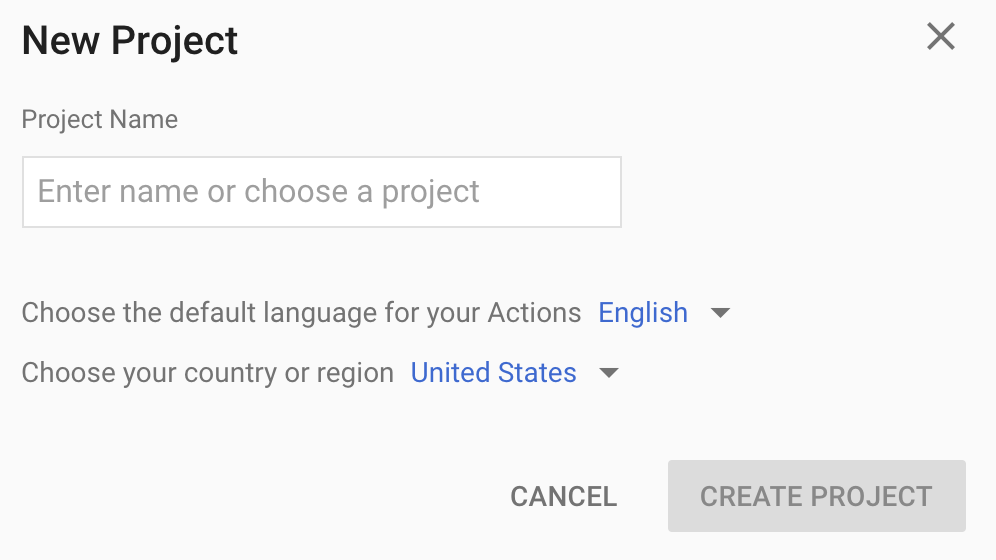
3. To create a new project, enter a name in the **Project name** box and click
**CREATE PROJECT**.
If you already have an existing Google Cloud Platform project, you can select that
project and import it rather than creating a new one.
4.
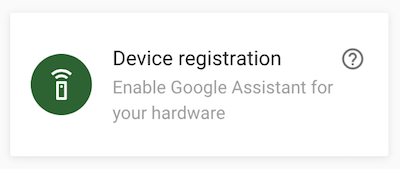
If you created a new project, click the **Device registration** box near the
bottom of the page. If you imported a previously-created project, this box
does not appear; select the **Device registration** tab (under
**ADVANCED OPTIONS**) from the left navbar.
Keep this browser tab open. You will use it to register a device model in
a later step.
5. Enable the Google Assistant API on the project you selected (see the [Terms
of Service](https://developers.google.com/assistant/sdk/terms-of-service)). You need to do this in the
Cloud Platform Console.
[Enable
the API](https://console.developers.google.com/apis/api/embeddedassistant.googleapis.com/overview)
Click **Enable**.
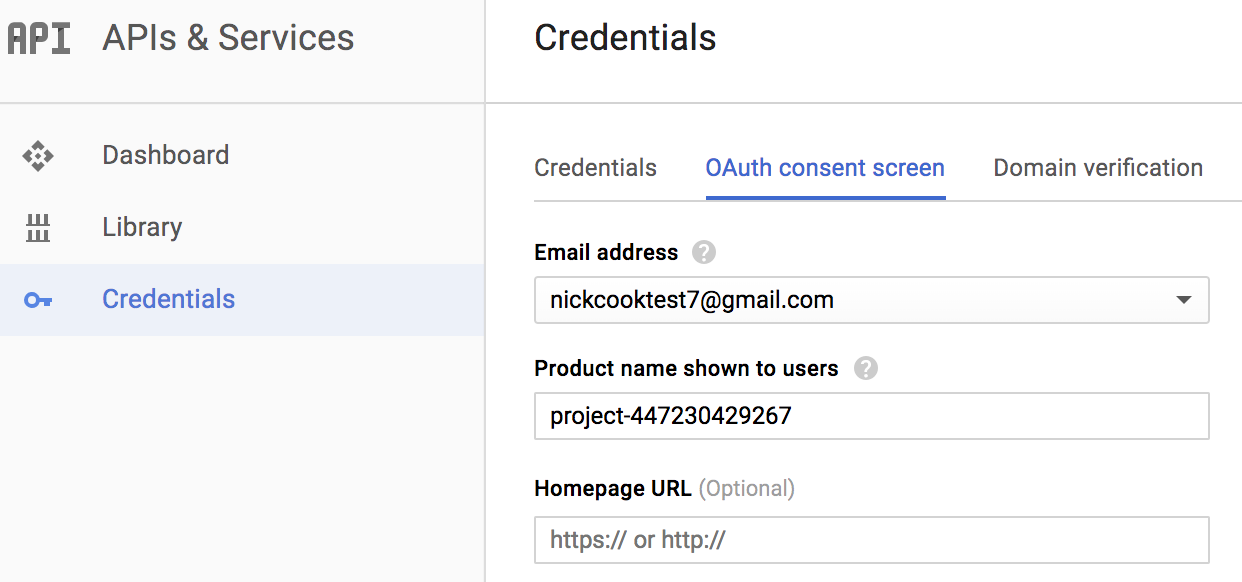
6. You must configure the [OAuth consent
screen](https://console.developers.google.com/apis/credentials/consent)
for your project in the Cloud Platform Console. Note that most fields on
this page are optional.
## Set activity controls for your account
In order to use the Google Assistant, you must share certain activity data with
Google. The Google Assistant needs this data to function properly; this is not
specific to the SDK. To share this data, create a
[Google account](https://support.google.com/accounts/answer/27441)
if you don't already have one.
Open the [Activity Controls page](https://myaccount.google.com/activitycontrols)
for the Google account that you want to use with the Assistant. You can use any
Google account---it does not need to be your developer account.
**Ensure the following toggle switches are enabled (blue)**:
- Web \& App Activity
- In addition, be sure to select the **Include Chrome history and activity
from sites, apps, and devices that use Google services** checkbox.
- Device Information
- Voice \& Audio Activity
## Next step
[Register the Device Model](https://developers.google.com/assistant/sdk/guides/library/python/embed/register-device)