# Register the Device Model
> [!WARNING]
> **Warning:** The Google Assistant Library for Python is deprecated as of June 28th, 2019. Use the [Google Assistant Service](https://developers.google.com/assistant/sdk/guides/service/python) instead.
In order for the Google Assistant to respond to commands appropriate to your
device and the given context, the Assistant needs information about your
particular device. You provide this information, which includes fields like
device type and manufacturer, as a device model. You can think of this model as
a general class of device -- such as a light, speaker, or toy robot.
This information is then accessible to the Assistant and is
associated with your
Actions Console project.
No other projects have access to your model and device information.
## Use the registration UI
Use the registration UI in the [Actions Console](https://console.actions.google.com/)
to register a device model.
> [!NOTE]
> **Note:** The registration UI will not appear if you did not click the **Device
> registration** box when creating the project (see the previous step).
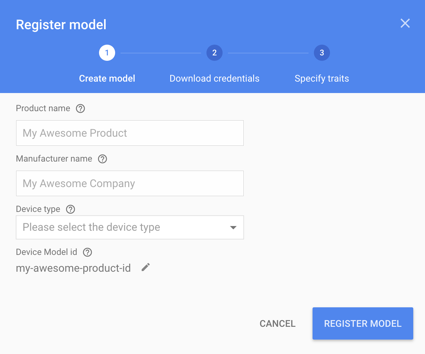
Click the **REGISTER MODEL** button.

### Create model
1. Fill out all of the fields for your device. Select any device type, such as
**Light**.
See the device model JSON
[reference](https://developers.google.com/assistant/sdk/reference/device-registration/model-and-instance-schemas#device_model_json)
for more information on these fields.
2. When you are finished, click **REGISTER MODEL**.
### Download credentials
The `client_secret_.json` file must be located on the device. This file contains
a client ID and client secret, but no access token. Later, you will run an
authorization tool and reference this file in order to authorize the Google
Assistant SDK sample to make Google Assistant queries (see the [OAuth 2.0](https://developers.google.com/identity/protocols/OAuth2)
documentation for more information). Do not rename this file.
Download this file and transfer it to the device. Click **NEXT**.

#### For the Raspberry Pi only
Make sure this file is located in `/home/pi`. If you want to upload the file
to the device, do the following:
1. Open a new terminal window. Run the following command in this new terminal:
> [!NOTE]
> **Note:** Do **not** run the following command in an SSH session connected to the device. This command transfers the JSON file from a directory on your development machine to the device. An SSH session cannot access your local directories.
```
scp ~/Downloads/client_secret_client-id.json pi@raspberry-pi-ip-address:/home/pi/
```
```
password: password-for-device
```
2. Close this terminal window.
### Specify traits
Later, you will specify the different abilities that your device supports on
this screen. But for now, click the **SKIP** button.

### Edit the model
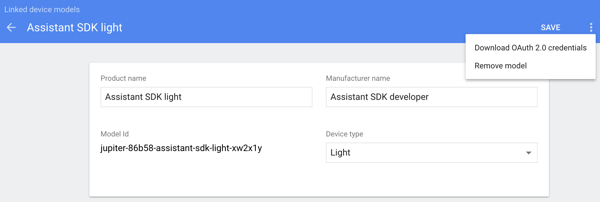
If you need to edit the model, click its row in the list. Make sure to click **SAVE**
after any edits.

If you need to download the credentials file again, click the ellipses. You can
delete the model from this menu as well.
## Alternative ways to register
You can also use the [registration tool](https://developers.google.com/assistant/sdk/reference/device-registration/device-tool)
(included with the Google Assistant SDK samples) or the [REST API](https://developers.google.com/assistant/sdk/reference/device-registration/register-device-manual)
to register a device model.
You must be an Owner or Editor of a given Actions Console project to register
models for it. Add these roles for other users in the Cloud Platform Console---see the
[IAM documentation](https://cloud.google.com/iam/docs/granting-changing-revoking-access).
## Next step
[Install the SDK and Sample Code](https://developers.google.com/assistant/sdk/guides/library/python/embed/install-sample)