# Custom Web Receiver
**Jump start** - The code for creating a basic Custom Web Receiver is simple. Skip ahead to [register your Web Receiver
app](https://developers.google.com/cast/docs/web_receiver/basic#register_your_web_receiver_app), then [create a basic
Web Receiver app](https://developers.google.com/cast/docs/web_receiver/basic#create_a_basic_web_receiver_app).
The Web Receiver SDK uses a built-in media player to provide a seamless and easy
playback experience. It provides out-of-box support for Google Assistant as well
as Cast-specific features that are automatically supported on all senders and
touch-enabled devices. As new features are released they will continue to be
supported without additional sender changes.
The Custom Web Receiver is a custom-built HTML5 app that must be hosted to
display your content on Cast-enabled devices. You may need to create a Custom
Web Receiver depending on your business needs. For help deciding which receiver
type to use, see the
[choose a Web Receiver guide](https://developers.google.com/cast/docs/web_receiver#choose_a_web_receiver).
## Google Web Receiver SDK
Your Web Receiver app accesses the Web Receiver API with the following
reference:
**Best practice for URL protocols** : Notice the URL above does not specify an
"http:" or "https:" protocol. Omitting these protocols when sourcing the
`cast_receiver_framework.js` resource enables this resource to be fetched using
the same protocol as the server hosting the Web Receiver app. This means that
switching between HTTP for development and HTTPS for production is transparent
and will not require a code change. (Published Web Receiver apps must be hosted
on TLS-capable servers.)
> [!WARNING]
> **Do not self-host the
> `cast_receiver_framework.js` resource (Web Receiver SDK), not even
> for local development.** Always use the Web Receiver SDK hosted by Google using the gstatic.com reference. The Web Receiver SDK hosted by Google is kept at parity with the platform firmware, and is updated periodically to address bug fixes and add new features. During development, you can host your Web Receiver app locally on a private network for testing, but hosting the Web Receiver SDK locally could result in your app breaking.
### SDK preview
A pre-release version of the Cast Web Receiver SDK is also available for use in
testing non-production applications. More information about the SDK preview URL
may be found at [Google Cast Web Receiver SDK Preview URL](https://developers.google.com/cast/preview-url).
## Application life cycle
The Web Receiver app life cycle starts from the point at which the Web Receiver
is loaded onto the Cast device and proceeds to the point at which the
application is torn down and the Cast device reverts back to its default state.
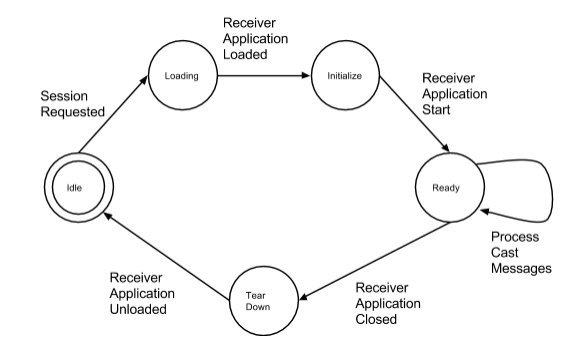
Over the life cycle of a Web Receiver app, messages are exchanged between the
Web Receiver and any connected sender applications. A sender application will
send an initial message to a Google Cast device requesting a session be created
using a specific app ID. This kicks off the life cycle of the Web Receiver, as
the Google Cast device will attempt to load the Web Receiver app. Assuming there
are no network issues, the Web Receiver app will be downloaded from the network
using the resolved URL associated with the app ID. Once loaded, the Web Receiver
app will perform its setup operations and indicate that it is ready to process
messages from any connected sender applications.
A Web Receiver app may tear down (end its current life cycle and close the
application) under the following conditions:
- The Web Receiver app gets an explicit message from **the last** connected sender to end the application session.
- The Web Receiver app has been idle for a defined period of time without any connected senders and decides to end the application session.
- A different cast session was started.
- The Web Receiver encounters a fatal error during its normal life cycle.
The Web Receiver SDK handles all common cases in accordance with our
[UX guidelines](https://developers.google.com/cast/docs/ux_guidelines).
## Major classes
The Web Receiver SDK framework has 2 major classes:
- [`cast.framework.CastReceiverContext`](https://developers.google.com/cast/docs/reference/caf_receiver/cast.framework.CastReceiverContext) - Manages
overall framework and loads any necessary libraries. With this object, you can:
- Set application configuration options
- Handle system events (such as sender connected or disconnected)
- Create custom channels
- Initiate cast communication
- [`cast.framework.PlayerManager`](https://developers.google.com/cast/docs/reference/caf_receiver/cast.framework.PlayerManager) - Manages media
playback. It handles the underlying player and media element according to the
request from the sender. With this object, you can:
- Handle playback operations
- Handle playback-related requests from sender
- Handle playback-related events
## Register your Web Receiver app
Before developing a Web Receiver app, you will need to register your Web
Receiver app with the Google Cast SDK Developer Console. See
[Registration](https://developers.google.com/cast/docs/registration) for more information. All Web Receiver
apps require sender applications to provide an app ID with the command messages
they send to the Web Receiver through the sender API. When you register your Web
Receiver application, you will receive the app ID to include in your sender's
API calls.
## Create a basic Web Receiver app
The following is the main structure of a basic Web Receiver app that has no
customization:
1. A `cast-media-player` HTML element to represent the media player.
2. A script HTML element to load the Web Receiver framework.
3. Call [`start()`](https://developers.google.com/cast/docs/reference/caf_receiver/cast.framework.CastReceiverContext#start) to start the Web Receiver app with no options.
Here is the minimum code for a Web Receiver app using the Cast Application
Framework without any customization. You can copy and paste this script exactly
as-is into your app to create your Web Receiver app.
At this point, a user can open their sender app, connect to their Cast device,
then navigate to media and press Play, which tells the Web Receiver to stream
the media to the TV for the user to watch.
Compare this basic Web Receiver with a
[customized receiver app](https://developers.google.com/cast/docs/caf_receiver/advanced#creating-a-customized-receiver-app).
## Media and players
The Cast framework provides a built-in media player, represented by the
`cast-media-player` HTML element. This media player supports playback for
streaming protocols such as MPEG-DASH, HLS, and Smooth Streaming.
A set of supported media codecs and containers are listed at
[Supported Media](https://developers.google.com/cast/docs/media). Through Cast messaging, developers can
support a list of sender-initiated operations such as load, play, pause and
seek, where the Cast SDK handles the interactions with the media. For a list of
supported operations, refer to the sender API reference for your app's platform:
[`RemoteMediaClient` in Android Sender](https://developers.google.com/android/reference/com/google/android/gms/cast/framework/media/RemoteMediaClient),
[`GCKMediaControlChannel` in iOS Sender](https://developers.google.com/cast/docs/reference/ios/interface_g_c_k_remote_media_client)
and
[`Media` in Web Sender](https://developers.google.com/cast/docs/reference/chrome/chrome.cast.media.Media#methods).
### Cross-Origin Resource Sharing
Google Cast fully supports Cross-Origin Resource Sharing (CORS). Streaming
protocols, unlike most file-based protocols, access content in an asynchronous
way using `XMLHttpRequest`. In a CORS world, these requests are guarded against
inappropriate access by the CORS header from the server where the resource
originates. This means that your content's server has a say on where it may be
included. Most modern browsers fully support CORS. iOS and Android devices
access the content at a lower level and do not look at these headers. This is
often the first issue that comes up when a developer wishes to use streaming
content. See [Cross-Origin Resource Sharing](https://developers.google.com/cast/docs/player#cors) for
details.