In this quickstart, you obtain an OAuth token for your account, and you send
recurring requests to the Data Portability API endpoints.
This quickstart covers how to use the Data Portability API for time-based access to user
data. For one-time access to user data, see
[Start Using the Data Portability API](https://developers.google.com/data-portability/user-guide/user-guide/quickstart). To learn how to apply time filters
to your request, see [Apply Time Filters](https://developers.google.com/data-portability/user-guide/time-filter).
## What you learn
In this quickstart you learn how to:
- Send an authenticated request to the `InitiatePortabilityArchive` endpoint by providing a valid OAuth token. The response should contain a valid `job_id`.
- Send an authenticated request to the `GetPortabilityArchiveState` endpoint. The response should contain a valid job state, and when the job is complete, a signed URL.
- Send an authenticated request with a valid OAuth token to the `InitiatePortabilityArchive` endpoint a second time using the same credentials. This returns a `FAILED_PRECONDITION` error when the request is made within 24 hours of the initial request.
## Prerequisites
To run this quickstart, you need to:
- Verify that the Data Portability API is available to users in your location. For a list of supported countries and regions, see [Common Questions](https://support.google.com/accounts/answer/14452558) on the "Share a copy of your data with a third party" page.
- Complete the [setup steps](https://developers.google.com/data-portability/user-guide/setup) for the Data Portability API.
- Follow the steps to configure OAuth for [server-side web apps](https://developers.google.com/identity/protocols/oauth2/web-server).
- When you create your [authorization credentials](https://developers.google.com/identity/protocols/oauth2/web-server#creatingcred), make a note of your OAuth 2.0 Client ID, your client secret, and your authorized redirect URI (for example, https://google.com). You need them later in the quickstart.
- When you [configure scopes](https://developers.google.com/data-portability/user-guide/configure-oauth#data_portability_api_oauth_scopes) for the Data Portability API, note that this quickstart uses the [`myactivity.search` resource group](https://developers.google.com/data-portability/schema-reference/my_activity): https://www.googleapis.com/auth/dataportability.myactivity.search.
- When you choose the amount of time you want to allow access, you should select **30 days** to test *time-based access*.
- Obtain an OAuth token.
- Obtain access to an account owned or controlled by your organization. This account's search activity data is exported in this quickstart.
## Obtain an OAuth token
For this quickstart, you send an authorization request to obtain an OAuth token
using a URL. This process uses the flow for [server-side web apps](https://developers.google.com/identity/protocols/oauth2/web-server).
This flow generates a refresh token which you can use for subsequent exports.
To obtain an OAuth token:
1. Compose a URL like the following.
```text
https://accounts.google.com/o/oauth2/v2/auth?
client_id=client_id&
redirect_uri=redirect_uri&
response_type=code&
access_type=offline&
scope=https://www.googleapis.com/auth/dataportability.myactivity.search&
state=developer-specified-value
```
In the URL:
- `client_id` is your OAuth client ID.
- `redirect_uri` is your authorized redirect URI; for example, https://google.com.
Notice that the scope used in the URL for this quickstart is the search
activity scope. You can also use the YouTube activity scope or both scopes.
> [!WARNING]
> **Warning:** Don't mix Data Portability API scopes with other types of scopes, use too many scopes at once, or include previously granted scopes as this results in errors. For details, see [Scope restrictions](https://developers.google.com/data-portability/user-guide/configure-oauth#scopes_restrictions).
2. Paste the URL into your browser's address bar, and follow the steps in the
OAuth flow. This flow requires you to sign into the account owned or
controlled by your organization that you're using for this quickstart.
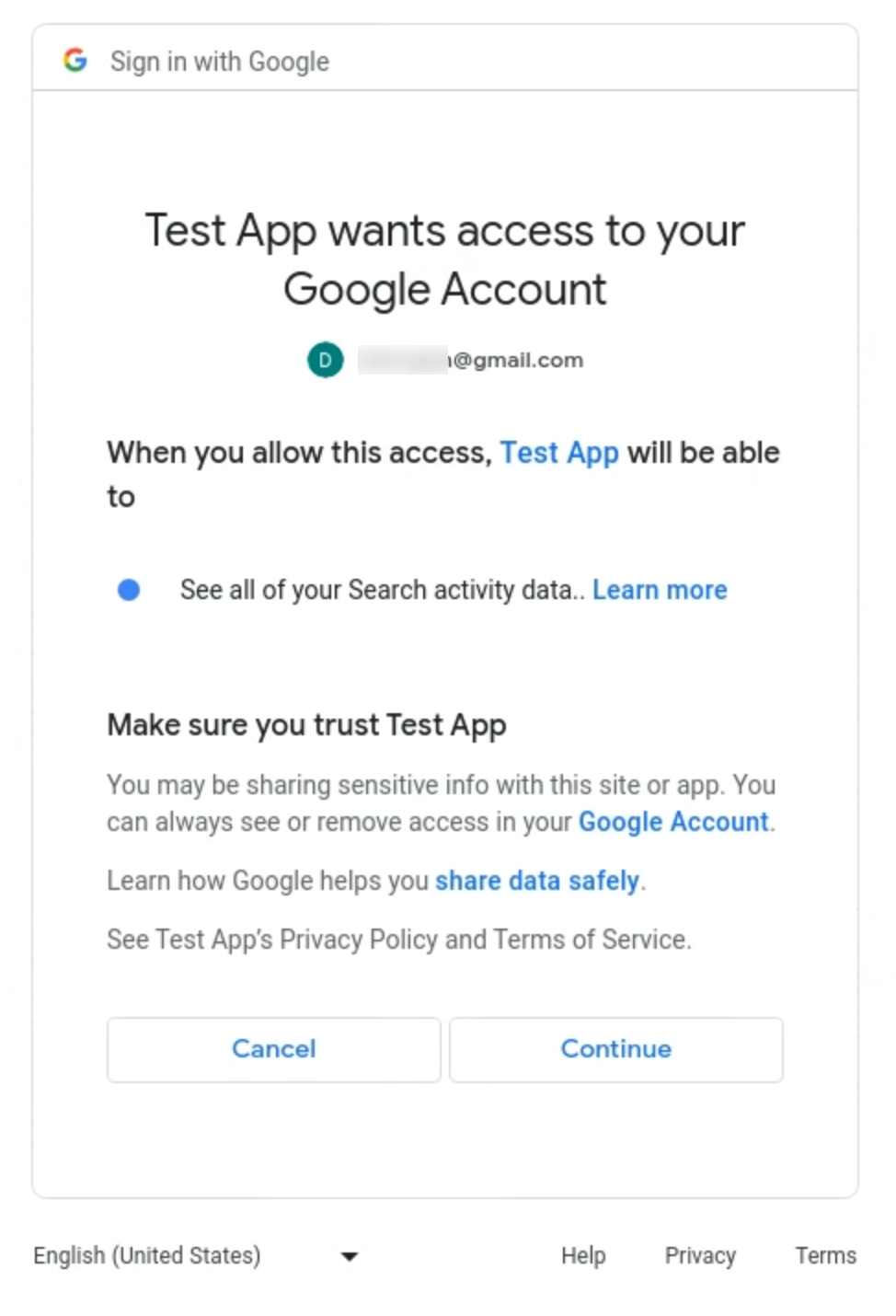
This is the account that's consenting to the OAuth scopes. The consent
screen should look like this
(the text in your screen may vary from the text in this image):
3. Choose the scopes to grant access to and the length of time to share access
to the account's data (once, 30 days, or 180 days). For this quickstart,
choose **30 days**.
4. After granting consent and deciding the duration of access, you should be
forwarded to the redirect URI---https://google.com. The URL that is
generated in the address bar includes an authorization code that you
exchange for an OAuth token in the next step.
For example, if the user account grants OAuth access to the
`dataportability.myactivity.search` scope, the generated URL looks like
this:
```text
https://google.com/#state=developer-specified-value&code=your_auth_code&scope=https://www.googleapis.com/auth/dataportability.myactivity.search
```
5. To exchange an authorization code for an access token, call the oauth token
endpoint with:
```console
curl https://oauth2.googleapis.com/token\
-H 'Content-Type: application/x-www-form-urlencoded' -X POST\
-d 'code=your_auth_code&\
redirect_uri=redirect_uri\
client_id=client_id&\
client_secret=client_secret&\
grant_type=authorization_code'
```
The response should look like:
```json
{
"access_token": your_OAuth_token,
"expires_in": 3920,
"token_type": "Bearer",
"scope": "https://www.googleapis.com/auth/dataportability.myactivity.search",
"refresh_token": your_refresh_token,
"refresh_token_expires_in": 2591999
}
```
In the URL, your_OAuth_token is a string that represents the
token.
The `refresh_token_expires_in` field is in seconds and reflects whether
the user chose 30 days (2592000 seconds) or 180 days (15552000 seconds) of
access. If your app has a **Testing** publishing status, you instead
have 7 days (604800 seconds) of access regardless of the user's selection.
> [!IMPORTANT]
> **Important:** Your OAuth access token expires in one hour---store your refresh token so that it can be exchanged for fresh access tokens later.
6. To validate the OAuth token, paste this URL into your browser:
```text
https://www.googleapis.com/oauth2/v3/tokeninfo?access_token=your_OAuth_token
```
The response should look like this:
{
"azp": ,
"aud": ,
"scope": "https://www.googleapis.com/auth/dataportability.myactivity.search",
"exp": "1694210968",
"expires_in": "3334",
"access_type": "online"
}
You don't need the `azp` or `aud` fields to make requests. The `azp`field
represents the `client_id` of the authorized presenter, and the `aud` field
identifies the audience that this token is intended for, which will be equal
to one of the client IDs for your application.
> [!NOTE]
> **Note:** You can also verify the token by issuing an HTTP GET request.
7. Gather your OAuth token and your [API key](https://cloud.google.com/docs/authentication/api-keys#create).
You need these to make calls to the Data Portability API.
## Send requests to the endpoints
In this quickstart you use curl commands to call the Data Portability API endpoints.
These commands require the OAuth token and API key you gathered previously.
To call the Data Portability API:
1. First, you send an authenticated request to the
[`InitiatePortabilityArchive`](https://developers.google.com/data-portability/user-guide/methods#portabilityarchiveinitiate)
endpoint. This request starts an archive job.
Run the following curl command:
```console
curl -H 'Authorization: Bearer your_OAuth_token' -X POST \
-H "Content-Type: application/json; charset=utf-8" \
--data '{"resources":["myactivity.search"]}' \
https://dataportability.googleapis.com/v1/portabilityArchive:initiate
```
In the command:
- `your_OAuth_token` is your OAuth token.
> [!WARNING]
> **Warning:** The `resources` parameter should only contain the OAuth scopes that were granted access. In this example, only `myactivity.search` was granted. If you include additional resource groups, an error is returned. For details, see [Scope restrictions](https://developers.google.com/data-portability/user-guide/configure-oauth#scopes_restrictions).
The `InitiatePortabilityArchive` request returns a `job_id` and
`accessType`. The job ID is used to retrieve the state of the data archive
and the access type determines if you have been granted one-time or
time-based access to the data. For time-based access, you'll see:
{
"archiveJobId": ""
"accessType": "ACCESS_TYPE_TIME_BASED"
}
If you fail to provide a valid OAuth token, this error message is returned:
```
Request had invalid authentication credentials. Expected OAuth 2.0 access
token, login cookie or other valid authentication credential. See
https://developers.google.com/identity/sign-in/web/devconsole-project.
```
2. Next, you send an authenticated request to the
[`GetPortabilityArchiveState`](https://developers.google.com/data-portability/user-guide/methods#archivejobsgetportabilityarchivestate) endpoint to retrieve the status of
the archive job.
Run the following curl command:
```console
curl -H 'Authorization: Bearer your_OAuth_token' -X GET \
-H "Content-Type: application/json; charset=utf-8" \
https://dataportability.googleapis.com/v1/archiveJobs/your_job_id/portabilityArchiveState
```
In the command:
- `your_OAuth_token` is your OAuth token.
- `your_job_id` is the job ID returned by the `InitiatePortabilityArchive` request.
The response is based on the [state](https://developers.google.com/data-portability/reference/rest/v1/archiveJobs/getPortabilityArchiveState#state) of the job. If the job is not
complete, the response provides the current state. You should send requests
to this endpoint periodically until the job is complete.
{
"state": "IN_PROGRESS"
}
If the job is complete, the response contains the state and one or more
signed URLs that are used to download the data archive.
{
"state": "COMPLETE",
"urls": [
""
]
}
Paste the signed URL into your browser to download the data archive. You
should examine the contents of the archive to ensure that it contains the
expected search activity data.
> [!NOTE]
> **Note:** The amount of time required to complete the archive job depends on the archive's size. The maximum duration is seven days.
If you receive a `FAILED` state in the response, you may retry the
export using the `RetryPortabilityArchive` method.
3. Repeat the previous command to send an authenticated request to
the [`InitiatePortabilityArchive`](https://developers.google.com/data-portability/user-guide/methods#portabilityarchiveinitiate)
endpoint.
```console
curl -H 'Authorization: Bearer your_OAuth_token' -X POST \
-H "Content-Type: application/json; charset=utf-8" \
--data '{"resources":["myactivity.search"]}' \
https://dataportability.googleapis.com/v1/portabilityArchive:initiate
```
In the command:
- `your_OAuth_token` is your OAuth token.
The response should indicate that you have already exported the
`myactivity.search` resource and a timestamp for when you can try again.
...
"error": {
"code": 429,
"message": "Requested resources have already been exported. You can initiate another export after #{timestamp_after_24hrs}.",
"status": "RESOURCE_EXHAUSTED",
"details": [
{
"@type": "type.googleapis.com/google.rpc.ErrorInfo",
"reason": "RESOURCE_EXHAUSTED_TIME_BASED",
"domain": "dataportability.googleapis.com"
"metadata": {
"previous_job_ids": "#{previous_job_ids}"
"access_type": "ACCESS_TYPE_TIME_BASED"
"timestamp_after_24hrs": "#{timestamp_after_24hrs}"
...
4. After 24 hours you can request a new export, but first you must
exchange your refresh token for a fresh access token.
```console
curl https://oauth2.googleapis.com/token\
-H 'Content-Type: application/x-www-form-urlencoded' -X POST\
-d 'refresh_token=your_refresh_token&\
client_id=client_id&\
client_secret=client_secret&\
grant_type=refresh_token'
```
The response should look like:
```json
{
"access_token": your_OAuth_token,
"expires_in": 3920,
"token_type": "Bearer",
"scope": "https://www.googleapis.com/auth/dataportability.myactivity.search",
"refresh_token_expires_in": 2505599
}
```
If the user renews access, the new expiration time is reflected in
the `refresh_token_expires_in` field.
You can use the new access token to repeat the `InitiatePortabilityArchive`
and `GetPortabilityArchiveState` steps.