# Material Symbols guide
## What are Material Symbols?
Material Symbols are our newest icons, consolidating over 2,500 glyphs in a
single font file with a wide range of design variants. Symbols are available in
three styles and four adjustable variable font axes (fill, weight, grade, and
optical size). See the full set of Material Symbols in the [Material Symbols
Library](http://fonts.google.com/icons).
### `FILL` axis
Fill gives you the ability to modify the default icon style. A single icon can
render both unfilled and filled states.
To convey a state transition, use the fill axis for animation or interaction.
The values are 0 for default or 1 for completely filled. Along with the weight
axis, the fill also impacts the look of the icon.
### `wght` axis
Weight defines the symbol's stroke weight, with a range of weights between
thin (100) and bold (700). Weight can also affect the overall size of the
symbol.
### `GRAD` axis
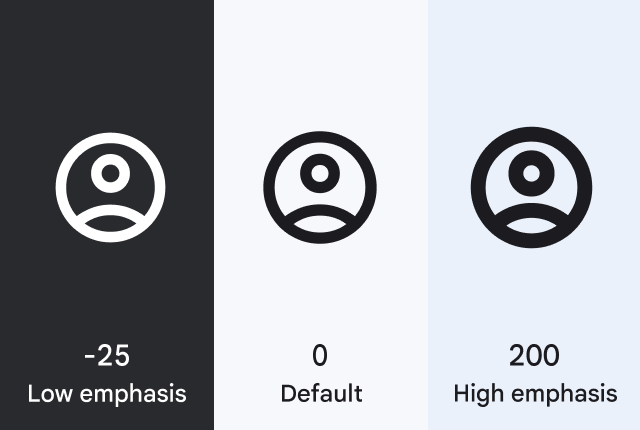
Weight and grade affect a symbol's thickness. Adjustments to grade are
more granular than adjustments to weight and have a small impact on the size of
the symbol.
Grade is also available in some text fonts. You can match grade levels between
text and symbols for a harmonious visual effect. For example, if the text font
has a -25 grade value, the symbols can match it with a suitable value, say -25.
You can use grade for different needs:
**Low emphasis (e.g. -25 grade):** To reduce glare for a light symbol on a dark
background, use a low grade.
**High emphasis (e.g. 200 grade):** To highlight a symbol, increase the positive
grade.
### `opsz` axis
Optical sizes range from 20dp to 48dp.
For the image to look the same at different sizes, the stroke weight (thickness)
changes as the icon size scales. Optical size offers a way to automatically
adjust the stroke weight when you increase or decrease the symbol size.
## Getting Material Symbols
Material Symbols are available in several formats and are suitable for different
types of projects and platforms, both for developers in their apps and for
designers in their mockups or prototypes.
### Licensing
Material Symbols are available under the [Apache License Version
2.0](https://www.apache.org/licenses/LICENSE-2.0)
.
### Browsing and downloading individual icons
The complete set of Material Symbols are available from the [Material Symbols
Library](http://fonts.google.com/icons)
in SVG or PNG formats. They are suitable for web, Android, and iOS, or with any
designer tools.
### Git repository
The [git
repository](https://github.com/google/material-design-icons)
contains the complete set of Material Symbols in SVG format.
$ git clone https://github.com/google/material-design-icons
## Using Material Symbols
### Use in Web
The Material Symbols font is the easiest way to incorporate Material Symbols
into web projects.
The icons are packaged into a single font so that web developers can easily
incorporate these icons with only a few lines of code.
#### Static font with Google Fonts
The easiest way to set up icon fonts for use in any web page is through [Google
Fonts](http://fonts.google.com). Include this
single line of HTML:
The above snippet includes the default configuration for each
[axis](https://fonts.google.com/knowledge/glossary/axis_in_variable_fonts)
, with
[weight](https://fonts.google.com/knowledge/glossary/weight_axis)
at 400, [optical
size](https://fonts.google.com/knowledge/glossary/optical_size_axis)
at 48,
[grade](https://fonts.google.com/knowledge/glossary/grade_axis)
at 0 and
[fill](https://fonts.google.com/knowledge/glossary/fill_axis)
(also 0.)
Use the [Fonts CSS
API](https://developers.google.com/fonts/docs/css2#forming_api_urls) to
configure different axes values. Take a look at the following examples:
#### Variable font with Google Fonts
If you're animating icons via CSS, or want finer control over icon features, use
the Google Symbols variable font. Using ranges, in the format `number..number`,
we can load the entire variable font. Check out [Can I Use's Variable Fonts
support](https://caniuse.com/variable-fonts)
to understand if your users will be capable of loading the variable font, most
likely they are. Here are some examples:
Or even animate them!
#### Optimize the icon font
1. Subset the font to only include the relevant icons for your application
using the `&icon_names` query parameter, using an alphabetically sorted
comma-separated list of icon names (ligatures.)
Not recommended --- Using the default
settings loads all 3,800+ icons. Font payload: **295 KB**
https://fonts.googleapis.com/css2?family=Material+Symbols+Outlined
Recommended --- Specifying icon names
to loads only the necessary icons. Font payload: **1.7 KB**
https://fonts.googleapis.com/css2?family=Material+Symbols+Outlined\&icon_names=home,palette,settings&display=block
2. Instance the variable font axes to only include the ones your application
will use. Most applications only need a few variations of the axes.
Not recommended --- Missing the axes configuration loads the
default static font (weight 400, optical size 24, round 50, grade 0, fill 0). Including all variable font axes in full is usually unnecessary and increases the
payload. Font payload: **7.9 MB**
https://fonts.googleapis.com/css2?family=Material+Symbols+Outlined
https://fonts.googleapis.com/css2?family=Material+Symbols+Outlined:opsz,wght,FILL,GRAD,ROND@20..48,100..700,0..1,-50..200,0..100
Recommended --- A specific combination of axes is used. Just as an example, the full 'FILL'
axis provides CSS transitions between states, and 'ROND' 100 is the chosen
design. Font payload: **2.6 KB**
https://fonts.googleapis.com/css2?family=Material+Symbols+Outlined:FILL,ROND@0..1,100&icon_names=home,palette,settings&display=block
> [!IMPORTANT]
> **Important:** Ensure the CSS request includes `&display=block` to prevent a flash of unstyled text content (FOUC) showing the ligatures until the font loads.
#### Self-hosting the font
Host the [icon
font](https://github.com/google/material-design-icons/tree/master/variablefont)
in a location you control, in order to decide when to update the asset. For
example if the URL is `https://example.com/material-symbols.woff`, then add the
following CSS rule:
@font-face {
font-family: 'Material Symbols Outlined';
font-style: normal;
src: url(https://example.com/material-symbols.woff) format('woff');
}
> [!NOTE]
> **Note:** To provide the best experience for all users, multiple font formats may be required, which the Google Fonts API provides. Learn more about "self hosting" on [Google Fonts
> Knowledge](https://fonts.google.com/knowledge/using_type/self_hosting_web_fonts).
To render the font properly, declare the CSS rules for rendering the icon. These
rules are normally served as part of the Google Fonts API stylesheet, but will
need to be included manually in your projects when self-hosting:
.material-symbols-outlined {
font-family: 'Material Symbols Outlined';
font-weight: normal;
font-style: normal;
font-size: 24px; /* Preferred icon size */
display: inline-block;
line-height: 1;
text-transform: none;
letter-spacing: normal;
word-wrap: normal;
white-space: nowrap;
direction: ltr;
}
#### Using the icons in HTML
The examples provided above use a typographic feature called
[ligatures](https://fonts.google.com/knowledge/glossary/ligature)
, which allows rendering of an icon glyph by using its textual name. The web
browser automatically replaces the text ligature with the icon vector and
provides more readable code than the equivalent numeric character reference. For
example, in your HTML you will have `arrow_forward` to represent an icon,
instead of ``. For other icons, use the *snake case* of the icon name
(i.e. replace spaces with underscores).
This feature is supported in most modern browsers on both desktop and mobile
devices. See [Can I Use's ligatures
support](https://caniuse.com/mdn-css_properties_font-variant-ligatures)
to see if your users will be capable of processing ligatures, most likely they
can.
If you do need to support browsers that do not support ligatures, specify the
icons using numeric character references (a.k.a. codepoints) like the example
below:
Find both the icon names and codepoints on the [Material Symbols
Library](https://fonts.google.com/icons/)
by selecting any icon and opening the icon font panel. Each icon font has a
codepoints index in the Google Fonts [git
repository](https://github.com/google/material-design-icons/tree/master/variablefont)
showing the complete set of names and character codes.
#### Styling icons in Material Design
These icons were designed to follow the [Material Design
guidelines](https://material.io/design/iconography/system-icons.html#design-principles),
and they look best when using the recommended icon sizes and colors. The styles
below make it easy to apply our recommended sizes, colors, and activity states.
### Use in Android
In the Material Symbols Library, all icons are in the Vector Drawable format. To
learn more, check out the [Android Vector Asset Studio
documentation](https://developer.android.com/studio/write/vector-asset-studio#svg).
### Use in iOS
The icons are also available in Apple Symbols format. To learn more about them,
check out the official Apple Symbols
[overview](https://developer.apple.com/design/human-interface-guidelines/sf-symbols/overview/)
and
[usage
guidance](https://developer.apple.com/documentation/uikit/uiimage/configuring_and_displaying_symbol_images_in_your_ui).
### Use in Flutter
Flutter support for Material Symbols is planned. Stay tuned for updates.