# Promote passkey upgrades in Google Password Manager
Integrating passkeys into your app or website is just the beginning of your
passkey journey. After your initial deployment, one of the challenges you will
likely encounter is making sure your users understand what passkeys are and how
to create them.
You should suggest creating a passkey immediately after the user signs in using
their password and verifying with a second factor. Remembering passwords and
entering one-time passwords while switching between different apps and tools can
be frustrating for users. Recommending the creation of a passkey at this moment is
an opportune time, as users are likely feeling this frustration.
In addition to the self-managed promotions, Google Password Manager can now
suggest creating a new passkey on behalf of your website or app.
## The user experience
On Pixel devices, Google Password Manager discovers that your website or app
supports passkeys, suggests users to create a new passkey, and directs them to
your passkey creation page.
 Google Password Manager suggests that the user create a passkey when reviewing their list of existing passwords and passkeys.
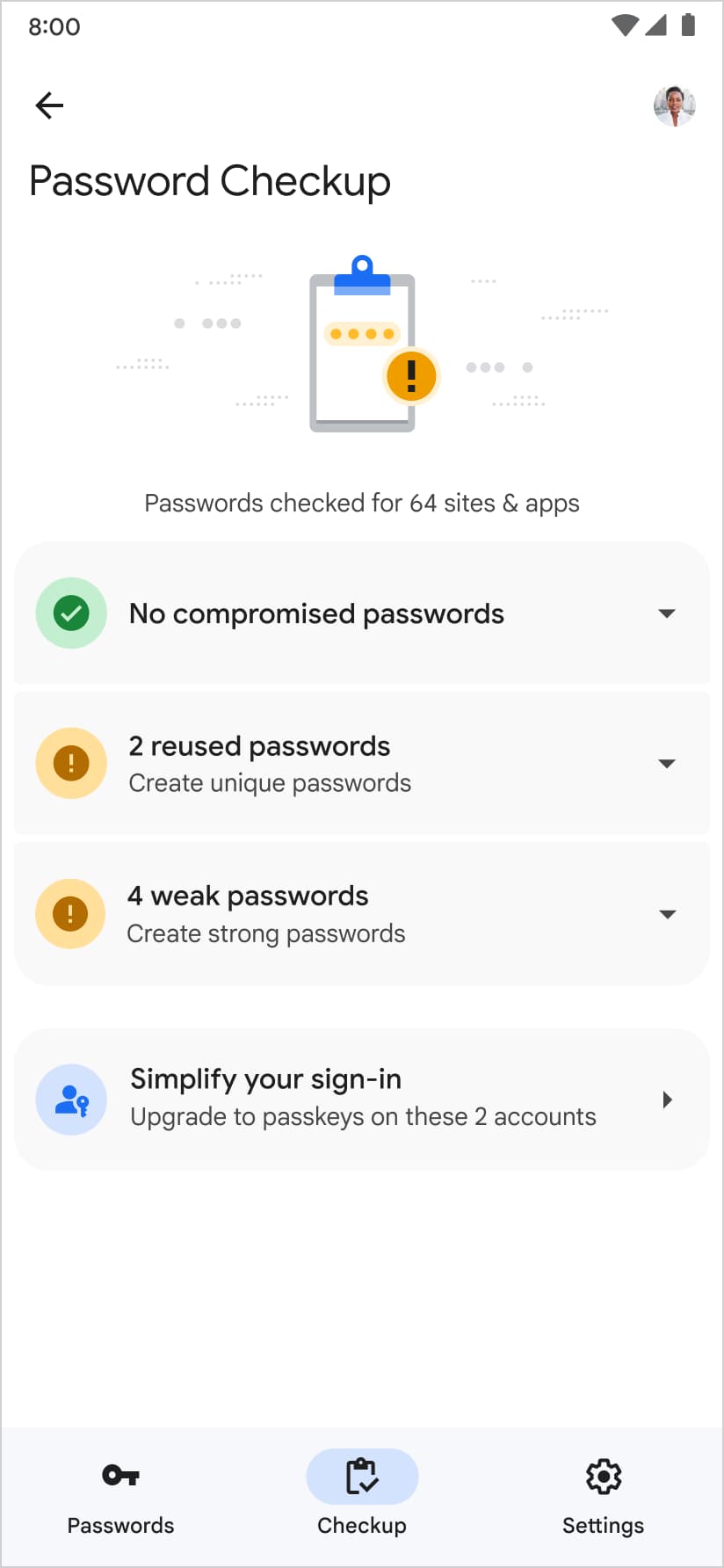 Google Password Manager also suggests creating a passkey on the password checkup page.
 Upon accepting the suggestion the user is directed to a list of domains where they can create a passkey. Tapping on an entry seamlessly redirects users to the corresponding enrollment page.
## Add passkey endpoints
To enable passkey upgrades in Google Password Manager, place a JSON file on your
server at `/.well-known/passkey-endpoints`. This is called [a "passkey endpoints
well-known URL" and is an open
protocol](https://github.com/ms-id-standards/MSIdentityStandardsExplainers/blob/main/PasskeyEndpointsWellKnownUrl/explainer.md)
for aligned parties to formally advertise their support for passkeys and provide
direct links for passkey enrollment and management. You can expect a similar
effect on other platforms when they support passkey endpoints well-known URLs.
For example, if a relying party's domain is at
`https://passkeys-demo.appspot.com`, the URL would be
`https://passkeys-demo.appspot.com/.well-known/passkey-endpoints`.
From the endpoint, serve a JSON file that looks something like this:
{
"enroll": "https://passkeys-demo.appspot.com/home",
"manage": "https://passkeys-demo.appspot.com/home"
}
`enroll` should point at the URL where the user can create a passkey. `manage`
should point at the URL where the user can manage created passkeys.
Google Password Manager refers to your passkey endpoints well-known URL when a
password entry exists but a passkey entry doesn't exist in the Google Password
Manager.
> [!CAUTION]
> **Caution:** This means if your user uses passwordless authentication such as magic email links or SMS-based OTP authentication, they will not see the suggestion.
### Determine the host to deploy the passkey endpoints well-known URL
When the passkey enrollment URL is at `id.example.com` but the RP ID of the
passkey is at `example.com`, which URL should the passkey endpoint be hosted at?
The passkey endpoint should be hosted at the RP ID domain. In the above example,
the endpoint URL should be `https://example.com/.well-known/passkey-endpoints`.
Even if your password entry appears at `https://id.example.com` within your
password manager, it doesn't matter.
### Complete the passkey upgrades form
Once you have deployed the passkey endpoints well-known URL, fill out [this form](https://docs.google.com/forms/d/e/1FAIpQLScXrQIb-qJHshJE17HcSO4kKw_XamH7WF3uY1EHMa43reNEBA/viewform).
### Support Android apps
To navigate the user to your Android app's passkey creation page, you can set up
[Android App Links](https://developer.android.com/training/app-links) so that
the web URL owned by you can be redirected to your app's specific fragment.
> [!WARNING]
> **Warning:** On Android, [non-discoverable credentials are bound to the
> device](https://developers.google.com/identity/passkeys/faq#can_an_rp_still_create_device-bound_credentials_that_arent_synchronized) and are not synced. You shouldn't deploy passkey endpoints if you only support non-discoverable credentials.