Select platform: [Android](https://developers.google.com/maps/documentation/android-sdk/cloud-customization/troubleshoot.md.txt "View this page for the Android platform docs.") [Android 3D](https://developers.google.com/maps/documentation/maps-3d/android-sdk/cloud-customization/troubleshoot.md.txt "View this page for the Android 3D platform docs.") [iOS](https://developers.google.com/maps/documentation/ios-sdk/cloud-customization/troubleshoot.md.txt "View this page for the iOS platform docs.") [iOS 3D](https://developers.google.com/maps/documentation/maps-3d/ios-sdk/cloud-customization/troubleshoot.md.txt "View this page for the iOS 3D platform docs.") [JavaScript](https://developers.google.com/maps/documentation/javascript/cloud-customization/troubleshoot.md.txt "View this page for the JavaScript platform docs.") [Web Service](https://developers.google.com/maps/documentation/maps-static/cloud-customization/troubleshoot.md.txt "View this page for the Web Service platform docs.")
To use cloud-based maps styling on Android, you must use the latest renderer for Maps SDK for Android. [Follow these instructions](https://developers.google.com/maps/documentation/android-sdk/renderer.md.txt).
This document describes common issues that might occur when setting up your
map style, and how to resolve them.
Click to file a
[Bug](https://issuetracker.google.com/issues/new?component=1415514&template=1863115)
or [Feature Request](https://issuetracker.google.com/issues/new?component=1415514&template=1863479).
## Messages
Here are some messages you might see and their solutions:
A map `styles` property cannot be set when a `mapId` is present. You cannot use map IDs and styles at the same time. Instead, edit the style associated with the map ID using the Cloud console. See also [I get an error trying to load my map style](https://developers.google.com/maps/documentation/android-sdk/cloud-customization/troubleshoot.md.txt#mapid-w-style).
The style editor can't be loaded right now The preview map uses a vector map. In cases when vector maps cannot
be loaded on your web browser, it falls back to a "no map" experience:
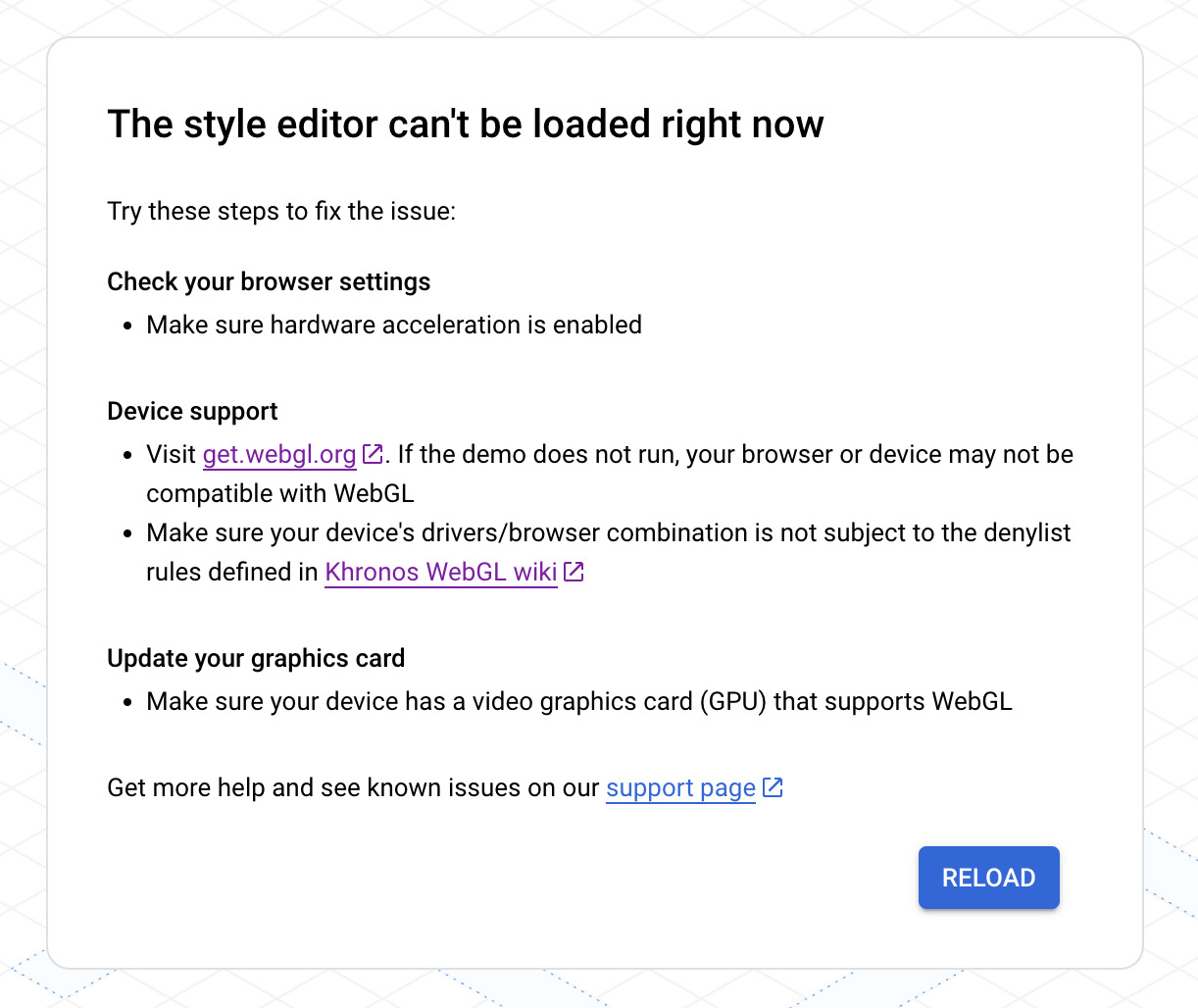
If you run into this issue, try the following:
- Check your browser settings to make sure hardware acceleration is enabled.
- Check if your device is supported by visiting [get.webgl.org](https://get.webgl.org/). If the demo does not run, your browser or device may not be compatible with WebGL. Make sure your device's drivers/browser combination is not subject to the denylist rules defined in the [Khronos WebGL wiki](https://www.khronos.org/webgl/wiki/BlacklistsAndWhitelists).
- Update your graphics card and make sure that your device has a video graphics card (GPU) that supports WebGL. See [Application and website
requirements](https://developers.google.com/maps/documentation/android-sdk/cloud-customization/setup#reqs).
For additional support, see [GMP WebGL support](https://developers.google.com/maps/documentation/javascript/webgl/support.md.txt).
## Style issues
You might see the following messages displayed after creating or updating
a style.
### My style changes aren't updating in my apps or website
Style changes can take a few hours to propagate to your apps and websites, and
apps can take longer if the devices aren't connected to the internet. If you're
still not seeing your style changes after a few hours, check the following
things:
- Make sure you've published your style update.
- If you made your changes in a duplicated style, make sure you've associated
your map ID with the duplicated style. For details, see
[Associate or remove map IDs on your style](https://developers.google.com/maps/documentation/android-sdk/cloud-customization/map-styles.md.txt#associate-style-with-map-id).
### I can't see my style changes on the preview map
If you make a change, and can't see the change on the preview map, here
are some things to try.
- **Check for style overlaps** : For details, see
[Manage styles that overlap](https://developers.google.com/maps/documentation/android-sdk/cloud-customization/overlap.md.txt).
- **Check for style inheritance overrides** : Check to see if there is a
custom child style underneath the style you're setting that is overriding
its parent style. For details on style inheritance, see
[Understand map style inheritance and hierarchy](https://developers.google.com/maps/documentation/android-sdk/cloud-customization/map-hier.md.txt).
- **Change the map zoom level**: It's possible that the map features you are
styling are not visible in the map at the current zoom level.
- **Zoom in**: If you are sure the feature is present on the map,
zoom in to a more detailed view and it may appear.
- **Zoom out**: With some large map features, you may need to zoom out
until the detailed map features drop out before your styling shows up.
### My text looks blurry or out of focus
If the colors you've chosen for your fill and stroke for text don't have
enough contrast, the font looks bold and fuzzy because the stroke (outline)
and fill merge together. Select colors that have enough contrast.
### My style looks dull or the wrong color
The map feature you are styling may overlap with one or more other map
features. For assistance, see [Manage styles that overlap](https://developers.google.com/maps/documentation/android-sdk/cloud-customization/overlap.md.txt).
### The wrong map features are being styled
If you are seeing map features that match the style you've set, it may be that
the default map style for those map features are the same as the style you're
setting. Here are some things to try:
- **Turn off visibility for the map feature that matches**. For example,
if you are trying to set Winery to a dark red, and notice that Emergency
POIs are red, which could be confusing for your users. You can choose to
turn off visibility for Emergency POIs to avoid this confusion.
- **Change the style of the map features that you don't want to match**.
the example above, you could also choose to style Emergency POIs to orange
to avoid confusion.
### I get an error trying to load my map style
You cannot use map IDs and styles at the same time. You can do one of the
following:
- **Recommended** : Remove the map style, and edit the style associated with
the map ID using the Cloud console. With this method, you can create one
style that applies to all platforms. For details, see
[Associate a style with a map ID](https://developers.google.com/maps/documentation/android-sdk/cloud-customization/map-styles.md.txt#associate-style-with-map-id).
- Remove the map ID, and edit the style for each app platform using
[Add a styled map](https://developers.google.com/maps/documentation/android-sdk/styling.md.txt).
Since JSON styling is platform-specific, you need to create the style for each
app platform on which you display the styled maps.
If you already have a JSON map style that you want to use for cloud-based
maps styling, you can import it. For details, see
[Import a JSON map style](https://developers.google.com/maps/documentation/android-sdk/cloud-customization/json.md.txt#json-import).