Select platform: [Android](https://developers.google.com/maps/documentation/android-sdk/dds-datasets/add-dataset-to-map.md.txt "View this page for the Android platform docs.") [iOS](https://developers.google.com/maps/documentation/ios-sdk/dds-datasets/add-dataset-to-map.md.txt "View this page for the iOS platform docs.") [JavaScript](https://developers.google.com/maps/documentation/javascript/dds-datasets/add-dataset-to-map.md.txt "View this page for the JavaScript platform docs.")
This page shows you how to add a dataset to a map, and apply styling.
## Prerequisites
Before proceeding, you should have a map ID and map style, and a dataset ID.
- [Create a map ID and map style](https://developers.google.com/maps/documentation/android-sdk/dds-datasets/start.md.txt#create_a_map_id)
- [Create and upload a dataset](https://developers.google.com/maps/documentation/android-sdk/dds-datasets/create-dataset.md.txt)
> [!NOTE]
> **Note:** You need the ID of your dataset to initialize your app.
## Associate a dataset ID with a map style
To style the features of a dataset, you apply a style function to the
*dataset feature layer* of a map. The dataset feature layer is created when you
*associate a dataset with a map style*.
> [!WARNING]
> **Experimental:** This feature can only be set for light map styles. When you link a light map style that has this feature enabled to a [map
> ID](https://developers.google.com/maps/documentation/android-sdk/map-ids/mapid-over), the enabled layers are also available for the dark map style.
To associate your dataset with the map style:
1. In the Google Cloud console, [go to the **Datasets** page](https://console.cloud.google.com/google/maps-apis/datasets).
2. Click the name of the dataset. The **Dataset details** page appears.
3. Click the **Preview** tab.
4. In the **Associated map styles** section, click **ADD MAP STYLE** .

5. Click the checkbox(es) for the Map Style(s) to associate and then click **SAVE**.
> [!CAUTION]
> **Caution:** Rendering multiple datasets on a map can affect performance depending on the size and number of datasets.
## Apply styles to the dataset
To apply styles to a dataset:
1. Create a style factory function that implements the
[`FeatureLayer.StyleFactory`](https://developers.google.com/android/reference/com/google/android/gms/maps/model/FeatureLayer.StyleFactory.md.txt)
interface. This function defines the styling logic for a dataset.
2. Call
[`FeatureLayer.setFeatureStyle()`](https://developers.google.com/android/reference/com/google/android/gms/maps/model/FeatureLayer.md.txt#setFeatureStyle(com.google.android.gms.maps.model.FeatureLayer.StyleFactory))
to apply the style factory function to each feature in the dataset.
### Create a style factory function
The style factory function is applied to every feature in the dataset
layer at the time you set the function on the feature layer. This function must
return a [`FeatureStyle`](https://developers.google.com/android/reference/com/google/android/gms/maps/model/FeatureStyle.md.txt)
object that specifies how to style the polygon.
If the style factory returns `null`, the given feature is not rendered. For more
information, see [Remove styling from a layer](https://developers.google.com/maps/documentation/android-sdk/dds-datasets/add-dataset-to-map.md.txt#remove_styling_from_a_layer).
> [!NOTE]
> **Note:** If you update or modify the style factory function for a feature layer, you must call `FeatureLayer.setFeatureStyle()` again to reset the function on the feature layer.
Maps SDK for Android passes a
[`Feature`](https://developers.google.com/android/reference/com/google/android/gms/maps/model/Feature.md.txt)
instance to the style factory function. The `Feature` instance represents the
feature's metadata, giving you access to the metadata in the style factory
function.
> [!NOTE]
> **Note:** For a dataset, the instance is actually of type [`DatasetFeature`](https://developers.google.com/android/reference/com/google/android/gms/maps/model/DatasetFeature.md.txt), which is a child class of `Feature`.
The style factory function should always return consistent results when it is
applied. For example, if you wanted to randomly color a set of features, the
random part shouldn't take place in the feature style function, as that would
cause unintended results.
Because this function runs over every feature in a layer, optimization is
important. To avoid impacting rendering times call
`FeatureLayer.setFeatureStyle(null)` when a feature layer is no longer in use.
You can also call `FeatureLayer.getDatasetId()` to get the ID of the dataset.
### Set stroke, fill, and point radius
When styling a feature in the style factory function, you can set the:
- **Stroke color and opacity** of the border as defined by the
[`Color`](https://developer.android.com/reference/android/graphics/Color.html)
class. The default value is transparent (`Color.TRANSPARENT`).
- **Stroke width** of the border in screen pixels. The default value is 2.
- **Fill color and opacity** as defined by the
[`Color`](https://developer.android.com/reference/android/graphics/Color.html)
class. The default value is transparent (`Color.TRANSPARENT`).
- **Point radius** of a point feature between 0 and 128 pixels.
### Use simple style rules
The simplest way to style features is to define a `FeatureLayer.StyleFactory`
which always builds an identical `FeatureStyle` object, regardless of the
feature. Apply feature style options directly to a dataset feature layer, or use
them in conjunction with a `FeatureStyleFunction`.
### Use declarative style rules
You can set style rules declaratively based on a feature attribute,
and apply them across your entire dataset. You can return `null` from your
feature style function, for example if you want a subset of features to remain
invisible.
For example, use the `DatasetFeature.getDatasetAttributes()` method to return a
`Map` of dataset attributes for a feature. You can then
customize the styling of the feature based on its attributes.
This example determines the value of the "highlightColor" attribute of each
feature of a dataset to control the styling:
### Kotlin
```java
// Get the dataset feature, so we can work with all of its attributes.
val datasetFeature: DatasetFeature = feature as DatasetFeature
// Create a switch statement based on the value of the
// "highlightColor" attribute of the dataset.
val attributeColor: MutableMap = datasetFeature.getDatasetAttributes()
when (attributeColor["highlightColor"]) {
"Black" -> {
...
}
"Red" -> {
...
}
else -> {
...
}
}
```
### Java
```java
// Get the dataset feature, so we can work with all of its attributes.
DatasetFeature datasetFeature = (DatasetFeature) feature;
// Create a switch statement based on the value of the
// "highlightColor" attribute of the dataset.
Map attributeColor = datasetFeature.getDatasetAttributes();
switch(attributeColor.get("highlightColor"))
{
case "Black":
...
break;
case "Red":
...
break;
default: // Color not defined.
...
break;
}
```
### Apply style to the dataset feature layer
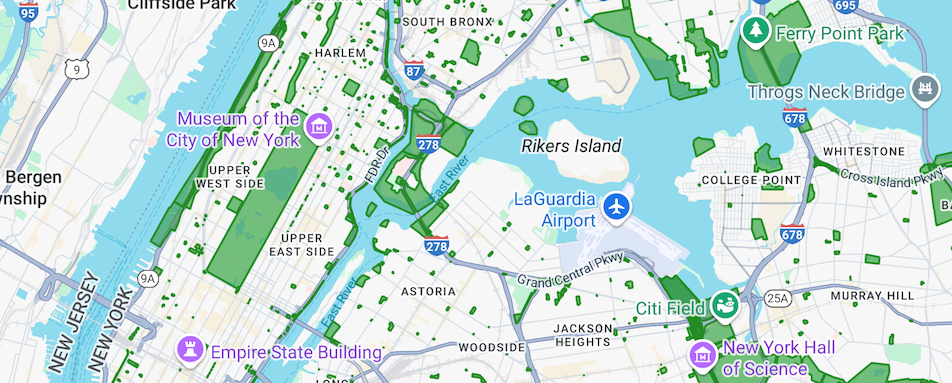
This example applies a style factory function to a polygon in the dataset
feature layer. The style factory function applies a custom fill and stroke style
to the polygon:
1. If you haven't already done so, follow the steps in
[Get Started](https://developers.google.com/maps/documentation/android/dds-datasets/start)
to create a new map ID and map style. Be sure to enable the **Datasets**
feature layer.
2. Get a reference to the Datasets feature layer when the map initializes.
### Kotlin
```java
private var datasetLayer: FeatureLayer? = null
override fun onMapReady(googleMap: GoogleMap) {
// Get the DATASET feature layer.
datasetLayer = googleMap.getFeatureLayer(FeatureLayerOptions.Builder()
.featureType(FeatureType.DATASET)
// Specify the dataset ID.
.datasetId(YOUR_DATASET_ID)
.build())
// Apply style factory function to DATASET layer.
styleDatasetsLayer()
}
```
### Java
```java
private FeatureLayer datasetLayer;
@Override
public void onMapReady(GoogleMap map) {
// Get the DATASET feature layer.
datasetLayer = map.getFeatureLayer(new FeatureLayerOptions.Builder()
.featureType(FeatureType.DATASET)
// Specify the dataset ID.
.datasetId(YOUR_DATASET_ID)
.build());
// Apply style factory function to DATASET layer.
styleDatasetsLayer();
}
```
3. Create a style factory function and apply it to the Datasets
feature layer.
The following example applies the same fill and stroke to all features
in the dataset.
> [!NOTE]
> **Note:** This example checks that the feature passed to the style factory function is of type `DatasetFeature`. However, because the style factory function applies the same style to all features in the dataset, it does not use the `DatasetFeature` object. For examples that apply styles conditionally based on the contents of the `DatasetFeature` object, see [Style data feature examples](https://developers.google.com/maps/documentation/android-sdk/dds-datasets/style-data-features.md.txt).
### Kotlin
```java
private fun styleDatasetsLayer() {
// Create the style factory function.
val styleFactory = FeatureLayer.StyleFactory { feature: Feature ->
// Check if the feature is an instance of DatasetFeature.
if (feature is DatasetFeature) {
return@StyleFactory FeatureStyle.Builder()
// Define a style with green fill at 50% opacity and
// solid green border.
.fillColor(0x8000ff00.toInt())
.strokeColor(0xff00ff00.toInt())
.strokeWidth(2F)
.build()
}
return@StyleFactory null
}
// Apply the style factory function to the feature layer.
datasetLayer?.setFeatureStyle(styleFactory)
}
```
### Java
```java
private void styleDatasetsLayer() {
// Create the style factory function.
FeatureLayer.StyleFactory styleFactory = (Feature feature) -> {
// Check if the feature is an instance of DatasetFeature.
if (feature instanceof DatasetFeature) {
return new FeatureStyle.Builder()
// Define a style with green fill at 50% opacity and solid green border.
.fillColor(0x8000ff00)
.strokeColor(0xff00ff00)
.strokeWidth(2)
.build();
}
return null;
};
// Apply the style factory function to the feature layer.
datasetLayer.setFeatureStyle(styleFactory);
}
```
## Remove styling from a layer
To remove styling from a layer, call `FeatureLayer.setFeatureStyle(null)`.
You can also return `null` from your style factory, for example if you
want a subset of features to remain invisible.