Select platform: [Android](https://developers.google.com/maps/documentation/android-sdk/dds-datasets/make-data-features-clickable.md.txt "View this page for the Android platform docs.") [iOS](https://developers.google.com/maps/documentation/ios-sdk/dds-datasets/make-data-features-tappable.md.txt "View this page for the iOS platform docs.") [JavaScript](https://developers.google.com/maps/documentation/javascript/dds-datasets/make-data-features-clickable.md.txt "View this page for the JavaScript platform docs.")
Make data features respond to `click` events, and use them to
change the appearance of a feature based on user interaction.
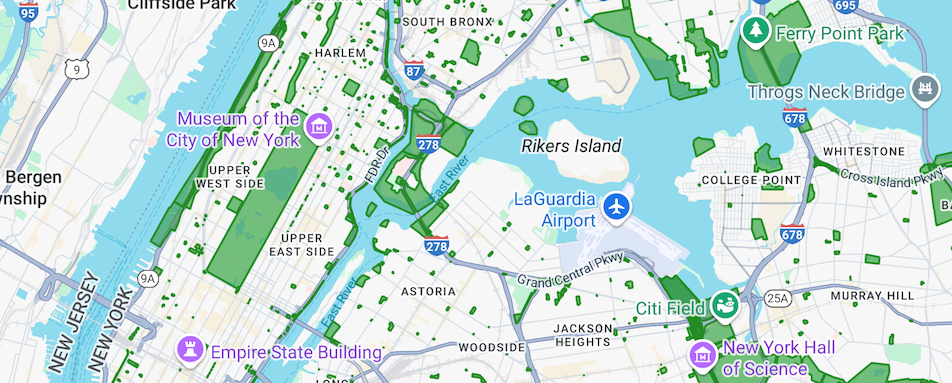
## Write a click event handler
When a click event occurs on a feature layer, the Maps SDK for Android passes a
[`FeatureClickEvent`](https://developers.google.com/android/reference/com/google/android/gms/maps/model/FeatureClickEvent.md.txt)
object to the event handler.
Use the `FeatureClickEvent.getFeatures()` method to get the list of features
affected by the click.
## Handle feature layer events
Take the following steps to handle events on the Datasets layer. In this
example, you apply a blue fill and border to the polygon representing the
selected feature.
> [!NOTE]
> **Note:** In this example, the `globalid` attribute of the dataset contains a unique identifier for each polygon. You can then examine the `globalid` of the polygon that was clicked to apply the blue styling only to that polygon.
When you call
[`FeatureLayer.setFeatureStyle()`](https://developers.google.com/android/reference/com/google/android/gms/maps/model/FeatureLayer.md.txt#setFeatureStyle(com.google.android.gms.maps.model.FeatureLayer.StyleFactory)),
the style factory function sets the feature style on all features in the
dataset. To update the style of a dataset in the event handler, you must
call `FeatureLayer.setFeatureStyle()` to set the updated style on all dataset
features.
1. If you haven't already done so, follow the steps in
[Get Started](https://developers.google.com/maps/documentation/android/dds-datasets/start)
to create a new map ID and map style. Be sure to enable the **Datasets**
feature layer.
2. Make sure your class implements
[`FeatureLayer.OnFeatureClickListener`](https://developers.google.com/android/reference/com/google/android/gms/maps/model/FeatureLayer.OnFeatureClickListener.md.txt).
3. Register an event handler for feature click events by calling
[`FeatureLayer.addOnFeatureClickListener()`](https://developers.google.com/android/reference/com/google/android/gms/maps/model/FeatureLayer.md.txt#addOnFeatureClickListener(com.google.android.gms.maps.model.FeatureLayer.OnFeatureClickListener)).
### Kotlin
```java
private var datasetLayer: FeatureLayer? = null
// The globalid of the clicked dataset feature.
var lastGlobalId: String? = null
override fun onMapReady(googleMap: GoogleMap) {
// Get the DATASET feature layer.
datasetLayer = googleMap.getFeatureLayer(FeatureLayerOptions.Builder()
.featureType(FeatureType.DATASET)
// Specify the dataset ID.
.datasetId(YOUR_DATASET_ID)
.build())
// Register the click event handler for the Datasets layer.
datasetLayer?.addOnFeatureClickListener(this)
// Apply default style to all features on load to enable clicking.
styleDatasetsLayer()
}
// Define the click event handler to set lastGlobalId to globalid of selected feature.
override fun onFeatureClick(event: FeatureClickEvent) {
// Get the dataset feature affected by the click.
val clickFeatures: MutableList = event.features
lastGlobalId = null
if (clickFeatures.get(0) is DatasetFeature) {
lastGlobalId = ((clickFeatures.get(0) as DatasetFeature).getDatasetAttributes().get("globalid"))
// Remember to reset the Style Factory.
styleDatasetsLayer()
}
}
```
### Java
```java
private FeatureLayer datasetLayer;
// The globalid of the clicked dataset feature.
String lastgobalid = null;
@Override
public void onMapReady(GoogleMap map) {
// Get the DATASET feature layer.
datasetLayer = map.getFeatureLayer(new FeatureLayerOptions.Builder()
.featureType(FeatureType.DATASET)
// Specify the dataset ID.
.datasetId(YOUR_DATASET_ID)
.build());
// Register the click event handler for the Datasets layer.
datasetLayer.addOnFeatureClickListener(this);
// Apply default style to all features on load to enable clicking.
styleDatasetsLayer();
}
@Override
// Define the click event handler.
public void onFeatureClick(FeatureClickEvent event) {
// Get the dataset feature affected by the click.
List clickFeatures = event.getFeatures();
lastgobalid = null;
if (clickFeatures.get(0) instanceof DatasetFeature) {
lastgobalid = ((DatasetFeature) clickFeatures.get(0)).getDatasetAttributes().get("globalid");
// Remember to reset the Style Factory.
styleDatasetsLayer();
}
}
```
4. Apply a fill color of blue to the selected feature and green to all other
features. Only visible features are clickable.
### Kotlin
```java
// Set fill and border for all features.
private fun styleDatasetsLayer() {
// Create the style factory function.
val styleFactory = FeatureLayer.StyleFactory { feature: Feature ->
// Check if the feature is an instance of DatasetFeature.
if (feature is DatasetFeature) {
val globalIDs: MutableMap = feature.getDatasetAttributes()
// Determine globalid attribute.
val globalID = globalIDs!!["globalid"]
// Set default colors to to green.
var fillColor = 0x800000ff
var strokeColor = 0xff0000ff
if (globalID == lastGlobalId) {
// Color selected area blue.
fillColor = 0x8000ff00
strokeColor = 0xff00ff00
}
return@StyleFactory FeatureStyle.Builder()
.fillColor(fillColor)
.strokeColor(strokeColor)
.build()
}
return@StyleFactory null
}
// Apply the style factory function to the dataset feature layer.
datasetLayer?.setFeatureStyle(styleFactory)
}
```
### Java
```java
// Set default green fill and border for all features.
private void styleDatasetsLayer() {
// Create the style factory function.
FeatureLayer.StyleFactory styleFactory = (Feature feature) -> {
// Check if the feature is an instance of DatasetFeature.
if (feature instanceof DatasetFeature) {
// Check if "globalid" attribute of feature is the "globalid" of clicked feature.
Map globalIDs = ((DatasetFeature) feature).getDatasetAttributes();
String globalID = globalIDs.get("globalid");
// Set default colors to green.
int fillColor = 0x4000ff00;
int strokeColor = 0xff00ff00;
if (Objects.equals(globalID, lastgobalid)) {
// Color selected area blue.
fillColor = 0x400000ff;
strokeColor = 0xff0000ff;
}
return new FeatureStyle.Builder()
.fillColor(fillColor)
.strokeColor(strokeColor)
.strokeWidth(2)
.build();
}
return null;
};
// Apply the style factory function to the feature layer.
datasetLayer.setFeatureStyle(styleFactory);
}
```