Select platform: [Android](https://developers.google.com/maps/documentation/android-sdk/infowindows.md.txt "View this page for the Android platform docs.") [iOS](https://developers.google.com/maps/documentation/ios-sdk/infowindows.md.txt "View this page for the iOS platform docs.") [JavaScript](https://developers.google.com/maps/documentation/javascript/infowindows.md.txt "View this page for the JavaScript platform docs.")
An info window displays text or images in a popup window above the map. Info
windows are always anchored to a [marker](https://developers.google.com/maps/documentation/android-sdk/marker.md.txt). Their default behavior is
to display when the marker is tapped.
## Code samples
The [ApiDemos repository](https://github.com/googlemaps-samples/android-samples/blob/main/ApiDemos) on GitHub includes a
sample that demonstrates all info window features:
- [MarkerDemoActivity - Java](https://github.com/googlemaps-samples/android-samples/blob/main/ApiDemos/project/java-app/src/main/java/com/example/mapdemo/MarkerDemoActivity.java): Customizing info windows and using info window listeners
- [MarkerDemoActivity - Kotlin](https://github.com/googlemaps-samples/android-samples/blob/main/ApiDemos/project/kotlin-app/src/main/java/com/example/kotlindemos/MarkerDemoActivity.kt): Customizing info windows and using info window listeners
## Introduction
An info window allows you to display information to the user when they tap on
a marker. Only one info window is displayed at a time. If a user clicks on
a marker, the current info window will be closed and the new info window
will be displayed. Note that if the user clicks on a marker that is currently
showing an info window, that info window closes and re-opens.
An info window is drawn oriented against the device's screen, centered
above its associated marker. The default info window contains the title
in bold, with the (optional) snippet text below the title.
### Add an info window
The simplest way to add an info window is to set the `title()` and `snippet()`
methods of the corresponding marker. Setting these properties will cause an
info window to appear whenever that marker is clicked.
### Kotlin
```kotlin
val melbourneLatLng = LatLng(-37.81319, 144.96298)
val melbourne = map.addMarker(
MarkerOptions()
.position(melbourneLatLng)
.title("Melbourne")
.snippet("Population: 4,137,400"),
)
```
### Java
```java
final LatLng melbourneLatLng = new LatLng(-37.81319, 144.96298);
Marker melbourne =
map.addMarker(
new MarkerOptions()
.position(melbourneLatLng)
.title("Melbourne")
.snippet("Population: 4,137,400"));
```
### Show/Hide an info window
Info windows are designed to respond to user touch events. If you prefer, you
can show an info window programmatically by calling
[`showInfoWindow()`](https://developers.google.com/android/reference/com/google/android/gms/maps/model/Marker.md.txt#showInfoWindow())
on the target marker. An info window can be hidden by calling
[`hideInfoWindow()`](https://developers.google.com/android/reference/com/google/android/gms/maps/model/Marker.md.txt#hideInfoWindow()).
### Kotlin
```kotlin
val melbourneLatLng = LatLng(-37.81319, 144.96298)
val melbourne = map.addMarker(
MarkerOptions()
.position(melbourneLatLng)
.title("Melbourne"),
)
melbourne?.showInfoWindow()
if (melbourne?.isInfoWindowShown == true) {
melbourne.hideInfoWindow()
}
```
### Java
```java
final LatLng melbourneLatLng = new LatLng(-37.81319, 144.96298);
Marker melbourne =
map.addMarker(new MarkerOptions().position(melbourneLatLng).title("Melbourne"));
melbourne.showInfoWindow();
if (melbourne.isInfoWindowShown()) {
melbourne.hideInfoWindow();
}
```
You can also create info windows for individual [clustered markers](https://developers.google.com/maps/documentation/android-sdk/utility/marker-clustering.md.txt).
Read the guide to [adding an info window for individual clustered markers](https://developers.google.com/maps/documentation/android-sdk/utility/marker-clustering.md.txt#info-window).
## Custom info windows
You are also able to customize the contents and design of info windows. To do
this, you must create a concrete implementation of the
[`InfoWindowAdapter`](https://developers.google.com/android/reference/com/google/android/gms/maps/GoogleMap.InfoWindowAdapter.md.txt) interface and then call
[`GoogleMap.setInfoWindowAdapter()`](https://developers.google.com/android/reference/com/google/android/gms/maps/GoogleMap.md.txt#setInfoWindowAdapter(com.google.android.gms.maps.GoogleMap.InfoWindowAdapter)) with your
implementation. The interface contains two methods for you to implement:
[`getInfoWindow(Marker)`](https://developers.google.com/android/reference/com/google/android/gms/maps/GoogleMap.InfoWindowAdapter.md.txt#getInfoWindow(com.google.android.gms.maps.model.Marker)) and [`getInfoContents(Marker)`](https://developers.google.com/android/reference/com/google/android/gms/maps/GoogleMap.InfoWindowAdapter.md.txt#getInfoContents(com.google.android.gms.maps.model.Marker)). The
API will first call [`getInfoWindow(Marker)`](https://developers.google.com/android/reference/com/google/android/gms/maps/GoogleMap.InfoWindowAdapter.md.txt#getInfoWindow(com.google.android.gms.maps.model.Marker)) and if `null` is
returned, it will then call [`getInfoContents(Marker)`](https://developers.google.com/android/reference/com/google/android/gms/maps/GoogleMap.InfoWindowAdapter.md.txt#getInfoContents(com.google.android.gms.maps.model.Marker)). If this also returns
`null`, then the default info window will be used.
The first of these ([`getInfoWindow()`](https://developers.google.com/android/reference/com/google/android/gms/maps/GoogleMap.InfoWindowAdapter.md.txt#getInfoWindow(com.google.android.gms.maps.model.Marker))) allows you to provide a view that
will be used for the entire info window. The second of these
([`getInfoContents()`](https://developers.google.com/android/reference/com/google/android/gms/maps/GoogleMap.InfoWindowAdapter.md.txt#getInfoContents(com.google.android.gms.maps.model.Marker))) allows you to just customize the contents of the window
but still keep the default info window frame and background.
> [!NOTE]
> **Note:** The info window that is drawn is *not* a live view. The view is rendered as an image (using `View.draw(Canvas)`) at the time it is returned. This means that any subsequent changes to the view will not be reflected by the info window on the map. To update the info window later (for example, after an image has loaded), call [`showInfoWindow()`](https://developers.google.com/android/reference/com/google/android/gms/maps/model/Marker.md.txt#showInfoWindow()). Furthermore, the info window will not respect any of the interactivity typical for a normal view such as touch or gesture events. However you can listen to a generic click event on the whole info window as described in the section below.
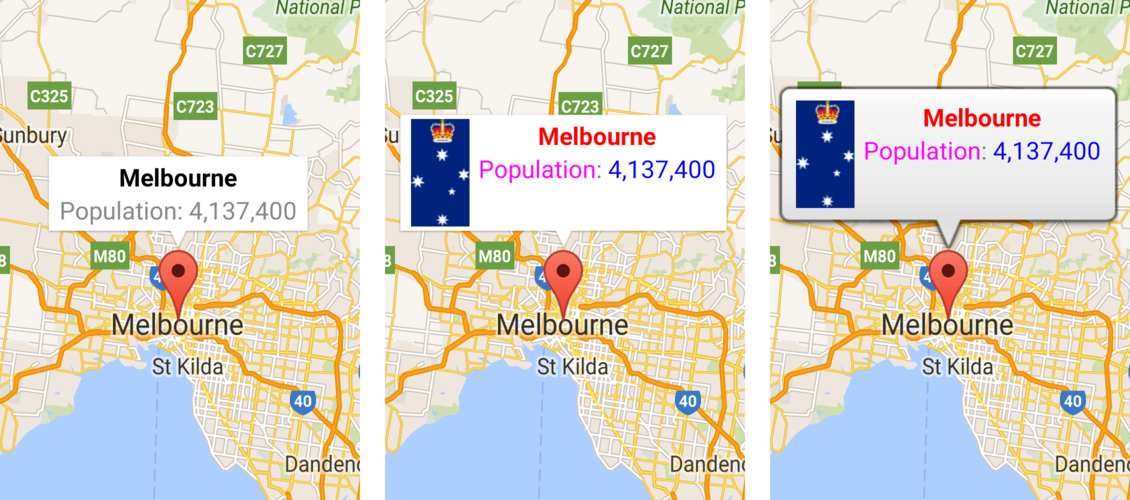
The images below show a default info window, an info window with customized
contents, and an info window with customized frame and background.
## Info window events
The [MarkerDemoActivity sample](https://github.com/googlemaps-samples/android-samples/blob/main/ApiDemos/project/java-app/src/main/java/com/example/mapdemo/MarkerDemoActivity.java) includes example code for
registering and handling info window events.
You can use an [`OnInfoWindowClickListener`](https://developers.google.com/android/reference/com/google/android/gms/maps/GoogleMap.OnInfoWindowClickListener.md.txt) to
listen to click events on an info window. To set this listener on the map,
call [`GoogleMap.setOnInfoWindowClickListener(OnInfoWindowClickListener)`](https://developers.google.com/android/reference/com/google/android/gms/maps/GoogleMap.OnInfoWindowClickListener.md.txt). When
a user clicks on an info window, [`onInfoWindowClick(Marker)`](https://developers.google.com/android/reference/com/google/android/gms/maps/GoogleMap.OnInfoWindowClickListener.md.txt#onInfoWindowClick(com.google.android.gms.maps.model.Marker)) is called
and the info window is highlighted in the default highlight color (gray).
### Kotlin
```kotlin
map.setOnInfoWindowClickListener { marker ->
Toast.makeText(
context,
"Info window clicked",
Toast.LENGTH_SHORT,
).show()
}
```
### Java
```java
map.setOnInfoWindowClickListener(
new GoogleMap.OnInfoWindowClickListener() {
@Override
public void onInfoWindowClick(Marker marker) {
Toast.makeText(context, "Info window clicked", Toast.LENGTH_SHORT).show();
}
});
```
Similarly, you can listen for long click events with an
[`OnInfoWindowLongClickListener`](https://developers.google.com/android/reference/com/google/android/gms/maps/GoogleMap.OnInfoWindowLongClickListener.md.txt), which you
can set by calling
[`GoogleMap.setOnInfoWindowCloseListener(OnInfoWindowCloseListener)`](https://developers.google.com/android/reference/com/google/android/gms/maps/GoogleMap.OnInfoWindowCloseListener.md.txt).
This listener behaves similarly to the click listener and will be notified on
long click events with an [`onInfoWindowClose(Marker)`](https://developers.google.com/android/reference/com/google/android/gms/maps/GoogleMap.OnInfoWindowCloseListener.md.txt#onInfoWindowClose(com.google.android.gms.maps.model.Marker)) callback.
To be notified when the info window closes, use an
[`OnInfoWindowCloseListener`](https://developers.google.com/android/reference/com/google/android/gms/maps/GoogleMap.OnInfoWindowCloseListener.md.txt), which you can
set by calling
[`GoogleMap.setOnInfoWindowCloseListener(OnInfoWindowCloseListener)`](https://developers.google.com/android/reference/com/google/android/gms/maps/GoogleMap.OnInfoWindowCloseListener.md.txt). You will
receive an [`onInfoWindowClose(Marker)`](https://developers.google.com/android/reference/com/google/android/gms/maps/GoogleMap.OnInfoWindowCloseListener.md.txt#onInfoWindowClose(com.google.android.gms.maps.model.Marker)) callback.
**Note about refreshing an info window:** The [`onInfoWindowClose()`](https://developers.google.com/android/reference/com/google/android/gms/maps/GoogleMap.OnInfoWindowCloseListener.md.txt#onInfoWindowClose(com.google.android.gms.maps.model.Marker)) event fires if
the user refreshes an info window by tapping a marker that already has an open
info window. But if you programmatically call `Marker.showInfoWindow()` on an
open info window, the [`onInfoWindowClose()`](https://developers.google.com/android/reference/com/google/android/gms/maps/GoogleMap.OnInfoWindowCloseListener.md.txt#onInfoWindowClose(com.google.android.gms.maps.model.Marker)) event does not fire. The latter
behavior is based on the assumption that you are aware that the info window will
close and re-open.
As mentioned in the previous section on info windows, an info window is not a
live view. Instead, the view is rendered as an image on the map. As a
result, any listeners you set on the view are disregarded and you cannot
distinguish between click events on various parts of the view. You are advised
not to place interactive components --- such as buttons, checkboxes, or text
inputs --- within your custom info window.