One of the unique features of mobile applications is location awareness.
Mobile users bring their devices with them everywhere, and adding location
awareness to your app offers users a more contextual experience.
## Code samples
The [ApiDemos repository](https://github.com/googlemaps-samples/android-samples/blob/main/ApiDemos) on GitHub includes
samples that demonstrate the use of location on a map:
**Kotlin**
- [MyLocationDemoActivity](https://github.com/googlemaps-samples/android-samples/blob/main/ApiDemos/project/kotlin-app/src/main/java/com/example/kotlindemos/MyLocationDemoActivity.kt): Using the [My Location layer](https://developers.google.com/maps/documentation/android-sdk/location.md.txt#my-location), including runtime permissions
- [LocationSourceDemoActivity](https://github.com/googlemaps-samples/android-samples/blob/main/ApiDemos/project/kotlin-app/src/main/java/com/example/kotlindemos/LocationSourceDemoActivity.kt): Using a custom [`LocationSource`](https://developers.google.com/android/reference/com/google/android/gms/maps/LocationSource.md.txt)
- [CurrentPlaceDetailsOnMap](https://github.com/googlemaps-samples/android-samples/blob/main/tutorials/kotlin/CurrentPlaceDetailsOnMap/app/src/main/java/com/example/currentplacedetailsonmap/MapsActivityCurrentPlace.kt): Finding the current location of an Android device and displaying details of the place (business or other point of interest) at that location. See the tutorial on showing [current place details on a map](https://developers.google.com/maps/documentation/android-sdk/current-place-tutorial.md.txt).
**Java**
- [MyLocationDemoActivity](https://github.com/googlemaps-samples/android-samples/blob/main/ApiDemos/project/java-app/src/main/java/com/example/mapdemo/MyLocationDemoActivity.java): Using the [My Location layer](https://developers.google.com/maps/documentation/android-sdk/location.md.txt#my-location), including runtime permissions
- [LocationSourceDemoActivity](https://github.com/googlemaps-samples/android-samples/blob/main/ApiDemos/project/java-app/src/main/java/com/example/mapdemo/LocationSourceDemoActivity.java): Using a custom [`LocationSource`](https://developers.google.com/android/reference/com/google/android/gms/maps/LocationSource.md.txt)
- [CurrentPlaceDetailsOnMap](https://github.com/googlemaps-samples/android-samples/blob/main/tutorials/java/CurrentPlaceDetailsOnMap/app/src/main/java/com/example/currentplacedetailsonmap/MapsActivityCurrentPlace.java): Finding the current location of an Android device and displaying details of the place (business or other point of interest) at that location. See the tutorial on showing [current place details on a map](https://developers.google.com/maps/documentation/android-sdk/current-place-tutorial.md.txt).
## Working with location data
The location data available to an Android device includes the current location
of the device --- pinpointed using a combination of technologies ---
the direction and method of movement, and whether the device has moved across
a predefined geographical boundary, or geofence. Depending upon the needs of
your application, you can choose between several ways of working with location
data:
- The **My Location** layer provides a simple way to display a device's location on the map. It does not provide data.
- The **Google Play services Location API** is recommended for all programmatic requests for location data.
- The [`LocationSource`](https://developers.google.com/android/reference/com/google/android/gms/maps/LocationSource.md.txt) interface allows you to provide a custom location provider.
## Location permissions
If your app needs to access the user's location, you must request permission by
adding the relevant Android **location permissions** to your app.
Android offers two location permissions: `ACCESS_COARSE_LOCATION` and
`ACCESS_FINE_LOCATION`. The permission you choose determines the accuracy of the
location returned by the API.
- [`android.permission.ACCESS_COARSE_LOCATION`](https://developer.android.com/reference/android/Manifest.permission.html#ACCESS_COARSE_LOCATION) -- Allows the API to return the device's approximate location. The permission provides a device location estimate from location services, as described in the documentation about [approximate location
accuracy](https://developer.android.com/training/location/permissions#accuracy).
- [`android.permission.ACCESS_FINE_LOCATION`](https://developer.android.com/reference/android/Manifest.permission.html#ACCESS_FINE_LOCATION) -- Allows the API to determine as precise a location as possible from the available location providers, including the Global Positioning System (GPS) as well as WiFi and mobile cell data.
> [!NOTE]
> **Note:** On Android 12 (API level 31) or higher, users can request that your app retrieve only approximate location information even when your app requests the `ACCESS_FINE_LOCATION` runtime permission. To handle this, both `ACCESS_FINE_LOCATION` and `ACCESS_COARSE_LOCATION` permissions should be requested in a single runtime request. See [User can grant only approximate location](https://developer.android.com/training/location/permissions#request-location-access-runtime).
### Add the permissions to the app manifest
If approximate location is only needed for your app to function, then add the
`ACCESS_COARSE_LOCATION` permission to your app's manifest file:
```
...
...
```
However, if precise location is needed, then add both `ACCESS_COARSE_LOCATION`
and `ACCESS_FINE_LOCATION` permissions to your app's manifest file:
```
...
...
```
### Request runtime permissions
Android 6.0 (Marshmallow) introduces a new model for handling permissions, which
streamlines the process for users when they install and upgrade apps. If your
app targets API level 23 or later, you can use the new permissions model.
If your app supports the new permissions model and the device is running Android
6.0 (Marshmallow) or later, the user does not have to grant any permissions
when they install or upgrade the app. The app must check to see if it
has the necessary permission at runtime, and request the permission if it does
not have it. The system displays a dialog to the user asking for the permission.
For best user experience, it's important to request the permission in context.
If location is essential to the functioning of your app, then you should request
the location permission at app startup. A good way to do this is with a warm
welcome screen or wizard that educates users about why the permission is
required.
If the app requires the permission for only part of its functionality, then you
should request the location permission at the time when the app performs the
action that requires the permission.
The app must gracefully handle the case where the user does not grant
permission. For example, if the permission is needed for a specific feature, the
app can disable that feature. If the permission is essential for the app to
function, the app can disable all its functionality and inform the user that
they need to grant the permission.
The following code sample checks for permission using the AndroidX library
before enabling the My Location layer. It then handles the result of the
permission request by implementing the
[`ActivityCompat.OnRequestPermissionsResultCallback`](https://developer.android.com/reference/android/support/v4/app/ActivityCompat.OnRequestPermissionsResultCallback.html)
from the Support library:
### Kotlin
```kotlin
// Copyright 2026 Google LLC
//
// Licensed under the Apache License, Version 2.0 (the "License");
// you may not use this file except in compliance with the License.
// You may obtain a copy of the License at
//
// http://www.apache.org/licenses/LICENSE-2.0
//
// Unless required by applicable law or agreed to in writing, software
// distributed under the License is distributed on an "AS IS" BASIS,
// WITHOUT WARRANTIES OR CONDITIONS OF ANY KIND, either express or implied.
// See the License for the specific language governing permissions and
// limitations under the License.
package com.example.kotlindemos
import android.Manifest
import android.annotation.SuppressLint
import android.content.pm.PackageManager
import android.location.Location
import android.os.Bundle
import android.view.View
import android.widget.Toast
import androidx.core.app.ActivityCompat
import androidx.core.app.ActivityCompat.OnRequestPermissionsResultCallback
import androidx.core.content.ContextCompat
import com.example.common_ui.R
import com.example.common_ui.catalog.Complexity
import com.example.common_ui.catalog.Framework
import com.example.common_ui.catalog.Sample
import com.example.kotlindemos.PermissionUtils.PermissionDeniedDialog.Companion.newInstance
import com.example.kotlindemos.PermissionUtils.isPermissionGranted
import com.google.android.gms.maps.GoogleMap
import com.google.android.gms.maps.GoogleMap.OnMyLocationButtonClickListener
import com.google.android.gms.maps.GoogleMap.OnMyLocationClickListener
import com.google.android.gms.maps.OnMapReadyCallback
import com.google.android.gms.maps.SupportMapFragment
/**
* This demo shows how GMS Location can be used to check for changes to the users location. The
* "My Location" button uses GMS Location to set the blue dot representing the users location.
* Permission for [Manifest.permission.ACCESS_FINE_LOCATION] and [Manifest.permission.ACCESS_COARSE_LOCATION]
* are requested at run time. If either permission is not granted, the Activity is finished with an error message.
*/
@Sample(
id = "com.example.kotlindemos.MyLocationDemoActivity",
title = "My Location Layer",
description = "Enabling blue dot location indicator and My Location button with runtime permissions.",
category = "Location & Sensors",
complexity = Complexity.SIMPLE,
tags = ["#location", "#mylocation", "#permissions", "#bluedot"],
purpose = "Demonstrates requesting ACCESS_FINE_LOCATION permissions and enabling the blue dot location layer.",
successCriteria = "Tapping My Location button centers camera on user's current GPS position.",
failureIndicators = "Permission denial causes unhandled crash or location button missing.",
framework = Framework.KOTLIN_VIEWS,
)
class MyLocationDemoActivity :
SamplesBaseActivity(),
OnMyLocationButtonClickListener,
OnMyLocationClickListener,
OnMapReadyCallback,
OnRequestPermissionsResultCallback {
/**
* Flag indicating whether a requested permission has been denied after returning in
* [.onRequestPermissionsResult].
*/
private var permissionDenied = false
private lateinit var map: GoogleMap
override fun onCreate(savedInstanceState: Bundle?) {
super.onCreate(savedInstanceState)
setContentView(R.layout.my_location_demo)
val mapFragment =
supportFragmentManager.findFragmentById(R.id.map) as SupportMapFragment?
mapFragment?.getMapAsync(this)
applyInsets(findViewById(R.id.map_container))
}
override fun onMapReady(googleMap: GoogleMap) {
map = googleMap
googleMap.setOnMyLocationButtonClickListener(this)
googleMap.setOnMyLocationClickListener(this)
enableMyLocation()
}
/**
* Enables the My Location layer if the fine location permission has been granted.
*/
@SuppressLint("MissingPermission")
private fun enableMyLocation() {
// 1. Check if permissions are granted, if so, enable the my location layer
if (ContextCompat.checkSelfPermission(
this,
Manifest.permission.ACCESS_FINE_LOCATION,
) == PackageManager.PERMISSION_GRANTED || ContextCompat.checkSelfPermission(
this,
Manifest.permission.ACCESS_COARSE_LOCATION,
) == PackageManager.PERMISSION_GRANTED
) {
map.isMyLocationEnabled = true
return
}
// 2. If if a permission rationale dialog should be shown
if (ActivityCompat.shouldShowRequestPermissionRationale(
this,
Manifest.permission.ACCESS_FINE_LOCATION,
) || ActivityCompat.shouldShowRequestPermissionRationale(
this,
Manifest.permission.ACCESS_COARSE_LOCATION,
)
) {
PermissionUtils.RationaleDialog.newInstance(
LOCATION_PERMISSION_REQUEST_CODE,
true,
).show(supportFragmentManager, "dialog")
return
}
// 3. Otherwise, request permission
ActivityCompat.requestPermissions(
this,
arrayOf(
Manifest.permission.ACCESS_FINE_LOCATION,
Manifest.permission.ACCESS_COARSE_LOCATION,
),
LOCATION_PERMISSION_REQUEST_CODE,
)
}
override fun onMyLocationButtonClick(): Boolean {
Toast.makeText(this, "MyLocation button clicked", Toast.LENGTH_SHORT)
.show()
// Return false so that we don't consume the event and the default behavior still occurs
// (the camera animates to the user's current position).
return false
}
override fun onMyLocationClick(location: Location) {
Toast.makeText(this, "Current location:\n$location", Toast.LENGTH_LONG)
.show()
}
override fun onRequestPermissionsResult(requestCode: Int, permissions: Array, grantResults: IntArray) {
if (requestCode != LOCATION_PERMISSION_REQUEST_CODE) {
super.onRequestPermissionsResult(
requestCode,
permissions,
grantResults,
)
return
}
if (isPermissionGranted(
permissions,
grantResults,
Manifest.permission.ACCESS_FINE_LOCATION,
) || isPermissionGranted(
permissions,
grantResults,
Manifest.permission.ACCESS_COARSE_LOCATION,
)
) {
// Enable the my location layer if the permission has been granted.
enableMyLocation()
} else {
// Permission was denied. Display an error message
// Display the missing permission error dialog when the fragments resume.
permissionDenied = true
}
}
override fun onResumeFragments() {
super.onResumeFragments()
if (permissionDenied) {
// Permission was not granted, display error dialog.
showMissingPermissionError()
permissionDenied = false
}
}
/**
* Displays a dialog with error message explaining that the location permission is missing.
*/
private fun showMissingPermissionError() {
newInstance(true).show(supportFragmentManager, "dialog")
}
companion object {
/**
* Request code for location permission request.
*
* @see .onRequestPermissionsResult
*/
private const val LOCATION_PERMISSION_REQUEST_CODE = 1
}
}
```
### Java
```java
// Copyright 2020 Google LLC
//
// Licensed under the Apache License, Version 2.0 (the "License");
// you may not use this file except in compliance with the License.
// You may obtain a copy of the License at
//
// http://www.apache.org/licenses/LICENSE-2.0
//
// Unless required by applicable law or agreed to in writing, software
// distributed under the License is distributed on an "AS IS" BASIS,
// WITHOUT WARRANTIES OR CONDITIONS OF ANY KIND, either express or implied.
// See the License for the specific language governing permissions and
// limitations under the License.
package com.example.mapdemo;
import android.Manifest;
import android.Manifest.permission;
import android.annotation.SuppressLint;
import android.content.pm.PackageManager;
import android.location.Location;
import android.os.Bundle;
import android.widget.Toast;
import androidx.annotation.NonNull;
import androidx.core.app.ActivityCompat;
import androidx.core.content.ContextCompat;
import com.example.common_ui.catalog.Complexity;
import com.example.common_ui.catalog.Framework;
import com.example.common_ui.catalog.Sample;
import com.google.android.gms.maps.GoogleMap;
import com.google.android.gms.maps.GoogleMap.OnMyLocationButtonClickListener;
import com.google.android.gms.maps.GoogleMap.OnMyLocationClickListener;
import com.google.android.gms.maps.OnMapReadyCallback;
import com.google.android.gms.maps.SupportMapFragment;
/**
* This demo shows how GMS Location can be used to check for changes to the users location. The "My
* Location" button uses GMS Location to set the blue dot representing the users location.
* Permission for {@link android.Manifest.permission#ACCESS_FINE_LOCATION} and {@link
* android.Manifest.permission#ACCESS_COARSE_LOCATION} are requested at run time. If either
* permission is not granted, the Activity is finished with an error message.
*/
@Sample(
id = "my_location",
title = "My Location Layer",
description =
"Enabling blue dot location indicator and My Location button with runtime permissions.",
category = "Location & Sensors",
complexity = Complexity.SIMPLE,
tags = {"#location", "#mylocation", "#permissions", "#bluedot"},
purpose =
"Demonstrates requesting ACCESS_FINE_LOCATION permissions and enabling the blue dot location layer.",
successCriteria =
"Tapping My Location button centers camera on user's current GPS position.",
failureIndicators = "Permission denial causes unhandled crash or location button missing.",
framework = Framework.JAVA_VIEWS)
public class MyLocationDemoActivity extends SamplesBaseActivity
implements OnMyLocationButtonClickListener,
OnMyLocationClickListener,
OnMapReadyCallback,
ActivityCompat.OnRequestPermissionsResultCallback {
/**
* Request code for location permission request.
*
* @see #onRequestPermissionsResult(int, String[], int[])
*/
private static final int LOCATION_PERMISSION_REQUEST_CODE = 1;
/**
* Flag indicating whether a requested permission has been denied after returning in {@link
* #onRequestPermissionsResult(int, String[], int[])}.
*/
private boolean permissionDenied = false;
private GoogleMap map;
@Override
protected void onCreate(Bundle savedInstanceState) {
super.onCreate(savedInstanceState);
setContentView(com.example.common_ui.R.layout.my_location_demo);
SupportMapFragment mapFragment =
(SupportMapFragment)
getSupportFragmentManager()
.findFragmentById(com.example.common_ui.R.id.map);
mapFragment.getMapAsync(this);
applyInsets(findViewById(com.example.common_ui.R.id.map_container));
}
@Override
public void onMapReady(@NonNull GoogleMap googleMap) {
map = googleMap;
map.setOnMyLocationButtonClickListener(this);
map.setOnMyLocationClickListener(this);
enableMyLocation();
}
/** Enables the My Location layer if the fine location permission has been granted. */
@SuppressLint("MissingPermission")
private void enableMyLocation() {
// 1. Check if permissions are granted, if so, enable the my location layer
if (ContextCompat.checkSelfPermission(this, Manifest.permission.ACCESS_FINE_LOCATION)
== PackageManager.PERMISSION_GRANTED
|| ContextCompat.checkSelfPermission(this, permission.ACCESS_COARSE_LOCATION)
== PackageManager.PERMISSION_GRANTED) {
map.setMyLocationEnabled(true);
return;
}
// 2. Otherwise, request location permissions from the user.
PermissionUtils.requestLocationPermissions(this, LOCATION_PERMISSION_REQUEST_CODE, true);
}
@Override
public boolean onMyLocationButtonClick() {
Toast.makeText(this, "MyLocation button clicked", Toast.LENGTH_SHORT).show();
// Return false so that we don't consume the event and the default behavior still occurs
// (the camera animates to the user's current position).
return false;
}
@Override
public void onMyLocationClick(@NonNull Location location) {
Toast.makeText(this, "Current location:\n" + location, Toast.LENGTH_LONG).show();
}
@Override
public void onRequestPermissionsResult(
int requestCode, @NonNull String[] permissions, @NonNull int[] grantResults) {
if (requestCode != LOCATION_PERMISSION_REQUEST_CODE) {
super.onRequestPermissionsResult(requestCode, permissions, grantResults);
return;
}
if (PermissionUtils.isPermissionGranted(
permissions, grantResults, Manifest.permission.ACCESS_FINE_LOCATION)
|| PermissionUtils.isPermissionGranted(
permissions, grantResults, Manifest.permission.ACCESS_COARSE_LOCATION)) {
// Enable the my location layer if the permission has been granted.
enableMyLocation();
} else {
// Permission was denied. Display an error message
// Display the missing permission error dialog when the fragments resume.
permissionDenied = true;
}
}
@Override
protected void onResumeFragments() {
super.onResumeFragments();
if (permissionDenied) {
// Permission was not granted, display error dialog.
showMissingPermissionError();
permissionDenied = false;
}
}
/** Displays a dialog with error message explaining that the location permission is missing. */
private void showMissingPermissionError() {
PermissionUtils.PermissionDeniedDialog.newInstance(true)
.show(getSupportFragmentManager(), "dialog");
}
}
```
## The My Location layer
You can use the My Location layer and the My Location button to show your
user their current position on the map. Call `mMap.setMyLocationEnabled()`
to enable the My Location layer on the map.
> [!NOTE]
> **Note:** Before enabling the My Location layer, you must ensure that you have the required [runtime location permission](https://developers.google.com/maps/documentation/android-sdk/location.md.txt#runtime-permission).
The following sample shows a simple usage of the My Location layer:
### Kotlin
```kotlin
// TODO: Before enabling the My Location layer, you must request
// location permission from the user. This sample does not include
// a request for location permission.
map.setMyLocationEnabled(true)
map.setOnMyLocationButtonClickListener {
Toast.makeText(context, "MyLocation button clicked", Toast.LENGTH_SHORT).show()
// Return false so that we don't consume the event and the default behavior still occurs
// (the camera animates to the user's current position).
false
}
map.setOnMyLocationClickListener { location ->
Toast.makeText(context, "Current location:\n$location", Toast.LENGTH_LONG).show()
}
```
### Java
```java
// TODO: Before enabling the My Location layer, you must request
// location permission from the user. This sample does not include
// a request for location permission.
map.setMyLocationEnabled(true);
map.setOnMyLocationButtonClickListener(
new GoogleMap.OnMyLocationButtonClickListener() {
@Override
public boolean onMyLocationButtonClick() {
Toast.makeText(context, "MyLocation button clicked", Toast.LENGTH_SHORT)
.show();
// Return false so that we don't consume the event and the default behavior
// still occurs
// (the camera animates to the user's current position).
return false;
}
});
map.setOnMyLocationClickListener(
new GoogleMap.OnMyLocationClickListener() {
@Override
public void onMyLocationClick(@NonNull Location location) {
Toast.makeText(context, "Current location:\n" + location, Toast.LENGTH_LONG)
.show();
}
});
```
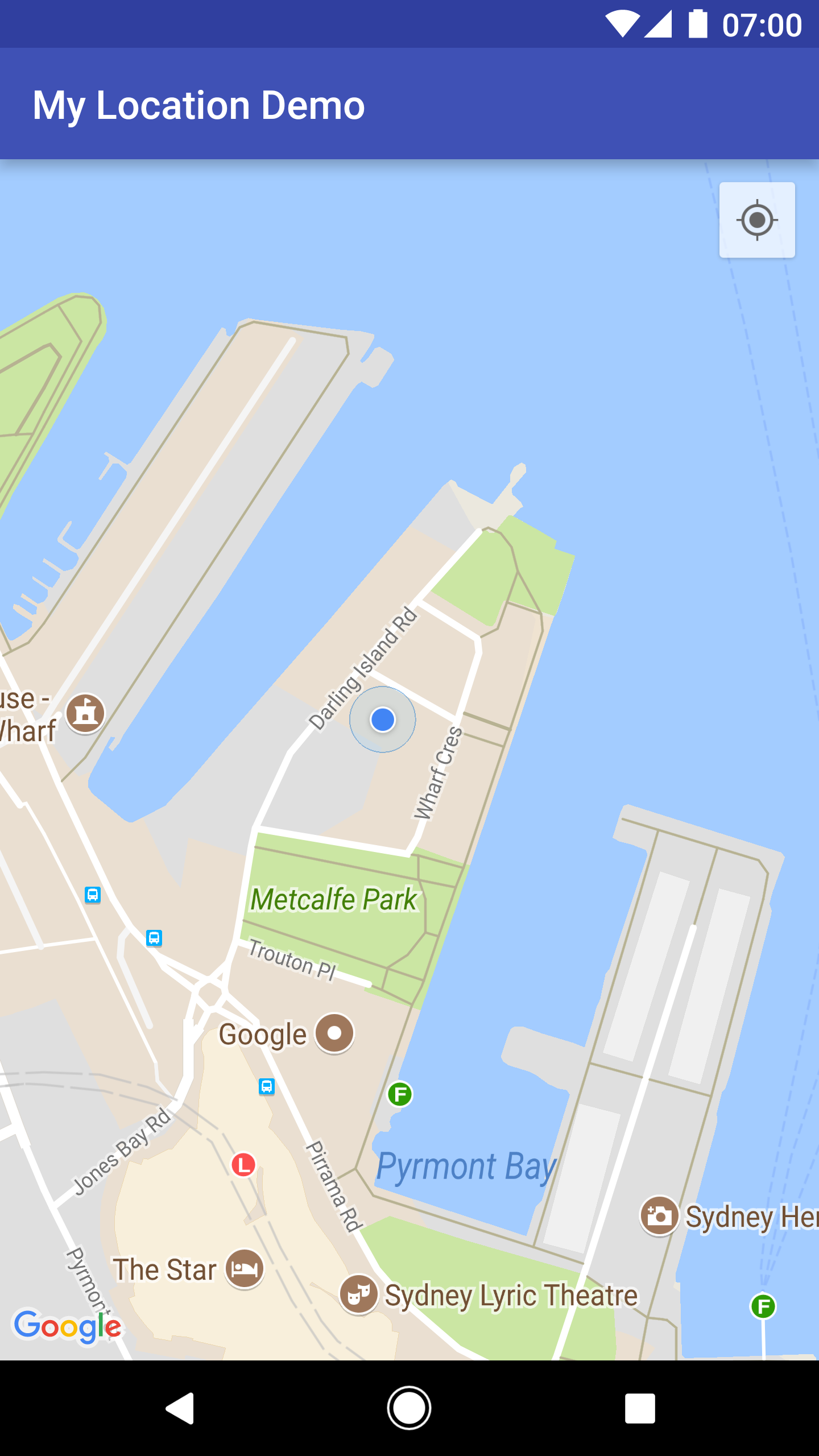
When the My Location layer is enabled, the My Location button appears in the
top right corner of the map. When a user clicks the button, the camera centers
the map on the current location of the device, if it is known. The location
is indicated on the map by a small blue dot if the device is stationary,
or as a chevron if the device is moving.
The following screenshot shows the My Location button at top right and the
My Location blue dot in the center of the map:
You can prevent the My Location button from appearing by calling
`UiSettings.setMyLocationButtonEnabled(false)`.
Your app can respond to the following events:
- If the user clicks the My Location button, your app receives an `onMyLocationButtonClick()` callback from the [`GoogleMap.OnMyLocationButtonClickListener`](https://developers.google.com/android/reference/com/google/android/gms/maps/GoogleMap.OnMyLocationButtonClickListener.md.txt).
- If the user clicks the My Location blue dot, your app receives an `onMyLocationClick()` callback from the [`GoogleMap.OnMyLocationClickListener`](https://developers.google.com/android/reference/com/google/android/gms/maps/GoogleMap.OnMyLocationClickListener.md.txt).
## The Google Play services Location API
The Google Play services [Location API](https://developer.android.com/google/play-services/location.html) is the preferred method
for adding location awareness to your Android application. It includes
functionality that lets you:
- Determine the device location.
- Listen for location changes.
- Determine the mode of transportation, if the device is moving.
- Create and monitor predefined geographical regions, known as geofences.
The location APIs make it easy for you to build power efficient,
location-aware applications. Like the Maps SDK for Android, the Location
API is distributed as part of the Google Play services SDK. For more
information on the Location API, please refer to the Android training class
[Making Your App Location Aware](https://developer.android.com/training/location/index.html) or the [Location API
Reference](https://developers.google.com/android/reference/com/google/android/gms/location/package-summary). Code examples are included as part of the Google
Play services SDK.