Select platform: [Android](https://developers.google.com/maps/documentation/android-sdk/streetview.md.txt "View this page for the Android platform docs.") [iOS](https://developers.google.com/maps/documentation/ios-sdk/streetview.md.txt "View this page for the iOS platform docs.") [JavaScript](https://developers.google.com/maps/documentation/javascript/streetview.md.txt "View this page for the JavaScript platform docs.")
Google Street View provides panoramic 360-degree views
from designated roads throughout its coverage area.
> [!IMPORTANT]
> **Paid feature:**
> Although calls to the Maps SDK for Android are not charged, calls
> to the Dynamic Street View feature will incur charges.
> For more details, see
> [Google Maps Platform Billing](https://developers.google.com/maps/billing-and-pricing/sku-details/maps.md.txt#dynamic-street-view-pro-sku).
This video shows how you can use the Street View service
to give your users a real-world experience of an address on the map, providing
them with meaningful context about their destination or any place they're
interested in.
[Video](https://www.youtube.com/watch?v=VjEfpl9_iDU)
The coverage available through the Google Maps Android API v2 is the same as
that for the Google Maps app on your Android device. You can read more about
Street View and see the supported areas on an
interactive map, at
[About Street View](https://www.google.com/maps/about/behind-the-scenes/streetview/#where).
The [`StreetViewPanorama`](https://developers.google.com/android/reference/com/google/android/gms/maps/StreetViewPanorama.md.txt) class models the Street
View panorama in your application. Within your UI, a panorama is represented
by a [`StreetViewPanoramaFragment`](https://developers.google.com/android/reference/com/google/android/gms/maps/StreetViewPanoramaFragment.md.txt) or
[`StreetViewPanoramaView`](https://developers.google.com/android/reference/com/google/android/gms/maps/StreetViewPanoramaView.md.txt) object.
## Code samples
The [ApiDemos repository](https://github.com/googlemaps-samples/android-samples/blob/main/ApiDemos) on GitHub includes
samples that demonstrate the use of Street View.
**Kotlin samples:**
- [StreetViewPanoramaBasicDemoActivity](https://github.com/googlemaps-samples/android-samples/blob/main/ApiDemos/project/kotlin-app/src/main/java/com/example/kotlindemos/StreetViewPanoramaBasicDemoActivity.kt): The basics of using Street View
- [StreetViewPanoramaEventsDemoActivity](https://github.com/googlemaps-samples/android-samples/blob/main/ApiDemos/project/kotlin-app/src/main/java/com/example/kotlindemos/StreetViewPanoramaEventsDemoActivity.kt): Listening to events
- [StreetViewPanoramaNavigationDemoActivity](https://github.com/googlemaps-samples/android-samples/blob/main/ApiDemos/project/kotlin-app/src/main/java/com/example/kotlindemos/StreetViewPanoramaNavigationDemoActivity.kt): Controlling Street View panoramas programmatically
- [StreetViewPanoramaOptionsDemoActivity](https://github.com/googlemaps-samples/android-samples/blob/main/ApiDemos/project/kotlin-app/src/main/java/com/example/kotlindemos/StreetViewPanoramaOptionsDemoActivity.kt): Changing UI and gesture options
- [StreetViewPanoramaViewDemoActivity](https://github.com/googlemaps-samples/android-samples/blob/main/ApiDemos/project/kotlin-app/src/main/java/com/example/kotlindemos/StreetViewPanoramaViewDemoActivity.kt): Using the [`StreetViewPanoramaView`](https://developers.google.com/maps/documentation/android-sdk/streetview.md.txt#panoramaview) (instead of a Fragment)
- [SplitStreetViewPanoramaAndMapDemoActivity](https://github.com/googlemaps-samples/android-samples/blob/main/ApiDemos/project/kotlin-app/src/main/java/com/example/kotlindemos/SplitStreetViewPanoramaAndMapDemoActivity.kt): Using an activity that displays a street view and a map
**Java samples:**
- [StreetViewPanoramaBasicDemoActivity](https://github.com/googlemaps-samples/android-samples/blob/main/ApiDemos/project/java-app/src/main/java/com/example/mapdemo/StreetViewPanoramaBasicDemoActivity.java): The basics of using Street View
- [StreetViewPanoramaEventsDemoActivity](https://github.com/googlemaps-samples/android-samples/blob/main/ApiDemos/project/java-app/src/main/java/com/example/mapdemo/StreetViewPanoramaEventsDemoActivity.java): Listening to events
- [StreetViewPanoramaNavigationDemoActivity](https://github.com/googlemaps-samples/android-samples/blob/main/ApiDemos/project/java-app/src/main/java/com/example/mapdemo/StreetViewPanoramaNavigationDemoActivity.java): Controlling Street View panoramas programmatically
- [StreetViewPanoramaOptionsDemoActivity](https://github.com/googlemaps-samples/android-samples/blob/main/ApiDemos/project/java-app/src/main/java/com/example/mapdemo/StreetViewPanoramaOptionsDemoActivity.java): Changing UI and gesture options
- [StreetViewPanoramaViewDemoActivity](https://github.com/googlemaps-samples/android-samples/blob/main/ApiDemos/project/java-app/src/main/java/com/example/mapdemo/StreetViewPanoramaViewDemoActivity.java): Using the [`StreetViewPanoramaView`](https://developers.google.com/maps/documentation/android-sdk/streetview.md.txt#panoramaview) (instead of a Fragment)
- [SplitStreetViewPanoramaAndMapDemoActivity](https://github.com/googlemaps-samples/android-samples/blob/main/ApiDemos/project/java-app/src/main/java/com/example/mapdemo/SplitStreetViewPanoramaAndMapDemoActivity.java): Creating an activity that displays a street view and a map
## Overview of Street View in the Maps SDK for Android
The Maps SDK for Android provides a Street View
service for obtaining and manipulating the imagery used in Google
Street View. Images are returned as panoramas.
Each Street View panorama is an image, or set of images,
that provides a full 360-degree view from a single location. Images conform to
the equirectangular (Plate Carrée) projection, which contains 360 degrees
of horizontal view (a full wrap-around) and 180 degrees of vertical view (from
straight up to straight down). The resulting 360-degree panorama defines a
projection on a sphere with the image wrapped to the two-dimensional surface of
that sphere.
[`StreetViewPanorama`](https://developers.google.com/android/reference/com/google/android/gms/maps/StreetViewPanorama.md.txt) provides a viewer that renders the
panorama as a sphere with a camera at its center. You can manipulate the
[`StreetViewPanoramaCamera`](https://developers.google.com/android/reference/com/google/android/gms/maps/model/StreetViewPanoramaCamera.md.txt) to control the zoom
and the orientation (tilt and bearing) of the camera.
## Get started
### Set up a project
Follow the [getting-started guide](https://developers.google.com/maps/documentation/android-sdk/start.md.txt) to set up a
Maps SDK for Android project.
### Check Street View panorama availability before adding a panorama
The Google Play services SDK client library includes a few
Street View samples which you can import into your project
and use as a basis for development. See the [introduction](https://developers.google.com/maps/documentation/android-sdk/code-samples) for
guidelines on importing the samples.
The [Maps SDK for Android Utility Library](https://developers.google.com/maps/documentation/android-sdk/utility.md.txt)
is an open source library of classes that are useful for a range of
applications. Included in the GitHub repository is the
[Street View metadata utility](https://developers.google.com/maps/documentation/android-sdk/utility.md.txt#streetview).
This utility checks whether a location is supported by
Street View. You can avoid errors when adding a
Street View panorama to an Android app by calling this
metadata utility and only adding a Street View panorama
if the response is `OK`.
## Use the API
Follow the instructions below to add a Street View
panorama to an Android fragment. That's the simplest way to add
Street View to your application. Then read more about
fragments, views, and customizing the panorama.
### Add a Street View panorama
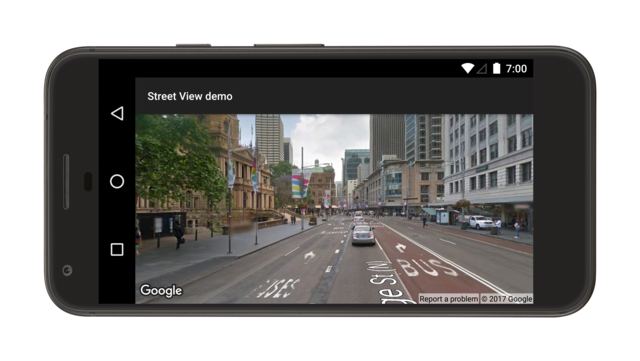
Follow the steps below to add a Street View panorama
like this one:
In summary:
1. Add a [Fragment](http://developer.android.com/reference/android/app/Fragment.html) object to the [Activity](http://developer.android.com/reference/android/app/Activity.html) that will handle the Street View panorama. The easiest way to do this is to add a `` element to the layout file for the `Activity`.
2. Implement the [`OnStreetViewPanoramaReadyCallback`](https://developers.google.com/android/reference/com/google/android/gms/maps/OnStreetViewPanoramaReadyCallback.md.txt) interface and use the [`onStreetViewPanoramaReady(StreetViewPanorama)`](https://developers.google.com/android/reference/com/google/android/gms/maps/OnStreetViewPanoramaReadyCallback.md.txt#onStreetViewPanoramaReady(com.google.android.gms.maps.StreetViewPanorama)) callback method to get a handle to the [`StreetViewPanorama`](https://developers.google.com/android/reference/com/google/android/gms/maps/StreetViewPanorama.md.txt) object.
3. Call [`getStreetViewPanoramaAsync()`](https://developers.google.com/android/reference/com/google/android/gms/maps/StreetViewPanoramaFragment.md.txt#getStreetViewPanoramaAsync(com.google.android.gms.maps.OnStreetViewPanoramaReadyCallback)) on the fragment to register the callback.
Below is more detail about each step.
#### Add a fragment
Add a `` element to the activity's layout file to define a
[Fragment](http://developer.android.com/reference/android/app/Fragment.html) object. In this element, set the `class`
attribute to `com.google.android.gms.maps.StreetViewPanoramaFragment` (or
`SupportStreetViewPanoramaFragment`).
Here is an example of a fragment in a layout file:
```
```
#### Add Street View code
To work with the Street View panorama inside your app,
you'll need to implement the
[`OnStreetViewPanoramaReadyCallback`](https://developers.google.com/android/reference/com/google/android/gms/maps/OnStreetViewPanoramaReadyCallback.md.txt)
interface and set an instance of the callback on a
[`StreetViewPanoramaFragment`](https://developers.google.com/android/reference/com/google/android/gms/maps/StreetViewPanoramaFragment.md.txt) or
[`StreetViewPanoramaView`](https://developers.google.com/android/reference/com/google/android/gms/maps/StreetViewPanoramaView.md.txt) object. This tutorial uses a
`StreetViewPanoramaFragment`, because that's the simplest way to add
Street View to your app. The first step is to implement
the callback interface:
### Kotlin
```kotlin
class StreetViewActivity :
AppCompatActivity(),
OnStreetViewPanoramaReadyCallback {
// ...
}
private fun newView() {
val sanFrancisco = LatLng(37.754130, -122.447129)
val view = StreetViewPanoramaView(
this,
StreetViewPanoramaOptions().position(sanFrancisco),
)
}
private fun setLocationOfThePanorama(streetViewPanorama: StreetViewPanorama) {
val sanFrancisco = LatLng(37.754130, -122.447129)
// Set position with LatLng only.
streetViewPanorama.setPosition(sanFrancisco)
// Set position with LatLng and radius.
streetViewPanorama.setPosition(sanFrancisco, 20)
// Set position with LatLng and source.
streetViewPanorama.setPosition(sanFrancisco, StreetViewSource.OUTDOOR)
// Set position with LaLng, radius and source.
streetViewPanorama.setPosition(sanFrancisco, 20, StreetViewSource.OUTDOOR)
streetViewPanorama.location.links.firstOrNull()?.let { link: StreetViewPanoramaLink ->
streetViewPanorama.setPosition(link.panoId)
}
}
private fun zoom(streetViewPanorama: StreetViewPanorama) {
val zoomBy = 0.5f
val camera = StreetViewPanoramaCamera.Builder()
.zoom(streetViewPanorama.panoramaCamera.zoom + zoomBy)
.tilt(streetViewPanorama.panoramaCamera.tilt)
.bearing(streetViewPanorama.panoramaCamera.bearing)
.build()
}
private fun pan(streetViewPanorama: StreetViewPanorama) {
val panBy = 30f
val camera = StreetViewPanoramaCamera.Builder()
.zoom(streetViewPanorama.panoramaCamera.zoom)
.tilt(streetViewPanorama.panoramaCamera.tilt)
.bearing(streetViewPanorama.panoramaCamera.bearing - panBy)
.build()
}
private fun tilt(streetViewPanorama: StreetViewPanorama) {
var tilt = streetViewPanorama.panoramaCamera.tilt + 30
tilt = if (tilt > 90) 90f else tilt
val previous = streetViewPanorama.panoramaCamera
val camera = StreetViewPanoramaCamera.Builder(previous)
.tilt(tilt)
.build()
}
private fun animate(streetViewPanorama: StreetViewPanorama) {
// Keeping the zoom and tilt. Animate bearing by 60 degrees in 1000 milliseconds.
val duration: Long = 1000
val camera = StreetViewPanoramaCamera.Builder()
.zoom(streetViewPanorama.panoramaCamera.zoom)
.tilt(streetViewPanorama.panoramaCamera.tilt)
.bearing(streetViewPanorama.panoramaCamera.bearing - 60)
.build()
streetViewPanorama.animateTo(camera, duration)
}
}
```
### Java
```java
public class StreetViewActivity extends AppCompatActivity
implements OnStreetViewPanoramaReadyCallback {
// ...
}
private void newView() {
LatLng sanFrancisco = new LatLng(37.754130, -122.447129);
StreetViewPanoramaView view =
new StreetViewPanoramaView(
this, new StreetViewPanoramaOptions().position(sanFrancisco));
}
private void setLocationOfThePanorama(StreetViewPanorama streetViewPanorama) {
LatLng sanFrancisco = new LatLng(37.754130, -122.447129);
// Set position with LatLng only.
streetViewPanorama.setPosition(sanFrancisco);
// Set position with LatLng and radius.
streetViewPanorama.setPosition(sanFrancisco, 20);
// Set position with LatLng and source.
streetViewPanorama.setPosition(sanFrancisco, StreetViewSource.OUTDOOR);
// Set position with LaLng, radius and source.
streetViewPanorama.setPosition(sanFrancisco, 20, StreetViewSource.OUTDOOR);
StreetViewPanoramaLocation location = streetViewPanorama.getLocation();
if (location != null && location.links != null) {
streetViewPanorama.setPosition(location.links[0].panoId);
}
}
private void zoom(StreetViewPanorama streetViewPanorama) {
float zoomBy = 0.5f;
StreetViewPanoramaCamera camera =
new StreetViewPanoramaCamera.Builder()
.zoom(streetViewPanorama.getPanoramaCamera().zoom + zoomBy)
.tilt(streetViewPanorama.getPanoramaCamera().tilt)
.bearing(streetViewPanorama.getPanoramaCamera().bearing)
.build();
}
private void pan(StreetViewPanorama streetViewPanorama) {
float panBy = 30;
StreetViewPanoramaCamera camera =
new StreetViewPanoramaCamera.Builder()
.zoom(streetViewPanorama.getPanoramaCamera().zoom)
.tilt(streetViewPanorama.getPanoramaCamera().tilt)
.bearing(streetViewPanorama.getPanoramaCamera().bearing - panBy)
.build();
}
private void tilt(StreetViewPanorama streetViewPanorama) {
float tilt = streetViewPanorama.getPanoramaCamera().tilt + 30;
tilt = (tilt > 90) ? 90 : tilt;
StreetViewPanoramaCamera previous = streetViewPanorama.getPanoramaCamera();
StreetViewPanoramaCamera camera =
new StreetViewPanoramaCamera.Builder(previous).tilt(tilt).build();
}
private void animate(StreetViewPanorama streetViewPanorama) {
// Keeping the zoom and tilt. Animate bearing by 60 degrees in 1000 milliseconds.
long duration = 1000;
StreetViewPanoramaCamera camera =
new StreetViewPanoramaCamera.Builder()
.zoom(streetViewPanorama.getPanoramaCamera().zoom)
.tilt(streetViewPanorama.getPanoramaCamera().tilt)
.bearing(streetViewPanorama.getPanoramaCamera().bearing - 60)
.build();
streetViewPanorama.animateTo(camera, duration);
}
}
```
In your [`Activity`](http://developer.android.com/reference/android/app/Activity.html)'s [`onCreate()`](http://developer.android.com/reference/android/app/Activity.html#onCreate(android.os.Bundle))
method, set the layout file as the content view. For example, if the layout file
has the name `main.xml`, use this code:
### Kotlin
```kotlin
override fun onCreate(savedInstanceState: Bundle?) {
super.onCreate(savedInstanceState)
setContentView(R.layout.activity_street_view)
val streetViewPanoramaFragment =
supportFragmentManager
.findFragmentById(R.id.street_view_panorama) as SupportStreetViewPanoramaFragment
streetViewPanoramaFragment.getStreetViewPanoramaAsync(this)
}
```
### Java
```java
@Override
protected void onCreate(@Nullable Bundle savedInstanceState) {
super.onCreate(savedInstanceState);
setContentView(R.layout.activity_street_view);
SupportStreetViewPanoramaFragment streetViewPanoramaFragment =
(SupportStreetViewPanoramaFragment)
getSupportFragmentManager().findFragmentById(R.id.street_view_panorama);
streetViewPanoramaFragment.getStreetViewPanoramaAsync(this);
}
```
Get a handle to the fragment by calling
[`FragmentManager.findFragmentById()`](http://developer.android.com/reference/android/app/FragmentManager.html#findFragmentById(int)),
passing it the resource ID of your [``](http://developer.android.com/reference/android/app/Fragment.html) element.
Notice that the resource ID `R.id.streetviewpanorama` is added automatically to
the Android project when you build the layout file.
Then use [`getStreetViewPanoramaAsync()`](https://developers.google.com/android/reference/com/google/android/gms/maps/StreetViewPanoramaFragment.md.txt#getStreetViewPanoramaAsync(com.google.android.gms.maps.OnStreetViewPanoramaReadyCallback))
to set the callback on the fragment.
### Kotlin
```kotlin
val streetViewPanoramaFragment =
supportFragmentManager
.findFragmentById(R.id.street_view_panorama) as SupportStreetViewPanoramaFragment
streetViewPanoramaFragment.getStreetViewPanoramaAsync(this)
```
### Java
```java
SupportStreetViewPanoramaFragment streetViewPanoramaFragment =
(SupportStreetViewPanoramaFragment)
getSupportFragmentManager().findFragmentById(R.id.street_view_panorama);
streetViewPanoramaFragment.getStreetViewPanoramaAsync(this);
```
> [!NOTE]
> **Note:** `getStreetViewPanoramaAsync()` must be called from the main thread, and the callback will be executed in the main thread. If Google Play services is not installed on the user's device, the callback won't be triggered until the user installs Play services.
Use the
[`onStreetViewPanoramaReady(StreetViewPanorama)`](https://developers.google.com/android/reference/com/google/android/gms/maps/OnStreetViewPanoramaReadyCallback.md.txt#onStreetViewPanoramaReady(com.google.android.gms.maps.StreetViewPanorama))
callback method to to retrieve a non-null instance of
[`StreetViewPanorama`](https://developers.google.com/android/reference/com/google/android/gms/maps/StreetViewPanorama.md.txt), ready to be used.
### Kotlin
```kotlin
override fun onStreetViewPanoramaReady(streetViewPanorama: StreetViewPanorama) {
val sanFrancisco = LatLng(37.754130, -122.447129)
streetViewPanorama.setPosition(sanFrancisco)
}
```
### Java
```java
@Override
public void onStreetViewPanoramaReady(StreetViewPanorama streetViewPanorama) {
LatLng sanFrancisco = new LatLng(37.754130, -122.447129);
streetViewPanorama.setPosition(sanFrancisco);
}
```
#### More about configuring initial state
Unlike with a map, it's not possible to configure the initial state of the
Street View panorama via XML. However, you can configure
the panorama programmatically by passing in a
[`StreetViewPanoramaOptions`](https://developers.google.com/android/reference/com/google/android/gms/maps/StreetViewPanoramaOptions.md.txt) object
containing your specified options.
- If you are using a `StreetViewPanoramaFragment`, use the [`StreetViewPanoramaFragment.newInstance(StreetViewPanoramaOptions options)`](https://developers.google.com/android/reference/com/google/android/gms/maps/StreetViewPanoramaFragment.md.txt#newInstance(com.google.android.gms.maps.StreetViewPanoramaOptions)) static factory method to construct the fragment and pass in your custom configured options.
- If you are using a `StreetViewPanoramaView`, use the [`StreetViewPanoramaView(Context, StreetViewPanoramaOptions)`](https://developers.google.com/android/reference/com/google/android/gms/maps/StreetViewPanoramaView.md.txt) constructor and pass in your custom configured options.
### Kotlin
```kotlin
val sanFrancisco = LatLng(37.754130, -122.447129)
val view = StreetViewPanoramaView(
this,
StreetViewPanoramaOptions().position(sanFrancisco),
)
```
### Java
```java
LatLng sanFrancisco = new LatLng(37.754130, -122.447129);
StreetViewPanoramaView view =
new StreetViewPanoramaView(
this, new StreetViewPanoramaOptions().position(sanFrancisco));
```
### More about StreetViewPanoramaFragment
[`StreetViewPanoramaFragment`](https://developers.google.com/android/reference/com/google/android/gms/maps/StreetViewPanoramaFragment.md.txt) is a subclass of the
[Android Fragment](http://developer.android.com/reference/android/app/Fragment.html) class, and lets you place a
Street View panorama in an Android fragment.
`StreetViewPanoramaFragment` objects act as containers for the panorama, and
provide access to the `StreetViewPanorama` object.
> [!NOTE]
> **Note:** The Maps SDK for Android requires API level 12 or higher for the support of `StreetViewPanoramaFragment` objects. If you are targeting an application earlier than API level 12, you can access the same features through the `SupportStreetViewPanoramaFragment` class. You will also need to include the Android [Support Library](https://developer.android.com/topic/libraries/support-library).
> [!NOTE]
> **Note:** The Maps SDK for Android does not support multiple `StreetViewPanoramaFragment` objects in one activity.
### StreetViewPanoramaView
[`StreetViewPanoramaView`](https://developers.google.com/android/reference/com/google/android/gms/maps/StreetViewPanoramaView.md.txt), a subclass of the Android
[`View`](http://developer.android.com/reference/android/view/View.html) class, lets you place a
Street View panorama in an Android `View`. A `View`
represents a rectangular region of the screen, and is a fundamental building
block for Android applications and widgets. Much like a
`StreetViewPanoramaFragment`, the `StreetViewPanoramaView` acts as a container
for the panorama, exposing core features through the `StreetViewPanorama`
object. Users of this class must forward all the activity lifecycle methods,
such as `onCreate()`, `onDestroy()`, `onResume()`, and `onPause())` to the
corresponding methods in the `StreetViewPanoramaView` class.
> [!NOTE]
> **Note:** The Maps SDK for Android does not support multiple `StreetViewPanoramaView` objects in one activity.
### Customize the user-controlled feature
By default, the following feature is available to the user when viewing the
Street View panorama: panning, zooming, and traveling
to adjacent panoramas. You can enable and disable user-controlled gestures
through methods on [`StreetViewPanorama`](https://developers.google.com/android/reference/com/google/android/gms/maps/StreetViewPanorama.md.txt). Programmatic
changes are still possible when the gesture is disabled.
**\< \>** Show/Hide the Java
methods.
setPanningGesturesEnabled()
: Determines whether the user will be able to re-orient the camera by
dragging.
```
mStreetViewPanorama.setPanningGesturesEnabled(false);
```
setUserNavigationEnabled()
: Determines whether the user will be able to move to a different panorama.
Users can use a single tap on navigation links, or double tap the view, to
move to a new panorama.
```
mStreetViewPanorama.setUserNavigationEnabled(false);
```
setZoomGesturesEnabled()
: Determines whether the user will be able to pinch to zoom.
```
mStreetViewPanorama.setZoomGesturesEnabled(false);
```
setStreetNamesEnabled()
: Determines whether the user is able to see street names displayed on the
ground.
```
mStreetViewPanorama.setStreetNamesEnabled(false);
```
**\< \>** Show/Hide the Kotlin
methods.
isPanningGesturesEnabled()
: Determines whether the user will be able to re-orient the camera by
dragging.
```
streetViewPanorama.isPanningGesturesEnabled = false
```
isUserNavigationEnabled
: Determines whether the user will be able to move to a different panorama.
Users can use a single tap on navigation links, or double tap the view, to
move to a new panorama.
```
streetViewPanorama.isUserNavigationEnabled = false
```
isZoomGesturesEnabled
: Determines whether the user will be able to pinch to zoom.
```
streetViewPanorama.isZoomGesturesEnabled = false
```
isStreetNamesEnabled
: Determines whether the user is able to see street names displayed on the
ground.
```
streetViewPanorama.isStreetNamesEnabled = false
```
### Set the location of the panorama
To set the location of the Street View panorama, call
[`StreetViewPanorama.setPosition()`](https://developers.google.com/android/reference/com/google/android/gms/maps/StreetViewPanorama.md.txt#setPosition(com.google.android.gms.maps.model.LatLng)), passing a `LatLng`.
You can also pass `radius` and `source` as optional parameters.
A radius is useful if you want to widen or narrow the area in which
Street View will look for a matching panorama. A radius
of 0 means that the panorama must be linked to exactly the specified `LatLng`.
The default radius is 50 meters. If there is more than one panorama in the
matching area, the API will return the best match.
A source is useful if you want to restrict Street View
to only look for panoramas which are outdoors. By default,
Street View panoramas could be inside places such as
museums, public buildings, cafes and businesses. Note that outdoor panoramas may
not exist for the specified location.
### Kotlin
```kotlin
val sanFrancisco = LatLng(37.754130, -122.447129)
// Set position with LatLng only.
streetViewPanorama.setPosition(sanFrancisco)
// Set position with LatLng and radius.
streetViewPanorama.setPosition(sanFrancisco, 20)
// Set position with LatLng and source.
streetViewPanorama.setPosition(sanFrancisco, StreetViewSource.OUTDOOR)
// Set position with LaLng, radius and source.
streetViewPanorama.setPosition(sanFrancisco, 20, StreetViewSource.OUTDOOR)
```
### Java
```java
LatLng sanFrancisco = new LatLng(37.754130, -122.447129);
// Set position with LatLng only.
streetViewPanorama.setPosition(sanFrancisco);
// Set position with LatLng and radius.
streetViewPanorama.setPosition(sanFrancisco, 20);
// Set position with LatLng and source.
streetViewPanorama.setPosition(sanFrancisco, StreetViewSource.OUTDOOR);
// Set position with LaLng, radius and source.
streetViewPanorama.setPosition(sanFrancisco, 20, StreetViewSource.OUTDOOR);
```
Alternatively, you can set the location based upon a panorama ID by passing a
`panoId` to `StreetViewPanorama.setPosition()`.
To retrieve the panorama ID for adjacent panoramas, first use
[`getLocation()`](https://developers.google.com/android/reference/com/google/android/gms/maps/StreetViewPanorama.md.txt#getLocation())
to retrieve a [`StreetViewPanoramaLocation`](https://developers.google.com/android/reference/com/google/android/gms/maps/model/StreetViewPanoramaLocation.md.txt).
This object contains the ID of the
current panorama and an array of `StreetViewPanoramaLink` objects, each
of which contains the ID of a panorama connected to the current one.
### Kotlin
```kotlin
streetViewPanorama.location.links.firstOrNull()?.let { link: StreetViewPanoramaLink ->
streetViewPanorama.setPosition(link.panoId)
}
```
### Java
```java
StreetViewPanoramaLocation location = streetViewPanorama.getLocation();
if (location != null && location.links != null) {
streetViewPanorama.setPosition(location.links[0].panoId);
}
```
### Zoom in and out
You can change the zoom level programmatically by setting
[`StreetViewPanoramaCamera.zoom`](https://developers.google.com/android/reference/com/google/android/gms/maps/model/StreetViewPanoramaCamera.md.txt#zoom).
Setting the zoom to 1.0 will magnify the image
by a factor of 2.
The following snippet uses `StreetViewPanoramaCamera.Builder()` to construct a
new camera with the tilt and bearing of the existing camera, while increasing
the zoom by fifty percent.
### Kotlin
```kotlin
val zoomBy = 0.5f
val camera = StreetViewPanoramaCamera.Builder()
.zoom(streetViewPanorama.panoramaCamera.zoom + zoomBy)
.tilt(streetViewPanorama.panoramaCamera.tilt)
.bearing(streetViewPanorama.panoramaCamera.bearing)
.build()
```
### Java
```java
float zoomBy = 0.5f;
StreetViewPanoramaCamera camera =
new StreetViewPanoramaCamera.Builder()
.zoom(streetViewPanorama.getPanoramaCamera().zoom + zoomBy)
.tilt(streetViewPanorama.getPanoramaCamera().tilt)
.bearing(streetViewPanorama.getPanoramaCamera().bearing)
.build();
```
### Set the camera orientation (point of view)
You can determine the Street View camera's orientation
by setting the bearing and tilt on
[`StreetViewPanoramaCamera`](https://developers.google.com/android/reference/com/google/android/gms/maps/model/StreetViewPanoramaCamera.md.txt).
bearing
: The direction in which the camera is pointing, specified in degrees
clockwise from true north, around the camera locus. True north is 0, east is
90, south is 180, west is 270.
tilt
: The Y-axis tilt up or down. The range is -90 through 0 to 90, with -90
looking straight down, 0 centered on the horizon, and 90 looking straight
up. The variance is measured from the camera's initial default pitch, which
is often (but not always) flat horizontal. For example, an image taken on a
hill will probably have a default pitch that is not horizontal.
The following snippet uses `StreetViewPanoramaCamera.Builder()` to construct a
new camera with the zoom and tilt of the existing camera, while changing the
bearing by 30 degrees to the left.
### Kotlin
```kotlin
val panBy = 30f
val camera = StreetViewPanoramaCamera.Builder()
.zoom(streetViewPanorama.panoramaCamera.zoom)
.tilt(streetViewPanorama.panoramaCamera.tilt)
.bearing(streetViewPanorama.panoramaCamera.bearing - panBy)
.build()
```
### Java
```java
float panBy = 30;
StreetViewPanoramaCamera camera =
new StreetViewPanoramaCamera.Builder()
.zoom(streetViewPanorama.getPanoramaCamera().zoom)
.tilt(streetViewPanorama.getPanoramaCamera().tilt)
.bearing(streetViewPanorama.getPanoramaCamera().bearing - panBy)
.build();
```
The following snippet tilts the camera upward by 30 degrees.
### Kotlin
```kotlin
var tilt = streetViewPanorama.panoramaCamera.tilt + 30
tilt = if (tilt > 90) 90f else tilt
val previous = streetViewPanorama.panoramaCamera
val camera = StreetViewPanoramaCamera.Builder(previous)
.tilt(tilt)
.build()
```
### Java
```java
float tilt = streetViewPanorama.getPanoramaCamera().tilt + 30;
tilt = (tilt > 90) ? 90 : tilt;
StreetViewPanoramaCamera previous = streetViewPanorama.getPanoramaCamera();
StreetViewPanoramaCamera camera =
new StreetViewPanoramaCamera.Builder(previous).tilt(tilt).build();
```
### Animate the camera movements
To animate the camera movements, call
[`StreetViewPanorama.animateTo()`](https://developers.google.com/android/reference/com/google/android/gms/maps/StreetViewPanorama.md.txt#animateTo(com.google.android.gms.maps.model.StreetViewPanoramaCamera,%20long)).
The animation interpolates between the current camera attributes and the new
camera attributes. If you want to jump directly to the camera without animation,
you can set the duration to 0.
### Kotlin
```kotlin
// Keeping the zoom and tilt. Animate bearing by 60 degrees in 1000 milliseconds.
val duration: Long = 1000
val camera = StreetViewPanoramaCamera.Builder()
.zoom(streetViewPanorama.panoramaCamera.zoom)
.tilt(streetViewPanorama.panoramaCamera.tilt)
.bearing(streetViewPanorama.panoramaCamera.bearing - 60)
.build()
streetViewPanorama.animateTo(camera, duration)
```
### Java
```java
// Keeping the zoom and tilt. Animate bearing by 60 degrees in 1000 milliseconds.
long duration = 1000;
StreetViewPanoramaCamera camera =
new StreetViewPanoramaCamera.Builder()
.zoom(streetViewPanorama.getPanoramaCamera().zoom)
.tilt(streetViewPanorama.getPanoramaCamera().tilt)
.bearing(streetViewPanorama.getPanoramaCamera().bearing - 60)
.build();
streetViewPanorama.animateTo(camera, duration);
```
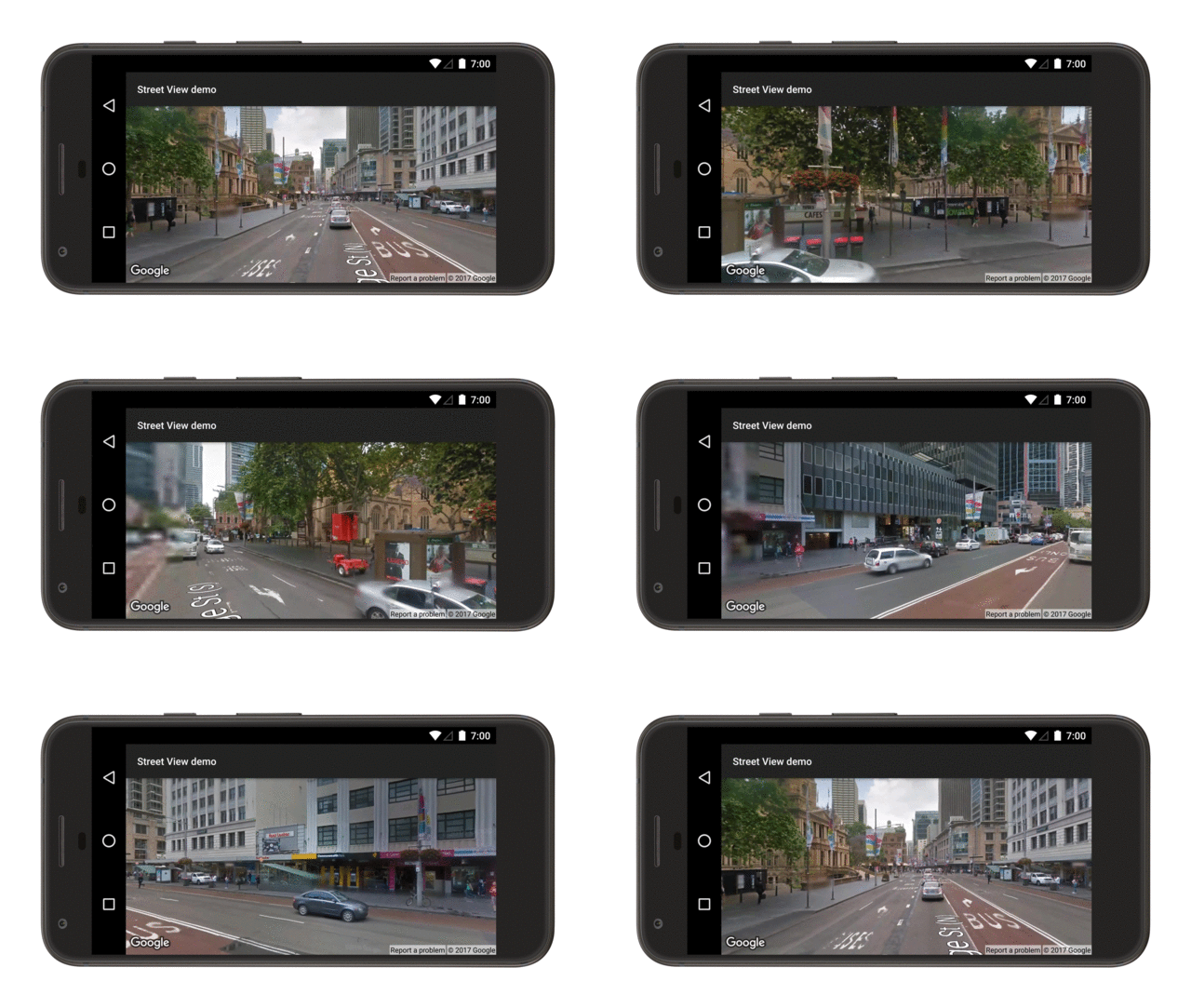
The following image shows the result when you schedule the above animation to
run every 2000 milliseconds, using
[`Handler.postDelayed()`](https://developer.android.com/reference/android/os/Handler.html#postDelayed(java.lang.Runnable,%20long)):