Select platform: [Android](https://developers.google.com/maps/documentation/android-sdk/map-ids/get-map-id.md.txt "View this page for the Android platform docs.") [Android 3D](https://developers.google.com/maps/documentation/maps-3d/android-sdk/cloud-customization/get-map-id.md.txt "View this page for the Android 3D platform docs.") [iOS](https://developers.google.com/maps/documentation/ios-sdk/map-ids/get-map-id.md.txt "View this page for the iOS platform docs.") [iOS 3D](https://developers.google.com/maps/documentation/maps-3d/ios-sdk/cloud-customization/get-map-id.md.txt "View this page for the iOS 3D platform docs.") [JavaScript](https://developers.google.com/maps/documentation/javascript/map-ids/get-map-id.md.txt "View this page for the JavaScript platform docs.") [Web Service](https://developers.google.com/maps/documentation/maps-static/map-ids/get-map-id.md.txt "View this page for the Web Service platform docs.")
> [!IMPORTANT]
> **Paid feature:**
> Features accessed by adding a [map ID](https://developers.google.com/maps/documentation/get-map-id) triggers a map
> load charged against the Dynamic Maps SKU for Android and iOS. See
> [Google Maps Billing](https://developers.google.com/maps/billing-and-pricing/sku-details/maps.md.txt#dynamic-maps-ess-sku) for more information.
A map ID is a unique identifier that represents Google Map styling and configuration settings that are stored in Google Cloud. You use map IDs to enable features or manage or style maps on your websites and in your applications. You can create map IDs for each platform you need--JavaScript, Android, iOS, or Static maps--in your Google Cloud console project on the **Map Management** page.
For more details and features that use map IDs,
see [Map ID overview](https://developers.google.com/maps/documentation/ios-sdk/map-ids/mapid-over.md.txt).
## Required permissions
To create or manage any map IDs in your project, you
must use a principal with the appropriate role-level permissions, Editor or
Owner, on the Cloud console IAM page for the project. For
details, see
[IAM basic and predefined roles reference](https://cloud.google.com/iam/docs/roles-overview#role-types).
## Create map IDs
Create map IDs in the Cloud console following
these steps:
1. Sign in to and open a Cloud console project with the
[required permissions](https://developers.google.com/maps/documentation/ios-sdk/map-ids/get-map-id.md.txt#permissions).
2. In the Cloud console, go to the
[Maps Management page](https://console.cloud.google.com/google/maps-apis/studio/maps).
3. Click **Create map ID**.
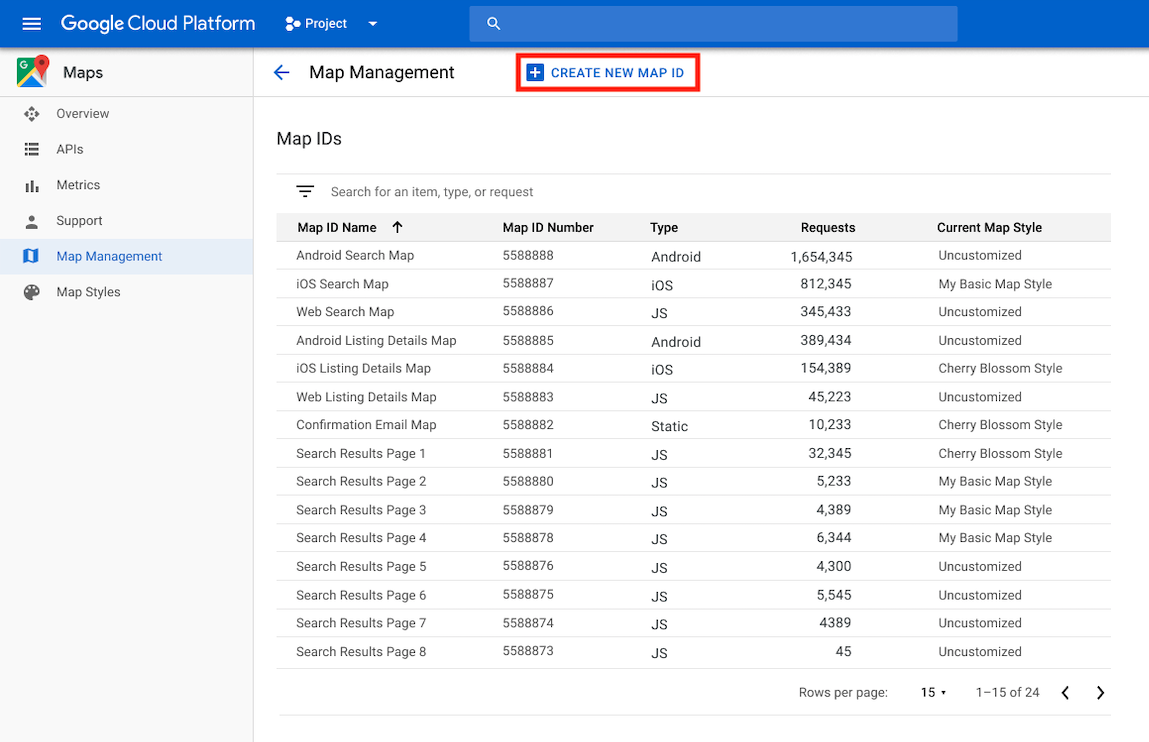
4. On the **Create new map ID** page, do the following:
1. For **Name**, give the map ID a name.
2. *Optional* : For **Description**, describe what the map ID is used for.
3. For **Map type** , select the platform on which you plan to use the map ID. If you choose JavaScript, also choose a **Raster** (the default) or **Vector** map type. For more information on vector maps, see [Vector Maps](https://developers.google.com/maps/documentation/javascript/vector-map.md.txt).
4. Click **Save** to show your new map ID.
## Associate a map ID to a map style
If you are using cloud-based maps styling, you associate a map style with your
map ID. For details, see [Associate your style to a map ID](https://developers.google.com/maps/documentation/ios-sdk/cloud-customization/map-styles-leg#associate-style-with-map-id).
## Add the map ID to your app
### Android
Add your map ID through a `` element in the
activity's layout file, by using the `MapView` class, or programmatically
using the `GoogleMapOptions` class.
For example, assume you created a map ID that is stored as a
string value named `map_id` in `res/values/strings.xml`:
```xml
MAP_ID
```
For maps added through a `` element in the activity's layout file,
all map fragments that should have the custom style must specify the
map ID in the `map:mapId` attribute:
```xml
```
You can also use the `map:mapId` attribute of the `MapView` class to specify
a map ID:
```xml
```
To specify a map ID programmatically, pass it to a
`MapFragment` instance using the `GoogleMapOptions` class:
### Java
```java
MapFragment mapFragment = MapFragment.newInstance(
new GoogleMapOptions()
.mapId(getResources().getString(R.string.map_id)));
```
### Kotlin
```kotlin
val mapFragment = MapFragment.newInstance(
GoogleMapOptions()
.mapId(resources.getString(R.string.map_id))
)
```
In Android Studio, build and run your app as you normally would. Custom
styles configured in the first step are applied to all maps with
the specified map ID.
### Android 3D
Set the `mapId` String property onto the `Map3DOptions` either
programmatically or using layout attributes. `Map3DOptions` are provided to
the `Map3DView` object during instantiation and can't be changed after
`Map3DView` is constructed.
Add a map ID, creating the map programmatically:
```kotlin
import com.google.android.gms.maps3d.GoogleMap3D
import com.google.android.gms.maps3d.Map3DOptions
import com.google.android.gms.maps3d.Map3DView
import com.google.android.gms.maps3d.OnMap3DViewReadyCallback
import com.google.android.gms.maps3d.model.Map3DMode
class MainActivity : Activity(), OnMap3DViewReadyCallback {
fun onCreate(...) {
val map3DOptions = Map3DOptions(mapMode = Map3DMode.HYBRID, mapId = "MAP_ID")
val map3DView = Map3DView(context, map3DOptions)
map3DView.getMap3dViewAsync(this)
}
}
```
Add a map ID using layout attributes:
```xml
```
### iOS
To instantiate a map using a map ID, do the following:
1. Create a `GMSMapID` with the map ID string from Cloud console.
2. Create a `GMSMapView` specifying the map ID you just created.
### Swift
```swift
let camera = GMSCameraPosition(latitude: 47.0169, longitude: -122.336471, zoom: 12)
let mapID = GMSMapID(identifier: "MAP_ID")
let mapView = GMSMapView(frame: .zero, mapID: mapID, camera: camera)
self.view = mapView
```
### Objective-C
```objective-c
GMSCameraPosition *camera = [GMSCameraPosition cameraWithLatitude:47.0169
longitude:-122.336471
zoom:12];
GMSMapID *mapID = [GMSMapID mapIDWithIdentifier:@"MAP_ID"];
GMSMapView *mapView = [GMSMapView mapWithFrame:CGRectZero mapID:mapID camera:camera];
self.view = mapView;
```
If you are using your own map ID, you can set your
map ID in the Cloud console to have a new style
at any time, and that style will be reflected on your map view automatically
for you and users within about six hours.
If you want to see the changes immediately, you can close out and restart
your app by exiting the app, forcing a quit of the app from the recently-used
apps list, and then reopening it. The updated map will then be visible.
### iOS 3D
iOS developers can set a new `style` modifier on `Map`. This modifier accepts
a map ID and optionally a closure to be invoked when the map ID is invalid or
not found.
```swift
import SwiftUI
import GoogleMaps3D
struct ContentView: View {
init () {
Map.apiKey = "YOUR_API_KEY"
}
var body: some View {
Map(initialCamera: .init(
latitude: 0.0,
longitude: 0.0,
),
mode: .hybrid
)
.style(
with: "MAP_ID",
error: {
// Handle styling error.
}
)
// Could also use trailing closure syntax
// .style(with: "MAP_ID") {
// // Handle styling error.
// }
}
}
```
### JavaScript
To create a map with a map ID in your application code:
1. If you are already customizing your map with embedded JSON code, remove
the
[`styles` property](https://developers.google.com/maps/documentation/javascript/reference/map.md.txt#MapOptions.styles)
from your `MapOptions` object; otherwise, skip this step.
2. Add a map ID to the map using the `mapId` property. For example:
```javascript
map = new google.maps.Map(document.getElementById('map'), {
center: {lat: -34.397, lng: 150.644},
zoom: 8,
mapId: 'MAP_ID'
});
```
### Javascript 3D
To create a map with a map ID in your application, add a
map ID to the map using the `mapId` property. For example:
```javascript
async function init() {
const { Map3DElement } = await google.maps.importLibrary('maps3d');
const map = new Map3DElement({
center: {
lat: 37.75183154601466,
lng: -119.52369070507672,
altitude: 2200,
},
tilt: 67.5,
heading: 108.94057782079429,
range: 6605.57279990986,
mapId: 'bcce776b92de1336e22c569f', // Styles are associated with map IDs.
mode: 'HYBRID',
});
document.body.append(map);
}
void init();
```
### Maps Static
To add a map ID to a new or existing map that uses one of our
web-service APIs, append the `map_id` URL parameter and set it to your
map ID. This example shows adding a map ID to
a map using Maps Static API.
```html
 ```

If you have a digital signature in your Maps Static URL before adding your map ID, you will need to [create
and add a new digital signature](https://developers.google.com/maps/documentation/maps-static/digital-signature) after adding your map ID. When generating your new URL signing secret, remember to remove your previous digital signature from the URL.