Use markers to draw a user's attention to a location on a map. This guide
demonstrates how to use and customize markers in 3D maps. You can control the
shape, size, and color of markers, in addition to the altitude at which they
appear. The following example shows a basic marker:
3D Maps in Maps JavaScript provides two distinct marker classes, each optimized for specific
uses. The following table shows differences and tradeoffs between the two
available classes:
| Capability | `MarkerElement` | `Marker3DElement` |
|---|---|---|
| Customization | High (Supports custom HTML elements, core animation APIs, etc.) | Low (Less customizable) |
| Performance | Lower interaction performance (FPS drops with a large number of markers) | Higher interaction performance (Optimized for rendering large datasets) |
| Recommended capacity | Reliable interaction performance up to around 1,000 markers | Recommended for handling over 1,000 markers |
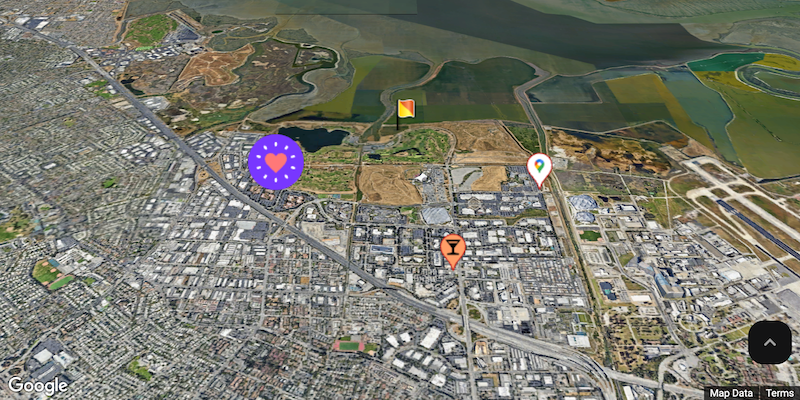
## Customize color, scale and icon image
Customize the default marker's background, glyph, border color, and size.

Replace the default marker icon with a custom SVG resource.
## Set marker altitude
You can set marker altitude by extruding the marker and setting the altitude.

## Make markers respond to click and keyboard events
Make a marker respond to clicks and keyboard events by adding a `click` event
listener.
```javascript
const interactiveMarker = new Marker3DInteractiveElement({
position,
gmpPopoverTargetElement: popover,
});
```
## Set marker collision behavior
Specify how a marker should behave when it collides with another marker or map
label.
```javascript
const marker = new Marker3DElement({
position: { lat, lng },
// Try setting a different collision behavior here.
collisionBehavior: 'REQUIRED',
});
```
## Marker performance
Custom HTML markers (`MarkerElement`) offer lower performance than
standard 3D markers (`Marker3DElement`). For applications with more than 1,000
markers, the [`Marker3dElement`
class](https://developers.google.com/maps/documentation/javascript/3d/marker-add) is strongly encouraged to
ensure optimal performance.
## Next step
- [Add a marker](https://developers.google.com/maps/documentation/javascript/3d/marker-add.md.txt)