> [!NOTE]
> This product is in [Legacy status](https://developers.google.com/maps/legacy.md.txt). As of October 2026, Places API (Legacy) can no longer be enabled for new Google Cloud projects. Existing projects remain fully supported. For new features and improved performance, [migrate to Places API
> (New)](https://developers.google.com/maps/documentation/javascript/legacy/places-migration-overview).
**European Economic Area (EEA) developers**
> [!NOTE]
> If your billing address is in the European Economic Area, effective on 8 July 2025, the [Google Maps Platform EEA Terms of Service](https://cloud.google.com/terms/maps-platform/eea) will apply to your use of the Services. Functionality varies by region. [Learn more](https://developers.google.com/maps/comms/eea/faq.md.txt).
**Note: Server-side
libraries**
This page describes the client-side library available with
the Maps JavaScript API. If you want to work with the
Places API web service on your server, take a look at the
[Node.js Client for Google Maps Services](https://developers.google.com/maps/documentation/places/web-service/legacy/client-library.md.txt). The page at
that link also introduces the Java Client,
Python Client and Go Client for Google Maps Services.
## Introduction
Autocomplete is a feature of the Places library in the
Maps JavaScript API. You can use autocomplete to give your
applications the type-ahead-search behavior of the Google Maps search field.
The autocomplete service can match on full words and substrings, resolving
place names, addresses, and [plus
codes](https://plus.codes). Applications can therefore send queries as the user types, to
provide on-the-fly place predictions. As defined by the Places API,
a 'place' can be an establishment, a geographic location, or a prominent
point of interest.
## Getting started
Before using the Places library in the Maps JavaScript API, first verify
that the Places API is enabled in the Google Cloud console, in the same
project you set up for the Maps JavaScript API.
To view your list of enabled APIs:
1. Go to the [Google Cloud console](https://console.cloud.google.com/project/_/apiui/apis/enabled?utm_source=Docs_EnabledAPIsView).
2. Click the **Select a project** button, then select the same project you set up for the Maps JavaScript API and click **Open**.
3. From the list of APIs on the **Dashboard** , look for **Places API**.
4. If you see the API in the list, you're all set. However, this project is in Legacy status. For more information about the Legacy stage and how to migrate from Legacy to newer services, see [Legacy products and features](https://developers.google.com/maps/legacy.md.txt). An exception is available for the [Autocomplete](https://developers.google.com/maps/documentation/javascript/place-autocomplete#add-autocomplete) and [SearchBox](https://developers.google.com/maps/documentation/javascript/place-autocomplete#places-searchbox) widgets, which are not yet available as a GA product on the Places API (New).
### Load the library
The Places service is a self-contained library, separate from the main
Maps JavaScript API code. To use the features contained
within this library, you must first load it using the `libraries`
parameter in the Maps API bootstrap URL:
```html
```
See the [Libraries Overview](https://developers.google.com/maps/documentation/javascript/libraries.md.txt) for more information.
## Summary of classes
The API offers two types of autocomplete widgets, which you can add using
the `Autocomplete` and `SearchBox` classes respectively.
In addition, you can use the `AutocompleteService` class to retrieve
autocomplete results programmatically (see the Maps JavaScript API Reference:
[AutocompleteService class](https://developers.google.com/maps/documentation/javascript/reference/places-autocomplete-service.md.txt)).
Below is a summary of the classes available:
- [`Autocomplete`](https://developers.google.com/maps/documentation/javascript/reference.md.txt#Autocomplete) adds a text input field to your web page, and monitors that field for character entries. As the user enters text, autocomplete returns place predictions in the form of a drop-down list. When the user selects a place from the list, information about the place is returned to the autocomplete object, and can be retrieved by your application. See the details [below](https://developers.google.com/maps/documentation/javascript/legacy/place-autocomplete.md.txt#add-autocomplete). 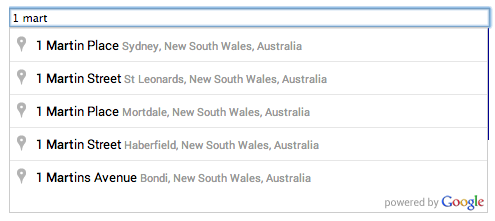 Figure 1: Autocomplete text field and pick list 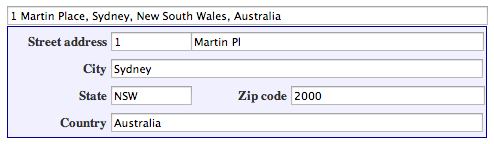 Figure 2: Completed address form
- [`SearchBox`](https://developers.google.com/maps/documentation/javascript/reference.md.txt#SearchBox) adds a text input field to your web page, in much the same way as `Autocomplete`. The differences are as follows:
- The main difference lies in the results that appear in the pick list. `SearchBox` supplies an extended list of predictions, which can include places (as defined by the Places API) plus suggested search terms. For example, if the user enters 'pizza in new', the pick list may include the phrase 'pizza in New York, NY' as well as the names of various pizza outlets.
- `SearchBox` offers fewer options than `Autocomplete` for restricting the search. In the former, you can bias the search towards a given `LatLngBounds`. In the latter, you can restrict the search to a particular country and particular place types, as well as setting the bounds. For more information, see [below](https://developers.google.com/maps/documentation/javascript/legacy/place-autocomplete.md.txt#places-searchbox).
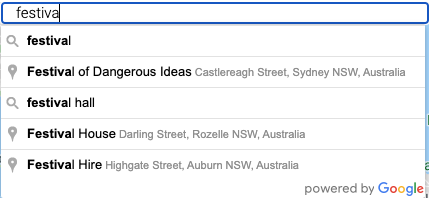 Figure 3: A SearchBox presents search terms and place predictions. See the details [below](https://developers.google.com/maps/documentation/javascript/legacy/place-autocomplete.md.txt#places-searchbox).
- You can create an [`AutocompleteService`](https://developers.google.com/maps/documentation/javascript/reference.md.txt#AutocompleteService) object to retrieve predictions programmatically. Call `getPlacePredictions()` to retrieve matching places, or call `getQueryPredictions()` to retrieve matching places plus suggested search terms. Note: `AutocompleteService` does not add any UI controls. Instead, the above methods return an array of prediction objects. Each prediction object contains the text of the prediction, as well as reference information and details of how the result matches the user input. See the details [below](https://developers.google.com/maps/documentation/javascript/legacy/place-autocomplete.md.txt#place_autocomplete_service).
## Add an Autocomplete widget
> [!CAUTION]
> **Important:** Using this widget requires [enabling the
> Places API (Legacy) on your project](https://console.cloud.google.com/apis/library/places-backend.googleapis.com). The Places (New) service offers an [equivalent widget](https://developers.google.com/maps/documentation/javascript/place-autocomplete-new.md.txt) which is available in Preview.
[Video](https://www.youtube.com/watch?v=c3MjU9E9buQ)
The [`Autocomplete`](https://developers.google.com/maps/documentation/javascript/reference.md.txt#Autocomplete)
widget creates a text input field on your web page, supplies predictions of places in a UI pick
list, and returns place details in response to a `getPlace()` request. Each entry in the
pick list corresponds to a single place (as defined by the Places API).
The `Autocomplete` constructor takes two arguments:
- An HTML `input` element of type `text`. This is the input field that the autocomplete service will monitor and attach its results to.
- An optional [`AutocompleteOptions`](https://developers.google.com/maps/documentation/javascript/reference/places-widget.md.txt#AutocompleteOptions) argument, which can contain the following properties:
- An array of data `fields` to be included in the `Place Details` response for the user's selected `PlaceResult`. If the property is not set or if `['ALL']` is passed in, all available fields are returned and [billed for](https://developers.google.com/maps/documentation/places/web-service/usage-and-billing.md.txt#autocomplete) (this is not recommended for production deployments). For a list of fields, see [`PlaceResult`](https://developers.google.com/maps/documentation/javascript/reference/places-service.md.txt#PlaceResult).
- An array of `types` that specifies an explicit type or a type collection, as listed in the [supported types](https://developers.google.com/maps/documentation/javascript/supported_types#table3). If no type is specified, all types are returned.
- `bounds` is a `google.maps.LatLngBounds` object specifying the area in which to search for places. The results are biased towards, but not restricted to, places contained within these bounds.
- `strictBounds` is a `boolean` specifying whether the API must return only those places that are strictly within the region defined by the given `bounds`. The API does not return results outside this region even if they match the user input.
> [!NOTE]
> **Note:** Location restrict is only applied to entire routes, synthetic results located outside the location restrict may be returned based on a route that overlaps with the location restrict.
- `componentRestrictions` can be used to restrict results to specific groups. You can use `componentRestrictions` to filter by up to 5 countries. Countries must be passed as as a two-character, ISO 3166-1 Alpha-2 compatible country code. Multiple countries must be passed as a list of country codes.
**Note:** If you receive unexpected results with a country code, verify
that you are using a code which includes the countries, dependent territories, and special
areas of geographical interest you intend. You can find code information at
[Wikipedia: List of ISO
3166 country codes](https://en.wikipedia.org/wiki/List_of_ISO_3166_country_codes) or the [ISO Online Browsing
Platform](https://www.iso.org/obp/ui/#search).
- `placeIdOnly` can be used to instruct the `Autocomplete` widget to retrieve only Place IDs. On calling `getPlace()` on the `Autocomplete` object, the `PlaceResult` made available will only have the `place id`, `types` and `name` properties set. You can use the returned place ID with calls to the Places, Geocoding, Directions or Distance Matrix services.
> [!NOTE]
> **Note:** The `name` property will contain the `description` from Places Autocomplete predictions. You can read more about the `description` in the [`AutocompleteService` documentation](https://developers.google.com/maps/documentation/javascript/places-autocomplete#place_autocomplete_service).
> [!WARNING]
> **Notice:** `placeIdOnly` is deprecated as of
> January 15, 2019, and will be turned off on January 15, 2020. Use the
> `fields` array in the
> `
> AutocompleteOptions
> ` interface instead:
> `fields: ['place_id', 'name', 'types']`.
### Constrain Autocomplete predictions
By default, Place Autocomplete presents all place types, biased for predictions near the
user's location, and fetches all available data fields for the user's selected place. Set Place
Autocomplete options to present more relevant predictions based on
your use case.
### Set options at construction
The `Autocomplete` constructor accepts an `AutocompleteOptions`
parameter to set constraints at widget creation. The following example sets the
`bounds`, `componentRestrictions`, and `types` options to
request `establishment` type places, favoring those within the specified geographic
area and restricting predictions to only places within the United States. Setting the
`fields` option specifies what information to return about the user's selected place.
Call `setOptions()` to change an option's value for an existing widget.
### TypeScript
```typescript
const center = { lat: 50.064192, lng: -130.605469 };
// Create a bounding box with sides ~10km away from the center point
const defaultBounds = {
north: center.lat + 0.1,
south: center.lat - 0.1,
east: center.lng + 0.1,
west: center.lng - 0.1,
};
const input = document.getElementById("pac-input") as HTMLInputElement;
const options = {
bounds: defaultBounds,
componentRestrictions: { country: "us" },
fields: ["address_components", "geometry", "icon", "name"],
strictBounds: false,
};
const autocomplete = new google.maps.places.Autocomplete(input, options);
```
> [!NOTE]
> **Note:** Read the [guide](https://developers.google.com/maps/documentation/javascript/using-typescript.md.txt) on using TypeScript and Google Maps.
### JavaScript
```javascript
const center = { lat: 50.064192, lng: -130.605469 };
// Create a bounding box with sides ~10km away from the center point
const defaultBounds = {
north: center.lat + 0.1,
south: center.lat - 0.1,
east: center.lng + 0.1,
west: center.lng - 0.1,
};
const input = document.getElementById("pac-input");
const options = {
bounds: defaultBounds,
componentRestrictions: { country: "us" },
fields: ["address_components", "geometry", "icon", "name"],
strictBounds: false,
};
const autocomplete = new google.maps.places.Autocomplete(input, options);
```
### Specify data fields
Specify data fields to avoid being billed for [Places Data SKUs](https://developers.google.com/maps/documentation/places/web-service/usage-and-
billing#autocomplete) you don't need. Include the `fields` property in the
`AutocompleteOptions` that are passed to the widget constructor, as demonstrated in the previous
example, or call `setFields()` on an existing `Autocomplete` object.
```javascript
autocomplete.setFields(["place_id", "geometry", "name"]);
```
### Define biases and search-area boundaries for
Autocomplete
You can bias the autocomplete results to favor an approximate
location or area, in the following ways:
- Set the bounds on creation of the `Autocomplete` object.
- Change the bounds on an existing `Autocomplete`.
- Set the bounds to the map's viewport.
- Restrict the search to the bounds.
- Restrict the search to a specific country.
The previous example demonstrates setting bounds at creation. The following examples demonstrate the other biasing techniques.
> [!NOTE]
> **Note:** If you don't supply any bounds or a map viewport, the API will attempt to detect the user's location from their IP address, and will bias the results to that location. Set a bounds whenever possible. Otherwise, different users may receive different predictions. Also, to generally improve predictions it is important to provide a sensible viewport such as one that you set by panning or zooming on the map, or a developer-set viewport based on device location and radius. When a radius is not available, 5 km is considered a sensible default for Place Autocomplete. Don't set a viewport with zero radius (a single point), a viewport that is only a few meters across (less than 100 m.), or a viewport that spans the globe.
### Change the bounds of an existing Autocomplete
Call `setBounds()` to change the search area on an existing
`Autocomplete` to rectangular bounds.
### TypeScript
```typescript
const southwest = { lat: 5.6108, lng: 136.589326 };
const northeast = { lat: 61.179287, lng: 2.64325 };
const newBounds = new google.maps.LatLngBounds(southwest, northeast);
autocomplete.setBounds(newBounds);
```
> [!NOTE]
> **Note:** Read the [guide](https://developers.google.com/maps/documentation/javascript/using-typescript.md.txt) on using TypeScript and Google Maps.
### JavaScript
```javascript
const southwest = { lat: 5.6108, lng: 136.589326 };
const northeast = { lat: 61.179287, lng: 2.64325 };
const newBounds = new google.maps.LatLngBounds(southwest, northeast);
autocomplete.setBounds(newBounds);
```
### Set the bounds to the map's viewport
Use `bindTo()` to bias the results to the map's viewport,
even while that viewport changes.
### TypeScript
```typescript
autocomplete.bindTo("bounds", map);
```
> [!NOTE]
> **Note:** Read the [guide](https://developers.google.com/maps/documentation/javascript/using-typescript.md.txt) on using TypeScript and Google Maps.
### JavaScript
```javascript
autocomplete.bindTo("bounds", map);
```
Use `unbind()` to unbind the Autocomplete predictions from the map's viewport.
### TypeScript
```typescript
autocomplete.unbind("bounds");
autocomplete.setBounds({ east: 180, west: -180, north: 90, south: -90 });
```
> [!NOTE]
> **Note:** Read the [guide](https://developers.google.com/maps/documentation/javascript/using-typescript.md.txt) on using TypeScript and Google Maps.
### JavaScript
```javascript
autocomplete.unbind("bounds");
autocomplete.setBounds({ east: 180, west: -180, north: 90, south: -90 });
```
[View example](https://developers.google.com/maps/documentation/javascript/examples/places-autocomplete.md.txt)
### Restrict the search to the current bounds
Set the `strictBounds` option to restrict the results to the current bounds, whether based on map viewport or rectangular bounds.
```javascript
autocomplete.setOptions({ strictBounds: true });
```
### Restrict predictions to a specific country
Use the `componentRestrictions` option or call `setComponentRestrictions()` to restrict the
autocomplete search to a specific set of up to five countries.
### TypeScript
```typescript
autocomplete.setComponentRestrictions({
country: ["us", "pr", "vi", "gu", "mp"],
});
```
> [!NOTE]
> **Note:** Read the [guide](https://developers.google.com/maps/documentation/javascript/using-typescript.md.txt) on using TypeScript and Google Maps.
### JavaScript
```javascript
autocomplete.setComponentRestrictions({
country: ["us", "pr", "vi", "gu", "mp"],
});
```
[View example](https://developers.google.com/maps/documentation/javascript/examples/places-autocomplete-multiple-countries.md.txt)
### Constrain place types
Use the `types` option or call `setTypes()` to constrain
predictions to certain place types. This constraint specifies a type or a type collection,
as listed in [Place Types](https://developers.google.com/maps/documentation/javascript/supported_types).
If no constraint is specified, all types are returned.
For the value of the `types` option or the value passed to `setTypes()`, you
can specify either:
- An array containing up to five values from [Table 1](https://developers.google.com/maps/documentation/javascript/supported_types#table1)
or [Table 2](https://developers.google.com/maps/documentation/javascript/supported_types#table2) from
[Place Types](https://developers.google.com/maps/documentation/javascript/supported_types). For example:
```javascript
types: ['hospital', 'pharmacy', 'bakery', 'country']
```
Or:
```javascript
autocomplete.setTypes(['hospital', 'pharmacy', 'bakery', 'country']);
```
- Any one filter in [Table 3](https://developers.google.com/maps/documentation/javascript/supported_types#table3) from [Place Types](https://developers.google.com/maps/documentation/javascript/supported_types). You can only specify a single value from Table 3.
The request will be rejected if:
- You specify more than five types.
- You specify any unrecognized types.
- You mix any types from [Table 1](https://developers.google.com/maps/documentation/javascript/supported_types#table1) or [Table 2](https://developers.google.com/maps/documentation/javascript/supported_types#table2) with any filter from [Table 3](https://developers.google.com/maps/documentation/javascript/supported_types#table3).
The Places Autocomplete demo demonstrates the differences in predictions between different place types.
[Visit demo](https://developers.google.com/maps/documentation/javascript/examples/places-autocomplete.md.txt)
### Getting place information
[Video](https://www.youtube.com/watch?v=cJjUALvnpCU)
When a user selects a place from the predictions attached to the autocomplete
text field, the service fires a `place_changed` event. To get place
details:
1. Create an event handler for the `place_changed` event, and call [`addListener()`](https://developers.google.com/maps/documentation/javascript/reference/event.md.txt#MVCObject.addListener) on the `Autocomplete` object to add the handler.
2. Call [`Autocomplete.getPlace()`](https://developers.google.com/maps/documentation/javascript/reference/places-widget.md.txt#Autocomplete.getPlace) on the `Autocomplete` object, to retrieve a [`PlaceResult`](https://developers.google.com/maps/documentation/javascript/reference/places-service.md.txt#PlaceResult) object, which you can then use to get more information about the selected place.
By default, when a user selects a place, autocomplete returns all of the
available data fields for the selected place, and you will be [billed accordingly](https://developers.google.com/maps/billing/understanding-cost-of-use#places-details).
Use [`Autocomplete.setFields()`](https://developers.google.com/maps/documentation/javascript/reference/places-widget.md.txt#Autocomplete.setFields)
to specify which place data fields to return. Read more about the
[`PlaceResult`](https://developers.google.com/maps/documentation/javascript/reference/places-service.md.txt#PlaceResult) object, including a list of place data fields that
you can request. To avoid paying for data that you don't need, be sure to use `Autocomplete.setFields()` to specify
only the place data that you will use.
> [!WARNING]
> **IMPORTANT:** It is not recommended to use autocomplete to refresh Place IDs, since each session will result in a charge. Instead, call [`getDetails()`](https://developers.google.com/maps/documentation/javascript/places#place_details_requests) and specify only the `place_id` field.
The `name` property contains the
`description` from Places Autocomplete predictions. You can read more about the
`description` in the
[Places
Autocomplete documentation](https://developers.google.com/maps/documentation/javascript/places-autocomplete#place_autocomplete_service).
For address forms, it is useful to get the address in structured format. To
return the structured address for the selected place, call
[`Autocomplete.setFields()`](https://developers.google.com/maps/documentation/javascript/reference/places-widget.md.txt#Autocomplete.setFields)
and specify the `address_components` field.
The following example uses autocomplete to fill the fields in an address
form.
### TypeScript
```typescript
function fillInAddress() {
// Get the place details from the autocomplete object.
const place = autocomplete.getPlace();
let address1 = "";
let postcode = "";
// Get each component of the address from the place details,
// and then fill-in the corresponding field on the form.
// place.address_components are google.maps.GeocoderAddressComponent objects
// which are documented at http://goo.gle/3l5i5Mr
for (const component of place.address_components as google.maps.GeocoderAddressComponent[]) {
// @ts-ignore remove once typings fixed
const componentType = component.types[0];
switch (componentType) {
case "street_number": {
address1 = `${component.long_name} ${address1}`;
break;
}
case "route": {
address1 += component.short_name;
break;
}
case "postal_code": {
postcode = `${component.long_name}${postcode}`;
break;
}
case "postal_code_suffix": {
postcode = `${postcode}-${component.long_name}`;
break;
}
case "locality":
(document.querySelector("#locality") as HTMLInputElement).value =
component.long_name;
break;
case "administrative_area_level_1": {
(document.querySelector("#state") as HTMLInputElement).value =
component.short_name;
break;
}
case "country":
(document.querySelector("#country") as HTMLInputElement).value =
component.long_name;
break;
}
}
address1Field.value = address1;
postalField.value = postcode;
// After filling the form with address components from the Autocomplete
// prediction, set cursor focus on the second address line to encourage
// entry of subpremise information such as apartment, unit, or floor number.
address2Field.focus();
}
```
> [!NOTE]
> **Note:** Read the [guide](https://developers.google.com/maps/documentation/javascript/using-typescript.md.txt) on using TypeScript and Google Maps.
### JavaScript
```javascript
function fillInAddress() {
// Get the place details from the autocomplete object.
const place = autocomplete.getPlace();
let address1 = "";
let postcode = "";
// Get each component of the address from the place details,
// and then fill-in the corresponding field on the form.
// place.address_components are google.maps.GeocoderAddressComponent objects
// which are documented at http://goo.gle/3l5i5Mr
for (const component of place.address_components) {
// @ts-ignore remove once typings fixed
const componentType = component.types[0];
switch (componentType) {
case "street_number": {
address1 = `${component.long_name} ${address1}`;
break;
}
case "route": {
address1 += component.short_name;
break;
}
case "postal_code": {
postcode = `${component.long_name}${postcode}`;
break;
}
case "postal_code_suffix": {
postcode = `${postcode}-${component.long_name}`;
break;
}
case "locality":
document.querySelector("#locality").value = component.long_name;
break;
case "administrative_area_level_1": {
document.querySelector("#state").value = component.short_name;
break;
}
case "country":
document.querySelector("#country").value = component.long_name;
break;
}
}
address1Field.value = address1;
postalField.value = postcode;
// After filling the form with address components from the Autocomplete
// prediction, set cursor focus on the second address line to encourage
// entry of subpremise information such as apartment, unit, or floor number.
address2Field.focus();
}
window.initAutocomplete = initAutocomplete;
```
[View example](https://developers.google.com/maps/documentation/javascript/examples/places-autocomplete-addressform.md.txt)
> [!NOTE]
> The `street_number` address component may not be present in Place Details responses for place IDs in some autocomplete predictions. This typically happens when the address cannot be interpolated for a place. In these cases, the prediction's `types` array will contain "route". For autocomplete predictions with a number in the description (input query is matched), the Place Details response for the place ID contains the street number only if the `types` array for the prediction contains at least one of:
>
> - street_address
> - premise
> - establishment
### Customize placeholder text
By default, the text field created by the autocomplete service contains
standard placeholder text. To modify the text, set the
`placeholder` attribute on the `input` element:
```
```
Note: The default placeholder text is localized automatically. If you
specify your own placeholder value, you must handle the localization of that
value in your application. For information on how the Google Maps
JavaScript API chooses the language to use, read the documentation on
[localization](https://developers.google.com/maps/documentation/javascript/localization.md.txt).
See [Styling the Autocomplete and SearchBox widgets](https://developers.google.com/maps/documentation/javascript/legacy/place-autocomplete.md.txt#style-autocomplete) to customize the widget appearance.
## Add a SearchBox widget
> [!CAUTION]
> **Important:** Using this widget requires [enabling the
> Places API (Legacy) on your project](https://console.cloud.google.com/apis/library/places-backend.googleapis.com). The Places (New) service offers an [equivalent widget](https://developers.google.com/maps/documentation/javascript/place-autocomplete-new.md.txt) which is available in preview.
> [!WARNING]
> By default, when a user selects a place, SearchBox returns all of the available data fields for the selected place, and you will be [billed accordingly](https://developers.google.com/maps/billing/understanding-cost-of-use#places-details). There is no way to constrain SearchBox requests to only return specific fields. To keep from requesting (and paying for) data that you don't need, use the [Autocomplete widget](https://developers.google.com/maps/documentation/javascript/legacy/place-autocomplete.md.txt#add-autocomplete) instead.
The [`SearchBox`](https://developers.google.com/maps/documentation/javascript/reference.md.txt#SearchBox) allows users to perform a text-based geographic
search, such as 'pizza in New York' or 'shoe stores near robson street'.
You can attach the `SearchBox` to a text field and, as
text is entered, the service will return predictions in the
form of a drop-down pick list.
`SearchBox` supplies an extended list of predictions, which
can include places (as defined by the Places API) plus suggested search
terms. For example, if the user enters 'pizza in new', the pick list may
include the phrase 'pizza in New York, NY' as well as the names of various
pizza outlets. When a user selects a place from the list,
information about that place is returned to the SearchBox object, and can be
retrieved by your application.
> [!NOTE]
> **Note:** When you display predictions from the Google Places search box, you must include the 'powered by Google' logo. This logo is included in the results list by default, for your convenience.
The `SearchBox` constructor takes two arguments:
- An HTML `input` element of type `text`. This is the input field that the `SearchBox` service will monitor and attach its results to.
- An `options` argument, which can contain the `bounds` property: `bounds` is a `google.maps.LatLngBounds` object specifying the area in which to search for places. The results are biased towards, but not restricted to, places contained within these bounds.
The following code uses the bounds parameter to bias the results
towards places within a particular geographic area, specified using
latitude/longitude coordinates.
```javascript
var defaultBounds = new google.maps.LatLngBounds(
new google.maps.LatLng(-33.8902, 151.1759),
new google.maps.LatLng(-33.8474, 151.2631));
var input = document.getElementById('searchTextField');
var searchBox = new google.maps.places.SearchBox(input, {
bounds: defaultBounds
});
```
### Change the search area for SearchBox
To change the search area for an existing `SearchBox`, call
`setBounds()` on the `SearchBox` object and pass the
relevant `LatLngBounds` object.
[View example](https://developers.google.com/maps/documentation/javascript/examples/places-searchbox.md.txt)
### Getting place information
When the user selects an item from the predictions attached to the search
box, the service fires a `places_changed` event. You can
call `getPlaces()` on the `SearchBox` object, to
retrieve an array containing several predictions, each of which is a
`PlaceResult` object.
For more information about the `PlaceResult` object, refer to
the documentation on
[place detail results](https://developers.google.com/maps/documentation/javascript/places#place_details_results).
### TypeScript
```typescript
// Listen for the event fired when the user selects a prediction and retrieve
// more details for that place.
searchBox.addListener("places_changed", () => {
const places = searchBox.getPlaces();
if (places.length == 0) {
return;
}
// Clear out the old markers.
markers.forEach((marker) => {
marker.setMap(null);
});
markers = [];
// For each place, get the icon, name and location.
const bounds = new google.maps.LatLngBounds();
places.forEach((place) => {
if (!place.geometry || !place.geometry.location) {
console.log("Returned place contains no geometry");
return;
}
const icon = {
url: place.icon as string,
size: new google.maps.Size(71, 71),
origin: new google.maps.Point(0, 0),
anchor: new google.maps.Point(17, 34),
scaledSize: new google.maps.Size(25, 25),
};
// Create a marker for each place.
markers.push(
new google.maps.Marker({
map,
icon,
title: place.name,
position: place.geometry.location,
})
);
if (place.geometry.viewport) {
// Only geocodes have viewport.
bounds.union(place.geometry.viewport);
} else {
bounds.extend(place.geometry.location);
}
});
map.fitBounds(bounds);
});
```
> [!NOTE]
> **Note:** Read the [guide](https://developers.google.com/maps/documentation/javascript/using-typescript.md.txt) on using TypeScript and Google Maps.
### JavaScript
```javascript
// Listen for the event fired when the user selects a prediction and retrieve
// more details for that place.
searchBox.addListener("places_changed", () => {
const places = searchBox.getPlaces();
if (places.length == 0) {
return;
}
// Clear out the old markers.
markers.forEach((marker) => {
marker.setMap(null);
});
markers = [];
// For each place, get the icon, name and location.
const bounds = new google.maps.LatLngBounds();
places.forEach((place) => {
if (!place.geometry || !place.geometry.location) {
console.log("Returned place contains no geometry");
return;
}
const icon = {
url: place.icon,
size: new google.maps.Size(71, 71),
origin: new google.maps.Point(0, 0),
anchor: new google.maps.Point(17, 34),
scaledSize: new google.maps.Size(25, 25),
};
// Create a marker for each place.
markers.push(
new google.maps.Marker({
map,
icon,
title: place.name,
position: place.geometry.location,
}),
);
if (place.geometry.viewport) {
// Only geocodes have viewport.
bounds.union(place.geometry.viewport);
} else {
bounds.extend(place.geometry.location);
}
});
map.fitBounds(bounds);
});
```
[View example](https://developers.google.com/maps/documentation/javascript/examples/places-searchbox.md.txt)
See [Styling the Autocomplete and SearchBox widgets](https://developers.google.com/maps/documentation/javascript/legacy/place-autocomplete.md.txt#style-autocomplete) to customize the widget appearance.
## Programmatically retrieving Place Autocomplete Service predictions
To retrieve predictions programmatically, use the
[`AutocompleteService`](https://developers.google.com/maps/documentation/javascript/reference.md.txt#AutocompleteService) class. `AutocompleteService`
does not add any UI controls. Instead, it returns an array of prediction
objects, each containing the text of the prediction, reference information,
and details of how the result matches the user input.
This is useful if you want more control over the user interface than is
offered by the `Autocomplete` and `SearchBox`
described above.
`AutocompleteService` exposes the following methods:
- `getPlacePredictions()` returns place predictions. Note: A 'place' can be an establishment, geographic location, or prominent point of interest, as defined by the Places API.
- `getQueryPredictions()` returns an extended list of predictions, which can include places (as defined by the Places API) plus suggested search terms. For example, if the user enters 'pizza in new', the pick list may include the phrase 'pizza in New York, NY' as well as the names of various pizza outlets.
Both of the above methods return an array of
[prediction
objects](https://developers.google.com/maps/documentation/javascript/reference#AutocompletePrediction) of the following form:
- `description` is the matched prediction.
- `distance_meters` is the distance in meters of the place from the specified `AutocompletionRequest.origin`.
- `matched_substrings` contains a set of substrings in the description that match elements in the user's input. This is useful for highlighting those substrings in your application. In many cases, the query will appear as a substring of the description field.
- `length` is the length of the substring.
- `offset` is the character offset, measured from the beginning of the description string, at which the matched substring appears.
- `place_id` is a textual identifier that uniquely identifies a place. To retrieve information about the place, pass this identifier in the `placeId` field of a [Place Details
request](https://developers.google.com/maps/documentation/javascript/places#place_details). Learn more about how to [reference a place
with a place ID](https://developers.google.com/maps/documentation/javascript/places#placeid).
- `terms` is an array containing elements of the query. For a place, each element will typically make up a portion of the address.
- `offset` is the character offset, measured from the beginning of the description string, at which the matched substring appears.
- `value` is the matching term.
The example below executes a query prediction request for the phrase
'pizza near' and displays the result in a list.
### TypeScript
```typescript
// This example retrieves autocomplete predictions programmatically from the
// autocomplete service, and displays them as an HTML list.
// This example requires the Places library. Include the libraries=places
// parameter when you first load the API. For example:
//
