[Video](https://www.youtube.com/watch?v=9eycQLef6iU)
WebGL-powered features for Maps JavaScript API let you
control tilt and rotation, add 3D objects directly to the map, and more. The
following features are included:
- [WebGL Overlay View](https://developers.google.com/maps/documentation/javascript/webgl/webgl-overlay-view.md.txt) lets you add custom 2D and 3D graphics and animated content to your maps.
- [Tilt and heading](https://developers.google.com/maps/documentation/javascript/vector-map.md.txt#tilt-rotation) can now be adjusted programmatically, and by using mouse and keyboard gestures.
- [map.moveCamera()](https://developers.google.com/maps/documentation/javascript/vector-map.md.txt#control-camera) lets you simultaneously change multiple camera properties.
- Zoom now supports [fractional values](https://developers.google.com/maps/documentation/javascript/vector-map.md.txt#fractional-zoom).
## Get started
In order to use the new WebGL features, you must use a vector map. This section
shows you how.
### Specify the `renderingType` option
Use the `renderingType` option to specify either the raster or vector
rendering type for your map (no map ID required):
1. Load the `RenderingType` library; this can be done when loading the Maps
library:
```javascript
const { Map, RenderingType } = await google.maps.importLibrary("maps") as google.maps.MapsLibrary;
```
2. When initializing the map, use the `renderingType` option to specify either
`RenderingType.VECTOR` or `RenderingType.RASTER`:
```javascript
map = new Map(
document.getElementById('map') as HTMLElement,
{
zoom: 4,
center: position,
renderingType: RenderingType.VECTOR,
}
);
```
The `renderingType` option overrides any rendering type settings made by
configuring a map ID.
- To enable tilt and rotation, set the `tiltInteractionEnabled` map option to true or call `map.setTiltInteractionEnabled`.
- To enable panning, set the `headingInteractionEnabled` map option to `true` or call `map.setHeadingInteractionEnabled`.
### Use a map ID to set rendering type
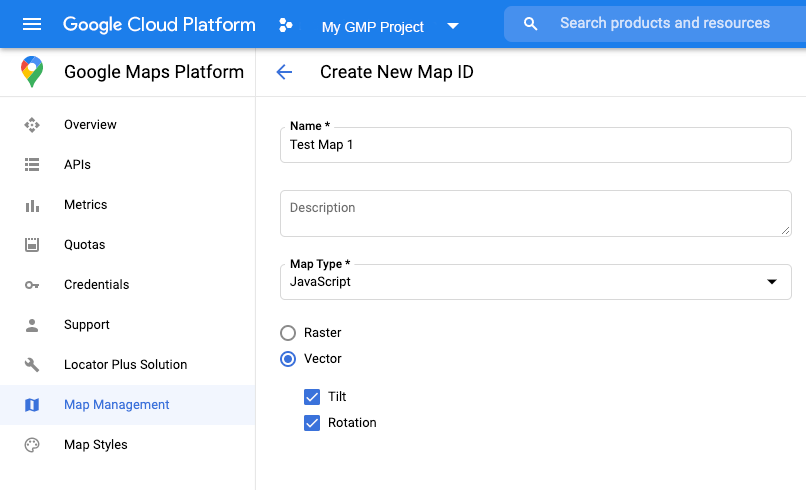
You can also specify the rendering type by using a map ID. To create a new map
ID, follow the steps in [Using Cloud-based Map Styling - Get a map ID](https://developers.google.com/maps/documentation/javascript/styling#creating-map-ids).
Be sure to set the Map type to **JavaScript** , and select the **Vector**
option. Check **Tilt** or **Rotation** to enable tilt and rotation on the
map. Doing so lets you programmatically adjust these values, and also
lets users adjust tilt and heading directly on the map. If the use of tilt or
heading will adversely affect your app, leave **Tilt** and **Rotation** un-
checked so users cannot adjust tilt and rotation.
Next, update your map initialization code with the map ID you created. You can
find your map IDs on the
[Maps
Management](https://console.cloud.google.com/google/maps-apis/studio/maps) page. Provide a map ID when you instantiate the map using the
`mapId` property as shown here:
```javascript
map = new google.maps.Map(document.getElementById('map'), {
center: {lat: -34.397, lng: 150.644},
zoom: 8,
mapId: 'MAP_ID'
});
```
> [!IMPORTANT]
> **Important:** It is recommended to associate your map ID and API key with the same Google Cloud console project.
### Use the `` element
Vector maps, tilt, and heading are enabled by default when using he ``
element, which lets you add a map to your page using HTML. [Learn more](https://developers.google.com/maps/documentation/javascript/add-google-map-wc-tut.md.txt).
## Examples
Examples have been provided to demonstrate these features:
- [WebGL Overlay View](https://developers.google.com/maps/documentation/javascript/examples/webgl/webgl-overlay-simple.md.txt)
- [WebGL Tilt and Rotation](https://developers.google.com/maps/documentation/javascript/examples/webgl/webgl-tilt-rotation.md.txt)
- [WebGL Feature Tour](https://goo.gle/maps-platform-webgl-tour)
- [WebGL Travel App Demo](https://goo.gle/maps-platform-webgl-travel-demo)