Select platform: [Android](https://developers.google.com/maps/documentation/mobility/journey-sharing/on-demand/android/style.md.txt "View this page for the Android platform docs.") [iOS](https://developers.google.com/maps/documentation/mobility/journey-sharing/on-demand/ios/style.md.txt "View this page for the iOS platform docs.") [JavaScript](https://developers.google.com/maps/documentation/mobility/journey-sharing/on-demand/javascript/style.md.txt "View this page for the JavaScript platform docs.")
This guide describes ways you can customize the map that is displayed in your
Android app when you follow a trip. You can customize the look and feel of
the map in the following ways:
- [Style the map with cloud-based maps styling](https://developers.google.com/maps/documentation/mobility/journey-sharing/on-demand/android/style.md.txt#cbms)
- [Adjust the camera to focus on the trip](https://developers.google.com/maps/documentation/mobility/journey-sharing/on-demand/android/style.md.txt#adjust-camera)
- [Customize markers](https://developers.google.com/maps/documentation/mobility/journey-sharing/on-demand/android/customize-markers.md.txt)
- [Customize polylines](https://developers.google.com/maps/documentation/mobility/journey-sharing/on-demand/android/customize-polylines.md.txt)
## Style the map with cloud-based maps styling
Customize the look and feel of the maps component using cloud-based maps
styling. You create and edit map styles on the Google Cloud console for any
of your apps that use Google Maps, without requiring any changes to your code.
For more information, select your platform at
[Cloud-based maps styling](https://developers.google.com/maps/documentation/javascript/cloud-customization.md.txt).
Both the
[`ConsumerMapView`](https://developers.google.com/maps/documentation/mobility/journey-sharing/on-demand/reference/consumer_2/android/reference/com/google/android/libraries/mapsplatform/transportation/consumer/view/ConsumerMapView.md.txt)
and the
[`ConsumerMapFragment`](https://developers.google.com/maps/documentation/mobility/journey-sharing/on-demand/reference/consumer_2/android/reference/com/google/android/libraries/mapsplatform/transportation/consumer/view/ConsumerMapFragment.md.txt)
classes support [cloud-based maps styling](https://developers.google.com/maps/documentation/android-sdk/cloud-customization.md.txt).
In order to use cloud-based maps styling, ensure that the selected maps
renderer is `LATEST`. The following sections show examples of how to use
cloud-based maps styling with your project.
### `ConsumerMapView`
To use cloud-based maps styling in the `ConsumerMapView`, set the
`mapId` field on `GoogleMapOptions` and pass the `GoogleMapOptions` to
[getConsumerGoogleMapAsync(ConsumerMapReadyCallback, Fragment,
GoogleMapOptions)](https://developers.google.com/maps/documentation/mobility/journey-sharing/on-demand/reference/consumer_2/android/reference/com/google/android/libraries/mapsplatform/transportation/consumer/view/ConsumerMapView#getConsumerGoogleMapAsync(com.google.android.libraries.mapsplatform.transportation.consumer.view.ConsumerGoogleMap.ConsumerMapReadyCallback,%20androidx.fragment.app.Fragment,%20com.google.android.gms.maps.GoogleMapOptions))
or [getConsumerGoogleMapAsync(ConsumerMapReadyCallback, FragmentActivity,
GoogleMapOptions)](https://developers.google.com/maps/documentation/mobility/journey-sharing/on-demand/reference/consumer_2/android/reference/com/google/android/libraries/mapsplatform/transportation/consumer/view/ConsumerMapView#getConsumerGoogleMapAsync(com.google.android.libraries.mapsplatform.transportation.consumer.view.ConsumerGoogleMap.ConsumerMapReadyCallback,%20androidx.fragment.app.FragmentActivity,%20com.google.android.gms.maps.GoogleMapOptions))
#### Example
### Java
```java
public class SampleAppActivity extends AppCompatActivity {
@Override
protected void onCreate(Bundle savedInstanceState) {
super.onCreate(savedInstanceState);
ConsumerMapView mapView = findViewById(R.id.consumer_map_view);
if (mapView != null) {
GoogleMapOptions optionsWithMapId = new GoogleMapOptions().mapId("map-id");
mapView.getConsumerGoogleMapAsync(
new ConsumerMapReadyCallback() {
@Override
public void onConsumerMapReady(@NonNull ConsumerGoogleMap consumerGoogleMap) {
// ...
}
},
/* fragmentActivity= */ this,
/* googleMapOptions= */ optionsWithMapId);
}
}
}
```
### Kotlin
```kotlin
class SampleAppActivity : AppCompatActivity() {
override fun onCreate(savedInstanceState: Bundle?) {
super.onCreate(savedInstanceState)
val mapView = findViewById(R.id.consumer_map_view) as ConsumerMapView
val optionsWithMapId = GoogleMapOptions().mapId("map-id")
mapView.getConsumerGoogleMapAsync(
object : ConsumerGoogleMap.ConsumerMapReadyCallback() {
override fun onConsumerMapReady(consumerGoogleMap: ConsumerGoogleMap) {
// ...
}
},
/* fragmentActivity= */ this,
/* googleMapOptions= */ optionsWithMapId)
}
}
```
### `ConsumerMapFragment`
There are two ways to use cloud-based maps styling in
ConsumerMapFragments:
- Statically with the XML.
- Dynamically with `newInstance`.
#### Statically with the XML
To use cloud-based maps styling with the XML in the
`ConsumerMapFragment`, add the `map:mapId` XML attribute with the specified
`mapId`. See the following example:
```xml
```
#### Dynamically with `newInstance`
To use cloud-based maps styling with `newInstance` in
`ConsumerMapFragment`, set the `mapId` field on `GoogleMapOptions` and pass the
`GoogleMapOptions` to `newInstance`. See the following example:
### Java
```java
public class SampleFragmentJ extends Fragment {
@Override
public View onCreateView(
@NonNull LayoutInflater inflater,
@Nullable ViewGroup container,
@Nullable Bundle savedInstanceState) {
final View view = inflater.inflate(R.layout.consumer_map_fragment, container, false);
GoogleMapOptions optionsWithMapId = new GoogleMapOptions().mapId("map-id");
ConsumerMapFragment consumerMapFragment = ConsumerMapFragment.newInstance(optionsWithMapId);
getParentFragmentManager()
.beginTransaction()
.add(R.id.consumer_map_fragment, consumerMapFragment)
.commit();
consumerMapFragment.getConsumerGoogleMapAsync(
new ConsumerMapReadyCallback() {
@Override
public void onConsumerMapReady(@NonNull ConsumerGoogleMap consumerGoogleMap) {
// ...
}
});
return view;
}
}
```
### Kotlin
```kotlin
class SampleFragment : Fragment() {
override fun onCreateView(
inflater: LayoutInflater,
container: ViewGroup?,
savedInstanceState: Bundle?): View? {
val view = inflater.inflate(R.layout.consumer_map_fragment, container, false)
val optionsWithMapId = GoogleMapOptions().mapId("map-id")
val consumerMapFragment = ConsumerMapFragment.newInstance(optionsWithMapId)
parentFragmentManager
.beginTransaction()
.add(R.id.consumer_map_fragment, consumerMapFragment)
.commit()
consumerMapFragment.getConsumerGoogleMapAsync(
object : ConsumerMapReadyCallback() {
override fun onConsumerMapReady(consumerGoogleMap: ConsumerGoogleMap) {
// ...
}
})
return view
}
}
```
## Adjust the camera zoom to focus on a trip
During an active trip sharing session, you can handle camera zoom and
focus in one of two ways:
- `AutoCamera`: If you want to use `AutoCamera`, you don't have
to do anything. The camera follows the trip. For details, see
[`AutoCamera`](https://developers.google.com/maps/documentation/mobility/journey-sharing/on-demand/android/style.md.txt#autocamera).
- Customize camera behavior: To customize camera behavior,
you must disable `AutoCamera` and then make your customizations. For details,
see [Customize camera behavior](https://developers.google.com/maps/documentation/mobility/journey-sharing/on-demand/android/style.md.txt#custom-camera).
### `AutoCamera` centers the camera
The Consumer SDK provides an `AutoCamera` feature that is enabled by default
on the built-in **My Location** button for the Maps SDK. The camera zooms to
focus on the trip route and the next trip waypoint.
If you want to use `AutoCamera`, make sure to enable it. For more details, see
[`isAutoCameraEnabled`](https://developers.google.com/maps/documentation/mobility/journey-sharing/on-demand/reference/consumer_4/android/reference/com/google/android/libraries/mapsplatform/transportation/consumer/view/ConsumerController.md.txt#isAutoCameraEnabled()).
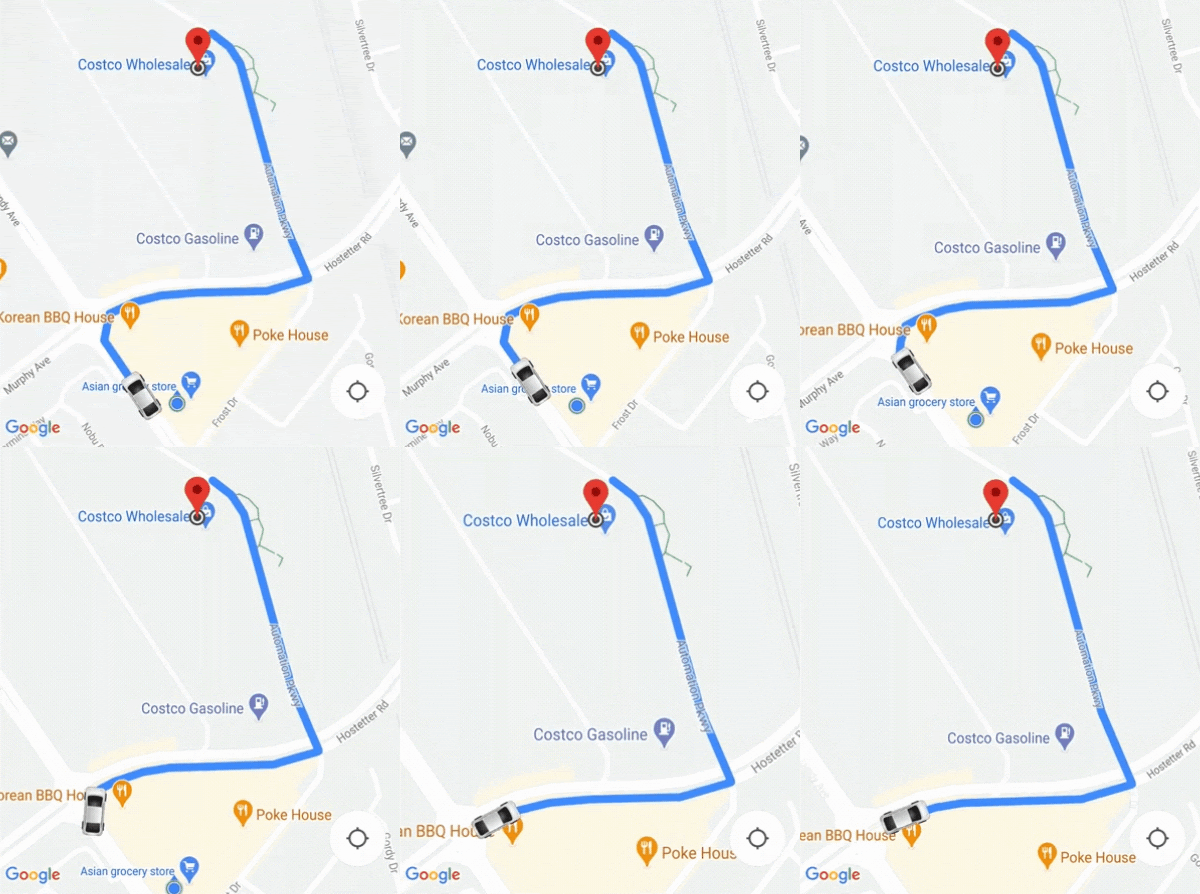
For details on the **My Location** button, see
[My Location button](https://developers.google.com/maps/documentation/android-sdk/controls.md.txt#my_location_button)
in the Maps JavaScript API documentation.
### Customize camera behavior
For more control of the camera behavior, follow these steps to disable
`AutoCamera` and customize the camera behavior manually.
1. Disable `AutoCamera` using [ConsumerController.setAutoCameraEnabled()](https://developers.google.com/maps/documentation/mobility/journey-sharing/on-demand/reference/consumer_4/android/reference/com/google/android/libraries/mapsplatform/transportation/consumer/view/ConsumerController.md.txt#public-abstract-void-setautocameraenabled-boolean-enable).
2. Get the recommended camera bounds using [ConsumerController.getCameraUpdate()](https://developers.google.com/maps/documentation/mobility/journey-sharing/on-demand/reference/consumer_4/android/reference/com/google/android/libraries/mapsplatform/transportation/consumer/view/ConsumerController.md.txt#public-abstract-cameraupdate-getcameraupdate).
3. Provide the `CameraUpdate` as an argument to one of these Android functions:
- [GoogleMap.moveCamera()](https://developers.google.com/android/reference/com/google/android/gms/maps/GoogleMap.md.txt#public-final-void-movecamera-cameraupdate-update)
- [GoogleMap.animateCamera()](https://developers.google.com/android/reference/com/google/android/gms/maps/GoogleMap.md.txt#public-final-void-animatecamera-cameraupdate-update).
## What's next
[Follow a trip in Android](https://developers.google.com/maps/documentation/mobility/journey-sharing/on-demand/android/share-journey.md.txt)