Select platform: [Android](https://developers.google.com/maps/documentation/places/android-sdk/place-autocomplete.md.txt "View this page for the Android platform docs.") [iOS](https://developers.google.com/maps/documentation/places/ios-sdk/place-autocomplete.md.txt "View this page for the iOS platform docs.") [JavaScript](https://developers.google.com/maps/documentation/javascript/place-autocomplete-overview.md.txt "View this page for the JavaScript platform docs.") [Web Service](https://developers.google.com/maps/documentation/places/web-service/place-autocomplete.md.txt "View this page for the Web Service platform docs.")
**European Economic Area (EEA) developers**
> [!NOTE]
> If your billing address is in the European Economic Area, effective on 8 July 2025, the [Google Maps Platform EEA Terms of Service](https://cloud.google.com/terms/maps-platform/eea) will apply to your use of the Services. Functionality varies by region. [Learn more](https://developers.google.com/maps/comms/eea/faq.md.txt).
Autocomplete (New) returns place predictions in
response to a request that includes a text search string and geographic bounds
that control the search area. Autocomplete can match
on full words and substrings of the input, resolving place names, addresses, and
[plus codes](https://plus.codes). Your application can send queries
as the user types, to provide on-the-fly place and query predictions.
For example, you call Autocomplete using as input a
string that contains a partial user input, "Sicilian piz", with the search area
limited to San Francisco, CA. The response then contains a list of place
predictions that match the search string and search area, such as the restaurant
named "Sicilian Pizza Kitchen". The returned place predictions are designed to
be presented to the user to aid them in selecting the desired place. You can
make a [Place Details
(New)](https://developers.google.com/maps/documentation/places/android-sdk/details-place) request to get more
information about any of the returned place predictions.
You can integrate Autocomplete (New) functionality into your app in two main
ways:
- [Add the Place Autocomplete widget](https://developers.google.com/maps/documentation/places/android-sdk/place-autocomplete.md.txt#autocomplete-widget): Provides a ready-to-use search autocomplete experience through the [`PlaceAutocomplete`](https://developers.google.com/maps/documentation/places/android-sdk/reference/com/google/android/libraries/places/widget/PlaceAutocomplete.md.txt) class that displays predictions as the user types.
- [Get place predictions programmatically](https://developers.google.com/maps/documentation/places/android-sdk/place-autocomplete.md.txt#autocomplete-requests): Call the API directly to retrieve predictions and display them in a custom user interface.
> [!NOTE]
> **Note:** Autocomplete (New) is available in Places SDK for Android version 3.5.0 and later. The Autocomplete (New) widget is available in Places SDK for Android version 4.3.1 and later. For more information, see [Choose your SDK
> version](https://developers.google.com/maps/documentation/places/android-sdk/choose-sdk). For more information about using the Kotlin APIs added in version 4.0.0, see the [Reference
> Overview](https://developers.google.com/maps/documentation/places/android-sdk/reference).
## Add the Place Autocomplete widget
To more easily provide a consistent place autocomplete experience, you can add
the Place Autocomplete widget to your app. The widget provides a dedicated,
full-screen interface that handles user input and displays place predictions to
the user while returning
[`AutocompletePrediction`](https://developers.google.com/maps/documentation/places/android-sdk/reference/com/google/android/libraries/places/api/model/AutocompletePrediction.md.txt)
objects to the app. You can then make a [Place Details
(New)](https://developers.google.com/maps/documentation/places/android-sdk/details-place) request to get
additional information about any of the place predictions.
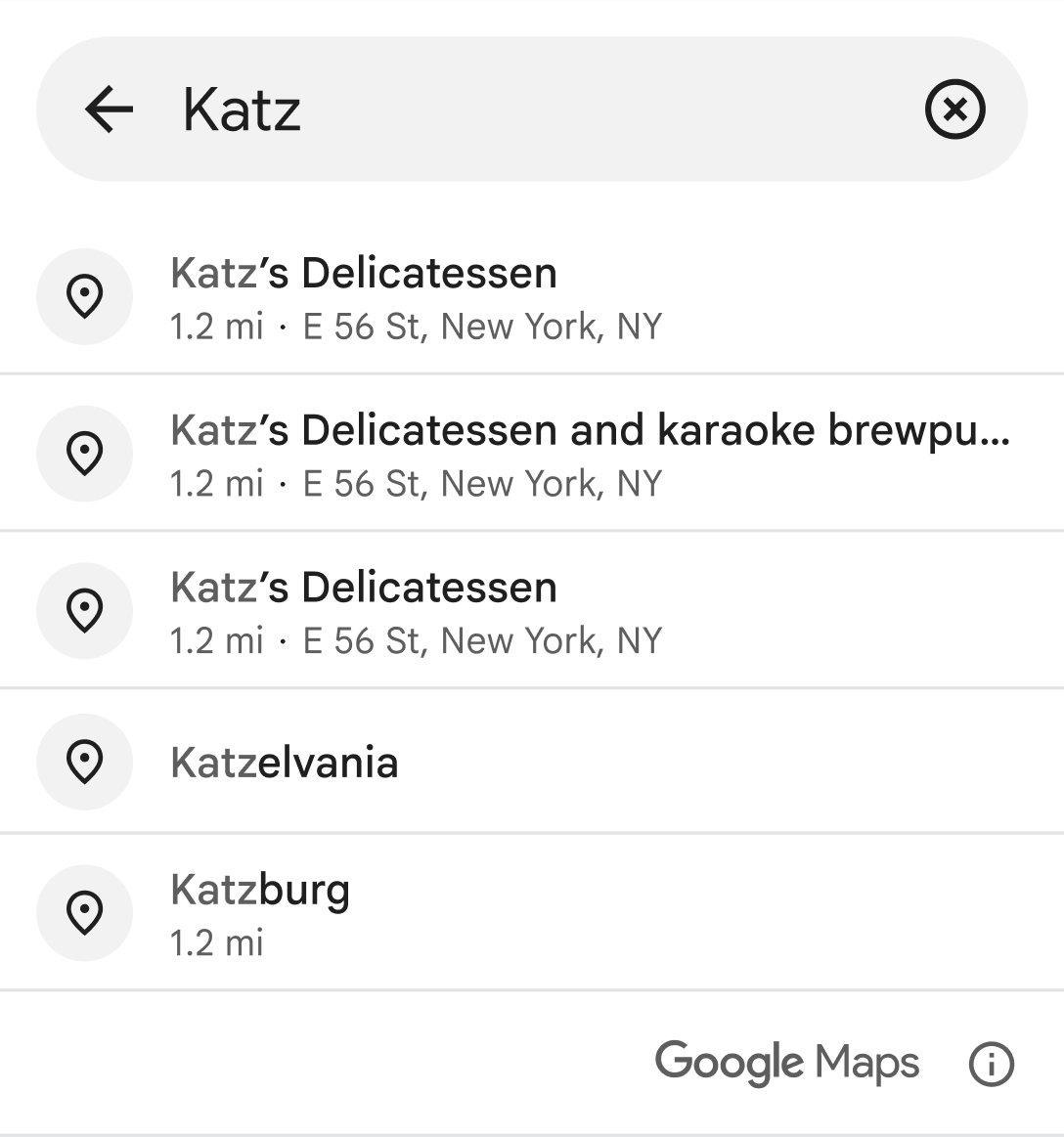
Like when [getting place predictions programmatically](https://developers.google.com/maps/documentation/places/android-sdk/place-autocomplete.md.txt#autocomplete-requests),
the Place Autocomplete widget lets you use [session tokens](https://developers.google.com/maps/documentation/places/android-sdk/place-autocomplete.md.txt#session-tokens) to
group autocomplete requests into session for billing purposes. You can pass a
session token when creating the intent for the widget by calling
`setAutocompleteSessionToken()`. If you don't provide a session token, the
widget will create one for you, which you can access by calling
`getSessionTokenFromIntent()`. For more information on using session tokens, see
[About session
tokens](https://developers.google.com/maps/documentation/places/android-sdk/place-session-tokens).
To add the Place Autocomplete widget to your app:
1. (Optional) Define a session token. If you don't provide a session token, the
widget will create one for you.
2. Define an `autocompleteIntent` with the desired parameters and your session
token.
3. Define an `ActivityResultLauncher` for `StartActivityForResult`. This
launcher will handle the result returned from the autocomplete activity.
4. Handle the result in the `ActivityResultLauncher`'s callback. This involves
extracting the `AutocompletePrediction` and `AutocompleteSessionToken` (if
you haven't provided your own), handling errors, and optionally making a
`fetchPlace()` request to get additional details about a place.
5. Launch the intent using the `placeAutocompleteActivityResultLauncher`
> [!NOTE]
> **Note:** Using session tokens is optional, but recommended.
The following samples demonstrate how to add the Place Autocomplete widget using
both Kotlin and Java:
### Kotlin
```kotlin
// Provide the API key that has enabled "Places API (New)" in the Google Cloud Console.
Places.initializeWithNewPlacesApiEnabled(/* Context= */ context, /* API Key= */ key)
// Optional, create a session token for Autocomplete request and the followup FetchPlace request.
val sessionToken: AutocompleteSessionToken = AutocompleteSessionToken.newInstance()
val autocompleteIntent: Intent =
PlaceAutocomplete.createIntent(this) {
// ... provide input params for origin, countries, types filter ...
setAutocompleteSessionToken(sessionToken)
}
val placeAutocompleteActivityResultLauncher: ActivityResultLauncher =
registerForActivityResult(ActivityResultContracts.StartActivityForResult()) { result: ActivityResult ->
val intent = result.data
if (intent != null && result.resultCode == PlaceAutocompleteActivity.RESULT_OK) {
// get prediction object
val prediction: AutocompletePrediction? =
PlaceAutocomplete.getPredictionFromIntent(intent!!)
// get session token
val sessionToken: AutocompleteSessionToken? =
PlaceAutocomplete.getSessionTokenFromIntent(intent!!)
// create PlacesClient to make FetchPlace request (optional)
val placesClient: PlacesClient = Places.createClient(this)
val response =
placesClient.awaitFetchPlace(prediction.placeId, Field.DISPLAY_NAME)
{
sessionToken = sessionToken // optional
}
}
}
// Launch Activity
placeAutocompleteActivityResultLauncher.launch(autocompleteIntent)
```
### Java
```java
// Provide the API key that has enabled "Places API (New)" in the Google Cloud Console.
Places.initializeWithNewPlacesApiEnabled(/* Context= */ context, /* API Key= */ key);
// Optional, create a session token for Autocomplete request and the followup FetchPlace request
AutocompleteSessionToken sessionToken = AutocompleteSessionToken.newInstance();
Intent autocompleteIntent =
new PlaceAutocomplete.IntentBuilder()
// ... set input params for origin, countries, types filter ...
.setSessionToken(sessionToken) // optional
.build(this);
ActivityResultLauncher placeAutocompleteActivityResultLauncher =
registerForActivityResult(
new ActivityResultContracts.StartActivityForResult(),
new ActivityResultCallback() {
@Override
public void onActivityResult(ActivityResult result) {
Intent intent = result.getData();
if (result.getResultCode() == PlaceAutocompleteActivity.RESULT_OK) {
// get prediction object
AutocompletePrediction prediction =
PlaceAutocomplete.getPredictionFromIntent(
Preconditions.checkNotNull(intent));
// get session token
AutocompleteSessionToken sessionToken =
PlaceAutocomplete.getSessionTokenFromIntent(
Preconditions.checkNotNull(intent));
// create PlacesClient to make FetchPlace request (optional)
PlacesClient placesClient = Places.createClient(this);
FetchPlaceRequest request =
FetchPlaceRequest.builder(prediction.getPlaceId(),
Arrays.asList(Field.DISPLAY_NAME))
.setSessionToken(sessionToken).build();
Task task = placesClient.fetchPlace(request);
}
}
}
);
// Launch Activity
placeAutocompleteActivityResultLauncher.launch(autocompleteIntent);
```
### Customize the theme
When instantiating an Autocomplete experience, you can specify a theme that overrides any of the
default style attributes. You can customize the colors, typography, spacing,
borders, and corners of your Place Autocomplete component. The default is
`PlacesMaterialTheme`. Any theme attributes that are not overridden use the
default styles.
You can define theme overrides in `.../res/values/themes.xml`. For example:
```
```
> [!NOTE]
> **Note:** For reference on the theme attributes that you can customize, see the UI Kit [Custom styling](https://developers.google.com/maps/documentation/places/android-sdk/places-ui-kit-custom-styling.md.txt) page.
You can then reference the override styles by calling `setAutocompleteUiCustomization`:
```
ActivityResultLauncher placeAutocompleteActivityResultLauncher =
registerForActivityResult(
new ActivityResultContracts.StartActivityForResult(),
new ActivityResultCallback() {
@Override
public void onActivityResult(ActivityResult result) {
Intent intent = result.getData();
if (intent != null) {
AutocompletePrediction prediction =
PlaceAutocomplete.getPredictionFromIntent(intent);
AutocompleteSessionToken sessionToken =
PlaceAutocomplete.getSessionTokenFromIntent(intent);
Status status = PlaceAutocomplete.getResultStatusFromIntent(intent);
...
}
}
}
);
Intent placeAutocompleteIntent =
new PlaceAutocomplete.IntentBuilder()
.setInitialQuery("INSERT_QUERY_TEXT")
.setOrigin(new LatLng(10.0, 10.0))
...
.setAutocompleteUiCustomization(
AutocompleteUiCustomization.builder()
.listItemIcon(AutocompleteUiIcon.noIcon())
.listDensity(AutocompleteListDensity.MULTI_LINE)
.theme(R.style.BrandedTheme)
.build())
.build(this);
placeAutocompleteActivityResultLauncher.launch(placeAutocompleteIntent);
```
## Get place predictions programmatically
Your app can get a list of predicted place names and/or addresses from the
autocomplete API by calling
[`PlacesClient.findAutocompletePredictions()`](https://developers.google.com/maps/documentation/places/android-sdk/reference/com/google/android/libraries/places/api/net/PlacesClient.md.txt#findAutocompletePredictions(com.google.android.libraries.places.api.net.FindAutocompletePredictionsRequest)),
passing a
[`FindAutocompletePredictionsRequest`](https://developers.google.com/maps/documentation/places/android-sdk/reference/com/google/android/libraries/places/api/net/FindAutocompletePredictionsRequest.md.txt)
object. The example below shows a complete call to
[`PlacesClient.findAutocompletePredictions()`](https://developers.google.com/maps/documentation/places/android-sdk/reference/com/google/android/libraries/places/api/net/PlacesClient.md.txt#findAutocompletePredictions(com.google.android.libraries.places.api.net.FindAutocompletePredictionsRequest)).
```
Places.initializeWithNewPlacesApiEnabled(context, apiKey);
final List placeFields = getPlaceFields();
LatLng center = new LatLng(37.7749, -122.4194);
CircularBounds circle = CircularBounds.newInstance(center, /* radius = */ 5000);
final FindAutocompletePredictionsRequest autocompletePlacesRequest =
FindAutocompletePredictionsRequest.builder()
.setQuery("Sicilian piz")
.setRegionCode("ES")
.setLocationRestriction(circle)
.build());
placesClient.findAutocompletePredictions(autoCompletePlacesRequest)
.addOnSuccessListener(
(response) -> {
List predictions = response.getResult().getAutocompletePredictions();
}
).addOnFailureListener(
exception -> {
Log.e(TAG, "some exception happened" + exception.getMessage());
})
);
```
> [!NOTE]
> **Note:** For more information on initializing `PlacesClient`, see [Initialize the Places API client](https://developers.google.com/maps/documentation/places/android-sdk/config.md.txt#connect-client).
> [!NOTE]
> You can use a [CancellationToken](https://developers.google.com/android/reference/com/google/android/gms/tasks/CancellationToken.md.txt)
> to attempt to cancel a request to any of the request classes (for example,
> `FetchPlaceRequest`). Cancellation is done on a best-effort basis.
> Once a cancellation request is issued, no response will be returned.
> **Issuing a cancellation token does NOT guarantee that a particular request
> will be cancelled, and you may still be charged for the request even if no
> response is returned**.
## Autocomplete (New) responses
The API returns an
[`FindAutocompletePredictionsResponse`](https://developers.google.com/maps/documentation/places/android-sdk/reference/com/google/android/libraries/places/api/net/FindAutocompletePredictionsResponse.md.txt)
in a
[`Task`](https://developers.google.com/android/reference/com/google/android/gms/tasks/Task.md.txt).
The
[`FindAutocompletePredictionsResponse`](https://developers.google.com/maps/documentation/places/android-sdk/reference/com/google/android/libraries/places/api/net/FindAutocompletePredictionsResponse.md.txt)
contains a list of up to five
[`AutocompletePrediction`](https://developers.google.com/maps/documentation/places/android-sdk/reference/com/google/android/libraries/places/api/model/AutocompletePrediction.md.txt)
objects representing predicted places. The list may be empty, if there is no
known place corresponding to the query and the filter criteria.
For each predicted place, you can call the following methods to retrieve place
details:
- [`getFullText(CharacterStyle)`](https://developers.google.com/maps/documentation/places/android-sdk/reference/com/google/android/libraries/places/api/model/AutocompletePrediction.md.txt#getFullText(android.text.style.CharacterStyle)) returns the full text of a place description. This is a combination of the primary and secondary text. Example: "*Eiffel Tower, Avenue Anatole France,
Paris, France* ". In addition, this method lets you highlight the sections of the description that match the search with a style of your choice, using [`CharacterStyle`](https://developer.android.com/reference/android/text/style/CharacterStyle.html). The `CharacterStyle` parameter is optional. Set it to null if you don't need any highlighting.
- [`getPrimaryText(CharacterStyle)`](https://developers.google.com/maps/documentation/places/android-sdk/reference/com/google/android/libraries/places/api/model/AutocompletePrediction.md.txt#getPrimaryText(android.text.style.CharacterStyle)) returns the main text describing a place. This is usually the name of the place. Examples: "*Eiffel Tower* ", and "*123 Pitt Street*".
- [`getSecondaryText(CharacterStyle)`](https://developers.google.com/maps/documentation/places/android-sdk/reference/com/google/android/libraries/places/api/model/AutocompletePrediction.md.txt#getSecondaryText(android.text.style.CharacterStyle)) returns the subsidiary text of a place description. This is useful, for example, as a second line when showing autocomplete predictions. Examples: "*Avenue Anatole France, Paris, France* ", and "*Sydney, New South Wales*".
- [`getPlaceId()`](https://developers.google.com/maps/documentation/places/android-sdk/reference/com/google/android/libraries/places/api/model/AutocompletePrediction.md.txt#getPlaceId()) returns the place ID of the predicted place. A place ID is a textual identifier that uniquely identifies a place, which you can use to retrieve the [`Place`](https://developers.google.com/maps/documentation/places/android-sdk/reference/com/google/android/libraries/places/api/model/Place.md.txt) object again later. For more information about place IDs in Autocomplete, see [Place Details
(New)](https://developers.google.com/maps/documentation/places/android-sdk/details-place). For general information about place IDs, see the [Place ID
overview](https://developers.google.com/maps/documentation/places/android-sdk/place-id).
- [`getTypes()`](https://developers.google.com/maps/documentation/places/android-sdk/reference/com/google/android/libraries/places/api/model/AutocompletePrediction.md.txt#getTypes()) returns the list of place types associated with this place.
- [`getDistanceMeters()`](https://developers.google.com/maps/documentation/places/android-sdk/reference/com/google/android/libraries/places/api/model/AutocompletePrediction.md.txt#getDistanceMeters()) returns the straight-line distance in meters between this place and the origin specified in the request.
## Required parameters
### Query
The text string on which to search. Specify full words and substrings,
place names, addresses, and [plus codes](https://plus.codes).
The Autocomplete (New) service
returns candidate matches based on this string and orders results based on
their perceived relevance.
To set the query parameter, call the [`setQuery()`](https://developers.google.com/maps/documentation/places/android-sdk/reference/com/google/android/libraries/places/api/net/FindAutocompletePredictionsRequest.Builder.md.txt#setQuery(java.lang.String))
method when building the `FindAutocompletePredictionsRequest` object.
## Optional parameters
### Primary types
A list of up to five type values from types
[Table A](https://developers.google.com/maps/documentation/places/android-sdk/place-types.md.txt#table-a)
or [Table B](https://developers.google.com/maps/documentation/places/android-sdk/place-types.md.txt#table-b)
used to filter the places returned in the response.
A place must match one of the specified primary type values to be included in the response.
A place can only have a single primary type from types
[Table A](https://developers.google.com/maps/documentation/places/android-sdk/place-types.md.txt#table-a)
or [Table B](https://developers.google.com/maps/documentation/places/android-sdk/place-types.md.txt#table-b) associated
with it. For example, the primary type might be `"mexican_restaurant"` or
`"steak_house"`.
The request is rejected with an `INVALID_REQUEST` error if:
- More than five types are specified.
- Any unrecognized types are specified.
To set the primary types parameter, call the [`setTypesFilter()`](https://developers.google.com/maps/documentation/places/android-sdk/reference/com/google/android/libraries/places/api/net/FindAutocompletePredictionsRequest.Builder.md.txt#setTypesFilter(java.util.List%3Cjava.lang.String%3E))
method when building the `FindAutocompletePredictionsRequest` object.
### Countries
Only include results from the list of specified countries, specified as a list of up to 15
[ccTLD ("top-level domain")](https://en.wikipedia.org/wiki/Country_code_top-level_domain#Latin_Character_ccTLDs)
two-character values. If omitted, no restrictions are applied to the response. For example,
to limit the regions to Germany and France:
If you specify both `locationRestriction` and `includedRegionCodes`,
the results are located in the area of intersection of the two settings.
To set the countries parameter, call the [`setCountries()`](https://developers.google.com/maps/documentation/places/android-sdk/reference/com/google/android/libraries/places/api/net/FindAutocompletePredictionsRequest.Builder.md.txt#setCountries(java.util.List%3Cjava.lang.String%3E))
method when building the `FindAutocompletePredictionsRequest` object.
### Input offset
The zero-based Unicode character offset indicating the cursor position in the query.
The cursor position can influence what predictions are returned. If empty, it defaults to the
length of the query.
To set the input offset parameter, call the [`setInputOffset()`](https://developers.google.com/maps/documentation/places/android-sdk/reference/com/google/android/libraries/places/api/net/FindAutocompletePredictionsRequest.Builder.md.txt#setInputOffset(java.lang.Integer))
method when building the `FindAutocompletePredictionsRequest` object.
### Location bias or location restriction
You can specify a location bias or location restriction,
but not both, to define the search area. Think of location restriction as specifying
the region which the results must be within, and location bias as
specifying the region that the results must be near. The key difference is that
with location bias, results outside of the specified region may still be returned.
-
#### Location bias
Specifies an area to search. This location serves as a bias, not a restriction, so results
outside the specified area may still be returned.
To set the location bias parameter, call the [`setLocationBias()`](https://developers.google.com/maps/documentation/places/android-sdk/reference/com/google/android/libraries/places/api/net/FindAutocompletePredictionsRequest.Builder.md.txt#setLocationBias(com.google.android.libraries.places.api.model.LocationBias))
method when building the `FindAutocompletePredictionsRequest` object.
-
#### Location restriction
Specifies an area to search. Results outside the specified area are not
returned.
To set the location restriction parameter, call the [`setLocationRestriction()`](https://developers.google.com/maps/documentation/places/android-sdk/reference/com/google/android/libraries/places/api/net/FindAutocompletePredictionsRequest.Builder.md.txt#setLocationRestriction(com.google.android.libraries.places.api.model.LocationRestriction))
method when building the `FindAutocompletePredictionsRequest` object.
Specify the location bias or location restriction region as a
rectangular Viewport or as a circle.
- A circle is defined by center point and radius in meters. The radius must be between
0.0 and 50000.0, inclusive. The default value is 0.0. For location restriction,
you must set the radius to a value greater than 0.0. Otherwise, the request returns
no results.
- A rectangle is a latitude-longitude viewport, represented as two
diagonally opposite `low` and `high` points. A viewport is considered a
closed region, meaning it includes its boundary. The latitude bounds
must range between -90 to 90 degrees inclusive, and the longitude bounds
must range between -180 to 180 degrees inclusive:
**Note:** The supported bias types vary depending on the SDK version that you are using. `CircularBounds` is only available in Autocomplete (New).
- If `low` = `high`, the viewport consists of that single point.
- If `low.longitude` \> `high.longitude`, the longitude range is inverted (the viewport crosses the 180 degree longitude line).
- If `low.longitude` = -180 degrees and `high.longitude` = 180 degrees, the viewport includes all longitudes.
- If `low.longitude` = 180 degrees and `high.longitude` = -180 degrees, the longitude range is empty.
Both `low` and `high` must be populated, and the represented box
cannot be empty. An empty viewport results in an error.
### Origin
The origin point from which to calculate straight-line distance to the
destination (accessed using [`getDistanceMeters()`](https://developers.google.com/maps/documentation/places/android-sdk/reference/com/google/android/libraries/places/api/model/AutocompletePrediction.md.txt#getDistanceMeters())). If this value is
omitted, straight-line distance won't be returned. Must be specified as
latitude and longitude coordinates:
To set the origin parameter, call the [`setOrigin()`](https://developers.google.com/maps/documentation/places/android-sdk/reference/com/google/android/libraries/places/api/net/FindAutocompletePredictionsRequest.Builder.md.txt#setOrigin(com.google.android.gms.maps.model.LatLng))
method when building the `FindAutocompletePredictionsRequest` object.
### Region code
The region code used to format the response, including address formatting, specified as a
[ccTLD ("top-level domain")](https://en.wikipedia.org/wiki/Country_code_top-level_domain#Latin_Character_ccTLDs)
two-character value. Most ccTLD codes are identical to ISO 3166-1 codes,
with some notable exceptions. For example, the United Kingdom's ccTLD is
"uk" (.co.uk) while its ISO 3166-1 code is "gb" (technically for the
entity of "The United Kingdom of Great Britain and Northern Ireland").
**Note:** The region code is intended to represent the region that the request is originating from, not necessarily the target region for the query.
If you specify an invalid region code, the API returns an `INVALID_ARGUMENT`
error. The parameter can affect results based on applicable law.
To set the region code parameter, call the [`setRegionCode()`](https://developers.google.com/maps/documentation/places/android-sdk/reference/com/google/android/libraries/places/api/net/FindAutocompletePredictionsRequest.Builder.md.txt#setRegionCode(java.lang.String))
method when building the `FindAutocompletePredictionsRequest` object.
### Session token
Session tokens are user-generated strings that track
Autocomplete (New) calls---both calls made through the widget
and programmatic calls---as "sessions." Autocomplete uses session tokens to
group the query and selection phases of a user autocomplete search into a discrete session for
billing purposes. The session begins when the
user starts typing a query, and concludes when they select a place. Each session
can have multiple queries, followed by one place selection. Once a session has
concluded, the token is no longer valid; your app must generate a fresh token
for each session. We recommend using session tokens for all programmatic
autocomplete sessions (when you embed a fragment, or launch autocomplete using
an intent, the API takes care of this automatically).
The Autocomplete uses a
[`AutocompleteSessionToken`](https://developers.google.com/maps/documentation/places/android-sdk/reference/com/google/android/libraries/places/api/model/AutocompleteSessionToken.md.txt)
to identify each session. Your app should pass a new session token upon
beginning each new session, then pass that same token, along with a Place ID, in
the subsequent call to [`fetchPlace()`](https://developers.google.com/maps/documentation/places/android-sdk/reference/com/google/android/libraries/places/api/net/PlacesClient#fetchPlace(com.google.android.libraries.places.api.net.FetchPlaceRequest)
to retrieve Place Details for the place that was selected by the user.
To set the session token parameter, call the [`setSessionToken()`](https://developers.google.com/maps/documentation/places/android-sdk/reference/com/google/android/libraries/places/api/net/FindAutocompletePredictionsRequest.Builder.md.txt#setSessionToken(com.google.android.libraries.places.api.model.AutocompleteSessionToken))
method when building the `FindAutocompletePredictionsRequest` object.
For more information, see
[Session tokens](https://developers.google.com/maps/documentation/places/android-sdk/place-session-tokens.md.txt).
## Autocomplete (New) examples
### Use location restriction and location bias
Autocomplete (New) uses IP biasing by default to
control the search area. With IP biasing, the API uses the IP address of the
device to bias the results. You can optionally use [location
restriction](https://developers.google.com/maps/documentation/places/android-sdk/place-autocomplete#location-restriction) or [location bias](https://developers.google.com/maps/documentation/places/android-sdk/place-autocomplete.md.txt#location-bias), but not
both, to specify an area to search.
Location restriction specifies the area to search. Results outside the specified
area are not returned. The following example uses location restriction to limit
the request to a circular location restriction with a 5000-meter radius centered
on San Francisco:
```
Places.initializeWithNewPlacesApiEnabled(context, apiKey);
final List placeFields = getPlaceFields();
LatLng center = new LatLng(37.7749, -122.4194);
CircularBounds circle = CircularBounds.newInstance(center, /* radius = */ 5000);
final FindAutocompletePredictionsRequest autocompletePlacesRequest =
FindAutocompletePredictionsRequest.builder()
.setQuery("Amoeba")
.setLocationRestriction(circle)
.build());
placesClient.findAutocompletePredictions(autoCompletePlacesRequest)
.addOnSuccessListener(
(response) -> {
List predictions = response.getResult().getAutocompletePredictions();
}
).addOnFailureListener(
exception -> {
Log.e(TAG, "some exception happened" + exception.getMessage());
})
);
```
With location bias, the location serves as a bias which means results around the
specified location can be returned, including results outside the specified
area. The next example changes the previous request to use location bias:
```
Places.initializeWithNewPlacesApiEnabled(context, apiKey);
final List placeFields = getPlaceFields();
LatLng center = new LatLng(37.7749, -122.4194);
CircularBounds circle = CircularBounds.newInstance(center, /* radius = */ 5000);
final FindAutocompletePredictionsRequest autocompletePlacesRequest =
FindAutocompletePredictionsRequest.builder()
.setQuery("Amoeba")
.setLocationBias(circle)
.build());
placesClient.findAutocompletePredictions(autoCompletePlacesRequest)
.addOnSuccessListener(
(response) -> {
List predictions = response.getResult().getAutocompletePredictions();
}
).addOnFailureListener(
exception -> {
Log.e(TAG, "some exception happened" + exception.getMessage());
})
);
```
### Use primary types
Use the [primary types](https://developers.google.com/maps/documentation/places/android-sdk/place-autocomplete.md.txt#primary-types) parameter to restrict results from a
request to be of a certain type as listed in [Table
A](https://developers.google.com/maps/documentation/places/android-sdk/place-types#table-a) and [Table
B](https://developers.google.com/maps/documentation/places/android-sdk/place-types#table-b). You can specify
an array of up to five values. If omitted, all types are returned.
The following example specifies a query string of "Soccer" and uses the primary
types parameter to restrict results to establishments of type
`"sporting_goods_store"`:
```
Places.initializeWithNewPlacesApiEnabled(context, apiKey);
final List placeFields = getPlaceFields();
final List primaryTypes = Arrays.asList("sporting_goods_store");
LatLng center = new LatLng(37.7749, -122.4194);
CircularBounds circle = CircularBounds.newInstance(center, /* radius = */ 5000);
final FindAutocompletePredictionsRequest autocompletePlacesRequest =
FindAutocompletePredictionsRequest.builder()
.setQuery("Soccer")
.setIncludedPrimaryTypes(primaryTypes)
.setLocationBias(circle)
.build());
placesClient.findAutocompletePredictions(autoCompletePlacesRequest)
.addOnSuccessListener(
(response) -> {
List predictions = response.getResult().getAutocompletePredictions();
}
).addOnFailureListener(
exception -> {
Log.e(TAG, "some exception happened" + exception.getMessage());
})
);
```
If you omit the primary types parameter, the results can include establishments
of a type that you may not want, such as `"athletic_field"`.
### Use origin
When you include the [origin](https://developers.google.com/maps/documentation/places/android-sdk/place-autocomplete.md.txt#origin) parameter in the request, specified as
latitude and longitude coordinates, the API includes the straight-line distance
from the origin to the destination in the response (accessed using
[`getDistanceMeters()`](https://developers.google.com/maps/documentation/places/android-sdk/reference/com/google/android/libraries/places/api/model/AutocompletePrediction.md.txt#getDistanceMeters())).
This example sets the origin to the center of San Francisco:
```
Places.initializeWithNewPlacesApiEnabled(context, apiKey);
final List placeFields = getPlaceFields();
LatLng center = new LatLng(37.7749, -122.4194);
CircularBounds circle = CircularBounds.newInstance(center, /* radius = */ 5000);
final FindAutocompletePredictionsRequest autocompletePlacesRequest =
FindAutocompletePredictionsRequest.builder()
.setQuery("Amoeba")
.setOrigin(center)
.setLocationRestriction(circle)
.build());
placesClient.findAutocompletePredictions(autoCompletePlacesRequest)
.addOnSuccessListener(
(response) -> {
List predictions = response.getResult().getAutocompletePredictions();
}
).addOnFailureListener(
exception -> {
Log.e(TAG, "some exception happened" + exception.getMessage());
})
);
```
## Autocomplete (New) optimization
This section describes best practices to help you make the most of the
Autocomplete (New) service.
Here are some general guidelines:
- The quickest way to develop a working user interface is to use the Maps JavaScript API [Autocomplete (New) widget](https://developers.google.com/maps/documentation/javascript/place-autocomplete-new.md.txt), Places SDK for Android [Autocomplete (New) widget](https://developers.google.com/maps/documentation/places/android-sdk/place-autocomplete.md.txt#autocomplete-widget), or Places SDK for iOS [Autocomplete (New) widget](https://developers.google.com/maps/documentation/places/ios-sdk/place-autocomplete.md.txt#autocomplete-widget).
- Understand essential Autocomplete (New) [data fields](https://developers.google.com/maps/documentation/places/android-sdk/data-fields.md.txt) from the start.
- Location biasing and location restriction fields are optional but can have a significant impact on autocomplete performance.
- Use error handling to make sure your app degrades gracefully if the API returns an error.
- Make sure your app handles when there is no selection and offers users a way to continue.
### Cost optimization best practices
### Basic cost optimization
[Video](https://www.youtube.com/watch?v=VOP8cvCLGac)
To optimize the cost of using the Autocomplete (New)
service, use field masks in Place Details (New) and Autocomplete (New) widgets to return only the
Autocomplete (New) [data fields](https://developers.google.com/maps/documentation/places/android-sdk/data-fields.md.txt)
you need.
### Advanced cost optimization
Consider programmatic implementation of Autocomplete (New) to access
[SKU: Autocomplete Request pricing](https://developers.google.com/maps/billing-and-pricing/sku-details/places.md.txt#places_autocomplete-request-new-ess-sku)
and request [Geocoding API results](https://developers.google.com/maps/documentation/geocoding/overview#results) about the selected place instead of Place Details (New). Per-request pricing paired with Geocoding API is more cost-effective than per-session (session-based) pricing if both of the following conditions are met:
- If you only need the latitude and longitude or address of the user's selected place, the Geocoding API delivers this information for less than a Place Details (New) call.
- If users select an autocomplete prediction within an average of four Autocomplete (New) predictions requests or fewer, per-request pricing can be more cost-effective than per-session pricing.
To choose the Autocomplete (New) implementation that costs the least for your application, find the row in the following table that matches what your application needs.
| What your application needs | Average Autocomplete (New) requests before a user selects a prediction | Recommended implementation |
|---|---|---|
| Place details other than the address and location, such as the place name, business status, or opening hours | Any number | [Session-based Autocomplete (New) with Place Details (New)](https://developers.google.com/maps/documentation/places/android-sdk/place-autocomplete.md.txt#select-place-details) |
| Only the address and latitude/longitude of the selected prediction | Four or fewer | [Per-request Autocomplete (New) with the Geocoding API](https://developers.google.com/maps/documentation/places/android-sdk/place-autocomplete.md.txt#select-location-performant) |
| Only the address and latitude/longitude of the selected prediction | More than four | [Session-based Autocomplete (New) for address-only applications](https://developers.google.com/maps/documentation/places/android-sdk/place-autocomplete.md.txt#select-location-nonperformant) |
Geocoding API could be a more cost-effective option than Place Details (New) for your application, depending on the performance of your Autocomplete (New) usage. Every application's Autocomplete (New) efficiency varies depending on what users are entering, where the application is being used, and whether [performance optimization best practices](https://developers.google.com/maps/documentation/places/android-sdk/place-autocomplete.md.txt#perf-best-practices) have been implemented.
To find the average number of requests for the table, analyze how many characters a user types on average before selecting a Autocomplete (New) prediction in your application.
### Session-based Autocomplete (New) with Place Details (New)
**Use session-based Autocomplete (New) with Place Details (New).**
Since your application requires Place Details (New), such as the place name, business status,
or opening hours, your implementation of Autocomplete (New) should use a session token
(programmatically or built into the
[JavaScript](https://developers.google.com/maps/documentation/javascript/place-autocomplete-new.md.txt),
[Android](https://developers.google.com/maps/documentation/places/android-sdk/place-autocomplete.md.txt#autocomplete-widget),
or [iOS](https://developers.google.com/maps/documentation/places/ios-sdk/place-autocomplete.md.txt#autocomplete-widget)
widgets)
[per session](https://developers.google.com/maps/documentation/places/android-sdk/session-pricing.md.txt) plus applicable Places SKUs,
depending on which place data fields you request.^[1](https://developers.google.com/maps/documentation/places/android-sdk/place-autocomplete.md.txt#fn1)^
**Widget implementation**
Session management is automatically built into the
[JavaScript](https://developers.google.com/maps/documentation/javascript/place-autocomplete-new.md.txt),
[Android](https://developers.google.com/maps/documentation/places/android-sdk/place-autocomplete.md.txt#autocomplete-widget),
or [iOS](https://developers.google.com/maps/documentation/places/ios-sdk/place-autocomplete.md.txt#autocomplete-widget)
widgets. This includes both the Autocomplete (New) requests and the Place Details (New) request
on the selected prediction. Be sure to specify the `fields` parameter in order to
ensure you are only requesting the
Autocomplete (New) [data fields](https://developers.google.com/maps/documentation/places/android-sdk/data-fields.md.txt)
you need.
**Programmatic implementation**
Use a
[session token](https://developers.google.com/maps/documentation/places/android-sdk/session-pricing.md.txt)
with your Autocomplete (New) requests. When requesting Place Details (New) about the selected prediction, include the following parameters:
1. The place ID from [the Autocomplete (New) response](https://developers.google.com/maps/documentation/places/android-sdk/place-autocomplete.md.txt#programmatic-response)
2. The session token used in the Autocomplete (New) request
3. The `fields` parameter specifying the Autocomplete (New) [data fields](https://developers.google.com/maps/documentation/places/android-sdk/data-fields.md.txt) you need
### Per-request Autocomplete (New) with the Geocoding API
**Implement Autocomplete (New) programmatically without session tokens and call Geocoding API on the selected place prediction.**
Geocoding API delivers addresses and latitude/longitude coordinates.
Making four
[Autocomplete Requests](https://developers.google.com/maps/billing-and-pricing/sku-details/places.md.txt#places_autocomplete-request-new-ess-sku)
requests plus a [Geocoding API](https://developers.google.com/maps/billing-and-pricing/sku-details/places.md.txt#geocoding-ess-sku)
call about the selected place prediction is less than the per-session Autocomplete (New)
cost per session.^[1](https://developers.google.com/maps/documentation/places/android-sdk/place-autocomplete.md.txt#fn1)^
Consider employing [performance best practices](https://developers.google.com/maps/documentation/places/android-sdk/place-autocomplete.md.txt#perf-best-practices) to help your users get the prediction they're looking for in even fewer characters.
### Session-based Autocomplete (New) for address-only applications
**Use session-based Autocomplete (New) with Place Details (New).**
Since the average number of requests you expect to make before a user selects a
Autocomplete (New) prediction exceeds the cost of per-session pricing, your implementation
of Autocomplete (New) should use a session token for both the Autocomplete (New) requests
and the associated Place Details (New) request
[per session](https://developers.google.com/maps/documentation/places/android-sdk/session-pricing.md.txt).
^[1](https://developers.google.com/maps/documentation/places/android-sdk/place-autocomplete.md.txt#fn1)^
**Widget implementation**
Session management is automatically built into the
[JavaScript](https://developers.google.com/maps/documentation/javascript/place-autocomplete-new.md.txt),
[Android](https://developers.google.com/maps/documentation/places/android-sdk/place-autocomplete.md.txt#autocomplete-widget),
or [iOS](https://developers.google.com/maps/documentation/places/ios-sdk/place-autocomplete.md.txt#autocomplete-widget)
widgets. This includes both the Autocomplete (New) requests and the Place Details (New)
request on the selected prediction. Be sure to specify the `fields` parameter
in order to ensure you are only requesting the fields you need.
**Programmatic implementation**
Use a
[session token](https://developers.google.com/maps/documentation/places/android-sdk/session-pricing.md.txt)
with your Autocomplete (New) requests.
When requesting Place Details (New) about the selected prediction,
include the following parameters:
1. The place ID from [the Autocomplete (New) response](https://developers.google.com/maps/documentation/places/android-sdk/place-autocomplete.md.txt#programmatic-response)
2. The session token used in the Autocomplete (New) request
3. The `fields` parameter specifying fields such as address and geometry
**Consider delaying Autocomplete (New) requests**
You can employ strategies such as delaying a Autocomplete (New) request until the user has typed in the first three or four characters so that your application makes fewer requests. For example, making Autocomplete (New) requests for each character *after* the user has typed the third character means that if the user types seven characters then selects a prediction for which you make one Geocoding API request, the total cost would be for 4 Autocomplete (New) Per Request + Geocoding.^[1](https://developers.google.com/maps/documentation/places/android-sdk/place-autocomplete.md.txt#fn1)^
If delaying requests can get your average programmatic request below four, you can follow the guidance for [performant Autocomplete (New) with Geocoding API](https://developers.google.com/maps/documentation/places/android-sdk/place-autocomplete.md.txt#select-location-performant) implementation. Note that delaying requests can be perceived as latency by the user who might be expecting to see predictions with every new keystroke.
Consider employing [performance best practices](https://developers.google.com/maps/documentation/places/android-sdk/place-autocomplete.md.txt#perf-best-practices) to help your users get the prediction they're looking for in fewer characters.
*** ** * ** ***
1. For costs, see [Google Maps Platform pricing lists](https://developers.google.com/maps/billing-and-pricing/pricing.md.txt).
### Performance best practices
[Video](https://www.youtube.com/watch?v=bv1p4s_d8OM)
The following guidelines describe ways to optimize Autocomplete (New) performance:
- Add country restrictions, [location biasing](https://developers.google.com/maps/documentation/places/android-sdk/place-autocomplete.md.txt#location_biasing), and (for programmatic implementations) language preference to your Autocomplete (New) implementation. Language preference is not needed with widgets since they pick language preferences from the user's browser or mobile device.
- If Autocomplete (New) is accompanied by a map, you can bias location by map viewport.
- In situations when a user does not choose one of the Autocomplete (New) predictions, generally because none of those predictions are the result-address wanted, you can reuse the original user input to attempt to get more relevant results:
- If you expect the user to enter only address information, reuse the original user input in a call to the [Geocoding API](https://developers.google.com/maps/documentation/geocoding/overview).
- If you expect the user to enter queries for a specific place by name or address, use a Place Details (New) request. If results are only expected in a specific region, use [location biasing](https://developers.google.com/maps/documentation/places/android-sdk/place-autocomplete.md.txt#location_biasing).
Other scenarios when it's best to fall back to the Geocoding API include:
- Users inputting subpremise addresses, such as addresses for specific units or apartments within a building. For example, the Czech address "Stroupežnického 3191/17, Praha" yields a partial prediction in Autocomplete (New).
- Users inputting addresses with road-segment prefixes like "23-30 29th St, Queens" in New York City or "47-380 Kamehameha Hwy, Kaneohe" on the island of Kauai in Hawai'i.
### Location biasing
Bias results to a specified area by passing a `location` parameter and a `radius`
parameter. This instructs Autocomplete (New) to *prefer* showing results
within the defined area. Results outside of the defined area may still be
displayed. You can use the `includedRegionCodes` parameter to filter results
to show only those places within a specified country.
> [!WARNING]
> **Warning:** If `radius` is not provided, the `location` parameter is ignored.
> [!TIP]
> Establishment results generally don't rank highly enough to show in results when the search area is large. If you want establishments to appear in mixed establishment/geocode results, you can specify a smaller radius. Alternatively, use `types=establishment` to restrict results to establishments only.
### Location restricting
Restrict results to a specified area by passing a `locationRestriction` parameter.
You may also restrict results to the region defined by `location`
and a `radius` parameter, by adding the
`locationRestriction`
parameter. This instructs Autocomplete (New) to return *only*
results within that region.
> [!NOTE]
> **Note:** Location restrictions are only applied to entire routes. Synthetic results located outside the location restriction may be returned based on a route that overlaps with the location restriction.