On devices running iOS 9 and later, you can use
[Universal Links](https://developers.google.com/maps/documentation/urls/ios-urlscheme.md.txt#universal-links-and-google-maps) to launch Google
Maps when you have a Google Maps URL.
You can use the Google Maps URL scheme to launch the
[Google Maps app for iOS](https://itunes.apple.com/app/id585027354)
and perform searches, get direction
requests, and display map views. When you launch Google Maps, your bundle
identifier is automatically sent as part of the request.
You don't need a Google API key to use the Google Maps URL scheme.
> [!NOTE]
> **Note:** [Maps URLs](https://developers.google.com/maps/documentation/urls/guide) let you build a universal, cross-platform URL to launch Google Maps and perform searches, get directions, display map views, and display panoramic images. We recommend that you use the cross-platform **[Maps URLs](https://developers.google.com/maps/documentation/urls/guide)** to launch Google Maps, because these universal URLs allow for broader handling of the maps requests no matter which platform the user is on. You should only use the iOS-specific Maps URL Scheme for features that might only be functional on a mobile platform (for example, turn-by-turn navigation).
## Universal Links and Google Maps
Google Maps for iOS supports
[Universal
Links](https://developer.apple.com/library/content/documentation/General/Conceptual/AppSearch/UniversalLinks.html) on devices running iOS 9 or later.
If your URL matches the following regular expression, and the device is running
iOS 9 or later, you may want to consider using the openURL: method directly.
(http(s?)://)?
((maps\.google\.{TLD}/)|
((www\.)?google\.{TLD}/maps/)|
(goo.gl/maps/))
.*
For example,
### Swift
```swift
UIApplication.shared.openURL(URL(string:"https://www.google.com/maps/@42.585444,13.007813,6z")!)
```
### Objective-C
```objective-c
[[UIApplication sharedApplication] openURL:
[NSURL URLWithString:@"https://www.google.com/maps/@42.585444,13.007813,6z"]];
```
## Overview
A URL scheme lets you launch an iOS application from another iOS app
or a web application. You can set options in the URL that are passed to the
launched application. The Google Maps app for iOS supports the following URL
schemes:
- `comgooglemaps://` - This scheme lets you launch the Google Maps app
for iOS and perform one of several actions:
- Display a map at a specified location and zoom level.
- Search for locations or places, and display them on a map.
- Request directions from one location to another. Directions can be returned for four modes of transportation: driving, walking, bicycling and public transit.
- Add navigation to your app.
- `comgooglemapsurl://` - This scheme lets you launch the Google Maps app
for iOS using a URL derived from the desktop Google Maps website. This means
that you can give your users a mobile experience rather than
loading the Google Maps website.
- The original URL can be for `maps.google.com`, or for `google.com/maps`, or using any valid top-level country domain instead of `com`. You can also pass on `goo.gl/maps` redirection URLs.
## Launch the Google Maps app for iOS and perform a specific function
> [!NOTE]
> **Note:** Beginning with iOS 9, your app must declare the URL schemes that it will open. See [Getting Started](https://developers.google.com/maps/documentation/ios-sdk/start#step_7_declare_the_url_schemes_used_by_the_api) for more information.
To launch the Google Maps app for iOS and optionally perform one of the
supported functions, use a URL scheme of the following form:
```
comgooglemaps://?parameters
```
Parameters are described in detail later in this document.
### Check the availability of the Google Maps app on the device
Before you present one of these URLs to a user in your app you should first
verify that the application is installed. Your app can check that the URL
scheme is available with the following code:
### Swift
```swift
UIApplication.shared.canOpenURL(URL(string:"comgooglemaps://")!)
```
### Objective-C
```objective-c
[[UIApplication sharedApplication] canOpenURL:
[NSURL URLWithString:@"comgooglemaps://"]];
```
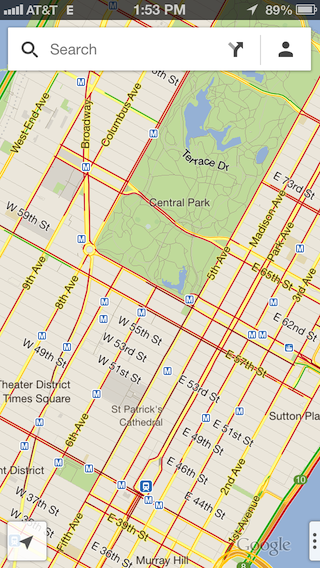
For example, to display a map of Central Park in New York, you can use the
following code:
### Swift
```swift
if (UIApplication.shared.canOpenURL(URL(string:"comgooglemaps://")!)) {
UIApplication.shared.openURL(URL(string:
"comgooglemaps://?center=40.765819,-73.975866&zoom=14&views=traffic")!)
} else {
print("Can't use comgooglemaps://");
}
```
### Objective-C
```objective-c
if ([[UIApplication sharedApplication] canOpenURL:
[NSURL URLWithString:@"comgooglemaps://"]]) {
[[UIApplication sharedApplication] openURL:
[NSURL URLWithString:@"comgooglemaps://?center=40.765819,-73.975866&zoom=14&views=traffic"]];
} else {
NSLog(@"Can't use comgooglemaps://");
}
```
### Display a map
Use the URL scheme to display the map at a specified zoom level and location.
You can also overlay other views on top of your map, or display Street View imagery.
**Parameters**
All of the following parameters are optional. If no parameters are set, the
URL scheme will launch the Google Maps app for iOS.
- `center`: This is the map viewport center point. Formatted as a comma separated string of `latitude,longitude`.
- `mapmode`: Sets the kind of map shown. Can be set to: `standard` or `streetview`. If not specified, the current application settings will be used.
- `views`: Turns specific views on/off. Can be set to: `satellite`, `traffic`, or `transit`. Multiple values can be set using a comma-separator. If the parameter is specified with no value, then it will clear all views.
- `zoom`: Specifies the zoom level of the map.
This example URL displays the map centered on New York at zoom 14 with the
traffic view on:
comgooglemaps://?center=40.765819,-73.975866&zoom=14&views=traffic
Some additional examples are:
comgooglemaps://?center=37.788463,-122.392545&zoom=12
```
comgooglemaps://?center=46.414382,10.013988&mapmode=streetview
```
### Search
Use this scheme to display search queries in a specified viewport location.
**Parameters**
In addition to the parameters used to display a map, Search supports the `q`
parameter.
- `q`: The query string for your search.
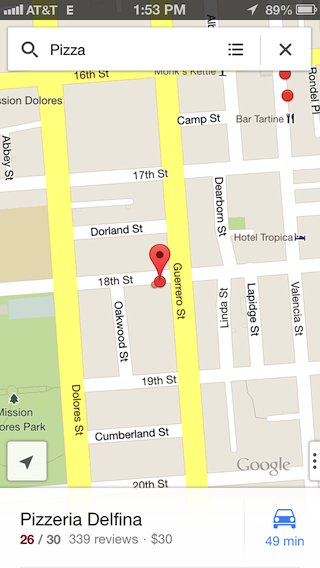
This example URL to searches for "Pizza" around the specified location:
comgooglemaps://?q=Pizza¢er=37.759748,-122.427135
Some additional examples are:
comgooglemaps://?q=Steamers+Lane+Santa+Cruz,+CA¢er=37.782652,-122.410126&views=satellite,traffic&zoom=15
```
comgooglemaps://?q=Google+Japan,+Minato,+Tokyo,+Japan¢er=35.660888,139.73073&zoom=15&views=transit
```
### Display directions
Use this scheme to request and display directions between two locations.
You can also specify the transportation mode.
**Parameters**
- `saddr`: Sets the starting point for directions searches. This can be a latitude,longitude or a query formatted address. If it is a query string that returns more than one result, the first result will be selected. If the value is left blank, then the user's current location will be used.
- `daddr`: Sets the end point for directions searches. Has the same format and behavior as `saddr`.
- `directionsmode`: Method of transportation. Can be set to: `driving`, `transit`, `bicycling` or `walking`.
The example URL displays transit directions between Google NYC and JFK Airport:
comgooglemaps://?saddr=Google+Inc,+8th+Avenue,+New+York,+NY&daddr=John+F.+Kennedy+International+Airport,+Van+Wyck+Expressway,+Jamaica,+New+York&directionsmode=transit

Some additional examples are:
comgooglemaps://?saddr=Google,+1600+Amphitheatre+Parkway,+Mountain+View,+CA+94043&daddr=Google+Inc,+345+Spear+Street,+San+Francisco,+CA¢er=37.422185,-122.083898&zoom=10
```
comgooglemaps://?saddr=2025+Garcia+Ave,+Mountain+View,+CA,+USA&daddr=Google,+1600+Amphitheatre+Parkway,+Mountain+View,+CA,+United+States¢er=37.423725,-122.0877&directionsmode=walking&zoom=17
```
### Add navigation to your app
Launching Google Maps app for iOS with a directions request
gives your users access to turn-by-turn navigation from your app. You can use
the `comgooglemaps://` URL scheme.
## Launch the Google Maps app for iOS from a Google Maps desktop URL
If your app has access to a pre-existing Google Maps URL, such as on a web page
or in a database, you can use this scheme to open the URL in the Google Maps app
for iOS, thus offering your users the best mobile experience.
- Replace the `http://` or `https://` scheme with `comgooglemapsurl://`.
### Supported Google Maps URL formats
The `comgooglemapsurl://` scheme supports URLs that match this regular
expression, where `{TLD}` refers to any valid top-level country domain. Line
breaks are added for clarity:
(http(s?)://)?
((maps\.google\.{TLD}/)|
((www\.)?google\.{TLD}/maps/)|
(goo.gl/maps/))
.*
### Check the availability of the Google Maps app
First verify that the Google Maps app for iOS is available on the device, and
supports the URL scheme:
### Swift
```swift
UIApplication.shared.canOpenURL(URL(string:"comgooglemapsurl://")!)
```
### Objective-C
```objective-c
[[UIApplication sharedApplication] canOpenURL:
[NSURL URLWithString:@"comgooglemapsurl://"]];
```
### Examples
**Example of a generic Google Maps URL:**
Original Google Maps URL:
```
https://www.google.com/maps/preview/@42.585444,13.007813,6z
```
Using the URL scheme:
comgooglemapsurl://www.google.com/maps/preview/@42.585444,13.007813,6z
**Example of a generic Google Maps URL:**
Original Google Maps URL:
```
https://maps.google.com/?q=@37.3161,-122.1836
```
Using the URL scheme:
comgooglemapsurl://maps.google.com/?q=@37.3161,-122.1836