**Important:** The Google Maps Platform Premium Plan is no longer available for
sign up or new customers.
To use the Google Maps Platform APIs and SDKs, new customers must use an
API key. Customers who have migrated from
the Premium Plan to the Google Maps Platform pay-as-you-go pricing
model *may* continue to authenticate requests using existing API keys or
client IDs.
Google Maps Platform will be standardizing on using API keys to authenticate requests. While
there is no current end-date for using client IDs, build any new implementations to use API keys
rather than client IDs. See [Available authentication methods](https://developers.google.com/maps/premium/authentication/overview.md.txt#available-authentication-methods)
for further information.
> [!WARNING]
> **Warning:** Requests containing both a client ID and an API key may result in unexpected API behavior or unintended billing behavior. To prevent this, make sure your requests use only one of these parameters.
## Client ID management
### Find your client ID project
To continue accessing the features originally offered by the
Google Maps Platform Premium Plan, customers should keep using the project
associated with their existing Premium asset. This also applies to customers
that have migrated to a Google Maps Platform pay-as-you-go pricing model.
When you originally purchased your Premium Plan
license, you received the name of your Premium asset in the following format:
`gme-[company] & proj-[projectnumber] ([type])`. The asset name and
original project owner can be found in your welcome letter.
> [!IMPORTANT]
> **Important:** You must either be an **Owner** or **Editor** of your old Premium Plan project to be able to access all features and manage your client ID in the Cloud console. See the Google Cloud Identity and Access Management (IAM) article [Understanding roles](https://cloud.google.com/iam/docs/understanding-roles) for more information.
Sign in to the Google Cloud console using the following URL:
https://console.cloud.google.com/project/projectnumber
Just replace projectnumber with your project number.
### Manage your client ID in the Cloud console
> [!CAUTION]
> **Caution:** This section is only provided as a reference for maintaining existing legacy applications that use client IDs. For new applications, *always* use API keys!
#### Where to manage your Client ID in the Google Cloud console
The Premium Plan Client ID management functionality is available
in the
[Cloud console](https://console.cloud.google.com/project/_/google/maps-apis/credentials?utm_source=Docs_Credentials) at the bottom of the
Google Maps Platform Credentials page, in the **Client ID** section.
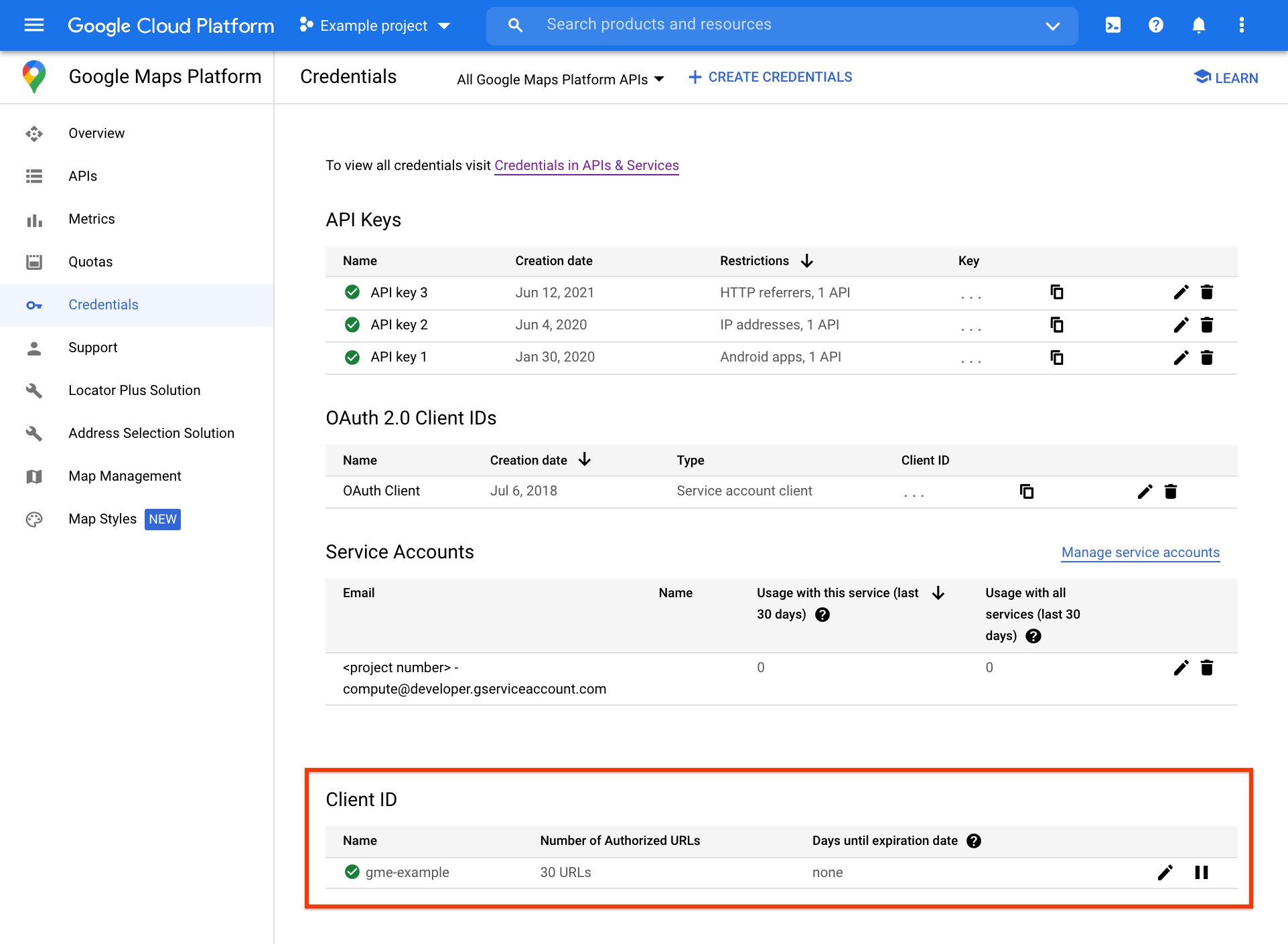
Further client ID management tasks, including URL authorization and client ID signing secret
management, can be accessed on the separate
[Client ID page](https://console.cloud.google.com/project/_/google/maps-apis/clientid), by clicking the
**edit** icon at the far right of the
**Client ID** section.
#### Pause your client ID
You are able to pause and unpause your client ID on the Google Maps Platform
[Credentials](https://console.cloud.google.com/project/_/google/maps-apis/credentials?utm_source=Docs_Credentials) page by clicking the
**pause** icon at the far right of the
**Client ID** section.
> [!CAUTION]
> **Caution:** Pausing a client ID will cause all Google Maps Platform API calls to that client ID to be denied. Once a client ID is paused, you will have up to 30 days to unpause it. If the client ID is not unpaused after that time, it will expire and, after 30 additional days (60 days total), will no longer be visible in the Cloud console.
#### Authorize your client ID URLs
All authorized URLs are available under the
**Authorized URLs for Client ID for gme-\[company\]** table on the
[Client ID page](https://console.cloud.google.com/project/_/google/maps-apis/clientid). See
[Managing authorized URLs](https://developers.google.com/maps/premium/authentication/client-id/url-authorization.md.txt#registering-authorized-urls)
for more info.
#### Get your client ID signing secret
The client ID *URL signing secret* , or crytographic key, is available to the
right of the client ID on the
[Client ID page](https://console.cloud.google.com/project/_/google/maps-apis/clientid). See
[Signing your requests](https://developers.google.com/maps/premium/authentication/client-id/request-signing.md.txt#signing-requests)
for more info.
## Available authentication methods
Refer to the documentation for the specific API or SDK you are interested in.
### Maps
| API | Authentication method |
|---|---|
| Maps JavaScript API | [API key with referrer restriction](https://developers.google.com/maps/documentation/javascript/get-api-key.md.txt) |
| Maps JavaScript API | [Client ID with URL authorization](https://developers.google.com/maps/premium/authentication/client-id/url-authorization.md.txt) |
| Maps SDK for Android | [API key with Android app restriction](https://developers.google.com/maps/documentation/android-sdk/get-api-key.md.txt) |
| Maps SDK for iOS | [API key with iOS app restriction](https://developers.google.com/maps/documentation/ios-sdk/get-api-key.md.txt) |
| Maps Static API | [API key with referrer restriction and request signing](https://developers.google.com/maps/documentation/maps-static/get-api-key.md.txt) |
| Maps Static API | [Client ID with request signing](https://developers.google.com/maps/premium/authentication/client-id/request-signing.md.txt) |
| Street View Static API | [API key with referrer restriction and request signing](https://developers.google.com/maps/documentation/streetview/get-api-key.md.txt) |
| Street View Static API | [Client ID with request signing](https://developers.google.com/maps/premium/authentication/client-id/request-signing.md.txt) |
| Elevation API | [API key with IP address restriction](https://developers.google.com/maps/documentation/elevation/get-api-key.md.txt) |
| Elevation API | [Client ID with request signing](https://developers.google.com/maps/premium/authentication/client-id/request-signing.md.txt) |
### Routes
| API | Authentication method |
|---|---|
| Directions API (Legacy) | [API key with IP address restriction](https://developers.google.com/maps/documentation/directions/get-api-key.md.txt) |
| Directions API (Legacy) | [Client ID with request signing](https://developers.google.com/maps/premium/authentication/client-id/request-signing.md.txt) |
| Distance Matrix API (Legacy) | [API key with IP address restriction](https://developers.google.com/maps/documentation/distance-matrix/get-api-key.md.txt) |
| Distance Matrix API (Legacy) | [Client ID with request signing](https://developers.google.com/maps/premium/authentication/client-id/request-signing.md.txt) |
| Roads API | [API key with IP address restriction](https://developers.google.com/maps/documentation/roads/get-api-key.md.txt) |
### Places
| API | Authentication method |
|---|---|
| Geocoding API | [API key with IP address restriction](https://developers.google.com/maps/documentation/geocoding/get-api-key) |
| Geocoding API | [Client ID with request signing](https://developers.google.com/maps/premium/authentication/client-id/request-signing.md.txt) |
| Geolocation API | [API key with IP address restriction](https://developers.google.com/maps/documentation/geolocation/get-api-key.md.txt) |
| Places API | [API key with IP address restriction](https://developers.google.com/maps/documentation/places/web-service/get-api-key.md.txt) |
| Time Zone API | [API key with IP address restriction](https://developers.google.com/maps/documentation/timezone/get-api-key.md.txt) |
| Time Zone API | [Client ID with request signing](https://developers.google.com/maps/premium/authentication/client-id/request-signing.md.txt) |