[](https://developers.google.com/static/maps/third-party-platforms/images/quickstart-widget.png)
If you're developing a Google Maps Platform plugin for
platforms such as WordPress, Shopify, Magento, and others, this topic
describes how to quickly onboard plugin users to Google Maps Platform and
generate an API key.
The API key, which your plugin needs to send with each request to
Google Maps Platform, is tied to the user's Google account and
billing information and unlocks access to the map-building features
in your plugin.
To help plugin users quickly generate an API key, provide a link or button
that launches the Quick Start Widget, a convenient popup window that
walks users through a few simple steps. The Quick Start Widget also
keeps plugin users in your platform rather than sending them off to the
Google Cloud console to perform those tasks in multiple windows.
## Launch the Quick Start Widget
The Quick Start Widget is just a web page whose window size you can
control with a JavaScript `window.open` call. For example:
```
```
See it in action:
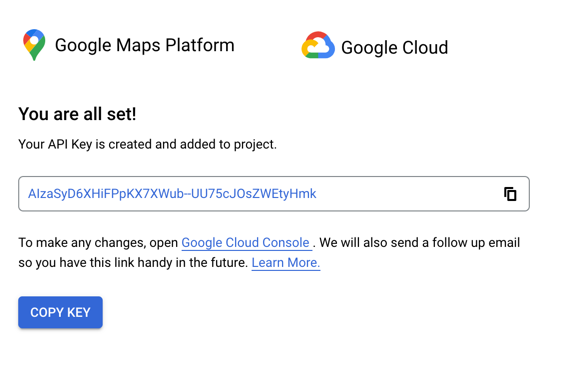
When a user clicks the button, the Quick Start Widget opens in a popup
window and does the following as the user moves through the widget:
- Creates a Google account and project, if the user doesn't already have those.
- Enables Google Maps Platform APIs.
- Generates an API key for users to copy and paste into the plugin configuration.
If the plugin user already has a Google account and project, the widget
takes them to the "Credentials" page in the Google Cloud console, where
they can get an existing API key or create a new one.
You can point your plugin users to the
[About the Quick Start Widget](https://developers.google.com/maps/third-party-platforms/quick-start-widget-users.md.txt)
topic for more information.
## Frequently asked questions
### Do I have to pay to use the Quick Start Widget?
No. The Quick Start Widget is free and available to all developers
to simplify Google Maps Platform onboarding.
### Can the Quick Start Widget only be used on WordPress and Shopify?
The Quick Start Widget can be used on any third-party website, not just on
website builders or ecommerce sites.
### Can the third-party platform view the billing information a user enters?
After users authenticate with Google, their billing and other information is accessible
only to them. Third-party platforms and plugin developers cannot access that information.
### Can I use my existing project and API key?
If you have an existing Google Maps Platform account, the Quick Start Widget
redirects you to the to the Google Cloud console where you can either use an existing API key
or generate a new one.
### How do plugin users secure their API keys?
The [API security best practices](https://developers.google.com/maps/api-security-best-practices.md.txt)
topic provides guidance on securing an API key. After using the
Quick Start Widget, users also receive an email with instructions and
a link to the Google Cloud console to secure their API key.