> [!NOTE]
> **Note:** If your publication uses other features of Subscribe with Google, usage of `swg.js` client-side assumes that a publication has already configured and initialized the library as [illustrated in the Subscribe with Google devsite](https://developers.google.com/news/subscribe/guides/add-swg-js). Using Subscribe with Google with Subscription Linking is optional.
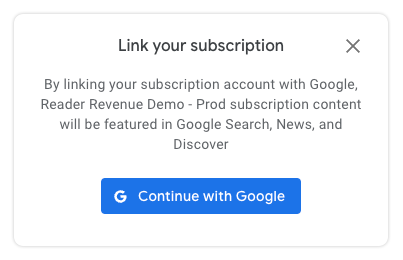
With Subscription Linking, client-side javascript is the only way to create a
new association between a `PPID` and a reader's Google Account. On a configured
page, the reader is presented with a dialog asking them to link their
subscription. After the reader clicks on the "Continue with Google" button, they
can choose an account to link with, and be sent back to the configured page
upon completion.
Subscription Linking does not require the use of
third-party cookies or an active Google session for the reader. This flexibly
allows for launching into the linking experience at any time in a reader's
experience, and not just after a purchase. If a reader is not logged in to a
Google Account, they are given the opportunity to do so as part of the flow.
## Code examples
These client-side code examples illustrate how to initiate a link, what a valid
response looks like, and (optionally) how to use the `swg.js` eventManager to
listen to analytics events and route them accordingly.
> [!NOTE]
> **Note:** Don't prompt users to link their subscription if they've already linked it or recently declined.
### Link a single publication
Associating the PPID with the reader's account for a single publication
is done using the `linkSubscription` method in `swg.js`.
The use is similar to the previous Account Linking
feature ([example](https://gtech-demo.appspot.com/html/account-linking.html)),
but instead of passing a promise, the method accepts an object containing the
PPID.
const result = await subscriptions.linkSubscription({publisherProvidedId:6789})
#### Sample response ([interface](https://github.com/subscriptions-project/swg-js/blob/17bf8af3f7bd885a49b2058ccc17d0807ae11b24/src/api/subscriptions.ts#L636))
Valid responses from a successfully linked account contain both the `PPID` used
in the link, and a boolean `success` status.
{
publisherProvidedId: 6789,
success: true
}
### Bundle multiple publications
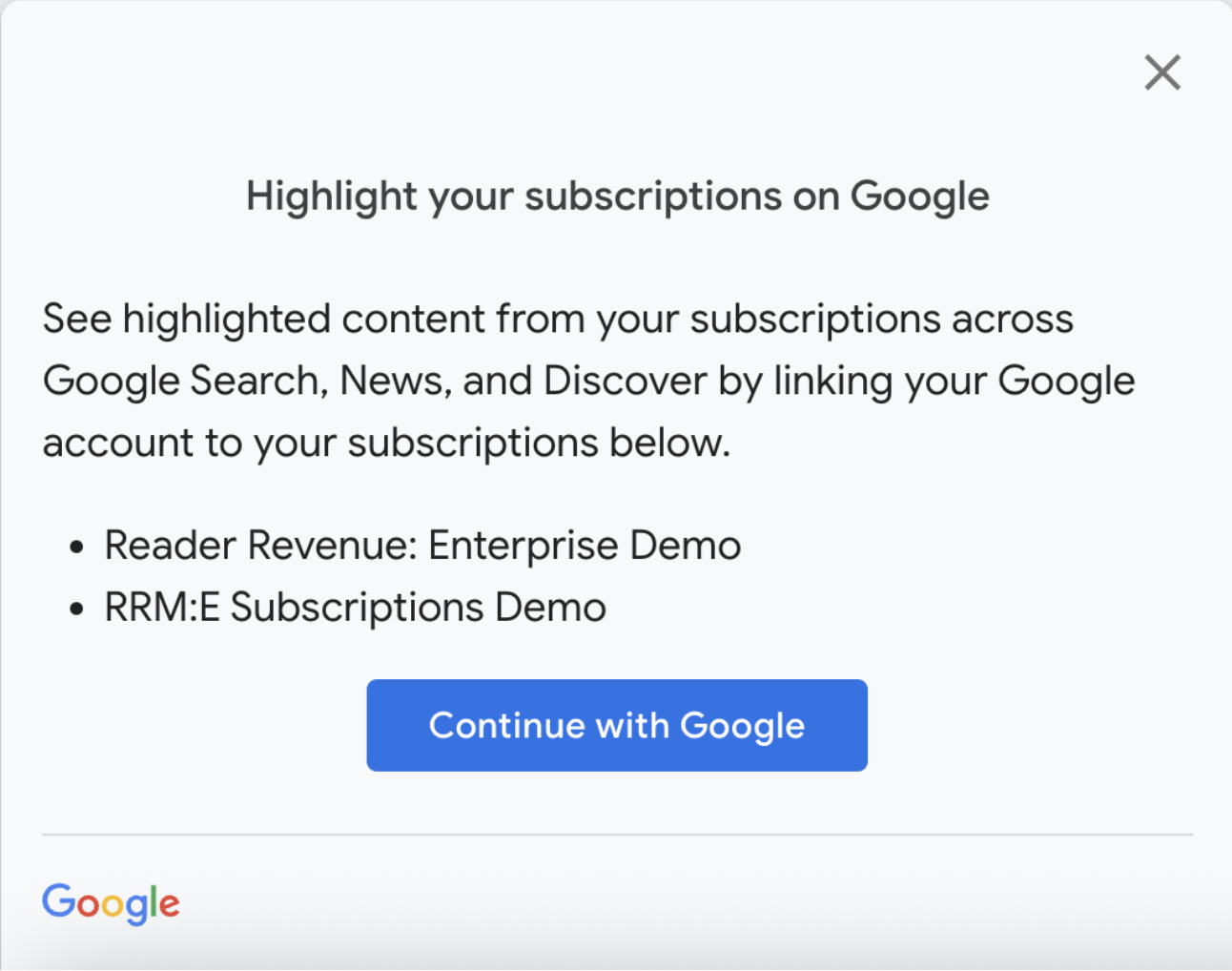
You can bundle multiple publications for Subscription Linking at once by passing
an object as an argument to the `linkSubscriptions` function. The `linkTo`
property is an array of objects, where each object represents a
specific `publicationId` and its corresponding `publisherProvidedId` (PPID)
to be linked.
const result = await subscriptions.linkSubscriptions({linkTo: [
{ publicationId: 'pubId1', publisherProvidedId: 'ppid1' },
{ publicationId: 'pubId2', publisherProvidedId: 'ppid2' },
...
]});
#### Sample responses ([interface](https://github.com/subscriptions-project/swg-js/blob/17bf8af3f7bd885a49b2058ccc17d0807ae11b24/src/api/subscriptions.ts#L646))
The `anyFailure` (boolean) and `anySuccess` (boolean) fields indicate if there
was any failure or success in the bundle Subscription Linking attempt. The
`links` field contains details of the results for each of the publications.
##### Successful linking to all the publications
{
"anyFailure": false,
"anySuccess": true,
"links": [{
"publicationId": "CAowqfCKCw",
"publisherProvidedId": "370720",
"success": true
},
{
"publicationId": "CAow5rTUCw",
"publisherProvidedId": "171385",
"success": true
}]
}
##### Failure to link any of the publications
{
"anyFailure": true,
"anySuccess": true,
"links": [{
"publicationId": "CAowqfCKCw",
"publisherProvidedId": "370720",
"success": false
},
{
"publicationId": "CAow5rTUCw",
"publisherProvidedId": "171385",
"success": true
}]
}
### Complete client-side example for `linkSubscription`
## Create an OAuth client ID
While an OAuth client is not required for Subscription Linking, an OAuth client
can be used to author the allowlist of authorized domains for your project.
Authorized domains are a list of domains from which your client-side javascript
is allowed to make calls from. Your publication likely already has an OAuth
Client ID configured in Publisher Center, for use with `swg.js`.
- If your Subscription Linking client-side javascript calls originate from a previously validated domain name, no action is required.
- If your javascript runs from a new domain name, follow the [SwG OAuth Client ID configuration instructions](https://developers.google.com/news/subscribe/guides/set-up-google-cloud#set-up-an-oauth-2.0-client-id).
> [!NOTE]
> **Note:** Creating and using an OAuth Client is only available for publications who are launching Subscription after launching Subscribe with Google.
## Testing
In order to test Subscription Linking's client-side implementation, the code
must be run from a server with an authorized javascript origin.
1. For production use, authorized origins can come from either the configured OAuth Client, or from the list of verified domains in the publication settings within Publisher Center.
2. For development or staging use, with an unverifiable domain (e.g. localhost or a non-public server), the domain must be listed in the configured OAuth Client.
> [!NOTE]
> **Note:** Adding domains to the OAuth client's allowed origins list can take more than 30 minutes before they are available for use.
> [!IMPORTANT]
> **Key Point:** To continually test with the same subscription account, the account may be manually unlinked using Google's [my accounts](https://myaccount.google.com/subscriptions) page.
## Troubleshoot errors
The most common problem when testing client-side javascript is receiving a
`403 - Not Authorized` error when attempting to run the javascript. To resolve
this, make sure that you are running the javascript from a validated domain in
Publisher Center, or that you're running the code on a host that is in the
authorized js origins of the linked OAuth client.
## Next step
Congratulations on completion of the client-side JavaScript integration. Now
you can move onto the [server-side integration](https://developers.google.com/news/subscription-linking/implementation/synchronize-user-entitlements).
This is a required step to synchronize your readers' entitlements. When you
implement and use the required server-side `UpdateReaderEntitlements` function,
you ensure that the right articles are highlighted for the right
subscribers.