Brand guidelines
These guidelines will help you implement Google Pay.
## Google Pay payment buttons
The Google Pay payment button should always call the Google Pay API. The Google Pay API surfaces
the payment sheet where users can select their payment method.
### Assets
[Google Pay payment buttons](https://developers.google.com/pay/api/download-assets/web/Google-Pay-Payment-Buttons.zip)
are available as resizable bitmaps (Nine-Patch files) that are suitable
to include in your layout. All Google Pay payment buttons displayed on your site must adhere to our
brand guidelines, including, but not limited to, sizing relative to other similar buttons or elements
of the page, contrast with the background color of the surrounding area, clear space, and more.
#### Style
Google Pay payment buttons are available in three variations: black, white, and white with an
outline. Each variation comes with and without the "Buy with" text. Payment buttons with localized
versions of the "Buy with" text are provided; the Google Pay brand is always untranslated. Don't
create buttons in other languages.
| Black | White | White with an outline |
|---|---|---|
|  |  |  |
| Use black buttons on white or light backgrounds to provide contrast. | Use white buttons on dark or colorful backgrounds. | Use white buttons with an outline as an alternative to black buttons on white or light backgrounds. |
### Clear space
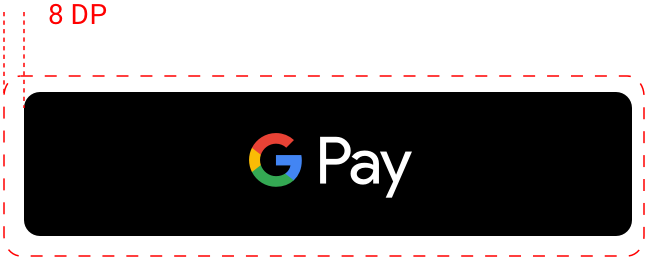
Always maintain the minimum clear space of 8 dp on all sides of the payment button. Ensure the
clear space is never broken with graphics or text.
### Minimum width
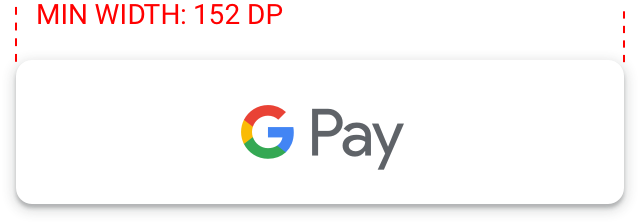
The Google Pay button should have a minimum width of 90 dp. All "Buy with Google Pay" payment
buttons should have a minimum width of 152 dp.
| Do | Don't |
|---|---|
| - Use only the Google Pay buttons provided by Google. - Use Google Pay buttons to initiate the payment flow. - Use the same style of button throughout your site. - Ensure the size of the Google Pay buttons remains equal to or larger than other buttons. - Ensure you choose a button color that contrasts with your background. | - Do not create your own Google Pay buttons or alter the font, color button radius, or padding within the button in any way. - Do not use Google Pay payment buttons to complete the payment flow or initiate any other action. - Do not switch between color variations or versions with and without text. - Do not make the Google Pay button smaller than other buttons. - Do not use a button color that's similar to the background. For example, do not use the white button on a white background. |
## Google Pay logo and mark
Use either the Google Pay logo or the Google Pay mark when showing Google Pay
as a payment option during your payment flows. Choose the option that best
matches the way in which other payment options are displayed.
### Assets
Download the
[Google Pay logo and Google Pay mark](https://developers.google.com/static/pay/api/download-assets/Google-Pay-Acceptance.zip)
in SVG file formats.
| Logo | Mark |
|---|---|
|  |  |
| **Use the Google Pay logo with other brand logos** | **Use the Google Pay mark with other brand identities in *credit card* format** |
| If you're using the full logos of other brands to indicate different payment options in your payment flow, favor the Google Pay logo over the Google Pay mark. Display "Google Pay" in text next to the logo if you're doing so for other brands. Do not add an outline to the Google Pay logo or alter it in any way. Use only the logo provided by Google. | If you're using brand identities displayed in credit card format to indicate different payment options in your payment flow, favor the Google Pay mark over the Google Pay logo. Display "Google Pay" in text next to the mark if you're doing so for other brands. Don't change the color or weight of the mark's outline or alter the mark in any way. Use only the mark provided by Google. |
| Always maintain the minimum clear space of 8 dp on all sides of the Google Pay logo. | Always maintain the minimum clear space of 8 dp on all sides of the Google Pay mark. |
|  |  |
| The Google Pay logo has a minimum height of 20 dp. Adjust the height to match the other brand identities displayed in your payment flow. Don't make the Google Pay logo smaller than other brand identities.
 | Adjust the height to match the other brand identities displayed in your payment flow. Don't make the Google Pay mark smaller than other brand identities. |
 
If you're using logos to represent
payment options, use the Google Pay logo and continue to use it throughout your buy flow.
 
If you're using the credit card format to represent payment
options, use the Google Pay mark and continue to use it throughout your buy flow.
## Using Google Pay in text
You may use text to indicate Google Pay as a payment option and to promote
Google Pay in your marketing communication.
**Capitalize the letters "G" and "P"**
Always use an uppercase "G" and an uppercase "P" followed by lowercase
letters. Don't capitalize the full name "GOOGLE PAY" unless matching the
typographic style in your UI. Never use an uppercase "GOOGLE PAY" in your
marketing communication.
**Don't abbreviate Google Pay**
Always write out the words "Google" and "Pay."
**Match the style in your UI**
"Google Pay" should be set in the same font and typographic style as the
rest of the text in your UI. Don't try to mimic Google's typographic style.
**Don't translate Google Pay**
"Google Pay" should always be written in English. Don't translate it to
another language.
**Use the trademark symbol the first time "Google Pay" appears in
marketing communication**
When using "Google Pay" in your marketing communication, you'll need to
show the trademark symbol, ™, the first or most prominent time it appears.
Don't use the trademark symbol when indicating Google Pay as a payment
option in your UI.
|---|---|---|
|  |  |  |
| "Google Pay" should be set in the same font and typographic style as the rest of the text in your UI. | If you aren't displaying logos for other payment options, "Google Pay" should be represented by text. | When displaying payment information on confirmation pages and email receipts, make sure you indicate the customer has paid with Google Pay. |
## Google Pay best practices
Maximize your conversions with checkout flows and payment sheets that
let customers quickly and easily review their payment information and
confirm their purchase.
The following are best practices:
**Make Google Pay the primary payment option**
People like using Google Pay for faster checkout. Where possible, display
the Google Pay button prominently, and consider making it the default or
only payment option.
**Let your customers make purchases without an account**
Account creation slows down the checkout process and can lead to abandoned
carts. Use Google Pay to enable faster guest checkout. If you'd like your
customers to create an account, allow them to do so after they complete
their purchase.
**Use Google Pay to initiate payment during cart checkout**
The Google Pay button brings up the payment sheet. On the payment sheet,
customers can only select and confirm a single payment method. Be sure to get
all of the other information you need -- such as an
item's size, color, or quantity, the option to add a gift message or apply
a promo code, or the ability to choose different shipping speeds and
destinations for individual items -- before you give customers the option
to select the Google Pay button. If a customer doesn't provide any necessary
information, offer real-time feedback to let them know what's missing before
bringing up the payment sheet.
**Add the Google Pay button to product detail pages in addition to
cart checkout**
Speed up single-item checkout by letting customers make individual purchases
right from your product detail pages. If a customer chooses this option, be
sure to exclude any other items they have in their shopping cart, since the
payment sheet only lets them confirm their payment and shipping information.
**Include Google Pay on confirmation pages and receipts**
When displaying payment information on confirmation pages and email
receipts, make sure you indicate the customer has paid with Google Pay and
include the Google Pay logo or mark. Never display full account numbers,
expiration dates or other payment method details to the user. Always use the
descriptive text returned by the Google Pay API to identify the payment method.
The following are a few examples:
- "Network •••• 1234 with Google Pay"; "Network •••• 1234 (Google Pay)";
- "Google Pay (Network •••• 1234)"; "Paypal abc...d@gmail.com with Google Pay";
- "Payment method: Google Pay" or "Paid with Google Pay."
   
These screens represent a recommended
Google Pay flow for a shopping cart experience.
## Getting approval
Once you've integrated the Google Pay API, you'll need to get approval
for all of the places where you display or reference Google Pay within your
UI in order to gain production access.