# Image SEO Best Practices | Google Search Central
# Google image SEO best practices
Google provides several Search features and products that help users visually discover information
on the web, such as the
[text result images](https://developers.google.com/search/docs/appearance/visual-elements-gallery#text-result-image),
Google Discover,
and Google Images. While each feature and product looks different, the general recommendations
for getting images to appear in them is the same.
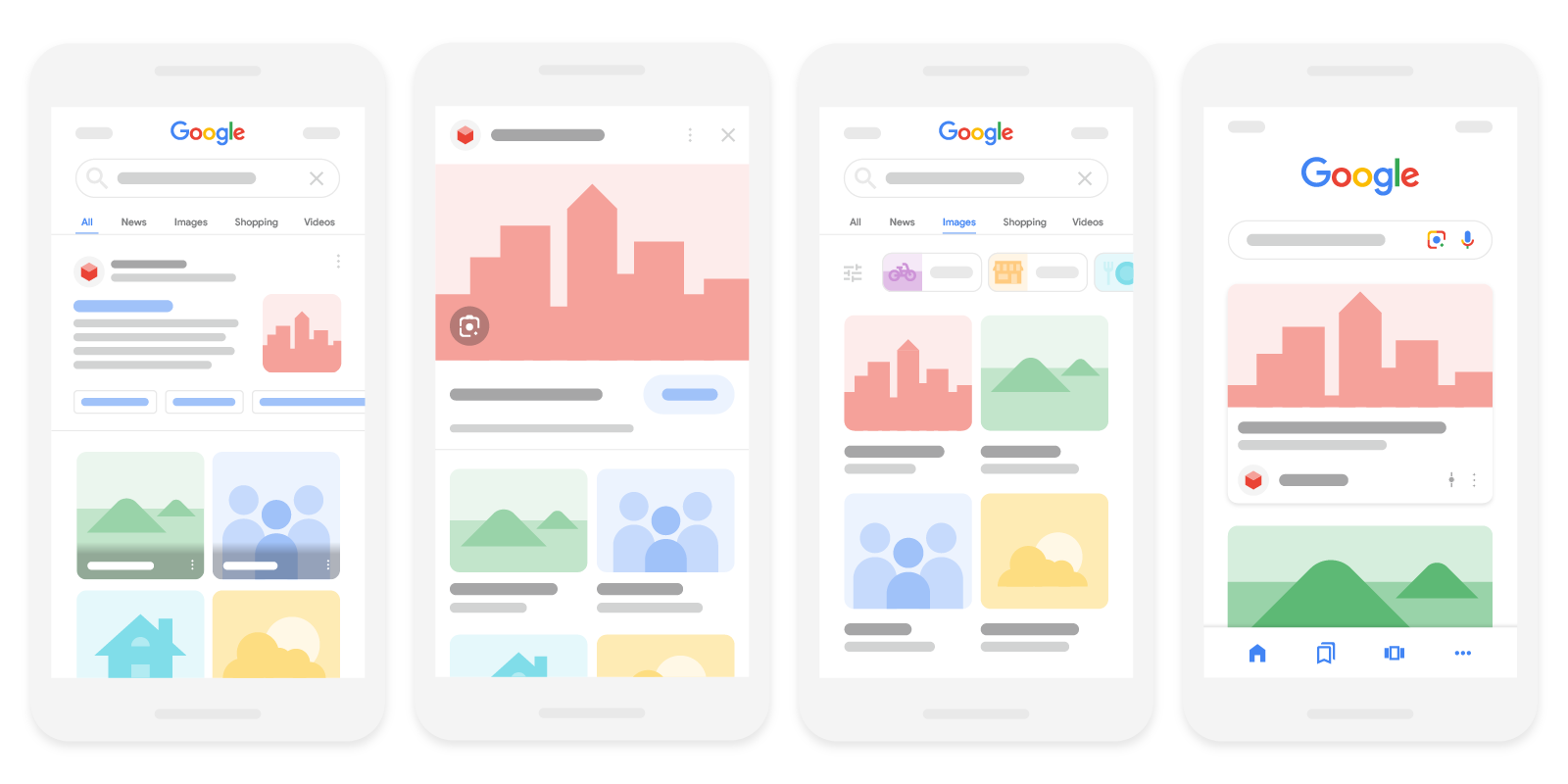
You can optimize your images to appear in Google's search results by following these best
practices:
1. [Help us discover and index your images](https://developers.google.com/search/docs/appearance/google-images#discover-images)
2. [Optimize the image landing pages](https://developers.google.com/search/docs/appearance/google-images#optimize-landing-page)
## Help us discover and index your images
[Video](https://www.youtube.com/watch?v=SfC27XgelgE)
The [technical requirements](https://developers.google.com/search/docs/essentials/technical) for getting your
content in Google's search results applies to images too. Since images are a substantially
different format compared to HTML, it means there are additional requirements for getting images
indexed; for example, finding the images on your site is different, and the presentation of the
images also influences whether an image is indexed at all, and for the right keywords.
### Use HTML image elements to embed images
Using standard HTML image elements helps crawlers find and process images. Google can find images
in `src` attribute of `` element (even when it's a child of other elements,
such as the `` element). Google doesn't index CSS images.
**Good:**
> \
**Bad:**
> \
A golden retriever puppy\
### Use an image sitemap
You can provide the URL of images we might not have otherwise discovered by
[submitting an image sitemap](https://developers.google.com/search/docs/crawling-indexing/sitemaps/image-sitemaps).
Unlike regular sitemaps, you can include URLs from other domains in the
`` elements of the image sitemaps. This lets you use CDNs (content
delivery networks) to host images. If you're using a CDN, we encourage you to
[verify ownership](https://support.google.com/webmasters/answer/9008080)
of the CDN's domain name in Search Console so that we can inform you of any crawl errors that we
may find.
### Responsive images
Designing responsive web pages leads to better user experience, since people can access them
across a plethora of device types. Refer to our
[guide to responsive images](https://web.dev/articles/responsive-images)
to learn about the best practices for handling images on your website.
Web pages use the `` element or the `srcset` attribute of an
`img` element to specify responsive images. However, some browsers and crawlers don't
understand these attributes. We recommend that you always specify a fallback URL using the
`src` attribute.
The `srcset` attribute allows specifying different versions of the same image,
specifically for different screen sizes. For example:
```
```
The `` element is a container that is used to group different
`` versions of the same image. It offers a fallback approach so the
browser can choose the right image depending on device capabilities, like pixel density and screen
size. The `picture` element also comes in handy for using new image formats with
built-in graceful degradation for clients that may not yet support the new formats.
Per
[section 4.8.1 of the HTML Standard](https://html.spec.whatwg.org/multipage/embedded-content.html#the-picture-element),
make sure that you provide an `img` element as a fallback with a `src`
attribute when using the `picture` element using the following format:
```
```
### Use supported image formats
Google Search supports images referenced in the `src` attribute of `img` in
the following file formats:
BMP, GIF, JPEG, PNG, WebP, SVG, and AVIF. It's also a good idea to have the
extension of your filename match with the file type.
You can also inline images as Data URIs. Data URIs provide a way to include a file, such as an
image, inline by setting the `src` attribute of an `img` element as a
Base64-encoded string using the following format:
```
```
While inlining images can reduce HTTP requests, carefully judge when to use them since it can
considerably increase the size of the page. For more on this, refer to the
[section on the advantage and disadvantages of inlining images on our web.dev page](https://web.dev/articles/responsive-images#inlining_pros_cons).
### Optimize for speed and quality
[Video](https://www.youtube.com/watch?v=_6Tz_-3_4ok)
High-quality photos appeal to users more than blurry, unclear images. Also, sharp images are more
appealing to users in the result thumbnail and can increase the likelihood of getting traffic from
users. That said, images are often the largest contributor to overall page size, which can make
pages slow and expensive to load. Make sure to apply the
[latest image optimization](https://web.dev/fast#optimize-your-images)
and [responsive image techniques](https://web.dev/learn/design)
to provide a high quality and fast user experience.
Analyze your site speed with
[PageSpeed Insights](https://pagespeed.web.dev/)
and visit our
[Why does speed matter?](https://web.dev/learn/performance/why-speed-matters)
to learn about best practices and techniques to improve website performance.
## Optimize the image landing pages
While not immediately obvious, the content and metadata of the pages where an image is embedded
can have a great influence on how and where the image may appear in Google's search results.
### Specify a preferred image with metadata
Google's selection of an image preview is completely automated and takes into account a number
of different sources to select which image on a given page is shown on Google (for example, a
[text result image](https://developers.google.com/search/docs/appearance/visual-elements-gallery#text-result-image)
or the preview image in Discover).
You can influence which image gets selected by providing your preferred image through one of the
following metadata sources:
- Specify the schema.org [`primaryImageOfPage`](https://schema.org/primaryImageOfPage) property with a `URL` or `ImageObject`.
```
```
Or specify an image `URL` or `ImageObject` property and attach it to the main entity (using the
schema.org [`mainEntity`](https://schema.org/mainEntity)
or [`mainEntityOfPage`](https://schema.org/mainEntityOfPage) properties):
```
```
- Specify the [`og:image`](https://ogp.me/) `meta` tag.
```
```
When choosing your preferred image for use in schema.org markup or the
`og:image` `meta` tag, follow these best practices:
- Choose an image that's relevant and representative of the page.
- Avoid using a generic image (for example, your site logo) or an image with text in the schema.org markup or `og:image` `meta` tag.
- Avoid using an image with an extreme aspect ratio (such as images that are too narrow or overly wide).
- Use a high resolution, if possible.
### Check your page title and description
Google Search automatically generates a title link and snippet to best explain each result and
how it relates to the user query. This helps users decide whether or not to click a result.
Here are two examples how the title links and snippet might look like on a Google Search results
page:
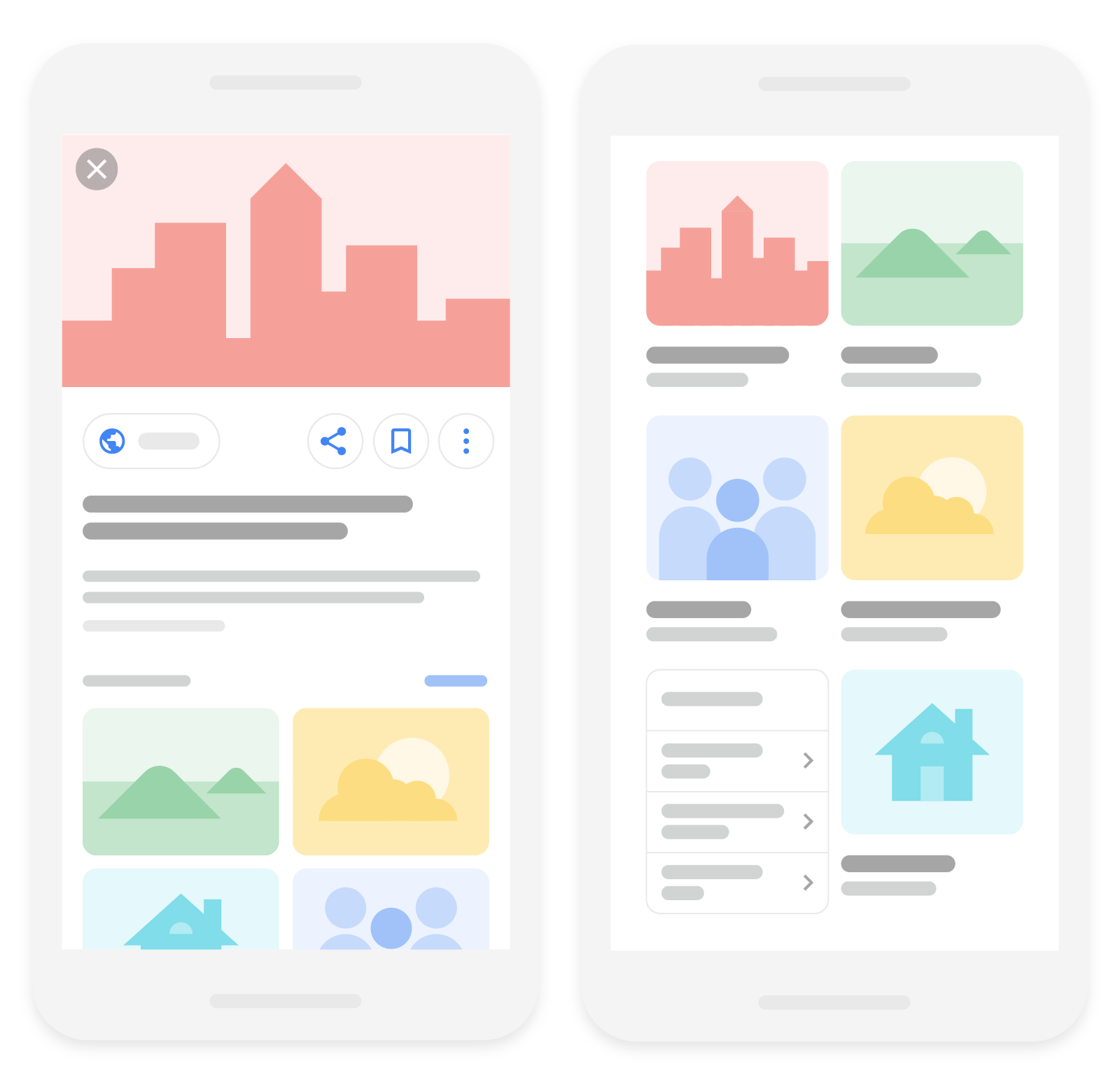
We use a number of different sources for this information, including information in the
`title` and `meta` tags for each page.
You can help us improve the quality of the title link and snippet displayed for your pages by
following Google's [title](https://developers.google.com/search/docs/appearance/title-link) and
[snippet](https://developers.google.com/search/docs/appearance/snippet) guidelines.
### Add structured data
If you include structured data, Google can display your images in certain
[rich results](https://developers.google.com/search/docs/appearance/structured-data/search-gallery), including a
[prominent badge](https://developers.google.com/search/blog/2017/08/badges-on-image-search-help-users-find) in
Google Images, which give users relevant information about your page and can drive better targeted
traffic to your site.
Follow the [general structured data guidelines](https://developers.google.com/search/docs/appearance/structured-data/sd-policies)
as well as any guidelines specific to your structured data type; otherwise your structured data
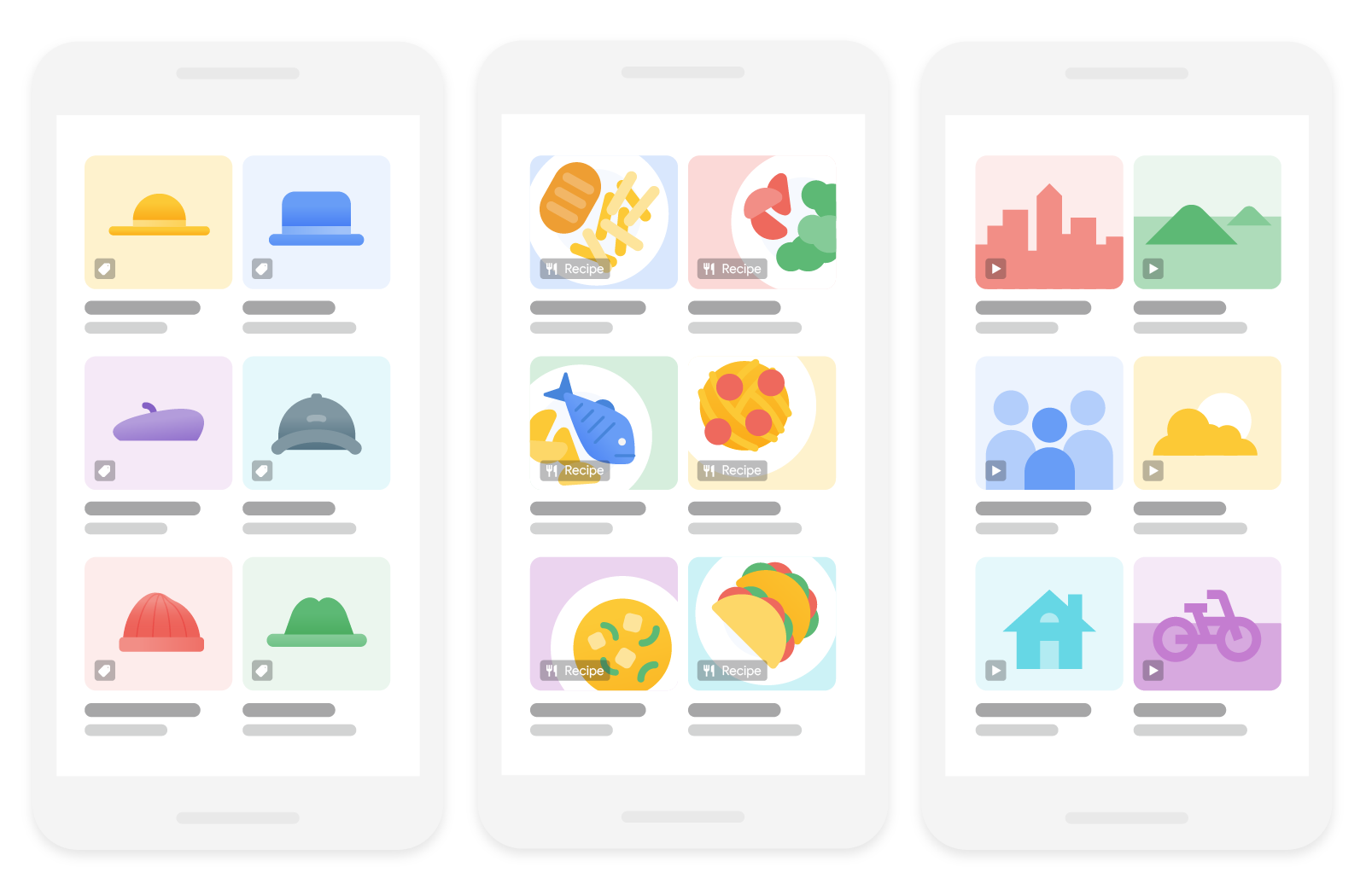
might be ineligible for rich result display in Google Images. In each of these structured data
types, the image attribute is a required field to be eligible for a badge and rich result in Google
Images. Here are two examples how rich results might look like on Google Images:
### Use descriptive filenames, titles, and alt text
Google extracts information about the subject matter of the image from the content of the
page, including captions and image titles. Wherever possible, make sure images are placed near
relevant text and on pages that are relevant to the image subject matter.
Likewise, the filename can give Google very light clues about the subject matter of the image.
When possible, use filenames that are short, but descriptive. For example,
`my-new-black-kitten.jpg` is better than `IMG00023.JPG`. Avoid using generic
filenames like `image1.jpg`, `pic.gif`, `1.jpg` when possible.
If your site has thousands of images, you might want to consider automating the naming of the
images. If you localize your images, remember to also translate the filenames, keeping in mind the
[URL encoding guidelines](https://developers.google.com/search/docs/crawling-indexing/url-structure) if you're using
non-latin or special characters.
[Video](https://www.youtube.com/watch?v=3NbuDpB_BTc)
The most important attribute when it comes to providing more metadata for an image is the alt text
(text that describes an image), which also improves accessibility for people who can't see images
on web pages, including users who use screen readers or have low-bandwidth connections.
Google uses alt text along with computer vision algorithms and the contents of the page to
understand the subject matter of the image. Also, alt text in images is useful as anchor text if
you decide to use an image as a link.
When writing alt text, focus on creating useful, information-rich content that uses keywords
appropriately and is in context of the content of the page. Avoid filling `alt`
attributes with keywords (also known as
[keyword stuffing](https://developers.google.com/search/docs/essentials/spam-policies#keyword-stuffing))
as it results in a negative user experience and may cause your site to be seen as spam.
**Bad (missing alt text)**:
> \
**Bad (keyword stuffing)**:
> \
**Better**:
> \
**Best**:
> \
Also consider the accessibility of your alt text, per
[W3 guidelines](https://www.w3.org/WAI/tutorials/images/).
For the `` element, you can add the `alt` attribute of the
element, while for inline `
```
We recommend testing your content by
[auditing for accessibility](https://developer.chrome.com/docs/devtools/accessibility/reference)
and
[using a slow network connection emulator](https://developer.chrome.com/docs/devtools/network/reference#throttling).
If an image is referenced on multiple pages within a larger website, consider the
[site's overall crawl budget](https://developers.google.com/search/docs/crawling-indexing/large-site-managing-crawl-budget).
In particular, consistently reference the image with the same URL, so that Google can
cache and reuse the image without needing to request it multiple times.
## Opt out of Google Images inline linking
If you choose, you can prevent the full-sized image from appearing in the Google Images search
results page by opting out of inline linking in Google Images search results.
**To opt out of inline linking:**
1. When your image is requested, examine the [HTTP referrer header](https://en.wikipedia.org/wiki/HTTP_referer) in the request.
2. If the request is coming from a Google domain, reply with a `200` HTTP status code, or a `204` HTTP status code and no content.
Google will still crawl your page and see the image, but will display a thumbnail image generated
at crawl time in search results. This opt-out is possible at any time, and doesn't require
re-processing of a website's images. This behavior isn't considered image
[cloaking](https://developers.google.com/search/docs/essentials/spam-policies#cloaking) and won't result in manual
actions.
Alternatively, you can
[prevent the image from appearing in search results entirely.](https://developers.google.com/search/docs/crawling-indexing/prevent-images-on-your-page)
## Optimize for SafeSearch
SafeSearch is a setting in Google user accounts that specifies whether to show, blur, or block
explicit images, videos, and websites in Google Search results. Make sure Google understands the
nature of your site so that Google can apply SafeSearch filters to your site if appropriate.
[Learn more about labeling pages for SafeSearch](https://developers.google.com/search/docs/crawling-indexing/safesearch).
 **Bad:**
> \
 ```
The `

 ```
While inlining images can reduce HTTP requests, carefully judge when to use them since it can
considerably increase the size of the page. For more on this, refer to the
[section on the advantage and disadvantages of inlining images on our web.dev page](https://web.dev/articles/responsive-images#inlining_pros_cons).
### Optimize for speed and quality
[Video](https://www.youtube.com/watch?v=_6Tz_-3_4ok)
High-quality photos appeal to users more than blurry, unclear images. Also, sharp images are more
appealing to users in the result thumbnail and can increase the likelihood of getting traffic from
users. That said, images are often the largest contributor to overall page size, which can make
pages slow and expensive to load. Make sure to apply the
[latest image optimization](https://web.dev/fast#optimize-your-images)
and [responsive image techniques](https://web.dev/learn/design)
to provide a high quality and fast user experience.
Analyze your site speed with
[PageSpeed Insights](https://pagespeed.web.dev/)
and visit our
[Why does speed matter?](https://web.dev/learn/performance/why-speed-matters)
to learn about best practices and techniques to improve website performance.
## Optimize the image landing pages
While not immediately obvious, the content and metadata of the pages where an image is embedded
can have a great influence on how and where the image may appear in Google's search results.
### Specify a preferred image with metadata
Google's selection of an image preview is completely automated and takes into account a number
of different sources to select which image on a given page is shown on Google (for example, a
[text result image](https://developers.google.com/search/docs/appearance/visual-elements-gallery#text-result-image)
or the preview image in Discover).
You can influence which image gets selected by providing your preferred image through one of the
following metadata sources:
- Specify the schema.org [`primaryImageOfPage`](https://schema.org/primaryImageOfPage) property with a `URL` or `ImageObject`.
```
```
Or specify an image `URL` or `ImageObject` property and attach it to the main entity (using the
schema.org [`mainEntity`](https://schema.org/mainEntity)
or [`mainEntityOfPage`](https://schema.org/mainEntityOfPage) properties):
```
```
- Specify the [`og:image`](https://ogp.me/) `meta` tag.
```
```
When choosing your preferred image for use in schema.org markup or the
`og:image` `meta` tag, follow these best practices:
- Choose an image that's relevant and representative of the page.
- Avoid using a generic image (for example, your site logo) or an image with text in the schema.org markup or `og:image` `meta` tag.
- Avoid using an image with an extreme aspect ratio (such as images that are too narrow or overly wide).
- Use a high resolution, if possible.
### Check your page title and description
Google Search automatically generates a title link and snippet to best explain each result and
how it relates to the user query. This helps users decide whether or not to click a result.
Here are two examples how the title links and snippet might look like on a Google Search results
page:

We use a number of different sources for this information, including information in the
`title` and `meta` tags for each page.
You can help us improve the quality of the title link and snippet displayed for your pages by
following Google's [title](https://developers.google.com/search/docs/appearance/title-link) and
[snippet](https://developers.google.com/search/docs/appearance/snippet) guidelines.
### Add structured data
If you include structured data, Google can display your images in certain
[rich results](https://developers.google.com/search/docs/appearance/structured-data/search-gallery), including a
[prominent badge](https://developers.google.com/search/blog/2017/08/badges-on-image-search-help-users-find) in
Google Images, which give users relevant information about your page and can drive better targeted
traffic to your site.
Follow the [general structured data guidelines](https://developers.google.com/search/docs/appearance/structured-data/sd-policies)
as well as any guidelines specific to your structured data type; otherwise your structured data
might be ineligible for rich result display in Google Images. In each of these structured data
types, the image attribute is a required field to be eligible for a badge and rich result in Google
Images. Here are two examples how rich results might look like on Google Images:

### Use descriptive filenames, titles, and alt text
Google extracts information about the subject matter of the image from the content of the
page, including captions and image titles. Wherever possible, make sure images are placed near
relevant text and on pages that are relevant to the image subject matter.
Likewise, the filename can give Google very light clues about the subject matter of the image.
When possible, use filenames that are short, but descriptive. For example,
`my-new-black-kitten.jpg` is better than `IMG00023.JPG`. Avoid using generic
filenames like `image1.jpg`, `pic.gif`, `1.jpg` when possible.
If your site has thousands of images, you might want to consider automating the naming of the
images. If you localize your images, remember to also translate the filenames, keeping in mind the
[URL encoding guidelines](https://developers.google.com/search/docs/crawling-indexing/url-structure) if you're using
non-latin or special characters.
[Video](https://www.youtube.com/watch?v=3NbuDpB_BTc)
The most important attribute when it comes to providing more metadata for an image is the alt text
(text that describes an image), which also improves accessibility for people who can't see images
on web pages, including users who use screen readers or have low-bandwidth connections.
Google uses alt text along with computer vision algorithms and the contents of the page to
understand the subject matter of the image. Also, alt text in images is useful as anchor text if
you decide to use an image as a link.
When writing alt text, focus on creating useful, information-rich content that uses keywords
appropriately and is in context of the content of the page. Avoid filling `alt`
attributes with keywords (also known as
[keyword stuffing](https://developers.google.com/search/docs/essentials/spam-policies#keyword-stuffing))
as it results in a negative user experience and may cause your site to be seen as spam.
**Bad (missing alt text)**:
> \
 **Bad (keyword stuffing)**:
> \