> This article is for developers and administrators that want to verify and
> troubleshoot their consent mode implementation on their website. For TCF
> implementations on websites, see [Troubleshooting TCF](https://support.google.com/admanager/answer/9999955). To verify app
> implementations, see instructions for [Android](https://developers.google.com/tag-platform/security/guides/app-consent?platform=android#verify_consent_settings) and [iOS](https://developers.google.com/tag-platform/security/guides/app-consent?platform=ios#verify_consent_settings).
You can check your consent mode implementation for:
- Whether your website sets the correct default consent state before any tags fire. The appropriate default depends on your organization's policies.
- Whether your website updates consent states correctly after visitors grant or deny consent.
- Which tags check for which consent types.
- Whether the required consent types were granted when each tag triggered, and whether the tag passed the checks for any additional required consent.
Tag Assistant supports the following consent mechanisms:
- [gtag](https://developers.google.com/tag-platform/security/guides/consent) `consent` commands
- Tags created from a [Tag Manager consent mode template](https://tagmanager.google.com/gallery/#/?filter=consent&page=1)
- [Transparency and Consent Framework (TCF)](https://support.google.com/admanager/answer/9805023)
## Before you begin
You can use Tag Assistant on all browsers. For the best troubleshooting results,
use Google Chrome and install the [Tag Assistant Companion](https://chrome.google.com/webstore/detail/tag-assistant-companion/jmekfmbnaedfebfnmakmokmlfpblbfdm) browser extension.
## Verify consent mode works
The following steps show you how to debug consent mode. If you have set
region-specific defaults or consent banners, repeat these steps with different
simulated geographic locations. [Learn how to set locations in Chrome](https://developer.chrome.com/docs/devtools/settings/locations/).
### Tag Manager
To verify your consent setup for websites, start a new Tag
Assistant session:
1. [Open Google Tag Assistant](http://tagassistant.google.com)
2. Enter your website's URL. A new tab with your website opens.
> [!NOTE]
> **Note:** If Tag Assistant says **Could not connect**, your Tag Manager container may be blocked from loading.
3. On your website, open the cookie banner and accept all.
> [!NOTE]
> **Note:** If your container was blocked, Tag Assistant should now be able to connect to your site.
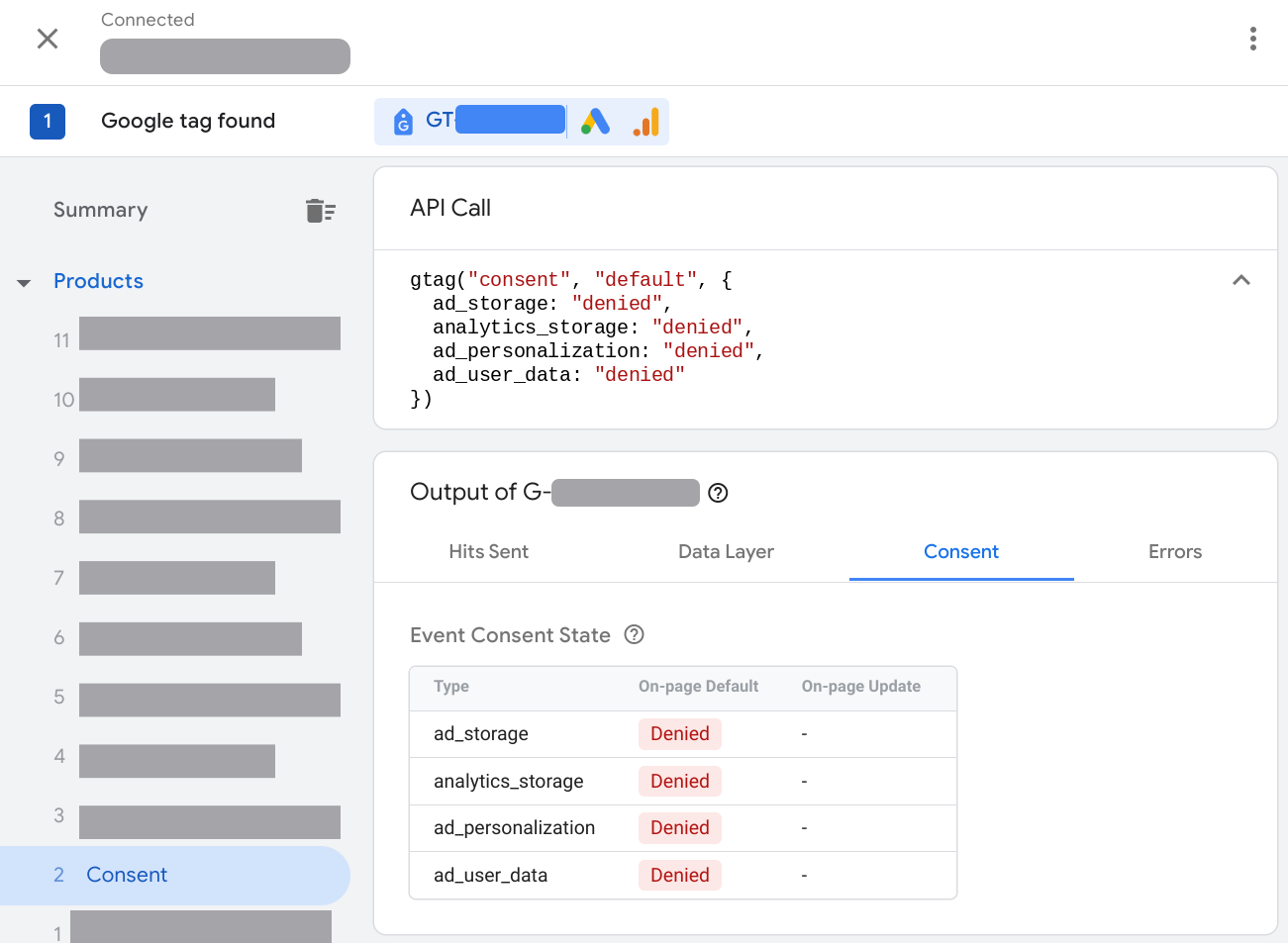
4. In Tag Assistant, verify if the page set the default consent correctly:
1. In the **Summary** , select the earliest **Consent** event.
2. In the **API Call** section, check that the following parameters were set: `ad_storage`, `ad_personalization,` `ad_user_data`, `analytics_storage`.
3. Alternatively in the **Output** of your tag section, select the
**Consent** tab and check the **On-page Default** column.
5. Verify if the page updated the consent based on your consent banner
interaction:
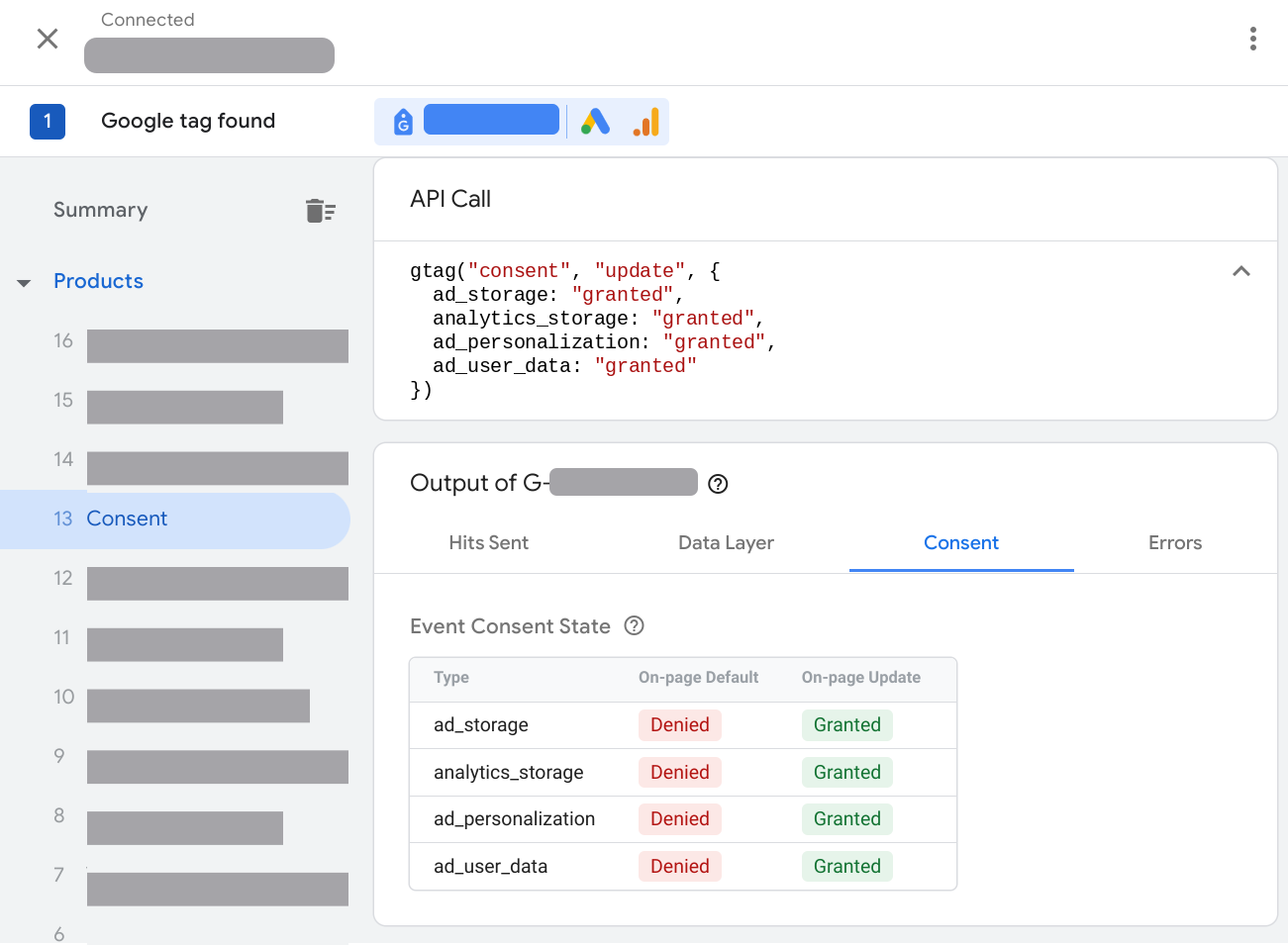
1. In the **Summary** , select the most recent **Consent** event.
2. In the **API Call** section, check that the following parameters were updated: `ad_storage`, `ad_personalization`, `ad_user_data`, `analytics_storage`.
3. Alternatively in the **Output** of your tag section, select the
**Consent** tab and check the **On-page Update** column.
6. Check which tags fired or were blocked by the consent state:
1. In the **Summary** , select the **Tags** tab.
2. Click a tag to check if it behaved according to the consent settings.
### gtag.js
To verify your consent setup for websites, start a new Tag
Assistant session:
1. [Open Google Tag Assistant](http://tagassistant.google.com)
2. Enter your website's URL. A new tab with your website opens.
> [!NOTE]
> **Note:** If Tag Assistant says **Could not connect**, your Google tag may be blocked from loading.
3. On your website, open the cookie banner and accept all parameters.
> [!NOTE]
> **Note:** If your Google tag was blocked, Tag Assistant should now be able to connect to your site.
4. In Tag Assistant, verify if the page set the default consent correctly:
1. In the **Summary** , select the earliest **Consent** event.
2. In the **API Call** section, check that the following parameters were set: `ad_storage`, `ad_personalization,` `ad_user_data`, `analytics_storage`.
3. Alternatively in the **Output** of your tag section, select the
**Consent** tab and check the **On-page Default** column.

5. Verify if the page updated the consent based on your consent banner
interaction:
1. In the **Summary** , select the most recent **Consent** event.
2. In the **API Call** section, check that the following parameters were updated: `ad_storage`, `ad_personalization`, `ad_user_data`, `analytics_storage`.
3. Alternatively in the **Output** of your tag section, select the
**Consent** tab and check the **On-page Update** column.

## Fix consent configuration issues
Select an issue to get troubleshooting instructions:
- [Consent tab empty](https://developers.google.com/tag-platform/security/guides/consent-debugging#consent-tab-empty)
- [Default consent not set](https://developers.google.com/tag-platform/security/guides/consent-debugging#default-consent-not-set)
- [Default consent set too late](https://developers.google.com/tag-platform/security/guides/consent-debugging#default-consent)
- [Consent state doesn't update](https://developers.google.com/tag-platform/security/guides/consent-debugging#update-consent)
- [Consent state doesn't adapt to regional settings](https://developers.google.com/tag-platform/security/guides/consent-debugging#consent-region)
### Consent tab empty
The Tag Assistant **Consent** tab is empty when consent mode is not implemented
on the page.
#### How to fix consent mode not loading
To fix the issue, you need to implement consent mode. The instructions below
assume that you already have a consent banner on your website.
### Tag Manager
If you use Tag Manager, the recommended approach to consent mode
implementation is using a [consent platform that provides a Tag Manager template](https://support.google.com/tagmanager/answer/10718549#cmp1).
To set up a consent banner using Tag Manager:
1. [Open Google Tag Manager](https://tagmanager.google.com/)
2. In your workspace, open the **Tags** menu.
3. Set up a **New** tag. Click **Tag Configuration** and open the **Community Template Gallery**.
4. Search for your CMP provider's tag and click **Add to workspace**.
5. Fill out the fields in your tag template. Your CMP provider has more information on the required fields.
6. In Triggering, select the **Consent Initialization - All Pages** trigger.
7. Save the tag and **Preview** your container to [Verify consent mode works](https://developers.google.com/tag-platform/security/guides/consent-debugging#start-debugging).
If you maintain your own consent banner, or your CMP doesn't automatically
integrate with consent mode, [implement consent mode](https://developers.google.com/tag-platform/security/guides/consent#before_you_begin) manually.
### gtag.js
**Video: How to set up consent mode**
[Video](https://www.youtube.com/watch?v=MqAEbshMv84)
> [!NOTE]
> **Note:** Consent mode has been updated in November 2023. Set the following consent parameters:
```javascript
gtag('consent', 'default', {
'ad_storage': 'denied',
'analytics_storage': 'denied',
'ad_user_data': 'denied',
'ad_personalization': 'denied',
});
```
**Step by step: How to set up consent mode**
If you use a consent management platform (CMP) to load a
consent banner:
1. Research if your CMP supports Google's consent mode.
2. Check your CMP settings to activate Google consent mode.
3. [Verify consent mode works](https://developers.google.com/tag-platform/security/guides/consent-debugging#start-debugging).
If you maintain your own consent banner, or your CMP doesn't automatically
integrate with consent mode, [implement consent mode](https://developers.google.com/tag-platform/security/guides/consent#before_you_begin) manually.
### Default consent not set
Setting a consent default for all consent mode parameters helps you efficiently
manage your tag behavior based on your standard consent banner implementation.
[Learn more about Google's consent requirements](https://support.google.com/tagmanager/answer/13695607).
#### How to fix consent default not set
### Tag Manager
If you use a CMP tag template in Tag Manager, check the CMP documentation
for how to set default consent using the Tag Manager template.
Make sure that the tag loads consent defaults for at least these four
parameters:
- `ad_storage`
- `ad_user_data`
- `ad_personalization`
- `analytics_storage`
If you maintain your own consent banner, or your CMP doesn't automatically
integrate with consent mode, [implement consent mode](https://developers.google.com/tag-platform/security/guides/consent#before_you_begin) manually.
### gtag.js
Move all code that calls gtag consent default commands higher in the page,
above any tag snippets or other code that might be using consent.
Set the following consent parameters:
```javascript
gtag('consent', 'default', {
'ad_storage': 'denied',
'analytics_storage': 'denied',
'ad_user_data': 'denied',
'ad_personalization': 'denied',
});
```
Don't set default consent states asynchronously.
### Default consent set too late
The website needs to set the default consent state before any tags or other
code uses or updates consent. Setting the default too late may not have
the anticipated effect. [Learn more about Google's consent requirements](https://support.google.com/tagmanager/answer/13695607).
> For example, in the following scenario, the Ad tag has already read or written a
> cookie before the default consent is set:
>
> 1. Visitor opens page
> 2. Ad tag fires
> 3. Default consent set to denied
>
> Tag Assistant reports an error:
> 
#### How to fix setting default consent
### Tag Manager
If a consent template tag set the default consent:
1. Edit the trigger of the consent-writing template tag to fire on **Consent Initialization**.
2. For all other tags: Fire the tags after consent was initialized. For example, to trigger a tag on page load, use the **Initialization - All
pages** trigger.
> [!CAUTION]
> **Caution:** Don't use a custom HTML tag in Tag Manager to call the `gtag consent` command. Instead, set consent states using a template tag that uses the [custom template API](https://developers.google.com/tag-platform/tag-manager/templates/consent-apis).
### gtag.js
Move all code that calls gtag consent default commands higher in the page,
above any tag snippets or other code that might be using consent.
Set the following consent parameters:
```javascript
gtag('consent', 'default', {
'ad_storage': 'denied',
'analytics_storage': 'denied',
'ad_user_data': 'denied',
'ad_personalization': 'denied',
});
```
Don't set default consent states asynchronously.
### Consent state doesn't update
When the website visitor interacts with your consent banner, it should send a
consent `update` command. If the consent state doesn't update, check if you have
an update mechanism implemented.
#### How to fix consent mode not updating
### Tag Manager
If you use a consent template tag to set the default consent, make sure
it also updates the consent state. Check your CMP provider documentation
for more information.
> [!CAUTION]
> **Caution:** Don't use a custom HTML tag in Tag Manager to call the `gtag consent` command. Instead, set consent states using a template tag that uses the [custom template API](https://developers.google.com/tag-platform/tag-manager/templates/consent-apis).
### gtag.js
Use the gtag.js `update` command to update the consent state after a visitor
interacted with your banner. Make sure that you have an update mechanism for
every parameter that you set a consent default for, and that a user can
update their consent to both `granted` and `denied`.
The following example shows how the function `consentGrantedAdStorage`
updates the consent state when a visitor accepts Ads cookies in a consent
banner.
...
...
### Consent state doesn't adapt to regional settings
You can set different consent defaults depending on the visitor region.
If you have implemented consent defaults for different regions,
try the following steps to verify your settings work.
#### How to fix consent mode not adapting to the user region
### Tag Manager
1. In your browser, set your visitor location to a region you want to verify. [Learn how to set locations in Chrome](https://developer.chrome.com/docs/devtools/settings/locations/).
2. [Verify consent mode works](https://developers.google.com/tag-platform/security/guides/consent-debugging#start-debugging).
3. If consent mode doesn't adapt to the user region, check your consent tag's settings, see [set up geographical regions](https://developers.google.com/tag-platform/security/guides/consent#region-specific-behavior).
### gtag.js
1. In your browser, set your visitor location to a region you want to verify. [Learn how to set locations in Chrome](https://developer.chrome.com/docs/devtools/settings/locations/).
2. [Verify consent mode works](https://developers.google.com/tag-platform/security/guides/consent-debugging#start-debugging).
3. If consent mode doesn't adapt to the user region, check your source code.
For example:
```javascript
gtag('consent', 'default', {
'analytics_storage': 'denied',
'region': ['ES', 'US-AK']
});
gtag('consent', 'default', {
'ad_storage': 'denied'
});
```
The example sets a regional consent default for one parameter but not
the other. When you check for regional behavior, make sure that all
parameters behave as directed by your organizational policies.
Learn how to [set up geographical regions](https://developers.google.com/tag-platform/security/guides/consent#region-specific-behavior).
## Next steps
The Google tag is consent-aware, so it adjusts behavior based on user consent.
If you are blocking the Google tag from loading until a user grants consent,
your modeled conversions are less accurate, and [behavioral modeling](https://support.google.com/analytics/answer/11161109) in Google
Analytics is unavailable. [Unblock your Google tag](https://support.google.com/tagmanager/answer/12962079) to receive the best
measurement results.
Learn more about [consent mode impact results](https://support.google.com/tagmanager/answer/11954524).