Server-side tagging is a new way to use Google Tag Manager to instrument your
application across devices. Server containers use the same tag, trigger, and
variable model that you're used to, while also providing new tools that allow
you to measure user activity wherever it happens.
A typical tagging configuration without server-side tagging relies on a
container in the page to send measurement data to various collection servers.
Figure 1 illustrates an example of how a Tag Manager web container running in a
web browser sends data to multiple servers.
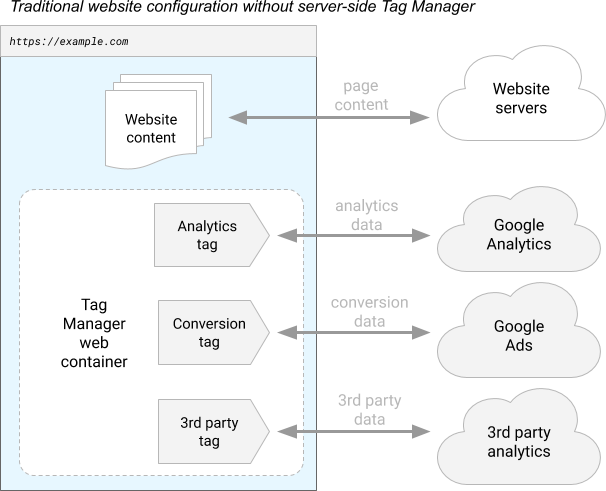
*Figure 1: A diagram of a site instrumented to use a Google Tag Manager web
container.*
By contrast, a server container doesn't run in the user's browser or on their
phone. Instead, it runs on a server that you control.
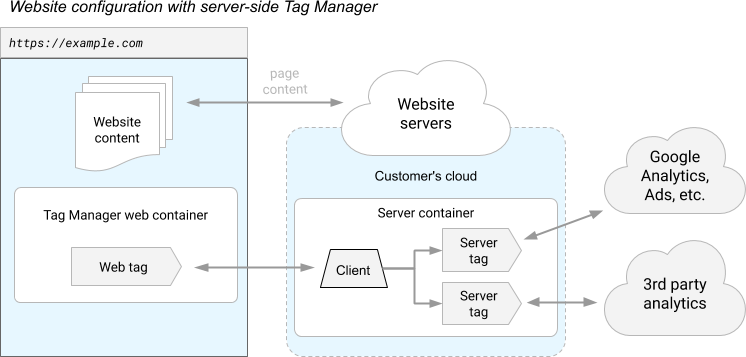
*Figure 2: An example of a tagging configuration that uses a server container.*
The server runs in your own Google Cloud Platform project---or in a [different
environment](https://developers.google.com/tag-platform/tag-manager/server-side/manual-setup-guide) of your choosing---and only you have access to
the data in the server until you choose to send it elsewhere. You have full
control over how that data is shaped, and where it is routed from the server.
Tags are built using the [sandboxed
JavaScript](https://developers.google.com/tag-platform/tag-manager/templates/sandboxed-javascript)
technology. Permissions give you the visibility into what the tag can do, and
policies allow you to set boundaries around the container.
The server receives web requests from the user's device and transforms those
requests into [events](https://developers.google.com/tag-platform/tag-manager/server-side/intro#events). Each event is processed by the container's
tags, triggers, and variables. Tags, triggers, and variables in a server
container work exactly like they do in other kinds of containers: Triggers
examine each event to look for certain conditions and, when appropriate, fire
tags that send the event data to be processed.
This model introduces two important questions for server containers:
- How does measurement data get from the user's device to the server container?
- How does measurement data sent to a server container get turned into an event?
The answer to both questions is a new kind of entity for use in server
containers: a **client**.
## How clients work
Clients are adapters between the software running on a user's device and your
server container. The client receives measurement data from a device, transforms
that data into one or more events, routes data to be processed in the container,
and packages up the results to send back to the requester.
That's a lot of stuff! Let's take a closer look at each part individually.
Figure 3 shows data flowing into the server container from the user's web
browser, and from your web server to the server container.

*Figure 3: A different client handles each stream of data.*
**Clients receive measurement data from a device.** Let's say that you want to
measure user activity in three places: a website, a phone app, and a smart
toaster. Your website uses Google Analytics, your phone app uses Firebase
Analytics, and your toaster uses a proprietary protocol called "ToastMeasure."
Instrumenting these three devices with Google Tag Manager would normally require
a different container for each platform. Since the server container does not run
on the device, the same container can handle analytics instrumentation for all
three device platforms. There's a problem, though. These devices don't all
communicate in the same way. The Google Analytics protocol is not the same as
the ToastMeasure protocol. This is where clients come in.
In place of those three containers, your server container has three clients.
Every request that comes into the container will be processed by each client in
priority order, highest priority client first. The first thing each client will
do is decide whether it knows how to process that kind of request. If it can,
the client "claims" the request and continues on to the next stage of
processing. The act of claiming the request prevents subsequent clients from
running. If the client can't process the request, it does nothing and allows the
other clients to decide whether to handle the request or not.
**Clients transform request data into one or more events.**
Once the ToastMeasure client has claimed a request, it needs to transform the
request into something the rest of the container understands. That something is
a set of **events**.
Events are things that happen that you want to measure. They can be anything:
`start_toasting`, `finish_toasting`, or `buy_bread`. There are some
[recommendations](https://developers.google.com/tag-platform/gtagjs/reference/events) about the structure of
the events that a client generates, but the only requirement is that the rest of
the container understands them.
**Clients run the container.** The client has claimed the request and turned it
into events. Now it's time for the tags, triggers, and variables. The client
passes each event on to the rest of the container for further processing.
**Clients package up the results to send back to the device.** Once the
container has run, it's time to respond to the toaster. The response can take
many forms. Maybe the client just says "OK, done." Maybe one of the tags wants
to redirect the request to another collection server. Or maybe one of the tags
tells the lights on the toaster to change colors. Whatever is supposed to
happen, it's the job of the client to package up the results and send them back
to the requester.
Fortunately, Tag Manager handles much of this for you. Server containers come
with 2 clients included: Google Analytics and Measurement Protocol. These
clients provide the tools you need to get started instrumenting your application
as soon as you've created your container.
## A short example
Let's go through a quick example to see how all of the pieces fit together. In
this example, you'll create the following:
1. A simple website that uses [gtag.js](https://developers.google.com/gtagjs) to send a `click` event to a server container.
2. A Google Analytics client that receives the event.
3. A trigger that fires on a `click` event.
4. A Google Analytics tag that sends the event data to Google Analytics for processing.
For this example, we'll assume that you've already created and
[deployed](https://developers.google.com/tag-platform/tag-manager/server-side#create_a_google_cloud_platform_gcp_server)
your server container.
### Configure gtag.js
First, configure gtag.js to send the data to your server container. With
gtag.js, sending data to your server container works just like sending data to
Google Analytics, with one modification. As in the example page below, set the
`server_container_url` config option to point to the server container.
Replace `TAG_ID` with your [tag
ID](https://support.google.com/tagmanager/answer/12326985).
Replace`https://analytics.example.com` with your server container URL.
Next, add a `sendEvent()` function to handle the `click` events:
Replace `TAG_ID` with your [tag
ID](https://support.google.com/tagmanager/answer/12326985).
Replace`https://analytics.example.com` with your server container URL.
With this configuration, event handlers such as the `sendEvent()` function
included in this example will send a `click` event to your server container.
> [!NOTE]
> **Note:** For Tag Manager installations, read "[Send data to server-side Tag
> Manager](https://developers.google.com/tag-platform/tag-manager/server-side/send-data)" for further details on how to configure your containers.
### Google Analytics client
Your container needs a client to receive the event once it reaches the server.
Fortunately, server containers come with a Google Analytics client
pre-installed, so you are already done with this step.
### Click trigger
Next, create a trigger that fires on the `click` event. Create a **Custom
Trigger** that fires when the **Event Name** built-in variable is equal to
"click".

### Google Analytics tag
Finally, attach a Google Analytics tag to the trigger. As with clients, a server
container comes with a Google Analytics tag included. Simply create the tag,
configure your settings, and now you've wired up your container. Google
Analytics clients and Google Analytics tags are designed to work together. This
means that all you have to do is create a Google Analytics tag and its
configuration will be pulled automatically from the events coming out of the
client.
### Preview the container
Now that the container is configured, click **Preview**. Visit your website in a
different browser window. As requests and events are sent to your server
container, you will see the requests and events listed on the left-hand side of
the preview page.
Once you are happy with your changes, publish the server container.
### Configure your server for production mode with first-party serving
Before sending any production traffic to your server container, we strongly
recommend installing the server on your [first-party
domain](https://developers.google.com/tag-platform/tag-manager/server-side/custom-domain) and upgrading the
server to [production
mode](https://developers.google.com/tag-platform/tag-manager/server-side/app-engine-setup).