**Coding level** : Intermediate
**Duration** : 15 minutes
**Project type**: Editor add-on
## Objectives
- Understand what the solution does.
- Understand what the Apps Script services do within the solution.
- Set up the script.
- Run the script.
## About this solution
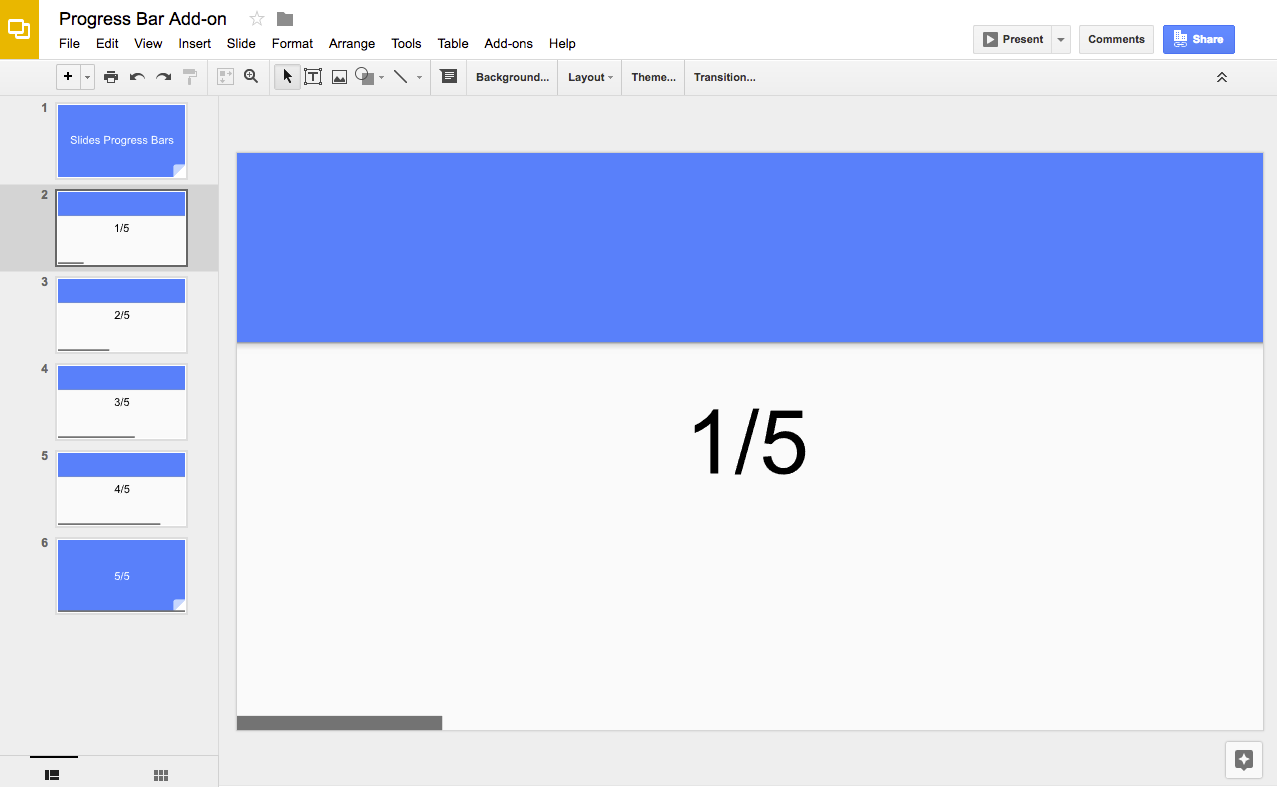
Use this solution to add a progress bar to the bottom of the slides in your
presentation.

### How it works
The script calculates how many slides are in the presentation and adds a
rectangle shape to the bottom of each slide. The script increases the width for
each rectangle shape to show progress within the slides.
### Apps Script services
This solution uses the following service:
- [Slides service](https://developers.google.com/apps-script/reference/slides): Gets a presentation's slides and adds a rectangle shape to each one.
## Prerequisites
To use this sample, you need the following prerequisites:
- A Google Account (Google Workspace accounts might require administrator approval).
- A web browser with access to the internet.
## Set up the script
1. Click the following button to make a copy of the **Progress bar** Slides presentation. The Apps Script project for this solution is attached to the presentation.
[Make a
copy](https://docs.google.com/presentation/d/1wMwCeISpBgSal0K1K8qXPdr-MYZxkU_A-RobUIYZ8WU/copy)
2. In the presentation, click **Extensions** \> **Progress bar** \> **Show progress bar**.
3. When prompted, authorize the script.
If the OAuth consent screen displays the warning, **This app isn't verified** ,
continue by selecting **Advanced** \>
**Go to {Project Name} (unsafe)**.
4. Again, click **Extensions** \>
**Progress bar** \> **Show progress bar**.
5. To remove the progress bar, click **Extensions**
\>
**Progress bar** \> **Hide progress bar**.
## Review the code
To review the Apps Script code for this solution, click
**View source code**:
#### View source code
slides/progress/progress.gs [View on GitHub](https://github.com/googleworkspace/apps-script-samples/blob/main/slides/progress/progress.gs)
```javascript
/**
* @OnlyCurrentDoc Adds progress bars to a presentation.
*/
const BAR_ID = "PROGRESS_BAR_ID";
const BAR_HEIGHT = 10; // px
/**
* Runs when the add-on is installed.
* @param {object} e The event parameter for a simple onInstall trigger. To
* determine which authorization mode (ScriptApp.AuthMode) the trigger is
* running in, inspect e.authMode. (In practice, onInstall triggers always
* run in AuthMode.FULL, but onOpen triggers may be AuthMode.LIMITED or
* AuthMode.NONE.)
*/
function onInstall(e) {
onOpen();
}
/**
* Trigger for opening a presentation.
* @param {object} e The onOpen event.
*/
function onOpen(e) {
SlidesApp.getUi()
.createAddonMenu()
.addItem("Show progress bar", "createBars")
.addItem("Hide progress bar", "deleteBars")
.addToUi();
}
/**
* Create a rectangle on every slide with different bar widths.
*/
function createBars() {
deleteBars(); // Delete any existing progress bars
const presentation = SlidesApp.getActivePresentation();
const slides = presentation.getSlides();
for (let i = 0; i < slides.length; ++i) {
const ratioComplete = i / (slides.length - 1);
const x = 0;
const y = presentation.getPageHeight() - BAR_HEIGHT;
const barWidth = presentation.getPageWidth() * ratioComplete;
if (barWidth > 0) {
const bar = slides[i].insertShape(
SlidesApp.ShapeType.RECTANGLE,
x,
y,
barWidth,
BAR_HEIGHT,
);
bar.getBorder().setTransparent();
bar.setLinkUrl(BAR_ID);
}
}
}
/**
* Deletes all progress bar rectangles.
*/
function deleteBars() {
const presentation = SlidesApp.getActivePresentation();
const slides = presentation.getSlides();
for (let i = 0; i < slides.length; ++i) {
const elements = slides[i].getPageElements();
for (const el of elements) {
if (
el.getPageElementType() === SlidesApp.PageElementType.SHAPE &&
el.asShape().getLink() &&
el.asShape().getLink().getUrl() === BAR_ID
) {
el.remove();
}
}
}
}
```
## Contributors
This sample is maintained by Google with the help of Google Developer Experts.
## Next steps
- [Extending Google Slides with Apps Script](https://developers.google.com/apps-script/guides/slides)
- [Slides service reference](https://developers.google.com/apps-script/reference/slides)