**Coding level** : Intermediate
**Duration** : 25 minutes
**Project type**: Google Chat app
## Objectives
- Understand what the solution does.
- Understand what the Apps Script services do within the solution.
- Set up your environment.
- Set up the script.
- Run the script.
## About this solution
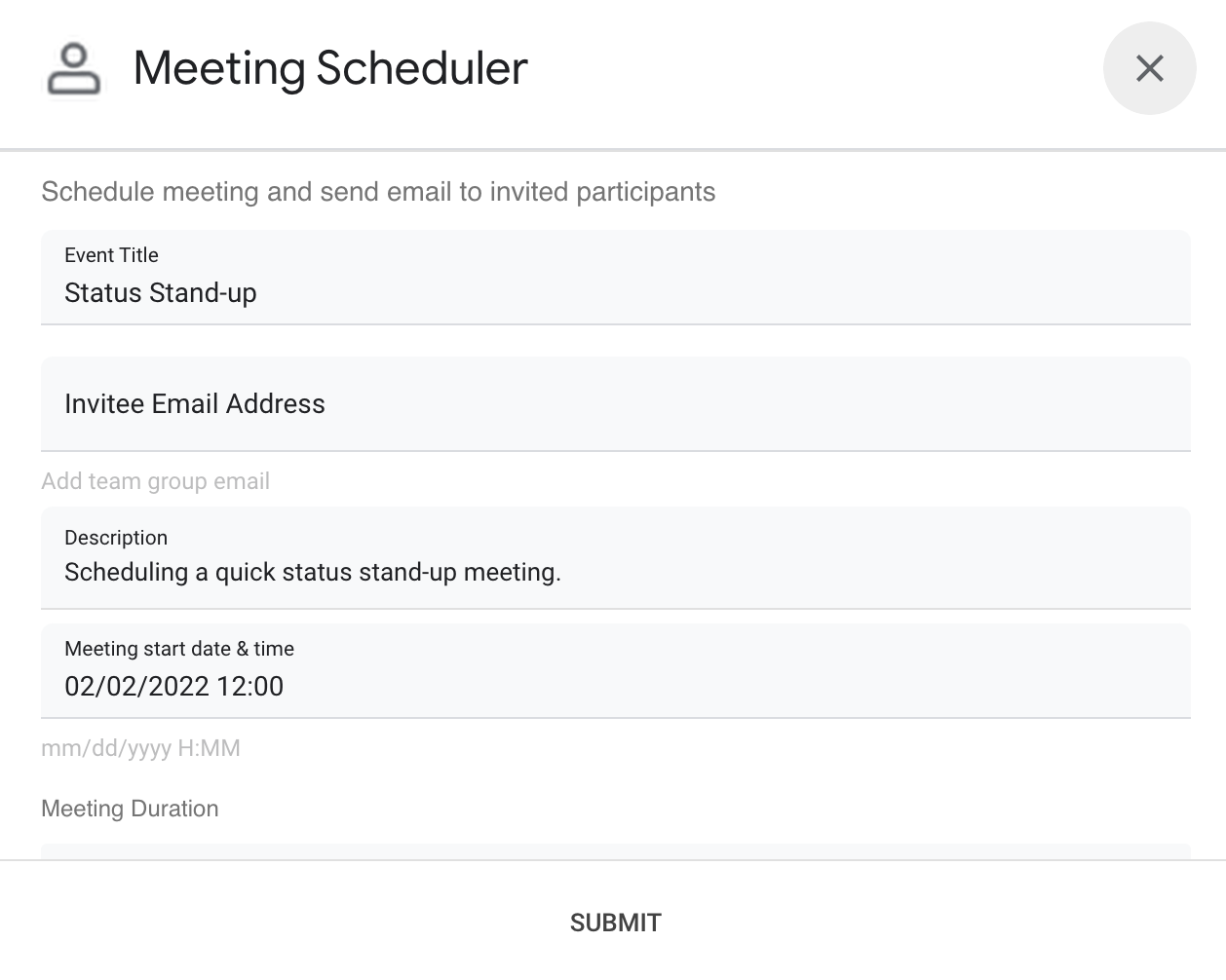
Schedule a meeting in Google Calendar from within a direct message (DM) or a
space in Google Chat. You can set specific details for the meeting, such as
subject, start time, or duration, or use the default settings for instant
meeting scheduling.

### How it works
The Chat app script uses
[slash commands](https://developers.google.com/workspace/chat/commands)
and [dialogs](https://developers.google.com/workspace/chat/dialogs) to get
meeting details from users and schedule a Calendar event. The
script includes default meeting settings that can be customized to fit your
needs.
### Apps Script services
This solution uses the following services:
- [Calendar service](https://developers.google.com/apps-script/reference/calendar)--Creates the calendar event from the provided meeting info.
- [Base service](https://developers.google.com/apps-script/reference/base)--Uses the `Session` class to get the script's time zone. Calendar uses this time zone when scheduling the event.
- [Utilities service](https://developers.google.com/apps-script/reference/utilities)--Formats the date for the calendar event and encodes the event ID to help get the event URL.
## Prerequisites
- A Business or Enterprise [Google Workspace](https://support.google.com/a/answer/6043576) account with access to [Google Chat](https://workspace.google.com/products/chat/).
- [Create a Google Cloud project](https://developers.google.com/workspace/guides/create-project).
## Set up your environment
### Open your Cloud project in the Google Cloud console
If it's not open already, open the Cloud project that you intend to use
for this sample:
1. In the Google Cloud console, go to the **Select a project** page.
[Select a Cloud project](https://console.cloud.google.com/projectselector2)
2. Select the Google Cloud project you want to use. Or, click **Create project** and follow the on-screen instructions. If you create a Google Cloud project, you might need to [turn on billing for the project](https://cloud.google.com/billing/docs/how-to/modify-project#enable_billing_for_a_project).
### Turn on the API
Before using Google APIs, you need to turn them on in a Google Cloud project. You can turn on one or more APIs in a single Google Cloud project.
- In your Cloud project, turn on the Google Chat API.
[Turn on the API](https://console.cloud.google.com/apis/enableflow;apiid=chat.googleapis.com)
### Configure the OAuth consent screen
All Chat apps require a consent screen configuration. Configuring
your app's OAuth consent screen defines what Google displays to users and
registers your app so you can publish it later.
1. In the Google API Console, go to Menu \> **Google Auth platform** \> **Branding** .
[Go to Branding](https://console.developers.google.com/auth/branding)
2. If you have already configured the Google Auth platform, you can configure the following OAuth Consent Screen settings in [Branding](https://console.developers.google.com/auth/branding), [Audience](https://console.developers.google.com/auth/audience), and [Data Access](https://console.developers.google.com/auth/scopes). If you see a message that says **Google Auth platform not configured yet** , click **Get Started**:
1. Under **App Information** , in **App name**, enter a name for the app.
2. In **User support email**, choose a support email address where users can contact you if they have questions about their consent.
3. Click **Next**.
4. Under **Audience** , select **Internal**.
5. Click **Next**.
6. Under **Contact Information** , enter an **Email address** where you can be notified about any changes to your project.
7. Click **Next**.
8. Under **Finish** , review the [Google API Services User Data Policy](https://developers.google.com/terms/api-services-user-data-policy) and if you agree, select **I agree to the Google API Services: User Data Policy**.
9. Click **Continue**.
10. Click **Create**.
3. For now, you can skip adding scopes. In the future, when you create an app for use outside of your Google Workspace organization, you must change the **User type** to **External** . Then add the authorization scopes that your app requires. To learn more, see the full [Configure OAuth consent](https://developers.google.com/workspace/guides/configure-oauth-consent) guide.
## Set up the script
### Create the Apps Script project
1. Click the following button to open the **Schedule meetings from Google Chat** Apps Script project.
[Open the project](https://script.google.com/d/1HwlyQ_VEJwdXqMPQfW_Lx6oUh-Bc46H0YRmuQNK_-Tw645px0Vylucfx/edit?usp=sharing)
2. Click **Overview** .
3. On the overview page, click Make a copy .
In the future, if you want to use certain Google APIs or publish your app, you must associate your Cloud project with your Apps Script project. For this guide, you don't need to do so. To learn more, see the [Google Cloud projects guide](https://developers.google.com/apps-script/guides/cloud-platform-projects).
### Create a test deployment
1. In your copied Apps Script project, click **Deploy** \> **Test deployments**.
2. Copy the **Head deployment ID** for use in a later step and click **Done**.
### Configure the Chat API
1. In the Google API Console, go to the **Chat API** page.
[Go to Chat API](https://console.cloud.google.com/apis/api/chat.googleapis.com/hangouts-chat)
2. Click **Configuration**.
3. Configure the Chat API with the following information:
- **Name** : `Meeting Scheduler`
- **Avatar URL** : `https://goo.gle/3SfMkjb`.
- **Description** : `Quickly create meetings.`
- **Functionality**: Check both boxes to let users message the app directly and add it to spaces.
- **Connection settings** : Click **Apps Script** and enter the head deployment ID.
- **Commands** : Add slash commands for `/help` and `/schedule_Meeting` by taking the following steps:
1. Click **Add command** and configure it with the following information:
- **Command ID** : `1`.
- **Description** : `Learn what this app does.`
- **Command type** : `Slash command`.
- **Slash command name** : `/help`.
2. Click **Add command** again and configure it with the following information:
- **Command ID** : `2`.
- **Description** : `Schedule a meeting.`
- **Command type** : `Slash command`.
- **Slash command name** : `/schedule_Meeting`.
- Check the **Opens a dialog** box.
- **Permissions** : Select **Specific people and groups in your domain** and enter your email address.
4. Click **Save**.
## Run the script
1. Open Google Chat.
[Go to Google Chat](https://chat.google.com)
2. Click Start a chat .
3. Search for the app's name, `Meeting Scheduler`.
4. Send an initial message, such as `hello`, to prompt authorization.
5. When the app replies, click **Configure** and authorize the app.
If the OAuth consent screen displays the warning, **This app isn't verified** ,
continue by selecting **Advanced** \>
**Go to {Project Name} (unsafe)**.
6. Send `/schedule_Meeting` to the app.
7. In the dialog, add at least one invitee email address. You can update the
other fields or use the default entries.
8. Click **Submit**.
9. To view the meeting, click **Open Calendar event**.
## Review the code
Click to review the Apps Script code for this solution hosted on
GitHub:
[View on GitHub](https://github.com/googleworkspace/add-ons-samples/tree/main/apps-script/chat/schedule-meetings)
To review the Apps Script code for this solution inline, click
**View source code**:
#### View source code
### Code.gs
apps-script/chat/schedule-meetings/Code.gs [View on GitHub](https://github.com/googleworkspace/add-ons-samples/blob/main/apps-script/chat/schedule-meetings/Code.gs)
```javascript
// To learn how to use this script, refer to the documentation:
// https://developers.google.com/workspace/add-ons/samples/tutorial-schedule-meetings
/*
Copyright 2022 Google LLC
Licensed under the Apache License, Version 2.0 (the "License");
you may not use this file except in compliance with the License.
You may obtain a copy of the License at
https://www.apache.org/licenses/LICENSE-2.0
Unless required by applicable law or agreed to in writing, software
distributed under the License is distributed on an "AS IS" BASIS,
WITHOUT WARRANTIES OR CONDITIONS OF ANY KIND, either express or implied.
See the License for the specific language governing permissions and
limitations under the License.
*/
// Command IDs
const COMMANDS = {
HELP: 1, // /help
DIALOG: 2, // /schedule_Meeting
};
/**
* Responds to a added to space event in Google Chat.
*
* @param {Object} event The event object from the Google Workspace add-on.
* @return {Object} Response from the Chat app.
*/
function onAddedToSpace(event) {
// Lets users know what they can do and how they can get help.
return { hostAppDataAction: { chatDataAction: { createMessageAction: { message: {
text: `Hi there! I can quickly schedule a meeting for you with just a few clicks. Try me out by typing */schedule_Meeting*. To learn what else I can do, type */help*.`
}}}}};
}
/**
* Responds to a message event in Google Chat.
*
* @param {Object} event The event object from the Google Workspace add-on.
* @return {Object} Response from the Chat app.
*/
function onMessage(event) {
// Displays help message to users.
return getHelpTextResponse_();
}
/**
* Responds to an app command event in Google Chat.
*
* @param {Object} event The event object from the Google Workspace add-on.
* @return {Object} Response from the Chat app.
*/
function onAppCommand(event) {
// Executes the app command logic based on ID.
switch (event.chat.appCommandPayload.appCommandMetadata.appCommandId) {
case COMMANDS.DIALOG:
// Displays meeting dialog for /schedule_Meeting.
return getInputFormAsDialog_({
invitee: "",
startTime: getTopOfHourDateString_(),
duration: 30,
subject: "Status Stand-up",
body: "Scheduling a quick status stand-up meeting.",
});
case COMMANDS.HELP:
// Displays help message for /help.
return getHelpTextResponse_();
}
}
/**
* Handles the form submission from the meeting scheduling dialog.
*
* @param {Object} event The event object from the Google Workspace add-on.
* @return {Object} Response from the Chat app.
*/
function handleFormSubmit(event) {
const recipients = getFieldValue_(event.commonEventObject.formInputs, "email");
const subject = getFieldValue_(event.commonEventObject.formInputs, "subject");
const body = getFieldValue_(event.commonEventObject.formInputs, "body");
// Assumes dialog card inputs for date and times are in the correct format. mm/dd/yyy HH:MM
const dateTimeInput = getFieldValue_(event.commonEventObject.formInputs, "date");
const startTime = getStartTimeAsDateObject_(dateTimeInput);
const duration = Number(
getFieldValue_(event.commonEventObject.formInputs, "duration"),
);
// Handles instances of missing or invalid input parameters.
const errors = [];
if (!recipients) {
errors.push("Missing or invalid recipient email address.");
}
if (!subject) {
errors.push("Missing subject line.");
}
if (!body) {
errors.push("Missing event description.");
}
if (!startTime) {
errors.push("Missing or invalid start time.");
}
if (!duration || Number.isNaN(duration)) {
errors.push("Missing or invalid duration");
}
if (errors.length) {
// Redisplays the form if missing or invalid inputs exist.
return getInputFormAsDialog_({
errors,
invitee: recipients,
startTime: dateTimeInput,
duration,
subject,
body,
});
}
// Calculates the end time via duration.
const endTime = new Date(startTime.valueOf());
endTime.setMinutes(endTime.getMinutes() + duration);
// Creates calendar event with notification.
const calendar = CalendarApp.getDefaultCalendar();
const scheduledEvent = calendar.createEvent(subject, startTime, endTime, {
guests: recipients,
sendInvites: true,
description: `${body}\nThis meeting scheduled by a Google Chat App!`,
});
// Gets a link to the Calendar event.
const url = getCalendarEventURL_(scheduledEvent, calendar);
return getConfirmationDialog_(url);
}
/**
* Handles the form submission from the meeting scheduling dialog confirmation.
*
* @param {Object} event The event object from the Google Workspace add-on.
* @return {Object} Response from the Chat app.
*/
function closeDialog(event) {
return { action: {
navigations: [{ endNavigation: { action: "CLOSE_DIALOG"}}],
notification: { text: "Success!" }
}};
}
/**
* Gets the help text message creation response.
*
* @return {Object} Response from the Chat app.
*/
function getHelpTextResponse_() {
const help = `*Meeting Scheduler* lets you quickly create meetings from Google Chat. Here\'s a list of all its commands:
- \`/schedule_Meeting\` Opens a dialog with editable, preset parameters to create a meeting event
- \`/help\` Displays this help message
Learn more about creating Chat apps built as Google Workspace add-on at https://developers.google.com/workspace/add-ons/chat.`;
return { hostAppDataAction: { chatDataAction: { createMessageAction: { message: {
text: help
}}}}};
}
```
### Dialog.gs
apps-script/chat/schedule-meetings/Dialog.gs [View on GitHub](https://github.com/googleworkspace/add-ons-samples/blob/main/apps-script/chat/schedule-meetings/Dialog.gs)
```javascript
/**
* Copyright 2022 Google LLC
*
* Licensed under the Apache License, Version 2.0 (the "License");
* you may not use this file except in compliance with the License.
* You may obtain a copy of the License at
*
* http://www.apache.org/licenses/LICENSE-2.0
*
* Unless required by applicable law or agreed to in writing, software
* distributed under the License is distributed on an "AS IS" BASIS,
* WITHOUT WARRANTIES OR CONDITIONS OF ANY KIND, either express or implied.
* See the License for the specific language governing permissions and
* limitations under the License.
*/
/**
* Gets the open / update dialog response for the input form.
*
* @return {Object} Response from the Chat app.
*/
function getInputFormAsDialog_(options) {
const form = getForm_(options);
return { action: { navigations: [{
pushCard: form
}]}};
}
/**
* Generates the meeting scheduling form as JSON based on given options.
*
* @return {Object} JSON-formatted card.
*/
function getForm_(options) {
const sections = [];
// If errors present, display additional section with validation messages.
if (options.errors?.length) {
let errors = options.errors.reduce((str, err) => `${str}• ${err}
`, "");
errors = `Errors:
${errors}`;
sections.push({ widgets: [{
textParagraph: { text: errors }
}]});
}
// Main form section.
sections.push({
header: "Schedule meeting and send email to invited participants",
widgets: [
{ textInput: {
label: "Event Title",
type: "SINGLE_LINE",
name: "subject",
value: options.subject,
}},
{ textInput: {
label: "Invitee Email Address",
type: "SINGLE_LINE",
name: "email",
value: options.invitee,
hintText: "Add team group email",
}},
{ textInput: {
label: "Description",
type: "MULTIPLE_LINE",
name: "body",
value: options.body,
}},
{ textInput: {
label: "Meeting start date & time",
type: "SINGLE_LINE",
name: "date",
value: options.startTime,
hintText: "mm/dd/yyyy H:MM",
}},
{ selectionInput: {
type: "DROPDOWN",
label: "Meeting Duration",
name: "duration",
items: [
{ text: "15 minutes", value: "15", selected: options.duration === 15 },
{ text: "30 minutes", value: "30", selected: options.duration === 30 },
{ text: "45 minutes", value: "45", selected: options.duration === 45 },
{ text: "1 Hour", value: "60", selected: options.duration === 60 },
{ text: "1.5 Hours", value: "90", selected: options.duration === 90 },
{ text: "2 Hours", value: "120", selected: options.duration === 120 },
]
}}
],
collapsible: false,
});
// Build the card with sections.
return {
sections: sections,
name: "Google Chat Scheduled Meeting",
fixedFooter: { primaryButton: {
text: "Submit",
onClick: { action: { function: "handleFormSubmit" }},
altText: "Submit"
}}
};
}
/**
* Gets the open / update dialog response for the confirmation form.
*
* @param {string} url The Google Calendar Event url.
* @return {Object} Response from the Chat app.
*/
function getConfirmationDialog_(url) {
return { action: { navigations: [{ pushCard: {
sections: [{ widgets: [
{ textParagraph: {
text: "Meeting created successfully!",
},
horizontalAlignment: "CENTER",
},
{ buttonList: { buttons: [{
text: "Open Calendar Event",
onClick: { openLink: { url: url }}
}]},
horizontalAlignment: "CENTER",
}
]}],
fixedFooter: { primaryButton: {
text: "OK",
onClick: { action: { function: "closeDialog" }}
}}
}}]}};
}
```
### Utilities.gs
apps-script/chat/schedule-meetings/Utilities.gs [View on GitHub](https://github.com/googleworkspace/add-ons-samples/blob/main/apps-script/chat/schedule-meetings/Utilities.gs)
```javascript
/**
* Copyright 2022 Google LLC
*
* Licensed under the Apache License, Version 2.0 (the "License");
* you may not use this file except in compliance with the License.
* You may obtain a copy of the License at
*
* http://www.apache.org/licenses/LICENSE-2.0
*
* Unless required by applicable law or agreed to in writing, software
* distributed under the License is distributed on an "AS IS" BASIS,
* WITHOUT WARRANTIES OR CONDITIONS OF ANY KIND, either express or implied.
* See the License for the specific language governing permissions and
* limitations under the License.
*/
/**
* Helper function that gets the field value from the given form input.
*
* @param {object} formInputs The form inputs object from the event
* @param {string} fieldName The name of the field to get the value for
* @return {string}
*/
function getFieldValue_(formInputs, fieldName) {
return formInputs[fieldName].stringInputs.value[0];
}
// Regular expression to validate the date/time input.
const DATE_TIME_PATTERN = /\d{1,2}\/\d{1,2}\/\d{4}\s+\d{1,2}:\d\d/;
/**
* Casts date and time from string to Date object.
* @param {string} dateTimeStr The date/time string in mm/dd/yyyy HH:MM format
*
* @return {date} Date object representing the input date/time or null if invalid
*/
function getStartTimeAsDateObject_(dateTimeStr) {
if (!dateTimeStr || !dateTimeStr.match(DATE_TIME_PATTERN)) {
return null;
}
const parts = dateTimeStr.split(" ");
const [month, day, year] = parts[0].split("/").map(Number);
const [hour, minute] = parts[1].split(":").map(Number);
Session.getScriptTimeZone();
return new Date(year, month - 1, day, hour, minute);
}
/**
* Gets the current date and time for the upcoming top of the hour (e.g. 01/25/2022 18:00).
*
* @return {string} date/time in mm/dd/yyy HH:MM format needed for use by Calendar
*/
function getTopOfHourDateString_() {
const date = new Date();
date.setHours(date.getHours() + 1);
date.setMinutes(0, 0, 0);
// Adding the date as string might lead to an incorrect response due to time zone adjustments.
return Utilities.formatDate(
date,
Session.getScriptTimeZone(),
"MM/dd/yyyy H:mm",
);
}
/**
* Creates the URL for the Google Calendar event.
*
* @param {object} event The Google Calendar Event instance
* @param {object} cal The associated Google Calendar
* @return {string} URL in the form of 'https://google.com/calendar/event?eid={event-id}'
*/
function getCalendarEventURL_(event, cal) {
const baseCalUrl = "https://google.com/calendar";
// Joins Calendar Event Id with Calendar Id, then base64 encode to derive the event URL.
let encodedId = Utilities.base64Encode(
`${event.getId().split("@")[0]} ${cal.getId()}`,
).replace(/\=/g, "");
encodedId = `/event?eid=${encodedId}`;
return baseCalUrl + encodedId;
}
```
## Next steps
- [Chat developer overview](https://developers.google.com/workspace/chat/concepts)
- [Build a Google Chat app with Apps Script](https://developers.google.com/workspace/chat/quickstart/apps-script-app)
## Chat apps that aren't add-ons: Schedule meetings from Google Chat
The following instructions and code samples apply to a
Chat app that isn't a Google Workspace add-on
([View on GitHub](https://github.com/googleworkspace/google-chat-samples/tree/main/apps-script/schedule-meetings)).
### Set up the Apps Script project
1. Open the [Schedule meetings from Google Chat](https://script.google.com/d/1NdhQ_nXfEUUhWcWKiY6WJjeunY70a1W9vnFdS7BCLPMFreSaHaOS3ucM/edit?usp=sharing) Apps Script project for a Chat app that isn't an add-on and make a copy.
2. When configuring the Chat API in the Google API Console: Clear **Build this Chat app as a Google Workspace add-on** . A dialog opens asking you to confirm. In the dialog, click **Disable**.
### Source code
### Code.gs
apps-script/schedule-meetings/Code.js [View on GitHub](https://github.com/googleworkspace/google-chat-samples/blob/main/apps-script/schedule-meetings/Code.js)
```javascript
// To learn how to use this script, refer to the documentation:
// https://developers.google.com/workspace/chat/tutorial-schedule-meetings
/*
Copyright 2022 Google LLC
Licensed under the Apache License, Version 2.0 (the "License");
you may not use this file except in compliance with the License.
You may obtain a copy of the License at
https://www.apache.org/licenses/LICENSE-2.0
Unless required by applicable law or agreed to in writing, software
distributed under the License is distributed on an "AS IS" BASIS,
WITHOUT WARRANTIES OR CONDITIONS OF ANY KIND, either express or implied.
See the License for the specific language governing permissions and
limitations under the License.
*/
// Application constants
const APPNAME = "Chat Meeting Scheduler";
const SLASHCOMMAND = {
HELP: 1, // /help
DIALOG: 2, // /schedule_Meeting
};
/**
* Responds to an ADDED_TO_SPACE event in Google Chat.
* Called when the Chat app is added to a space. The Chat app can either be directly added to the space
* or added by a @mention. If the Chat app is added by a @mention, the event object includes a message property.
* Returns a Message object, which is usually a welcome message informing users about the Chat app.
*
* @param {Object} event The event object from Google Chat
*/
function onAddToSpace(event) {
let message = "";
// Personalizes the message depending on how the Chat app is called.
if (event.space.singleUserBotDm) {
message = `Hi ${event.user.displayName}!`;
} else {
const spaceName = event.space.displayName
? event.space.displayName
: "this chat";
message = `Hi! Thank you for adding me to ${spaceName}`;
}
// Lets users know what they can do and how they can get help.
message = `${message}/nI can quickly schedule a meeting for you with just a few clicks.Try me out by typing */schedule_Meeting*. /nTo learn what else I can do, type */help*.`;
return { text: message };
}
/**
* Responds to a MESSAGE event triggered in Chat.
* Called when the Chat app is already in the space and the user invokes it via @mention or / command.
* Returns a message object containing the Chat app's response. For this Chat app, the response is either the
* help text or the dialog to schedule a meeting.
*
* @param {object} event The event object from Google Chat
* @return {object} JSON-formatted response as text or Card message
*/
function onMessage(event) {
// Handles regular onMessage logic.
// Evaluates if and handles for all slash commands.
if (event.message.slashCommand) {
switch (event.message.slashCommand.commandId) {
case SLASHCOMMAND.DIALOG: // Displays meeting dialog for /schedule_Meeting.
// TODO update this with your own logic to set meeting recipients, subjects, etc (e.g. a group email).
return getInputFormAsDialog_({
invitee: "",
startTime: getTopOfHourDateString_(),
duration: 30,
subject: "Status Stand-up",
body: "Scheduling a quick status stand-up meeting.",
});
case SLASHCOMMAND.HELP: // Responds with help text for /help.
return getHelpTextResponse_();
/* TODO Add other use cases here. E.g:
case SLASHCOMMAND.NEW_FEATURE: // Your Feature Here
getDialogForAddContact(message);
*/
}
}
// Returns text if users didn't invoke a slash command.
return { text: "No action taken - use Slash Commands." };
}
/**
* Responds to a CARD_CLICKED event triggered in Chat.
* @param {object} event the event object from Chat
* @return {object} JSON-formatted response
* @see https://developers.google.com/workspace/chat/receive-respond-interactions
*/
function onCardClick(event) {
if (event.action.actionMethodName === "handleFormSubmit") {
const recipients = getFieldValue_(event.common.formInputs, "email");
const subject = getFieldValue_(event.common.formInputs, "subject");
const body = getFieldValue_(event.common.formInputs, "body");
// Assumes dialog card inputs for date and times are in the correct format. mm/dd/yyy HH:MM
const dateTimeInput = getFieldValue_(event.common.formInputs, "date");
const startTime = getStartTimeAsDateObject_(dateTimeInput);
const duration = Number(
getFieldValue_(event.common.formInputs, "duration"),
);
// Handles instances of missing or invalid input parameters.
const errors = [];
if (!recipients) {
errors.push("Missing or invalid recipient email address.");
}
if (!subject) {
errors.push("Missing subject line.");
}
if (!body) {
errors.push("Missing event description.");
}
if (!startTime) {
errors.push("Missing or invalid start time.");
}
if (!duration || Number.isNaN(duration)) {
errors.push("Missing or invalid duration");
}
if (errors.length) {
// Redisplays the form if missing or invalid inputs exist.
return getInputFormAsDialog_({
errors,
invitee: recipients,
startTime: dateTimeInput,
duration,
subject,
body,
});
}
// Calculates the end time via duration.
const endTime = new Date(startTime.valueOf());
endTime.setMinutes(endTime.getMinutes() + duration);
// Creates calendar event with notification.
const calendar = CalendarApp.getDefaultCalendar();
const scheduledEvent = calendar.createEvent(subject, startTime, endTime, {
guests: recipients,
sendInvites: true,
description: `${body}\nThis meeting scheduled by a Google Chat App!`,
});
// Gets a link to the Calendar event.
const url = getCalendarEventURL_(scheduledEvent, calendar);
return getConfirmationDialog_(url);
}
if (event.action.actionMethodName === "closeDialog") {
// Returns this dialog as success.
return {
actionResponse: {
type: "DIALOG",
dialog_action: {
actionStatus: "OK",
},
},
};
}
}
/**
* Responds with help text about this Chat app.
* @return {string} The help text as seen below
*/
function getHelpTextResponse_() {
const help = `*${APPNAME}* lets you quickly create meetings from Google Chat. Here\'s a list of all its commands:
\`/schedule_Meeting\` Opens a dialog with editable, preset parameters to create a meeting event
\`/help\` Displays this help message
Learn more about creating Google Chat apps at https://developers.google.com/chat.`;
return { text: help };
}
```
### Dialog.gs
apps-script/schedule-meetings/Dialog.js [View on GitHub](https://github.com/googleworkspace/google-chat-samples/blob/main/apps-script/schedule-meetings/Dialog.js)
```javascript
/**
* Copyright 2022 Google LLC
*
* Licensed under the Apache License, Version 2.0 (the "License");
* you may not use this file except in compliance with the License.
* You may obtain a copy of the License at
*
* http://www.apache.org/licenses/LICENSE-2.0
*
* Unless required by applicable law or agreed to in writing, software
* distributed under the License is distributed on an "AS IS" BASIS,
* WITHOUT WARRANTIES OR CONDITIONS OF ANY KIND, either express or implied.
* See the License for the specific language governing permissions and
* limitations under the License.
*/
/**
* Form input dialog as JSON.
* @return {object} JSON-formatted cards for the dialog.
*/
function getInputFormAsDialog_(options) {
const form = getForm_(options);
return {
actionResponse: {
type: "DIALOG",
dialogAction: {
dialog: {
body: form,
},
},
},
};
}
/**
* Form JSON to collect inputs regarding the meeting.
* @return {object} JSON-formatted cards.
*/
function getForm_(options) {
const sections = [];
// If errors present, display additional section with validation messages.
if (options.errors?.length) {
let errors = options.errors.reduce((str, err) => `${str}• ${err}
`, "");
errors = `Errors:
${errors}`;
const errorSection = {
widgets: [
{
textParagraph: {
text: errors,
},
},
],
};
sections.push(errorSection);
}
const formSection = {
header: "Schedule meeting and send email to invited participants",
widgets: [
{
textInput: {
label: "Event Title",
type: "SINGLE_LINE",
name: "subject",
value: options.subject,
},
},
{
textInput: {
label: "Invitee Email Address",
type: "SINGLE_LINE",
name: "email",
value: options.invitee,
hintText: "Add team group email",
},
},
{
textInput: {
label: "Description",
type: "MULTIPLE_LINE",
name: "body",
value: options.body,
},
},
{
textInput: {
label: "Meeting start date & time",
type: "SINGLE_LINE",
name: "date",
value: options.startTime,
hintText: "mm/dd/yyyy H:MM",
},
},
{
selectionInput: {
type: "DROPDOWN",
label: "Meeting Duration",
name: "duration",
items: [
{
text: "15 minutes",
value: "15",
selected: options.duration === 15,
},
{
text: "30 minutes",
value: "30",
selected: options.duration === 30,
},
{
text: "45 minutes",
value: "45",
selected: options.duration === 45,
},
{
text: "1 Hour",
value: "60",
selected: options.duration === 60,
},
{
text: "1.5 Hours",
value: "90",
selected: options.duration === 90,
},
{
text: "2 Hours",
value: "120",
selected: options.duration === 120,
},
],
},
},
],
collapsible: false,
};
sections.push(formSection);
const card = {
sections: sections,
name: "Google Chat Scheduled Meeting",
fixedFooter: {
primaryButton: {
text: "Submit",
onClick: {
action: {
function: "handleFormSubmit",
},
},
altText: "Submit",
},
},
};
return card;
}
/**
* Confirmation dialog after a calendar event is created successfully.
* @param {string} url The Google Calendar Event url for link button
* @return {object} JSON-formatted cards for the dialog
*/
function getConfirmationDialog_(url) {
return {
actionResponse: {
type: "DIALOG",
dialogAction: {
dialog: {
body: {
sections: [
{
widgets: [
{
textParagraph: {
text: "Meeting created successfully!",
},
horizontalAlignment: "CENTER",
},
{
buttonList: {
buttons: [
{
text: "Open Calendar Event",
onClick: {
openLink: {
url: url,
},
},
},
],
},
horizontalAlignment: "CENTER",
},
],
},
],
fixedFooter: {
primaryButton: {
text: "OK",
onClick: {
action: {
function: "closeDialog",
},
},
},
},
},
},
},
},
};
}
```
### Utilities.gs
apps-script/schedule-meetings/Utilities.js [View on GitHub](https://github.com/googleworkspace/google-chat-samples/blob/main/apps-script/schedule-meetings/Utilities.js)
```javascript
/**
* Copyright 2022 Google LLC
*
* Licensed under the Apache License, Version 2.0 (the "License");
* you may not use this file except in compliance with the License.
* You may obtain a copy of the License at
*
* http://www.apache.org/licenses/LICENSE-2.0
*
* Unless required by applicable law or agreed to in writing, software
* distributed under the License is distributed on an "AS IS" BASIS,
* WITHOUT WARRANTIES OR CONDITIONS OF ANY KIND, either express or implied.
* See the License for the specific language governing permissions and
* limitations under the License.
*/
/**
* Helper function that gets the field value from the given form input.
* @return {string}
*/
function getFieldValue_(formInputs, fieldName) {
return formInputs[fieldName][""].stringInputs.value[0];
}
// Regular expression to validate the date/time input.
const DATE_TIME_PATTERN = /\d{1,2}\/\d{1,2}\/\d{4}\s+\d{1,2}:\d\d/;
/**
* Casts date and time from string to Date object.
* @return {date}
*/
function getStartTimeAsDateObject_(dateTimeStr) {
if (!dateTimeStr || !dateTimeStr.match(DATE_TIME_PATTERN)) {
return null;
}
const parts = dateTimeStr.split(" ");
const [month, day, year] = parts[0].split("/").map(Number);
const [hour, minute] = parts[1].split(":").map(Number);
Session.getScriptTimeZone();
return new Date(year, month - 1, day, hour, minute);
}
/**
* Gets the current date and time for the upcoming top of the hour (e.g. 01/25/2022 18:00).
* @return {string} date/time in mm/dd/yyy HH:MM format needed for use by Calendar
*/
function getTopOfHourDateString_() {
const date = new Date();
date.setHours(date.getHours() + 1);
date.setMinutes(0, 0, 0);
// Adding the date as string might lead to an incorrect response due to time zone adjustments.
return Utilities.formatDate(
date,
Session.getScriptTimeZone(),
"MM/dd/yyyy H:mm",
);
}
/**
* Creates the URL for the Google Calendar event.
*
* @param {object} event The Google Calendar Event instance
* @param {object} cal The associated Google Calendar
* @return {string} URL in the form of 'https://www.google.com/calendar/event?eid={event-id}'
*/
function getCalendarEventURL_(event, cal) {
const baseCalUrl = "https://www.google.com/calendar";
// Joins Calendar Event Id with Calendar Id, then base64 encode to derive the event URL.
let encodedId = Utilities.base64Encode(
`${event.getId().split("@")[0]} ${cal.getId()}`,
).replace(/\=/g, "");
encodedId = `/event?eid=${encodedId}`;
return baseCalUrl + encodedId;
}
```