[Video](https://www.youtube.com/watch?v=sbVjiX0Hqdw)
The Google Drive API supports several ways to prevent file modification, including
file content restriction and prohibiting the option to download, print, or copy
files.
## Make files read-only with Drive content restrictions
You can add a content restriction to a Google Drive file to prevent users from
doing the following:
- Modifying the title
- Making content edits
- Uploading a revision
- Adding or modifying comments
A content restriction isn't an access restriction. While users cannot modify the
file's content, other operations are still allowed, based on their access level.
For example, a user with edit access can still move an item or change its
sharing settings.
To add or remove a content restriction on a file in Drive, a user
must have the associated [`permissions`](https://developers.google.com/workspace/drive/api/reference/rest/v3/permissions). For a
file or folder in My Drive or a shared drive with the
`capabilities.canModifyEditorContentRestriction`, you must have `role=writer`
assigned. For a file or folder in My Drive or a shared drive with
an `ownerRestricted` content restriction, you must own the file or have
`role=organizer`. To view an item with a content restriction, users must have
`role=reader` or higher. For a complete list of roles, see [Roles and
permissions](https://developers.google.com/workspace/drive/api/guides/ref-roles). To update permissions on a file, see
[Update permissions](https://developers.google.com/workspace/drive/api/guides/manage-sharing#update-permissions).
You can use the `contentRestrictions.readOnly` boolean field on the [`files`](https://developers.google.com/workspace/drive/api/reference/rest/v3/files#contentrestriction) resource to set a content
restriction. Note that setting a content restriction on an item overwrites the
existing one.
### Scenarios for content restrictions
A content restriction on a Drive item signals to users that the
contents shouldn't be changed. This can be for some of the following reasons:
- Pausing work on a collaborative document during review or audit periods.
- Setting an item to a finalized state, such as approved.
- Preventing changes during a sensitive meeting.
- Prohibiting external changes for workflows handled by automated systems.
- Restricting edits by Google Apps Script and Google Workspace add-ons.
- Avoiding accidental edits to a document.
Note though that while content restrictions can help manage content, it's not
meant to prevent users with sufficient permissions from continuing to work on an
item. Additionally, it isn't a way to create an immutable record.
Drive content restrictions are mutable, so a content restriction
on an item doesn't guarantee that the item never changes.
### Manage files with content restrictions
Google Docs, Google Sheets, and Google Slides, as well as all other files,
can contain content restrictions.
A content restriction on an item prevents changes to its title and content,
including:
- Comments and suggestions (on Docs, Sheets, Slides, and binary files)
- Revisions of a binary file
- Text and formatting in Docs
- Text or formulas in Sheets, a Sheets layout, and instances in Sheets
- All content in Slides, as well as the order and number of the slides
> [!IMPORTANT]
> **Important:** The preceding doesn't include the results of calculations in Sheets, so the displayed contents of a sheet with a content restriction might change if there are formulas in a sheet that reference external data sources.
Certain file types can't contain a content restriction. A few examples are:
- Google Forms
- Google Sites
- Google Drawings
- Shortcuts and third-party shortcuts. For more information, see [Create a
shortcut file to content stored by your
app](https://developers.google.com/workspace/drive/api/guides/third-party-shortcuts) and [Create a shortcut to a
Drive file](https://developers.google.com/workspace/drive/api/guides/shortcuts).
### Add a content restriction
To add a file content restriction, use the
[`files.update`](https://developers.google.com/workspace/drive/api/reference/rest/v3/files/update) method with the
`contentRestrictions.readOnly` field set to `true`. Add an optional `reason` for
why you're adding the restriction, such as "Finalized contract." The following
code sample shows how to add a content restriction:
### Java
File updatedFile =
new File()
.setContentRestrictions(
ImmutableList.of(new ContentRestriction().setReadOnly(true).setReason("Finalized contract."));
File response = driveService.files().update("FILE_ID", updatedFile).setFields("contentRestrictions").execute();
### Python
content_restriction = {'readOnly': True, 'reason':'Finalized contract.'}
response = drive_service.files().update(fileId="FILE_ID", body = {'contentRestrictions' : [content_restriction]}, fields = "contentRestrictions").execute();
### Node.js
/**
* Set a content restriction on a file.
* @return{obj} updated file
**/
async function addContentRestriction() {
// Get credentials and build service
// TODO (developer) - Use appropriate auth mechanism for your app
const {GoogleAuth} = require('google-auth-library');
const {google} = require('googleapis');
const auth = new GoogleAuth({scopes: 'https://www.googleapis.com/auth/drive'});
const service = google.drive({version: 'v3', auth});
const contentRestriction = {
'readOnly': True,
'reason': 'Finalized contract.',
};
const updatedFile = {
'contentRestrictions': [contentRestriction],
};
try {
const response = await service.files.update({
fileId: 'FILE_ID',
resource: updatedFile,
fields: 'contentRestrictions',
});
return response;
} catch (err) {
// TODO (developer) - Handle error
throw err;
}
}
Replace FILE_ID with the `fileId` of the file that you want to
modify.
When you run the sample code, the file is content restricted and a lock symbol
() appears beside the filename within
the [Google Drive user interface
(UI)](https://drive.google.com/drive/my-drive). The file is now read-only.
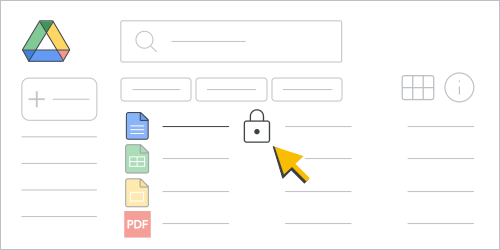 **Figure 1.** A file with a content restriction within a Drive file list.
### Remove a content restriction
To remove a file content restriction, use the `files.update` method with the
`contentRestrictions.readOnly` field set to `false`. The following code sample
shows how to remove a content restriction:
### Java
File updatedFile =
new File()
.setContentRestrictions(
ImmutableList.of(new ContentRestriction().setReadOnly(false));
File response = driveService.files().update("FILE_ID", updatedFile).setFields("contentRestrictions").execute();
### Python
content_restriction = {'readOnly': False}
response = drive_service.files().update(fileId="FILE_ID", body = {'contentRestrictions' : [content_restriction]}, fields = "contentRestrictions").execute();
### Node.js
/**
* Remove a content restriction on a file.
* @return{obj} updated file
**/
async function removeContentRestriction() {
// Get credentials and build service
// TODO (developer) - Use appropriate auth mechanism for your app
const {GoogleAuth} = require('google-auth-library');
const {google} = require('googleapis');
const auth = new GoogleAuth({scopes: 'https://www.googleapis.com/auth/drive'});
const service = google.drive({version: 'v3', auth});
const contentRestriction = {
'readOnly': False,
};
const updatedFile = {
'contentRestrictions': [contentRestriction],
};
try {
const response = await service.files.update({
fileId: 'FILE_ID',
resource: updatedFile,
fields: 'contentRestrictions',
});
return response;
} catch (err) {
// TODO (developer) - Handle error
throw err;
}
}
Replace FILE_ID with the `fileId` of the file that you want to
modify.
When you run the sample code, the file is no longer content restricted.
You can also use the Drive UI to remove a content restriction and
allow content editing (provided you have the correct permissions). There are two
options to do this:
1. In Drive, right-click the file with a content restriction and
click **Unlock**.
 **Figure 2.** Remove a file content restriction within a Drive file list.
2. Open the file with a content restriction and click **(Locked mode)** \>
**Unlock file**.
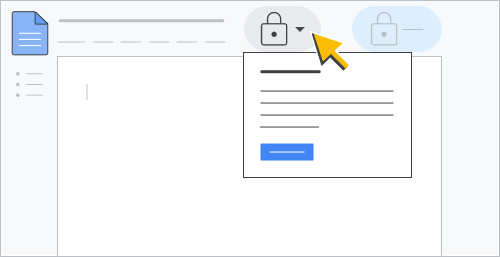 **Figure 3.** Remove a file content restriction within a document.
### Check for a content restriction
To check for a content restriction, use the
[`files.get`](https://developers.google.com/workspace/drive/api/reference/rest/v3/files/get) method with the
`contentRestrictions` returned field. The following code sample shows how to
check the status of a content restriction:
### Java
File response = driveService.files().get("FILE_ID").setFields("contentRestrictions").execute();
### Python
response = drive_service.files().get(fileId="FILE_ID", fields = "contentRestrictions").execute();
### Node.js
/**
* Get content restrictions on a file.
* @return{obj} updated file
**/
async function fetchContentRestrictions() {
// Get credentials and build service
// TODO (developer) - Use appropriate auth mechanism for your app
const {GoogleAuth} = require('google-auth-library');
const {google} = require('googleapis');
const auth = new GoogleAuth({scopes: 'https://www.googleapis.com/auth/drive'});
const service = google.drive({version: 'v3', auth});
try {
const response = await service.files.get({
fileId: 'FILE_ID',
fields: 'contentRestrictions',
});
return response;
} catch (err) {
// TODO (developer) - Handle error
throw err;
}
}
Replace FILE_ID with the `fileId` of the file that you want to
check.
When you run the sample code, the method returns a [`ContentRestriction`](https://developers.google.com/workspace/drive/api/reference/rest/v3/files#contentrestriction) resource if present.
### Add a content restriction only the file owner can modify
To add a file content restriction so only file owners can toggle the mechanism,
use the [`files.update`](https://developers.google.com/workspace/drive/api/reference/rest/v3/files/update) method with the
`contentRestrictions.ownerRestricted` boolean field set to `true`. The following
code sample shows how to add a content restriction for file owners only:
### Java
File updatedFile =
new File()
.setContentRestrictions(
ImmutableList.of(new ContentRestriction().setReadOnly(true).setOwnerRestricted(true).setReason("Finalized contract."));
File response = driveService.files().update("FILE_ID", updatedFile).setFields("contentRestrictions").execute();
### Python
content_restriction = {'readOnly': True, 'ownerRestricted': True, 'reason':'Finalized contract.'}
response = drive_service.files().update(fileId="FILE_ID", body = {'contentRestrictions' : [content_restriction]}, fields = "contentRestrictions").execute();
### Node.js
/**
* Set an owner restricted content restriction on a file.
* @return{obj} updated file
**/
async function addOwnerRestrictedContentRestriction() {
// Get credentials and build service
// TODO (developer) - Use appropriate auth mechanism for your app
const {GoogleAuth} = require('google-auth-library');
const {google} = require('googleapis');
const auth = new GoogleAuth({scopes: 'https://www.googleapis.com/auth/drive'});
const service = google.drive({version: 'v3', auth});
const contentRestriction = {
'readOnly': True,
'ownerRestricted': True,
'reason': 'Finalized contract.',
};
const updatedFile = {
'contentRestrictions': [contentRestriction],
};
try {
const response = await service.files.update({
fileId: 'FILE_ID',
resource: updatedFile,
fields: 'contentRestrictions',
});
return response;
} catch (err) {
// TODO (developer) - Handle error
throw err;
}
}
Replace FILE_ID with the `fileId` of the file that you want to
modify.
When you run the sample code, the file is content restricted and only file
owners can remove it. If you're the file owner, an active lock symbol () appears beside the filename within the [Drive user interface
(UI)](https://drive.google.com/drive/my-drive). If you're not the owner, the
lock symbol is dimmed.
To remove the `ownerRestricted` flag, use the `files.update` method with the
`contentRestrictions.ownerRestricted` field set to `false`.
> [!IMPORTANT]
> **Important:** A My Drive file has a single owner so only they can modify the content restriction. A shared drive owns the shared drive file, so any user with `role=organizer` permissions on the shared drive can modify or remove the `ownerRestricted` flag.
### Content restriction capabilities
A [`files`](https://developers.google.com/workspace/drive/api/reference/rest/v3/files) resource contains a collection of boolean
`capabilities` fields used to indicate whether an action can be performed on a
file.
Content restrictions contain the following `capabilities`:
- `capabilities.canModifyEditorContentRestriction`: Whether the current user can add or modify a [content restriction](https://developers.google.com/workspace/drive/api/guides/content-restrictions#add).
- `capabilities.canModifyOwnerContentRestriction`: Whether the current user can add or modify an [owner content restriction](https://developers.google.com/workspace/drive/api/guides/content-restrictions#owner-restriction).
- `capabilities.canRemoveContentRestriction`: Whether the current user can remove the applied [content restriction](https://developers.google.com/workspace/drive/api/guides/content-restrictions#remove) (if present).
For more information, see [Understand file
capabilities](https://developers.google.com/workspace/drive/api/guides/manage-sharing#capabilities).
For an example of retrieving file `capabilities`, see [Get file capabilities](https://developers.google.com/workspace/drive/api/guides/manage-sharing#get-capabilities).
## Prevent users from downloading, printing, or copying your file
You can limit how users can download, print, and copy files within
Drive, Docs, Sheets, and
Slides.
To determine whether the user can change owner or organizer-applied download
restrictions of a file, check the
[`capabilities.canChangeItemDownloadRestriction`](https://developers.google.com/workspace/drive/api/reference/rest/v3/files#File.FIELDS.inlinedField_47) boolean field. If
`capabilities.canChangeItemDownloadRestriction` is set to `true`, download
restrictions can be applied to the file. For more information, see [Understand
file capabilities](https://developers.google.com/workspace/drive/api/guides/manage-sharing#capabilities).
To apply download restrictions to a file, set the [`downloadRestrictions`](https://developers.google.com/workspace/drive/api/reference/rest/v3/files#File.FIELDS.download_restrictions) field using the
[`files.update`](https://developers.google.com/workspace/drive/api/reference/rest/v3/files/update) method. You can set the field
using the
[`DownloadRestrictionsMetadata`](https://developers.google.com/workspace/drive/api/reference/rest/v3/files#downloadrestrictionsmetadata)
object.
The `DownloadRestrictionsMetadata` object has two fields:
`itemDownloadRestriction` and `effectiveDownloadRestrictionWithContext`. Both
fields are readable but only the `itemDownloadRestriction` can be set. The
`itemDownloadRestriction` field returns a [`DownloadRestriction`](https://developers.google.com/workspace/drive/api/reference/rest/v3/files#downloadrestriction) object. The `DownloadRestriction`
object has two separate boolean fields: `restrictedForReaders` and
`restrictedForWriters`.
When setting the `itemDownloadRestriction` field the download restriction of the
file is applied directly by the owner or organizer. It doesn't account for
shared drive settings or data loss prevention (DLP) rules. For more information,
see [About DLP](https://support.google.com/a/answer/9646351).
If you update the `itemDownloadRestriction` field by setting the
`restrictedForWriters` field to `true`, it implies that `restrictedForReaders`
is `true`. Similarly, setting `restrictedForWriters` to `true` and
`restrictedForReaders` to `false` is equivalent to setting both
`restrictedForWriters` and `restrictedForReaders` to `true`.
For the `effectiveDownloadRestrictionWithContext` field the download restriction
is applied to the file and it accounts for all restriction settings and DLP
rules.
The `effectiveDownloadRestrictionWithContext` field can be set to either
`restrictedForWriters` or `restrictedForReaders`. If there's any download or
copy restriction settings for the corresponding roles from file settings, shared
drive settings, or DLP rules (including those ones with context), then the value
is set to `true`, otherwise it's `false`.
### Backward compatibility
We recommend that you use the
[`DownloadRestriction`](https://developers.google.com/workspace/drive/api/reference/rest/v3/files#downloadrestriction) object to
enforce how users can download, print, and copy files.
If you want to use the
[`copyRequiresWriterPermission`](https://developers.google.com/workspace/drive/api/reference/rest/v3/files#File.FIELDS.copy_requires_writer_permission)
boolean field, the functionality is different for both reading from and writing
to the field.
The retrieved value of the `copyRequiresWriterPermission` field reflects whether
users with the `role=commenter` or `role=reader` permission can download, print,
or copy files within Drive. The field value reflects the
combination of file settings, shared drive settings, or DLP rules. However,
context evaluation for DLP rules isn't included.
Setting the `copyRequiresWriterPermission` field to `false` updates both the
`restrictedForWriters` and `restrictedForReaders` fields to `false`. This means
download or copy restriction settings are removed for all users.
> [!WARNING]
> **Warning:** You should only use the legacy `copyRequiresWriterPermission` field *or* the [`DownloadRestriction`](https://developers.google.com/workspace/drive/api/reference/rest/v3/files#downloadrestriction) object to set download, print, and copy restrictions. The fields are not meant to be used together as the two field values might conflict.
### Fields that control download, print, and copy features
The following table lists [`files`](https://developers.google.com/workspace/drive/api/reference/rest/v3/files) resource fields
that affect download, print, and copy functionality:
| Field | Description | Version |
|---|---|---|
| `capabilities.canCopy` | Whether the current user can copy a file. | v2 \& v3 |
| `capabilities.canDownload` | Whether the current user can download a file. | v2 \& v3 |
| `capabilities.canChangeCopyRequiresWriterPermission` | Whether the current user can change the `copyRequiresWriterPermission` restriction of a file. | v2 \& v3 |
| `capabilities.canChangeItemDownloadRestriction` | Whether the current user can change the download restriction of a file. | v3 only |
| `copyRequiresWriterPermission` | Whether the options to copy, print, or download this file, should be disabled for readers and commenters. | v2 \& v3 |
| `downloadRestrictions` | The download restrictions applied on a file. | v3 only |
> [!NOTE]
> **Note:** Within the `files` resource several download and copy fields are marked as deprecated. This means the field is obsolete. However, a deprecated field might still be available and functional through the deprecated phase. Continued or future use of deprecated fields is discouraged. Developers should plan to migrate to the preferred alternative mentioned in the deprecated field's description.
## Related topics
- [Roles and permissions](https://developers.google.com/workspace/drive/api/guides/ref-roles)