A long-running operation (LRO) is an API method that takes a longer time to
complete than is appropriate for an API response. Typically, you don't want to
hold the calling thread open while the task runs as it offers a poor user
experience. Instead, it's better to return some type of promise to the user and
allow them to check back later.
The Google Drive API returns a LRO every time you call the [`download`](https://developers.google.com/workspace/drive/api/reference/rest/v3/files/download) method on the
[`files`](https://developers.google.com/workspace/drive/api/reference/rest/v3/files) resource to download the content of a file
either through the Drive API or its [client
libraries](https://developers.google.com/workspace/drive/api/guides/downloads).
The method returns an [`operations`](https://developers.google.com/workspace/drive/api/reference/rest/v3/operations) resource to
the client. You can use the `operations` resource to asynchronously retrieve the
status of the API method by polling the operation through the [`get`](https://developers.google.com/workspace/drive/api/reference/rest/v3/operations/get) method. LROs in Drive API adhere to
the [Google Cloud LRO design
pattern](https://cloud.google.com/apis/design/design_patterns#long_running_operations).
For more information, see [Long-running operations](https://google.aip.dev/151).
> [!NOTE]
> **Note:** Both the `files.download` method and the `operations.get` method consume normal Drive API quota. For more information, see [Usage limits](https://developers.google.com/workspace/drive/api/guides/limits).
## Process overview
The following diagram shows the high-level steps of how the `file.download`
method works.
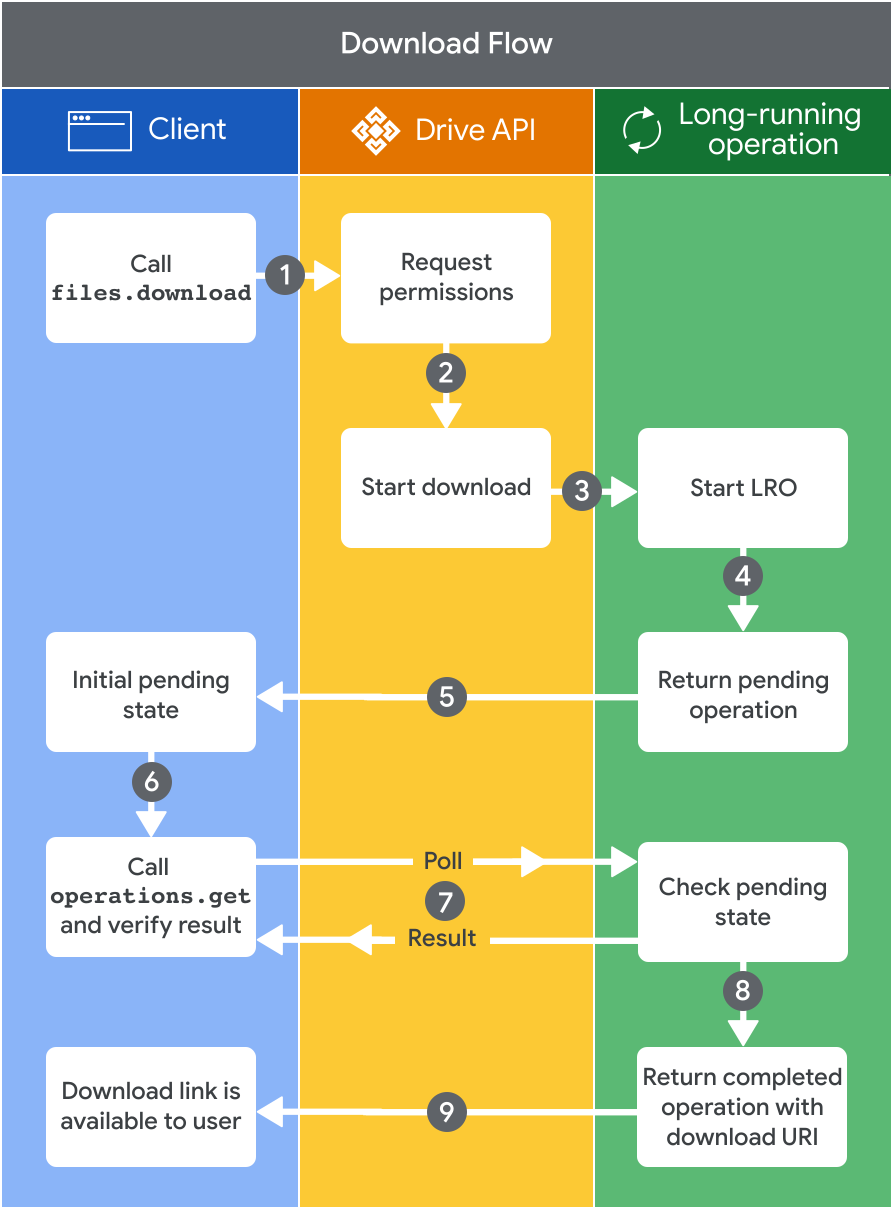 **Figure 1.** High-level steps for the file.download method.

1. **Call `files.download`** : When your app calls the `download` method, it
launches the Drive API download request for the file. For more
information, see [Download files](https://developers.google.com/workspace/drive/api/guides/long-running-operations#download-files).
2. **Request permissions** : The request sends authentication credentials to the
Drive API. If your app requires calling Drive API using
a user's authentication that hasn't yet been granted, it prompts the user to
sign in. Your app also asks for access with
[scopes](https://developers.google.com/workspace/drive/api/guides/api-specific-auth#drive-scopes) that you specify
when setting up authentication.
3. **Start download**: A Drive API request is made to start the file
download. The request could be made to Google Vids or some other
Google Workspace content.
4. **Start LRO**: A long-running operation begins and it manages the download
process.
5. **Return pending operation**: The Drive API returns a pending
operation containing information about the user making the request and
several file metadata fields.
6. **Initial pending state** : Your app receives the pending operation along
with an initial pending state of `done=null`. This denotes the file isn't
ready for download yet and that the operation status is pending.
7. **Call `operations.get` and verify result** : Your app calls the `get` at the
recommended intervals to poll the operation result and get the latest state
of a long-running operation. If the pending state of `done=false` is
returned, your app must keep polling until the operation returns the
completed state (`done=true`). For large files, expect to poll multiple
times. For more information, see [Get the details about a long-running
operation](https://developers.google.com/workspace/drive/api/guides/long-running-operations#operation-details).
8. **Check pending state** : If the pending state of `done=true` is returned
from the LRO, this denotes the file is ready for download and that the
operation status is complete.
9. **Return completed operation with download URI**: Once the LRO is done, the
Drive API returns the download URI and the file is now available
to the user.
## Download files
To download content under a long-running operation, use the [`download`](https://developers.google.com/workspace/drive/api/reference/rest/v3/files/download) method on the
[`files`](https://developers.google.com/workspace/drive/api/reference/rest/v3/files) resource. The method takes the parameters of
`file_id`, `mime_type`, and `revision_id`:
- Required. The `file_id` path parameter is the ID of the file to download.
- Optional. The `mime_type` query parameter denotes the MIME type the method
should use. It's only available when downloading non-blob media content
(such as Google Workspace documents). For a complete list of supported
MIME types, see [Export MIME types for Google Workspace documents](https://developers.google.com/workspace/drive/api/guides/ref-export-formats).
If the MIME type isn't set, the Google Workspace document is downloaded
with a default MIME type. For more information, see [Default MIME
types](https://developers.google.com/workspace/drive/api/guides/long-running-operations#default-mime-types).
- Optional. The `revision_id` query parameter is the revision ID of the file
to download. It's only available when downloading blob files, Google Docs,
and Google Sheets. Returns error code `INVALID_ARGUMENT` when downloading
a specific revision on unsupported files.
The `download` method is the only way to download Vids
files in MP4 format and is typically best suited to downloading most video
files. If you attempt to export Google Vids files, you receive a
[`fileNotExportable`](https://developers.google.com/workspace/drive/api/guides/handle-errors#file-not-exportable) error.
Download links generated for Google Docs or Sheets initially
return a redirect. Click the new link to download the file.
A request to the `download` method that begins the LRO, and the request to fetch
the final download URI, should both use resource keys. For more information, see
[Access link-shared Drive files using resource keys](https://developers.google.com/workspace/drive/api/guides/resource-keys).
The request protocol is shown here.
POST https://www.googleapis.com/drive/v3/files/{FILE_ID}/download
Replace FILE_ID with the `fileId` of the file that you want to
download.
> [!NOTE]
> **Note:** The `download` method is only available in Drive API v3.
### Default MIME types
If a MIME type isn't set when downloading non-blob content, the following
default MIME types are assigned:
| Document Type | Format | MIME type | File Extension |
|---|---|---|---|
| Google Apps Script | JSON | application/vnd.google-apps.script+json | .json |
| Google Docs | Microsoft Word | application/vnd.openxmlformats-officedocument.wordprocessingml.document | .docx |
| Google Drawings | PNG | image/png | .png |
| Google Forms | ZIP | application/zip | .zip |
| Google Sheets | Microsoft Excel | application/vnd.openxmlformats-officedocument.spreadsheetml.sheet | .xlsx |
| Google Sites | Raw Text | text/raw | .txt |
| Google Slides | Microsoft PowerPoint | application/vnd.openxmlformats-officedocument.presentationml.presentation | .pptx |
| Google Vids | MP4 | video/mp4 | .mp4 |
| Jamboard | PDF | application/pdf | .pdf |
### Download response
When calling the [`download`](https://developers.google.com/workspace/drive/api/reference/rest/v3/files/download) method, the
[response body](https://developers.google.com/workspace/drive/api/reference/rest/v3/files/download#response-body) consists of a
resource representing a long-running operation. The method typically returns a
link to download the file contents.
> [!TIP]
> **Tip:** Save the `name` field value as you'll need that to poll the LRO.
{
"done": true,
"metadata": {
"@type": "type.googleapis.com/google.apps.drive.v3.DownloadFileMetadata",
"resourceKey": "RESOURCE_KEY"
},
"name": "NAME",
"response": {
"@type": "type.googleapis.com/google.apps.drive.v3.DownloadFileResponse",
"downloadUri": "DOWNLOAD_URI",
"partialDownloadAllowed": false
}
}
This output includes the following values:
- RESOURCE_KEY: A resource key helps protect your file from
unintended access. For more information, see [Access link-shared
Drive files using resource
keys](https://developers.google.com/workspace/drive/api/guides/resource-keys).
- NAME: The server-assigned name.
- DOWNLOAD_URI: The final download URI for the file.
Note that the `partialDownloadAllowed` field denotes if a [partial download](https://developers.google.com/workspace/drive/api/guides/manage-downloads#partial_download) is permitted and is `true`
when downloading blob file content.
## Get the details about a long-running operation
Long-running operations are method calls that might take a substantial amount of
time to complete. Typically, newly created download operations are initially
returned in a pending state (`done=null`), especially for Vids
files.
You can use the [`operations`](https://developers.google.com/workspace/drive/api/reference/rest/v3/operations) resource that
Drive API provides to check the status of the processing LRO by
including the unique server-assigned name.
The [`get`](https://developers.google.com/workspace/drive/api/reference/rest/v3/operations/get) method gets the latest state of a
long-running operation asynchronously. Clients can use this method to poll the
operation result at intervals as recommended by the API service.
> [!NOTE]
> **Note:** The user making the `get` method request must match the user who initiated the adjoining `download` method request or else the request fails.
### Poll a long-running operation
To poll an available LRO, repeatedly call the
[`get`](https://developers.google.com/workspace/drive/api/reference/rest/v3/operations/get) method until the operation finishes.
Use an [exponential backoff](https://developers.google.com/workspace/drive/api/guides/limits#exponential) between each
poll request, such as 10 seconds.
An LRO remains available for a minimum of 12 hours but in some cases can persist
longer. This duration is subject to change and can be different between file
types. Once the resource expires a new `download` method request is necessary.
Any requests to `get` should use resource keys. For more information, see
[Access link-shared Drive files using resource keys](https://developers.google.com/workspace/drive/api/guides/resource-keys).
The request protocols are shown here.
### Method call
operations.get(name='NAME');
Replace NAME with the operation's server-assigned name as
shown in the response to the `download` method request.
### curl
> [!NOTE]
> **Note:** The following command assumes that you have logged in to the gcloud CLI with your user account by running [`gcloud
> init`](https://cloud.google.com/sdk/gcloud/reference/init) or [`gcloud auth
> login`](https://cloud.google.com/sdk/gcloud/reference/auth/login), or by using [Cloud Shell](https://cloud.google.com/shell/docs), which automatically logs you into the gcloud CLI . You can check the active account by running [`gcloud auth
> list`](https://cloud.google.com/sdk/gcloud/reference/auth/list).
curl -i -H \
'Authorization: Bearer $(gcloud auth print-access-token)" \
'https://googleapis.com/drive/v3/operations/NAME?alt=json'
Replace NAME with the operation's server-assigned name as
shown in the response to the `download` method request.
The command uses the path `/drive/v3/operations/NAME`.
Note that the `name` is only returned in the response to a `download` request.
There's no other way to retrieve it as Drive API doesn't support the
`list` method. If the `name` value is lost, you must generate a new response by
calling the `download` method request again.
The response from a `get` request consists of a resource representing a
long-running operation. For more information, see [Download
response](https://developers.google.com/workspace/drive/api/guides/long-running-operations#download-response).
When the response contains a completed state (`done=true`), the long-running
operation has finished.
> [!IMPORTANT]
> **Important:** Always check if `done=true` in the initial response before attempting to poll the operation. If the operation is completed and you attempt to poll the `name`, you might get a `403 Forbidden` error with a status of `PERMISSION_DENIED`. This error signifies that the operation is no longer in a pollable state.
## Download a revision
You can use the value of the
[`headRevisionId`](https://developers.google.com/workspace/drive/api/reference/rest/v3/files#File.FIELDS.head_revision_id) field
from the [`files`](https://developers.google.com/workspace/drive/api/reference/rest/v3/files) resource to download the latest
revision. This fetches the revision that corresponds to the metadata of the file
you previously retrieved. To download the data for all previous revisions of the
file that are still stored in the cloud, you can call the [`list`](https://developers.google.com/workspace/drive/api/reference/rest/v3/revisions/list) method on the [`revisions`](https://developers.google.com/workspace/drive/api/reference/rest/v3/revisions) resource with the `fileId` parameter. This returns
all the `revisionIds` in the file.
> [!NOTE]
> **Note:** Access to historical revisions is restricted based on role. Check the [`capabilities.canReadRevisions`](https://developers.google.com/workspace/drive/api/reference/rest/v3/files#File.FIELDS.inlinedField_17) field on the `files` resource before attempting access.
To download the revision content of blob files, you must call the [`get`](https://developers.google.com/workspace/drive/api/reference/rest/v3/revisions/get) method on the
[`revisions`](https://developers.google.com/workspace/drive/api/reference/rest/v3/revisions) resource with the ID of the file to
download, the ID of the revision, and the `alt` [system
parameter](https://docs.cloud.google.com/apis/docs/system-parameters#definitions).
The `alt=media` parameter tells the server that a content download is being
requested as an alternative response format.
The `alt` system parameter is available across all Google REST APIs. If you use
a client library for the Drive API, you don't need to explicitly set
this parameter.
Revisions for Google Docs, Sheets, Slides, and
Vids can't be downloaded using the `get` method with the
`alt=media` parameter. Otherwise, it generates a [`fileNotDownloadable`](https://developers.google.com/workspace/drive/api/guides/handle-errors#file-not-downloadable) error.
The request protocol is shown here.
GET https://www.googleapis.com/drive/v3/files/{FILE_ID}/revisions/{REVISION_ID}?alt=media
Replace the following:
- FILE_ID: The `fileId` of the file that you want to download.
- REVISION_ID: The `revisionId` of the revision that you want to download.
> [!NOTE]
> **Note:** If you're using the older Drive API v2, you must send an authorized `GET` request to its `downloadUrl` property. Google Drive generates this short-lived URL when you request the revision but don't rely on it for later use. You can also export the revision in one of the supported formats by checking the `exportLinks` property.
Google Docs, Drawings, and Slides revisions
auto-increment the revision numbers. However, the series of numbers might have
gaps if revisions are deleted, so you shouldn't rely on sequential numbers to
retrieve revisions.
## Troubleshoot LROs
When a LRO fails, its response includes a [canonical Google Cloud error
code](https://github.com/googleapis/googleapis/blob/master/google/rpc/code.proto).
The following table displays each error code, the mapped HTTP status code, a
description, and a recommendation for how to handle the error code. For many
errors, the recommended action is to try the request again using [exponential
backoff](https://developers.google.com/workspace/drive/api/guides/limits#exponential).
You can read more about this error model and how to work with it in the [API
Design Guide](https://cloud.google.com/apis/design/errors#handling_errors).
| Code | Enum | HTTP status code | Description | Recommended action |
|---|---|---|---|---|
| 1 | `CANCELLED` | `499 Client Closed Request` | The operation was canceled, typically by the caller. | Re-run the operation. |
| 2 | `UNKNOWN` | `500 Internal Server Error` | This error might be returned when a `Status` value received from another address space belongs to an error space that isn't known in this address space. If the API error doesn't return enough information, the error might be converted to this error. | Retry with exponential backoff. |
| 3 | `INVALID_ARGUMENT` | `400 Bad Request` | The client specified an invalid argument. This error differs from `FAILED_PRECONDITION`. `INVALID_ARGUMENT` indicates arguments that are problematic regardless of the state of the system, such as a malformed filename. | Don't retry without fixing the problem. |
| 4 | `DEADLINE_EXCEEDED` | `504 Gateway Timeout` | The deadline expired before the operation could complete. For operations that change the state of the system, this error might be returned even if the operation has completed successfully. For example, a successful response from a server could have been delayed long enough for the deadline to expire. | Retry with exponential backoff. |
| 5 | `NOT_FOUND` | `404 Not Found` | Some requested entity, such as a FHIR resource, wasn't found. | Don't retry without fixing the problem. |
| 6 | `ALREADY_EXISTS` | `409 Conflict` | The entity that a client attempted to create, such as a DICOM instance, already exists. | Don't retry without fixing the problem. |
| 7 | `PERMISSION_DENIED` | `403 Forbidden` | The caller doesn't have permission to execute the specified operation. This error code doesn't imply the request is valid, the requested entity exists, or it satisfies other preconditions. | Don't retry without fixing the problem. |
| 8 | `RESOURCE_EXHAUSTED` | `429 Too Many Requests` | Some resource has been exhausted, such as a per-project quota. | Retry with exponential backoff. Quota might become available over time. |
| 9 | `FAILED_PRECONDITION` | `400 Bad Request` | The operation was rejected because the system isn't in a state required for the operation's execution. For example, the directory to be deleted is non-empty, or an `rmdir` operation is applied to a non-directory. | Don't retry without fixing the problem. |
| 10 | `ABORTED` | `409 Conflict` | The operation was aborted, typically due to a concurrency issue such as a sequencer check failure or transaction abort. | Retry with exponential backoff. |
| 11 | `OUT_OF_RANGE` | `400 Bad Request` | The operation was attempted past the valid range, such as seeking or reading past end-of-file. Unlike `INVALID_ARGUMENT`, this error indicates a problem that may be fixed if the system state changes. | Don't retry without fixing the problem. |
| 12 | `UNIMPLEMENTED` | `501 Not Implemented` | The operation isn't implemented or isn't supported/enabled in the Drive API. | Don't retry. |
| 13 | `INTERNAL` | `500 Internal Server Error` | Internal errors. This indicates that an unexpected error was encountered in processing on the underlying system. | Retry with exponential backoff. |
| 14 | `UNAVAILABLE` | `503 Service Unavailable` | The Drive API is unavailable. This is most likely a transient condition, which can be corrected by retrying with exponential backoff. Note that it's not always safe to retry non-idempotent operations. | Retry with exponential backoff. |
| 15 | `DATA_LOSS` | `500 Internal Server Error` | Unrecoverable data loss or corruption. | Contact your system administrator. The system administrator might want to contact a support representative if data loss or corruption occurred. |
| 16 | `UNAUTHENTICATED` | `401 Unauthorized` | The request doesn't have valid authentication credentials for the operation. | Don't retry without fixing the problem. |
## Related topics
- [Download and export files](https://developers.google.com/workspace/drive/api/guides/manage-downloads)