[Connected Sheets](https://cloud.google.com/blog/products/g-suite/connected-sheets-is-generally-available)
lets you analyze petabytes of data directly within Google Sheets. You can
connect your spreadsheets with a [BigQuery](https://cloud.google.com/bigquery)
data warehouse or [Looker](https://cloud.google.com/looker) and do the analysis
by using familiar Sheets tools like pivot tables, charts, and
formulas.
## Manage a BigQuery data source
This section uses the BigQuery
[`Shakespeare`](https://console.cloud.google.com/bigquery?p=bigquery-public-data&d=samples&t=shakespeare&page=table)
public dataset to show how to use Connected Sheets. The dataset
contains the following information:
| Field | Type | Description |
|---|---|---|
| word | `STRING` | A single unique word (where whitespace is the delimiter) extracted from a corpus. |
| word_count | `INTEGER` | The number of times this word appears in this corpus. |
| corpus | `STRING` | The work from which this word was extracted. |
| corpus_date | `INTEGER` | The year in which this corpus was published. |
If your application requests any BigQuery Connected Sheets data, it
must provide an OAuth 2.0 token that grants `bigquery.readonly` scope, in
addition to the other scopes required for a regular Google Sheets API request. For
more information, see [Choose Google Sheets API
scopes](https://developers.google.com/workspace/sheets/api/scopes).
A data source specifies an external location where data is found. The data
source is then connected to the spreadsheet.
### Add a BigQuery data source
To add a data source, supply an
[`AddDataSourceRequest`](https://developers.google.com/workspace/sheets/api/reference/rest/v4/spreadsheets/request#adddatasourcerequest)
using the
[`spreadsheets.batchUpdate`](https://developers.google.com/workspace/sheets/api/reference/rest/v4/spreadsheets/batchUpdate)
method. The request body should specify a `dataSource` field of type
[`DataSource`](https://developers.google.com/workspace/sheets/api/reference/rest/v4/spreadsheets#datasource)
object.
"addDataSource":{
"dataSource":{
"spec":{
"bigQuery":{
"projectId":"PROJECT_ID",
"tableSpec":{
"tableProjectId":"bigquery-public-data",
"datasetId":"samples",
"tableId":"shakespeare"
}
}
}
}
}
Replace PROJECT_ID with a valid Google Cloud project ID.
After a data source is created, an associated
[`DATA_SOURCE`](https://developers.google.com/workspace/sheets/api/reference/rest/v4/spreadsheets/sheets#sheettype)
sheet is created to provide a preview of up to 500 rows. The preview isn't
available immediately. An execution is triggered asynchronously to import the
BigQuery data.
The
[`AddDataSourceResponse`](https://developers.google.com/workspace/sheets/api/reference/rest/v4/spreadsheets/response#adddatasourceresponse)
contains the following fields:
- `dataSource`: The created `DataSource` object. The
[`dataSourceId`](https://developers.google.com/workspace/sheets/api/reference/rest/v4/spreadsheets#datasource) is a
spreadsheet-scoped unique ID. It's populated and referenced to create each
`DataSource` object from the data source.
- `dataExecutionStatus`: The status of an execution that imports BigQuery data
into the preview sheet. For more information, see the [Data execution
status](https://developers.google.com/workspace/sheets/api/guides/connected-sheets#data-execution-status) section.
### Update or delete a BigQuery data source
Use the
[`spreadsheets.batchUpdate`](https://developers.google.com/workspace/sheets/api/reference/rest/v4/spreadsheets/batchUpdate)
method and supply an
[`UpdateDataSourceRequest`](https://developers.google.com/workspace/sheets/api/reference/rest/v4/spreadsheets/request#updatedatasourcerequest)
or
[`DeleteDataSourceRequest`](https://developers.google.com/workspace/sheets/api/reference/rest/v4/spreadsheets/request#deletedatasourcerequest)
request accordingly.
### Manage BigQuery data source objects
Once a data source is added to the spreadsheet, a data source object can be
created from it. A data source object is a regular Sheets tool
such as pivot tables, charts, and formulas that's integrated with
Connected Sheets to power your data analysis.
There are four types of objects:
- `DataSource` table
- `DataSource` pivotTable
- `DataSource` chart
- `DataSource` formula
### Add a BigQuery data source table
Known as an "extract" in the Sheets editor, the table object
imports a static dump of data from the data source into Sheets.
Similar to a pivot table, the table is specified and anchored to the top left
cell.
The following code sample shows how to use the
[`spreadsheets.batchUpdate`](https://developers.google.com/workspace/sheets/api/reference/rest/v4/spreadsheets/batchUpdate)
method and an
[`UpdateCellsRequest`](https://developers.google.com/workspace/sheets/api/reference/rest/v4/spreadsheets/request#updatecellsrequest)
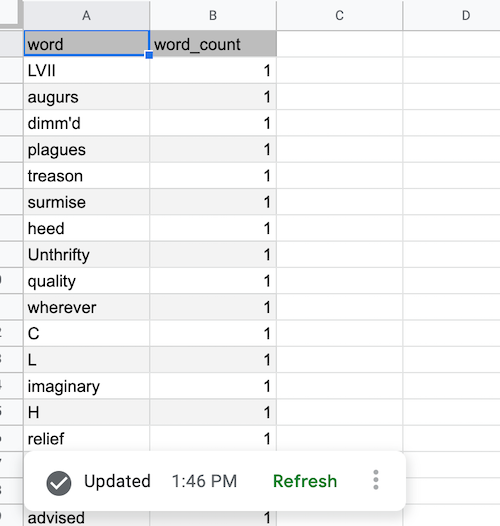
to create a data source table up to 1000 rows of two columns (`word` and
`word_count`).
"updateCells":{
"rows":{
"values":[
{
"dataSourceTable":{
"dataSourceId":"DATA_SOURCE_ID",
"columns":[
{
"name":"word"
},
{
"name":"word_count"
}
],
"rowLimit":{
"value":1000
},
"columnSelectionType":"SELECTED"
}
}
]
},
"fields":"dataSourceTable"
}
Replace DATA_SOURCE_ID with a spreadsheet-scoped unique ID that
identifies the data source.
After a data source table is created, the data isn't available immediately. In
the Sheets editor, it's shown as a preview. You need to refresh
the data source table to fetch the BigQuery data. You can specify a
[`RefreshDataSourceRequest`](https://developers.google.com/workspace/sheets/api/reference/rest/v4/spreadsheets/request#refreshdatasourcerequest)
within the same `batchUpdate`. Note that all data source objects work similarly.
For more information, see [Refresh a data source
object](https://developers.google.com/workspace/sheets/api/guides/connected-sheets#refresh-bigquery-data-source).
After the refresh completes and the BigQuery data is fetched, the data source
table is populated as shown:
### Add a BigQuery data source pivotTable
Unlike a conventional pivot table, a data source pivot table is backed by a data
source and it references the data by column name. The following code sample
shows how to use the `spreadsheets.batchUpdate` method and an
`UpdateCellsRequest` to create a pivot table showing the total word count by
corpus.
"updateCells":{
"rows":{
"values":[
{
"pivotTable":{
"dataSourceId":"DATA_SOURCE_ID",
"rows":{
"dataSourceColumnReference":{
"name":"corpus"
},
"sortOrder":"ASCENDING"
},
"values":{
"summarizeFunction":"SUM",
"dataSourceColumnReference":{
"name":"word_count"
}
}
}
}
]
},
"fields":"pivotTable"
}
Replace DATA_SOURCE_ID with a spreadsheet-scoped unique ID that
identifies the data source.
After BigQuery data is fetched, the data source pivot table is populated as
shown:

### Add a BigQuery data source chart
The following code sample shows how to use the `spreadsheets.batchUpdate` method
and an
[`AddChartRequest`](https://developers.google.com/workspace/sheets/api/reference/rest/v4/spreadsheets/request#addchartrequest)
to create a data source chart with a `chartType` of COLUMN, showing the total
word count by corpus.
"addChart":{
"chart":{
"spec":{
"title":"Corpus by word count",
"basicChart":{
"chartType":"COLUMN",
"domains":[
{
"domain":{
"columnReference":{
"name":"corpus"
}
}
}
],
"series":[
{
"series":{
"columnReference":{
"name":"word_count"
},
"aggregateType":"SUM"
}
}
]
}
},
"dataSourceChartProperties":{
"dataSourceId":"DATA_SOURCE_ID"
}
}
}
Replace DATA_SOURCE_ID with a spreadsheet-scoped unique ID that
identifies the data source.
After BigQuery data is fetched, the data source chart is rendered as shown:

### Add a BigQuery data source formula
The following code sample shows how to use the `spreadsheets.batchUpdate` method
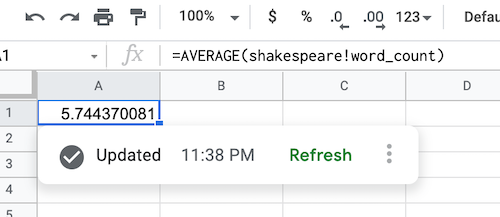
and an `UpdateCellsRequest` to create a data source formula to compute the
average word count.
"updateCells":{
"rows":[
{
"values":[
{
"userEnteredValue":{
"formulaValue":"=AVERAGE(shakespeare!word_count)"
}
}
]
}
],
"fields":"userEnteredValue"
}
After BigQuery data is fetched, the data source formula is populated as shown:
### Refresh a BigQuery data source object
You can refresh a data source object to fetch the latest data from BigQuery
based on the current data source specs and object configurations. You can use
the
[`spreadsheets.batchUpdate`](https://developers.google.com/workspace/sheets/api/reference/rest/v4/spreadsheets/batchUpdate)
method to call the
[`RefreshDataSourceRequest`](https://developers.google.com/workspace/sheets/api/reference/rest/v4/spreadsheets/request#refreshdatasourcerequest).
Then specify one or more object references to refresh using the
[`DataSourceObjectReferences`](https://developers.google.com/workspace/sheets/api/reference/rest/v4/spreadsheets/request#datasourceobjectreferences)
object.
Note that you can both create and refresh data source objects within a single
`batchUpdate` request.
## Manage a Looker data source
This guide will show how to add a Looker data source, update or delete it,
create a pivot table on it and refresh it.
Your application requesting any Looker Connected Sheets data, will
reuse your existing Google Account Link with Looker.
### Add a Looker data source
To add a data source, supply an
[`AddDataSourceRequest`](https://developers.google.com/workspace/sheets/api/reference/rest/v4/spreadsheets/request#adddatasourcerequest)
using the
[`spreadsheets.batchUpdate`](https://developers.google.com/workspace/sheets/api/reference/rest/v4/spreadsheets/batchUpdate)
method. The request body should specify a `dataSource` field of type
[`DataSource`](https://developers.google.com/workspace/sheets/api/reference/rest/v4/spreadsheets#datasource)
object.
"addDataSource":{
"dataSource":{
"spec":{
"looker":{
"instance_uri":"INSTANCE_URI",
"model":"MODEL",
"explore":"EXPLORE"
}
}
}
}
Replace INSTANCE_URI, MODEL and
EXPLORE with a valid Looker instance URI, model name and
explore name respectively.
After a data source is created, an associated
[`DATA_SOURCE`](https://developers.google.com/workspace/sheets/api/reference/rest/v4/spreadsheets/sheets#sheettype)
sheet is created to provide a preview of the structure of the selected Explore,
including views, dimensions, measures, and any field descriptions.
The
[`AddDataSourceResponse`](https://developers.google.com/workspace/sheets/api/reference/rest/v4/spreadsheets/response#adddatasourceresponse)
contains the following fields:
- `dataSource`: The created `DataSource` object. The
[`dataSourceId`](https://developers.google.com/workspace/sheets/api/reference/rest/v4/spreadsheets#datasource)
is a spreadsheet-scoped unique ID. It's populated and referenced to create
each `DataSource` object from the data source.
- `dataExecutionStatus`: The status of an execution that imports BigQuery data
into the preview sheet. For more information, see the [Data execution
status](https://developers.google.com/workspace/sheets/api/guides/connected-sheets#data-execution-status) section.
### Update or delete a Looker data source
Use the
[`spreadsheets.batchUpdate`](https://developers.google.com/workspace/sheets/api/reference/rest/v4/spreadsheets/batchUpdate)
method and supply an
[`UpdateDataSourceRequest`](https://developers.google.com/workspace/sheets/api/reference/rest/v4/spreadsheets/request#updatedatasourcerequest)
or
[`DeleteDataSourceRequest`](https://developers.google.com/workspace/sheets/api/reference/rest/v4/spreadsheets/request#deletedatasourcerequest)
request accordingly.
### Manage Looker data source objects
Once a data source is added to the spreadsheet, a data source object can be
created from it. For Looker data sources, you can only create a `DataSource`
pivotTable object from it.
It is not possible to create `DataSource` formulas, extracts, and charts from
Looker data sources.
### Refresh a Looker data source object
You can refresh a data source object to fetch the latest data from Looker
based on the current data source specs and object configurations. You can use
the
[`spreadsheets.batchUpdate`](https://developers.google.com/workspace/sheets/api/reference/rest/v4/spreadsheets/batchUpdate)
method to call the
[`RefreshDataSourceRequest`](https://developers.google.com/workspace/sheets/api/reference/rest/v4/spreadsheets/request#refreshdatasourcerequest).
Then specify one or more object references to refresh using the
[`DataSourceObjectReferences`](https://developers.google.com/workspace/sheets/api/reference/rest/v4/spreadsheets/request#datasourceobjectreferences)
object.
Note that you can both create and refresh data source objects within a single
`batchUpdate` request.
## Data execution status
When you create data sources or refresh data source objects, a background
execution is created to fetch the data from BigQuery or Looker and return a
response containing the
[`DataExecutionStatus`](https://developers.google.com/workspace/sheets/api/reference/rest/v4/spreadsheets/other#dataexecutionstatus).
If the execution starts successfully, the
[`DataExecutionState`](https://developers.google.com/workspace/sheets/api/reference/rest/v4/spreadsheets/other#dataexecutionstate)
is usually in the `RUNNING` state.
Because the process is asynchronous, your application should implement a polling
model to periodically retrieve the status for the data source objects. Use the
[`spreadsheets.get`](https://developers.google.com/workspace/sheets/api/reference/rest/v4/spreadsheets/get)
method until the status returns either the `SUCCEEDED` or `FAILED` state.
Execution completes quickly in most cases, but it depends on the complexity of
your data source. Usually the execution doesn't exceed 10 minutes.
## Related topics
- [Choose Google Sheets API scopes](https://developers.google.com/workspace/sheets/api/scopes)
- [Get started with BigQuery data in Google Sheets](https://support.google.com/docs/answer/9702507)
- [BigQuery documentation](https://cloud.google.com/bigquery/docs/)
- [BigQuery: Using Connected Sheets](https://cloud.google.com/bigquery/docs/connected-sheets)
- [Connected Sheets video tutorial](https://www.youtube.com/watch?v=rkimIhnLKGI)
- [Using Connected Sheets for Looker](https://cloud.google.com/looker/docs/connected-sheets)
- [Looker Introduction](https://cloud.google.com/looker/docs/intro)