[Video](https://www.youtube.com/watch?v=86q5TMzvRqo)
You can update the formatting of cells and ranges within spreadsheets using the
Google Sheets API. The examples on this page illustrate how some common formatting
operations can be achieved with the Sheets API. You can find more
conditional formatting examples in the [Conditional
formatting](https://developers.google.com/workspace/sheets/api/samples/conditional-formatting) recipe page.
When updating a spreadsheet, some kinds of requests might return responses.
These are returned in an array, with each response occupying the same index as
the corresponding request. Some requests don't have responses and for those the
response is empty. The response structure for these examples can be found under
[`spreadsheets.batchUpdate`](https://developers.google.com/workspace/sheets/api/reference/rest/v4/spreadsheets/batchUpdate#response-body).
These examples are presented in the form of HTTP requests to be language
neutral. To learn how to implement a batch update in different languages using
the Google API client libraries, see [Update
spreadsheets](https://developers.google.com/workspace/sheets/api/guides/batchupdate#example).
In these examples, the placeholders SPREADSHEET_ID and SHEET_ID
indicates where you would provide those IDs. You can find the [spreadsheet
ID](https://developers.google.com/workspace/sheets/api/guides/concepts#spreadsheet) in the spreadsheet URL.
You can get the [sheet ID](https://developers.google.com/workspace/sheets/api/guides/concepts#sheet) by using
the
[`spreadsheets.get`](https://developers.google.com/workspace/sheets/api/reference/rest/v4/spreadsheets/get)
method. The ranges are specified using [A1
notation](https://developers.google.com/workspace/sheets/api/guides/concepts#cell). An example range is
Sheet1!A1:D5.
In the above video, you learn how to format spreadsheet cells in various ways,
including: creating frozen rows, bolding cells, implementing currency
formatting, performing cell validation, and restricting cell values.
## Edit cell borders
The following
[`spreadsheets.batchUpdate`](https://developers.google.com/workspace/sheets/api/reference/rest/v4/spreadsheets/batchUpdate)
code sample shows how to use the
[`UpdateBordersRequest`](https://developers.google.com/workspace/sheets/api/reference/rest/v4/spreadsheets/request#updatebordersrequest)
to give each cell in the A1:F10 range a dashed, blue top and bottom border. The
`innerHorizontal` field creates horizontal borders on the interior of the range.
Omitting the field would result in borders only being added to the top and
bottom of the entire range.
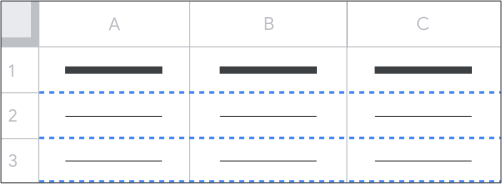 **Figure 1.** Format each cell with a dashed, blue top and bottom border in a sheet.
The request protocol is shown below.
```
POST https://sheets.googleapis.com/v4/spreadsheets/SPREADSHEET_ID:batchUpdate
```
```
{
"requests": [
{
"updateBorders": {
"range": {
"sheetId": SHEET_ID,
"startRowIndex": 0,
"endRowIndex": 10,
"startColumnIndex": 0,
"endColumnIndex": 6
},
"top": {
"style": "DASHED",
"width": 1,
"color": {
"blue": 1.0
},
},
"bottom": {
"style": "DASHED",
"width": 1,
"color": {
"blue": 1.0
},
},
"innerHorizontal": {
"style": "DASHED",
"width": 1,
"color": {
"blue": 1.0
},
},
}
}
]
}
```
## Format a header row
The following
[`spreadsheets.batchUpdate`](https://developers.google.com/workspace/sheets/api/reference/rest/v4/spreadsheets/batchUpdate)
code sample shows how to use the
[`RepeatCellRequest`](https://developers.google.com/workspace/sheets/api/reference/rest/v4/spreadsheets/request#repeatcellrequest)
to format a header row in a sheet. The first request updates the text color, the
background color, the text font size, and the text justification and makes the
text bold. Omitting the column indices in the `range` field causes the entire
row to be formatted. The second request adjusts the sheet properties so that the
header row is frozen.
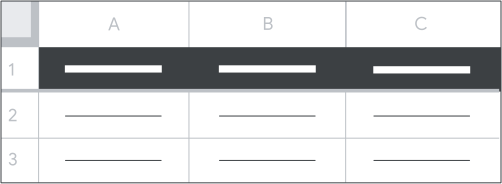 **Figure 2.** Format the header row in a sheet.
The request protocol is shown below.
```
POST https://sheets.googleapis.com/v4/spreadsheets/SPREADSHEET_ID:batchUpdate
```
```
{
"requests": [
{
"https://developers.google.com/workspace/sheets/api/reference/rest/v4/spreadsheets/request#repeatcellrequest": {
"https://developers.google.com/workspace/sheets/api/reference/rest/v4/spreadsheets#gridrange": {
"sheetId": SHEET_ID,
"startRowIndex": 0,
"endRowIndex": 1
},
"https://developers.google.com/workspace/sheets/api/reference/rest/v4/spreadsheets#celldata": {
"https://developers.google.com/workspace/sheets/api/reference/rest/v4/spreadsheets#cellformat": {
"https://developers.google.com/workspace/sheets/api/reference/rest/v4/spreadsheets#color": {
"red": 0.0,
"green": 0.0,
"blue": 0.0
},
"https://developers.google.com/workspace/sheets/api/reference/rest/v4/spreadsheets#horizontalalign" : "CENTER",
"https://developers.google.com/workspace/sheets/api/reference/rest/v4/spreadsheets#textformat": {
"https://developers.google.com/workspace/sheets/api/reference/rest/v4/spreadsheets#color": {
"red": 1.0,
"green": 1.0,
"blue": 1.0
},
"fontSize": 12,
"bold": true
}
}
},
"fields": "userEnteredFormat(backgroundColor,textFormat,horizontalAlignment)"
}
},
{
"https://developers.google.com/workspace/sheets/api/reference/rest/v4/spreadsheets/request#updatesheetpropertiesrequest": {
"https://developers.google.com/workspace/sheets/api/reference/rest/v4/spreadsheets#sheetproperties": {
"sheetId": SHEET_ID,
"https://developers.google.com/workspace/sheets/api/reference/rest/v4/spreadsheets#gridproperties": {
"frozenRowCount": 1
}
},
"fields": "gridProperties.frozenRowCount"
}
}
]
}
```
## Merge cells
The following
[`spreadsheets.batchUpdate`](https://developers.google.com/workspace/sheets/api/reference/rest/v4/spreadsheets/batchUpdate)
code sample shows how to use the
[`MergeCellsRequest`](https://developers.google.com/workspace/sheets/api/reference/rest/v4/spreadsheets/request#mergecellsrequest)
to merge cells. The first request merges the A1:B2 range into a single cell. The
second request merges the columns in A3:B6, while leaving the rows separated.
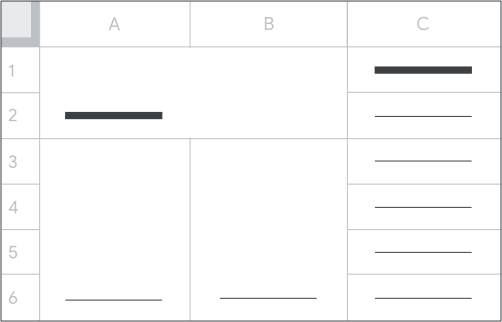 **Figure 3.** Merge cells in a sheet.
The request protocol is shown below.
```
POST https://sheets.googleapis.com/v4/spreadsheets/SPREADSHEET_ID:batchUpdate
```
```
{
"requests": [
{
"mergeCells": {
"range": {
"sheetId": SHEET_ID,
"startRowIndex": 0,
"endRowIndex": 2,
"startColumnIndex": 0,
"endColumnIndex": 2
},
"mergeType": "MERGE_ALL"
}
},
{
"mergeCells": {
"range": {
"sheetId": SHEET_ID,
"startRowIndex": 2,
"endRowIndex": 6,
"startColumnIndex": 0,
"endColumnIndex": 2
},
"mergeType": "MERGE_COLUMNS"
}
},
]
}
```
## Set a custom datetime or decimal format for a range
The following
[`spreadsheets.batchUpdate`](https://developers.google.com/workspace/sheets/api/reference/rest/v4/spreadsheets/batchUpdate)
code sample shows how to use the
[`RepeatCellRequest`](https://developers.google.com/workspace/sheets/api/reference/rest/v4/spreadsheets/request#repeatcellrequest)
to update cells to have custom datetime and number formats. The first request
gives the cells in the range A1:A10 the custom datetime format `hh:mm:ss am/pm,
ddd mmm dd yyyy`. An example datetime in this format is: "02:05:07 PM, Sun Apr
03 2016".
The second request gives the cells in B1:B10 the custom number format
`#,##0.0000`, which indicates that numbers should be grouped with comma
separators, that there should be 4 digits after the decimal, and that all but
one leading zero should be dropped. For example, the number "3.14" is rendered
as "3.1400", while "12345.12345" is rendered as "12,345.1235".
For more information, see [Date and number
formats](https://developers.google.com/workspace/sheets/api/guides/formats).
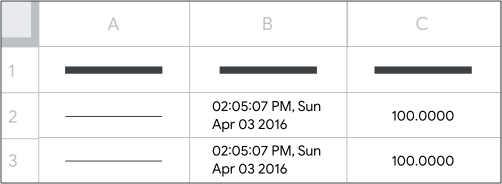 **Figure 4.** Update cells to have custom datetime and number formats in a sheet.
The request protocol is shown below.
```
POST https://sheets.googleapis.com/v4/spreadsheets/SPREADSHEET_ID:batchUpdate
```
```
{
"requests": [
{
"https://developers.google.com/workspace/sheets/api/reference/rest/v4/spreadsheets/request#repeatcellrequest": {
"https://developers.google.com/workspace/sheets/api/reference/rest/v4/spreadsheets#gridrange": {
"sheetId": SHEET_ID,
"startRowIndex": 0,
"endRowIndex": 10,
"startColumnIndex": 0,
"endColumnIndex": 1
},
"https://developers.google.com/workspace/sheets/api/reference/rest/v4/spreadsheets#cellformat": {
"https://developers.google.com/workspace/sheets/api/reference/rest/v4/spreadsheets#cellformat": {
"https://developers.google.com/workspace/sheets/api/reference/rest/v4/spreadsheets#numberformat": {
"https://developers.google.com/workspace/sheets/api/reference/rest/v4/spreadsheets#numberformattype": "DATE",
"pattern": "hh:mm:ss am/pm, ddd mmm dd yyyy"
}
}
},
"fields": "userEnteredFormat.numberFormat"
}
},
{
"https://developers.google.com/workspace/sheets/api/reference/rest/v4/spreadsheets/request#repeatcellrequest": {
"https://developers.google.com/workspace/sheets/api/reference/rest/v4/spreadsheets#gridrange": {
"sheetId": SHEET_ID,
"startRowIndex": 0,
"endRowIndex": 10,
"startColumnIndex": 1,
"endColumnIndex": 2
},
"https://developers.google.com/workspace/sheets/api/reference/rest/v4/spreadsheets#cellformat": {
"https://developers.google.com/workspace/sheets/api/reference/rest/v4/spreadsheets#cellformat": {
"https://developers.google.com/workspace/sheets/api/reference/rest/v4/spreadsheets#numberformat": {
"https://developers.google.com/workspace/sheets/api/reference/rest/v4/spreadsheets#numberformattype": "NUMBER",
"pattern": "#,##0.0000"
}
}
},
"fields": "userEnteredFormat.numberFormat"
}
}
]
}
```