The steps described on this page explain how to quickly create a simple iOS
application that makes requests to the YouTube Data API. This sample shows how to
retrieve data about the **GoogleDevelopers** YouTube channel. The code also
includes comments that explain how to modify the query to retrieve data about
the current user's YouTube channel.
> [!NOTE]
> **Note:** The application does not conform with Apple's [iOS Human Interface Guidelines](http://developer.apple.com/library/ios/#DOCUMENTATION/UserExperience/Conceptual/MobileHIG/Introduction/Introduction.html). It is intended only to illustrate the basic concepts and steps needed to begin working with the YouTube Data API.
## Prerequisites
To run this quickstart, you'll need:
- [Xcode](https://developer.apple.com/xcode/) 8.0 or greater.
- [CocoaPods](http://cocoapods.org/) dependency manager.
- Access to the internet and a web browser.
- A Google account.
## Step 1: Turn on the YouTube Data API
1. Use
[this wizard](https://console.developers.google.com/start/api?id=youtube)
to create or select a project in the Google Developers Console and
automatically turn on the API. Click **Continue** , then
**Go to credentials**.
2. On the **Create credentials** page, click the
**Cancel** button.
3. At the top of the page, select the **OAuth consent screen** tab.
Select an **Email address** , enter a **Product name** if not
already set, and click the **Save** button.
4. Select the **Credentials** tab, click the **Create credentials**
button and select **OAuth client ID**.
5. Select the application type **iOS** , enter the name "YouTube Data API Quickstart", bundle ID `com.example.QuickstartApp`, and click the **Create** button.
## Step 2: Prepare the workspace
> [!NOTE]
> **Note:** All of the examples are based on the name `com.example.QuickstartApp`. If you named your app something other than that, like `com.example.QuickstartYTApp`, change the string `QuickstartApp` to match your app name.
1. Open Xcode and create a new project:
1. Click **File \> New \> Project** , select the **iOS \> Application \> Single View Application** template, and click **Next**.
2. Set the **Product Name** to "QuickstartApp", **Organization Identifier** to "com.example", and **Language** to **Objective-C** . Below the organization identifer, you should see a generated **Bundle Identifier** that matches the **iOS Bundle ID** (`com.example.QuickstartApp`) that you entered in [step 1.b](https://developers.google.com/youtube/data/quickstart/ios.md.txt#step-1-turn-on-the-youtube-data-api).
3. Click **Next**.
4. Select a destination directory for the project and click **Create**.
2. Close the project by clicking **File \> Close Project**.
3. Open a Terminal window and navigate to the directory that contains the `QuickstartApp.xcodeproj` file you just created.
4. Run the following commands to create the Podfile, install the library, and
open the resulting XCode project:
cat << EOF > Podfile &&
platform :ios, '8.0'
target 'QuickstartApp' do
pod 'GoogleAPIClientForREST/YouTube', '~> 1.2.1'
pod 'Google/SignIn', '~> 3.0.3'
end
EOF
pod install &&
open QuickstartApp.xcworkspace
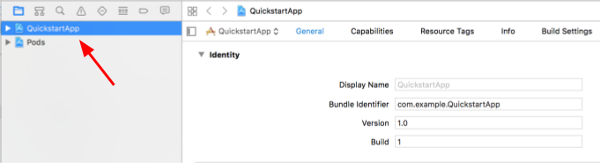
5. In the XCode Project Navigator select the project node "QuickstartApp".
Then click the menu item **File \> Add files to "QuickstartApp"**.
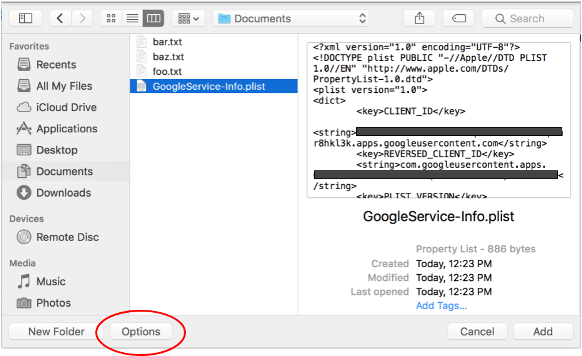
6. Locate the `GoogleService-Info.plist` file downloaded earlier and select it.
Click the **Options** button.
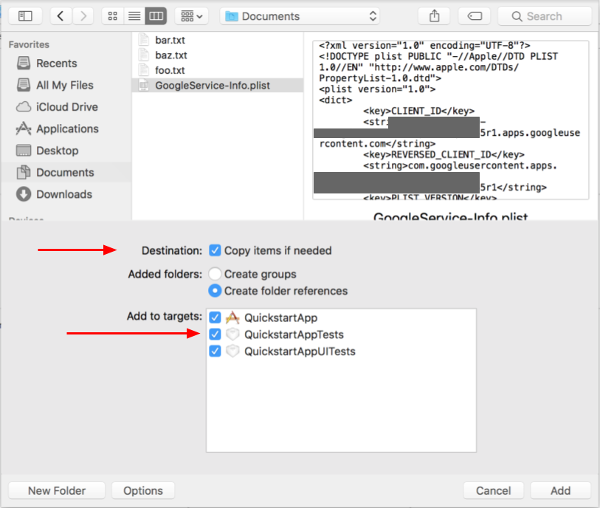
7. Make the following selections in the options window and then click the
**Add** button:
1. Check the **Copy items if needed** checkbox.
2. Check all targets listed in the **Add to targets** section.
8. With the project node still selected, select "QuickstartApp" in the
**TARGETS** section as shown in the two images below:
1. Click the area shown in this screenshot:
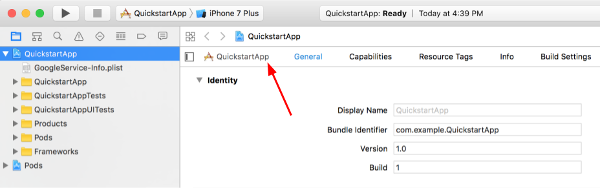
2. Then select the proper target:
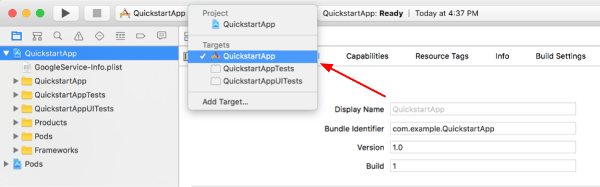
9. Select the **Info** tab, and expand the **URL Types** section.
10. Click the **+** button, and add a **URL scheme** for your reversed client
ID. To find this value, open the `GoogleService-Info.plist` configuration
file that you selected in step 2.f. Look for the **REVERSED_CLIENT_ID**
key. Copy the value of that key, and paste it into the **URL Schemes**
box on the configuration page. Leave the other fields blank.
11. Rebuild the project:
1. Click **Product \> Clean Build Folder** (while holding the **option** key).
2. Click **Product \> Build**.
## Step 3: Set up the sample
Replace the contents of the following files with the code provided:
AppDelegate.h
```
#import
@import GoogleSignIn;
@interface AppDelegate : UIResponder
@property (strong, nonatomic) UIWindow *window;
@end
```
AppDelegate.m
```
#import "AppDelegate.h"
@implementation AppDelegate
- (BOOL)application:(UIApplication *)application
didFinishLaunchingWithOptions:(NSDictionary *)launchOptions {
// Initialize Google sign-in.
[GIDSignIn sharedInstance].clientID = @"";
return YES;
}
- (BOOL)application:(UIApplication *)application
openURL:(NSURL *)url
sourceApplication:(NSString *)sourceApplication
annotation:(id)annotation {
return [[GIDSignIn sharedInstance] handleURL:url
sourceApplication:sourceApplication
annotation:annotation];
}
@end
```
ViewController.h
```
#import
@import GoogleSignIn;
#import
@interface ViewController : UIViewController
@property (nonatomic, strong) IBOutlet GIDSignInButton *signInButton;
@property (nonatomic, strong) UITextView *output;
@property (nonatomic, strong) GTLRYouTubeService *service;
@end
```
ViewController.m
```
#import "ViewController.h"
@implementation ViewController
- (void)viewDidLoad {
[super viewDidLoad];
// Configure Google Sign-in.
GIDSignIn* signIn = [GIDSignIn sharedInstance];
signIn.delegate = self;
signIn.uiDelegate = self;
signIn.scopes = [NSArray arrayWithObjects:kGTLRAuthScopeYouTubeReadonly, nil];
[signIn signInSilently];
// Add the sign-in button.
self.signInButton = [[GIDSignInButton alloc] init];
[self.view addSubview:self.signInButton];
// Create a UITextView to display output.
self.output = [[UITextView alloc] initWithFrame:self.view.bounds];
self.output.editable = false;
self.output.contentInset = UIEdgeInsetsMake(20.0, 0.0, 20.0, 0.0);
self.output.autoresizingMask = UIViewAutoresizingFlexibleHeight | UIViewAutoresizingFlexibleWidth;
self.output.hidden = true;
[self.view addSubview:self.output];
// Initialize the service object.
self.service = [[GTLRYouTubeService alloc] init];
}
- (void)signIn:(GIDSignIn *)signIn
didSignInForUser:(GIDGoogleUser *)user
withError:(NSError *)error {
if (error != nil) {
[self showAlert:@"Authentication Error" message:error.localizedDescription];
self.service.authorizer = nil;
} else {
self.signInButton.hidden = true;
self.output.hidden = false;
self.service.authorizer = user.authentication.fetcherAuthorizer;
[self fetchChannelResource];
}
}
// Construct a query and retrieve the channel resource for the GoogleDevelopers
// YouTube channel. Display the channel title, description, and view count.
- (void)fetchChannelResource {
GTLRYouTubeQuery_ChannelsList *query =
[GTLRYouTubeQuery_ChannelsList queryWithPart:@"snippet,statistics"];
query.identifier = @"UC_x5XG1OV2P6uZZ5FSM9Ttw";
// To retrieve data for the current user's channel, comment out the previous
// line (query.identifier ...) and uncomment the next line (query.mine ...).
// query.mine = true;
[self.service executeQuery:query
delegate:self
didFinishSelector:@selector(displayResultWithTicket:finishedWithObject:error:)];
}
// Process the response and display output
- (void)displayResultWithTicket:(GTLRServiceTicket *)ticket
finishedWithObject:(GTLRYouTube_ChannelListResponse *)channels
error:(NSError *)error {
if (error == nil) {
NSMutableString *output = [[NSMutableString alloc] init];
if (channels.items.count > 0) {
[output appendString:@"Channel information:\n"];
for (GTLRYouTube_Channel *channel in channels) {
NSString *title = channel.snippet.title;
NSString *description = channel.snippet.description;
NSNumber *viewCount = channel.statistics.viewCount;
[output appendFormat:@"Title: %@\nDescription: %@\nViewCount: %@\n", title, description, viewCount];
}
} else {
[output appendString:@"Channel not found."];
}
self.output.text = output;
} else {
[self showAlert:@"Error" message:error.localizedDescription];
}
}
// Helper for showing an alert
- (void)showAlert:(NSString *)title message:(NSString *)message {
UIAlertController *alert =
[UIAlertController alertControllerWithTitle:title
message:message
preferredStyle:UIAlertControllerStyleAlert];
UIAlertAction *ok =
[UIAlertAction actionWithTitle:@"OK"
style:UIAlertActionStyleDefault
handler:^(UIAlertAction * action)
{
[alert dismissViewControllerAnimated:YES completion:nil];
}];
[alert addAction:ok];
[self presentViewController:alert animated:YES completion:nil];
}
@end
```
## Step 4: Run the sample
Switch to the **QuickstartApp** scheme by clicking
**Product \> Scheme \> QuickstartApp** and run the sample (Cmd+R) using the
device simulator or a configured device. The first time you run the sample, it
will prompt you to log in to your Google account and authorize access.
> [!TIP]
> **Great!** Check out the further reading section below to learn more.
> [!WARNING]
> **Bummer.** Thanks for letting us know and we'll work to fix this quickstart.
## Notes
- Authorization information is stored in your Keychain, so subsequent executions will not prompt for authorization.
## Further reading
- [Google Developers Console help documentation](https://developers.google.com/console/help/new)
- [Google APIs Client for iOS documentation](https://github.com/google/google-api-objectivec-client/wiki)
- [YouTube Data API reference documentation](https://developers.google.com/youtube/data/reference/rest.md.txt)