
Google Drive API 支持多种防止文件修改的方式,包括内容限制以及禁止下载、打印或复制文件的选项。
使用云端硬盘内容限制将文件设为只读
您可以向 Google 云端硬盘文件添加内容限制,以防止用户执行以下操作:
- 修改标题
- 修改内容
- 上传修订版本
- 添加或修改评论
内容限制不是访问权限限制。虽然用户无法修改文件的内容,但仍可以执行其他操作,具体取决于其访问权限级别。 例如,拥有编辑权限的用户仍然可以移动文件或更改其共享设置。
如需在云端硬盘中添加或移除文件的内容限制,用户
必须拥有关联的 permissions。对于“我的云端硬盘”或共享云端硬盘中具有
capabilities.canModifyEditorContentRestriction 的文件或文件夹,您必须被分配 role=writer。对于“我的云端硬盘”或共享云端硬盘中具有
ownerRestricted 内容限制的文件或文件夹,您必须拥有该文件或具有 role=organizer。如需查看具有内容限制的文件,用户必须具有
role=reader 或更高级别的权限。如需查看完整的角色列表,请参阅角色和
权限。如需更新文件的权限,请参阅
更新权限。
您可以使用 contentRestrictions.readOnly 布尔值字段来设置内容
限制。files请注意,对文件设置内容限制会覆盖现有内容限制。
内容限制的使用场景
对云端硬盘文件设置内容限制会向用户表明,文件内容不应更改。这可能是出于以下一些原因:
- 在审核或审计期间暂停协作文档的工作。
- 将文件设置为最终状态,例如“已批准”。
- 在敏感会议期间防止更改。
- 禁止自动系统处理的工作流进行外部更改。
- 限制 Google Apps 脚本和 Google Workspace 插件的修改。
- 避免意外修改文档。
不过请注意,虽然内容限制有助于管理内容,但其目的并不是阻止拥有足够权限的用户继续处理文件。此外,它也不是创建不可变记录的方式。 云端硬盘内容限制是可变的,因此对文件设置内容限制并不能保证文件永远不会更改。
管理具有内容限制的文件
Google 文档、Google 表格和 Google 幻灯片以及所有其他文件都可以包含内容限制。
对文件设置内容限制会阻止更改其标题和内容,包括:
- 评论和建议(针对文档、表格、幻灯片和二进制文件)
- 二进制文件的修订版本
- 文档中的文本和格式
- 表格中的文本或公式、表格布局和表格中的实例
- 幻灯片中的所有内容,以及幻灯片的顺序和数量
某些文件类型不能包含内容限制。下面是几个例子:
- Google 表单
- Google 协作平台
- Google 绘图
- 快捷方式和第三方快捷方式。如需了解详情,请参阅创建指向应用存储的内容的快捷方式文件和创建指向云端硬盘文件的快捷方式。
添加内容限制
如需添加文件内容限制,请使用
files.update方法,并将
contentRestrictions.readOnly字段设置为true。添加可选的 reason,说明您添加限制的原因,例如“最终合同”。 以下代码示例展示了如何添加内容限制:
Java
File updatedFile =
  new File()
      .setContentRestrictions(
          ImmutableList.of(new ContentRestriction().setReadOnly(true).setReason("Finalized contract."));

File response = driveService.files().update("FILE_ID", updatedFile).setFields("contentRestrictions").execute();
Python
content_restriction = {'readOnly': True, 'reason':'Finalized contract.'}

response = drive_service.files().update(fileId="FILE_ID", body = {'contentRestrictions' : [content_restriction]}, fields = "contentRestrictions").execute();
Node.js
/**
* Set a content restriction on a file.
* @return{obj} updated file
**/
async function addContentRestriction() {
  // Get credentials and build service
  // TODO (developer) - Use appropriate auth mechanism for your app

  const {GoogleAuth} = require('google-auth-library');
  const {google} = require('googleapis');

  const auth = new GoogleAuth({scopes: 'https://www.googleapis.com/auth/drive'});
  const service = google.drive({version: 'v3', auth});
  const contentRestriction = {
    'readOnly': True,
    'reason': 'Finalized contract.',
  };
  const updatedFile = {
    'contentRestrictions': [contentRestriction],
  };
  try {
    const response = await service.files.update({
      fileId: 'FILE_ID',
      resource: updatedFile,
      fields: 'contentRestrictions',
    });
    return response;
  } catch (err) {
    // TODO (developer) - Handle error
    throw err;
  }
}
将 FILE_ID 替换为您要修改的文件的 fileId。
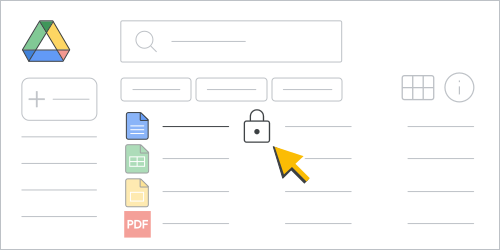
运行示例代码后,文件会受到内容限制,并且在 Google 云端硬盘界面 (UI)中的文件名旁边会显示一个锁形符号 ()。该文件现在是只读的。
移除内容限制
如需移除文件内容限制,请使用 files.update 方法,并将 contentRestrictions.readOnly 字段设置为
false。以下代码示例展示了如何移除内容限制:
Java
File updatedFile =
new File()
    .setContentRestrictions(
        ImmutableList.of(new ContentRestriction().setReadOnly(false));

File response = driveService.files().update("FILE_ID", updatedFile).setFields("contentRestrictions").execute();
Python
content_restriction = {'readOnly': False}

response = drive_service.files().update(fileId="FILE_ID", body = {'contentRestrictions' : [content_restriction]}, fields = "contentRestrictions").execute();
Node.js
/**
* Remove a content restriction on a file.
* @return{obj} updated file
**/
async function removeContentRestriction() {
  // Get credentials and build service
  // TODO (developer) - Use appropriate auth mechanism for your app

  const {GoogleAuth} = require('google-auth-library');
  const {google} = require('googleapis');

  const auth = new GoogleAuth({scopes: 'https://www.googleapis.com/auth/drive'});
  const service = google.drive({version: 'v3', auth});
  const contentRestriction = {
    'readOnly': False,
  };
  const updatedFile = {
    'contentRestrictions': [contentRestriction],
  };
  try {
    const response = await service.files.update({
      fileId: 'FILE_ID',
      resource: updatedFile,
      fields: 'contentRestrictions',
    });
    return response;
  } catch (err) {
    // TODO (developer) - Handle error
    throw err;
  }
}
将 FILE_ID 替换为您要修改的文件的 fileId。
运行示例代码后,文件不再受到内容限制。
您还可以使用云端硬盘界面移除内容限制并允许编辑内容(前提是您拥有正确的权限)。您可以通过以下两种方式执行此操作:
在云端硬盘中,右键点击具有内容限制的文件,然后 点击 解锁 。
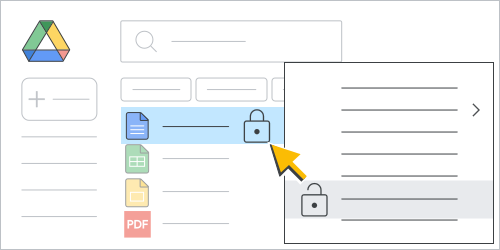
图 2.在云端硬盘文件列表中移除文件内容限制。 打开具有内容限制的文件,然后依次点击(锁定模式) > 解锁文件。
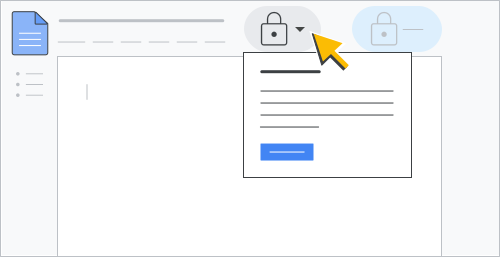
图 3.在文档中移除文件内容限制。
检查是否存在内容限制
如需检查是否存在内容限制,请使用
files.get 方法,并返回
contentRestrictions 字段。以下代码示例展示了如何检查内容限制的状态:
Java
File response = driveService.files().get("FILE_ID").setFields("contentRestrictions").execute();
Python
response = drive_service.files().get(fileId="FILE_ID", fields = "contentRestrictions").execute();
Node.js
/**
* Get content restrictions on a file.
* @return{obj} updated file
**/
async function fetchContentRestrictions() {
  // Get credentials and build service
  // TODO (developer) - Use appropriate auth mechanism for your app

  const {GoogleAuth} = require('google-auth-library');
  const {google} = require('googleapis');

  const auth = new GoogleAuth({scopes: 'https://www.googleapis.com/auth/drive'});
  const service = google.drive({version: 'v3', auth});
  try {
    const response = await service.files.get({
      fileId: 'FILE_ID',
      fields: 'contentRestrictions',
    });
    return response;
  } catch (err) {
    // TODO (developer) - Handle error
    throw err;
  }
}
将 FILE_ID 替换为您要
检查的文件的 fileId。
运行示例代码后,如果存在内容限制,该方法会返回 ContentRestriction 资源。
添加只有文件所有者可以修改的内容限制
如需添加文件内容限制,以便只有文件所有者可以切换机制,
请使用 files.update 方法,并将
contentRestrictions.ownerRestricted 布尔值字段设置为 true。以下代码示例展示了如何添加仅适用于文件所有者的内容限制:
Java
File updatedFile =
  new File()
      .setContentRestrictions(
          ImmutableList.of(new ContentRestriction().setReadOnly(true).setOwnerRestricted(true).setReason("Finalized contract."));

File response = driveService.files().update("FILE_ID", updatedFile).setFields("contentRestrictions").execute();
Python
content_restriction = {'readOnly': True, 'ownerRestricted': True, 'reason':'Finalized contract.'}

response = drive_service.files().update(fileId="FILE_ID", body = {'contentRestrictions' : [content_restriction]}, fields = "contentRestrictions").execute();
Node.js
/**
* Set an owner restricted content restriction on a file.
* @return{obj} updated file
**/
async function addOwnerRestrictedContentRestriction() {
  // Get credentials and build service
  // TODO (developer) - Use appropriate auth mechanism for your app

  const {GoogleAuth} = require('google-auth-library');
  const {google} = require('googleapis');

  const auth = new GoogleAuth({scopes: 'https://www.googleapis.com/auth/drive'});
  const service = google.drive({version: 'v3', auth});
  const contentRestriction = {
    'readOnly': True,
    'ownerRestricted': True,
    'reason': 'Finalized contract.',
  };
  const updatedFile = {
    'contentRestrictions': [contentRestriction],
  };
  try {
    const response = await service.files.update({
      fileId: 'FILE_ID',
      resource: updatedFile,
      fields: 'contentRestrictions',
    });
    return response;
  } catch (err) {
    // TODO (developer) - Handle error
    throw err;
  }
}
将 FILE_ID 替换为您要修改的文件的 fileId。
运行示例代码后,文件会受到内容限制,并且只有文件所有者可以移除该限制。如果您是文件所有者,则在 云端硬盘界面 (UI)中的文件名旁边会显示一个活动的锁形符号 ()。如果您不是所有者,则锁形符号会变暗。
如需移除 ownerRestricted 标志,请使用 files.update 方法,并将
contentRestrictions.ownerRestricted 字段设置为 false。
内容限制功能
A files 资源包含一组布尔值
capabilities 字段,用于指明是否可以对
文件执行操作。
内容限制包含以下 capabilities:
capabilities.canModifyEditorContentRestriction:当前用户 是否可以添加或修改内容限制。capabilities.canModifyOwnerContentRestriction:当前用户 是否可以添加或修改所有者内容限制。capabilities.canRemoveContentRestriction:当前用户是否可以 移除已应用的内容限制(如果存在)。
如需了解详情,请参阅了解文件 功能。
如需查看检索文件 capabilities 的示例,请参阅 获取文件功能。
禁止用户下载、打印或复制您的文件
您可以限制用户在云端硬盘、文档、表格和幻灯片中下载、打印和复制文件的方式。
如需确定用户是否可以更改所有者或组织者应用的文件下载
限制,请检查
capabilities.canChangeItemDownloadRestriction 布尔值字段。如果
capabilities.canChangeItemDownloadRestriction 设置为 true,则可以对文件应用下载限制。如需了解详情,请参阅了解
文件功能。
如需对文件应用下载限制,请使用
files.update方法设置downloadRestrictions字段。您可以使用
DownloadRestrictionsMetadata
对象设置该字段。
DownloadRestrictionsMetadata 对象有两个字段:itemDownloadRestriction 和
effectiveDownloadRestrictionWithContext。这两个字段都是可读的,但只能设置
itemDownloadRestriction。The
itemDownloadRestriction 字段会返回 DownloadRestriction 对象。DownloadRestriction 对象有两个单独的布尔值字段:restrictedForReaders
和 restrictedForWriters。
设置 itemDownloadRestriction 字段时,文件下载限制由所有者或组织者直接应用。它不考虑共享云端硬盘设置或数据泄露防护 (DLP) 规则。如需了解详情,
请参阅关于 DLP。
如果您通过将 restrictedForWriters 字段设置为 true 来更新 itemDownloadRestriction 字段,则表示
restrictedForReaders 为 true。同样,将 restrictedForWriters 设置为 true 并将
restrictedForReaders 设置为 false 等同于将 restrictedForWriters 和 restrictedForReaders
都设置为 true。
对于 effectiveDownloadRestrictionWithContext 字段,下载限制会应用于文件,并且会考虑所有限制设置和 DLP
规则。
effectiveDownloadRestrictionWithContext 字段可以设置为 restrictedForWriters 或
restrictedForReaders。如果文件设置、共享云端硬盘设置或 DLP 规则(包括具有上下文的规则)中存在针对相应角色的任何下载或复制限制设置,则该值设置为
true,否则为 false。
向后兼容性
我们建议您使用
DownloadRestriction对象来
强制执行用户下载、打印和复制文件的方式。
如果您想使用
copyRequiresWriterPermission
布尔值字段,则读取和写入
该字段的功能是不同的。
检索到的 copyRequiresWriterPermission 字段值反映了具有 role=commenter 或 role=reader
权限的用户是否可以在云端硬盘中下载、打印或复制文件。该字段值反映了文件设置、共享云端硬盘设置或 DLP 规则的组合。不过,不包括 DLP
规则的上下文评估。
将 copyRequiresWriterPermission 字段设置为 false 会将 restrictedForWriters 和
restrictedForReaders 字段都更新为 false。这意味着系统会移除所有用户的下载或复制限制设置。
控制下载、打印和复制功能的字段
下表列出了 files 资源字段
,这些字段会影响下载、打印和复制功能:
| 字段 | 说明 | 版本 |
|---|---|---|
capabilities.canCopy |
当前用户是否可以复制文件。 | v2 和 v3 |
capabilities.canDownload |
当前用户是否可以下载文件。 | v2 和 v3 |
capabilities.canChangeCopyRequiresWriterPermission |
当前用户是否可以更改文件的 copyRequiresWriterPermission 限制。 |
v2 和 v3 |
capabilities.canChangeItemDownloadRestriction |
当前用户是否可以更改文件的下载限制。 | 仅限 v3 |
copyRequiresWriterPermission |
是否应为读者和评论者停用复制、打印或下载此文件的选项。 | v2 和 v3 |
downloadRestrictions |
应用于文件的下载限制。 | 仅限 v3 |