WebView API สำหรับโฆษณาช่วยให้สร้างรายได้จากโฆษณาในแอปได้โดยใช้ WebViewController
หากคุณแสดงเนื้อหาเว็บที่ใช้โฆษณาที่มีโค้ด AdSense หรือแท็กผู้เผยแพร่โฆษณาผ่าน Google ในแอปผ่าน WebViewController คุณควรใช้ API นี้เพื่อเปิดใช้การสร้างรายได้จากโฆษณา ดูข้อมูลเพิ่มเติมได้ที่นโยบายของ AdSense และ Ad Manager

- สร้างรายได้ด้วยการส่งคำขอโฆษณาด้วย Google Mobile Ads Flutter Plugin
คุณสามารถสร้างรายได้จากแอปโดยส่งคำขอโฆษณาไปยัง Ad Manager ด้วย Google Mobile Ads Flutter Plugin โดยใช้รูปแบบโฆษณาสำหรับแอปบนมือถือ
- สร้างรายได้โดยใช้ WebView API สำหรับโฆษณา
หากแอปของคุณใช้
WebViewControllerเพื่อแสดงเนื้อหาเว็บที่แสดงโฆษณาจาก Ad Manager หรือ AdSense ให้ใช้ WebView API สำหรับโฆษณาเพื่อลงทะเบียนออบเจ็กต์WebViewControllerกับ Google Mobile Ads Flutter Plugin JavaScript ในโค้ด AdSense หรือแท็กผู้เผยแพร่โฆษณาผ่าน Google จะสร้างและส่งคำขอโฆษณา คุณจึงไม่ต้องส่งคำขอโฆษณาด้วย SDK โปรดทราบว่ารูปแบบพื้นที่โฆษณาที่ใช้ API นี้ได้มีเพียงเว็บบนมือถือและเว็บบนเดสก์ท็อปเท่านั้นหากคุณไม่ได้เป็นเจ้าของเนื้อหาเว็บใน
WebViewControllerเราขอแนะนำให้ใช้ API นี้เพื่อช่วยปกป้องผู้ลงโฆษณาจากสแปมและปรับปรุงการสร้างรายได้สำหรับผู้เผยแพร่เนื้อหาเว็บที่ให้เนื้อหา
โปรดทราบว่าคุณจะเลือกตัวเลือกใดตัวเลือกหนึ่งหรือทั้ง 2 ตัวเลือกในแอปเดียวกันก็ได้
คู่มือนี้มีไว้เพื่อช่วยคุณผสานรวม WebView API สำหรับโฆษณาลงในแอป iOS
ก่อนเริ่มต้น
ก่อนเริ่มใช้ WebView API สำหรับโฆษณา โปรดทำดังนี้
- ใช้ปลั๊กอิน Google Mobile Ads Flutter Plugin สำหรับ Flutter เวอร์ชัน 3.0.0 ขึ้นไปในแอป
- เพิ่ม
webview_flutterเป็นทรัพยากร Dependency ในไฟล์pubspec.yaml - เพิ่ม
webview_flutter_androidเวอร์ชัน 3.7.0 ขึ้นไปในแอป
ข้ามการตรวจสอบตัวระบุแอปพลิเคชัน
Android
เพิ่มแท็ก <meta-data> ต่อไปนี้ในไฟล์ AndroidManifest.xml เพื่อข้ามการตรวจสอบ APPLICATION_ID หากคุณพลาดขั้นตอนนี้ Google Mobile Ads Flutter Plugin อาจแสดง IllegalStateException เมื่อแอปเริ่มทำงาน
<!-- Bypass APPLICATION_ID check for WebView API for Ads -->
<meta-data
    android:name="com.google.android.gms.ads.INTEGRATION_MANAGER"
    android:value="webview"/>
iOS
อัปเดตไฟล์ Runner/Info.plist ด้วยคีย์และค่าสตริงด้านล่างเพื่อข้ามการตรวจสอบ GADApplicationIdentifier หากคุณพลาดขั้นตอนนี้
Google Mobile Ads Flutter Plugin อาจแสดง GADInvalidInitializationException
เมื่อเริ่มแอป
<!-- Bypass GADApplicationIdentifier check for WebView API for Ads -->
<key>GADIntegrationManager</key>
<string>webview</string>
ลงทะเบียน WebViewController
หากต้องการปรับปรุงการสร้างรายได้จากโฆษณาในแอปภายใน WebViewController ที่ใช้โค้ด AdSense หรือแท็กผู้เผยแพร่โฆษณาผ่าน Google ให้ทำตามขั้นตอนที่ระบุไว้ด้านล่าง
เปิดใช้ JavaScript ใน
WebViewControllerหากไม่ดำเนินการดังกล่าว อาจทำให้โฆษณาไม่โหลดหากต้องการปรับปรุงประสบการณ์การใช้งานโฆษณาของผู้ใช้และสอดคล้องกับนโยบายคุกกี้ของ Chrome ให้เปิดใช้คุกกี้ของบุคคลที่สามในอินสแตนซ์
AndroidWebViewControllerลงทะเบียนอินสแตนซ์
WebViewControllerโดยเรียกใช้เมธอดregisterWebView()ที่ Google Mobile Ads Flutter Plugin มีให้
import 'package:google_mobile_ads/google_mobile_ads.dart';
import 'package:webview_flutter/webview_flutter.dart';
import 'package:webview_flutter_android/webview_flutter_android.dart';

@override
class WebViewExampleState extends State<WebViewExample> {
  late final WebViewController controller;

  @override
  void initState() {
    super.initState();

    createWebView();
  }

  void createWebView() async {
    controller = WebViewController();
    // 1. Enable JavaScript in the web view.
    await controller.setJavaScriptMode(JavaScriptMode.unrestricted);

    // 2. Enable third-party cookies for Android.
    if (controller.platform is AndroidWebViewController) {
      AndroidWebViewCookieManager cookieManager = AndroidWebViewCookieManager(
        const PlatformWebViewCookieManagerCreationParams());
      await cookieManager.setAcceptThirdPartyCookies(
        controller.platform as AndroidWebViewController, true);
    }

    // 3. Register the web view.
    await MobileAds.instance.registerWebView(controller);
  }
}
โหลด URL
ตอนนี้คุณสามารถโหลด URL และแสดงเนื้อหาเว็บผ่าน WebViewController ได้แล้ว
เราขอแนะนำให้คุณโหลด URL ทดสอบนี้ https://google.github.io/webview-ads/test/ เพื่อทดสอบการผสานรวมก่อนใช้ URL ของคุณเอง หน้าเว็บจะแสดงข้อผิดพลาดหากไม่ได้เปิดใช้ JavaScript
import 'package:google_mobile_ads/google_mobile_ads.dart';
import 'package:webview_flutter/webview_flutter.dart';
import 'package:webview_flutter_android/webview_flutter_android.dart';

@override
class WebViewExampleState extends State<WebViewExample> {
  late final WebViewController controller;

  @override
  void initState() {
    super.initState();

    createWebView();
  }

  void createWebView() async {
    controller = WebViewController();
    // 1. Enable JavaScript in the web view.
    await controller.setJavaScriptMode(JavaScriptMode.unrestricted);

    // 2. Enable third-party cookies for Android.
    if (controller.platform is AndroidWebViewController) {
      AndroidWebViewCookieManager cookieManager = AndroidWebViewCookieManager(
        const PlatformWebViewCookieManagerCreationParams());
      await cookieManager.setAcceptThirdPartyCookies(
        controller.platform as AndroidWebViewController, true);
    }

    // 3. Register the web view.
    await MobileAds.instance.registerWebView(controller);

    // 4. Load the URL.
    await controller.loadRequest(Uri.parse('https://google.github.io/webview-ads/test/'));
  }
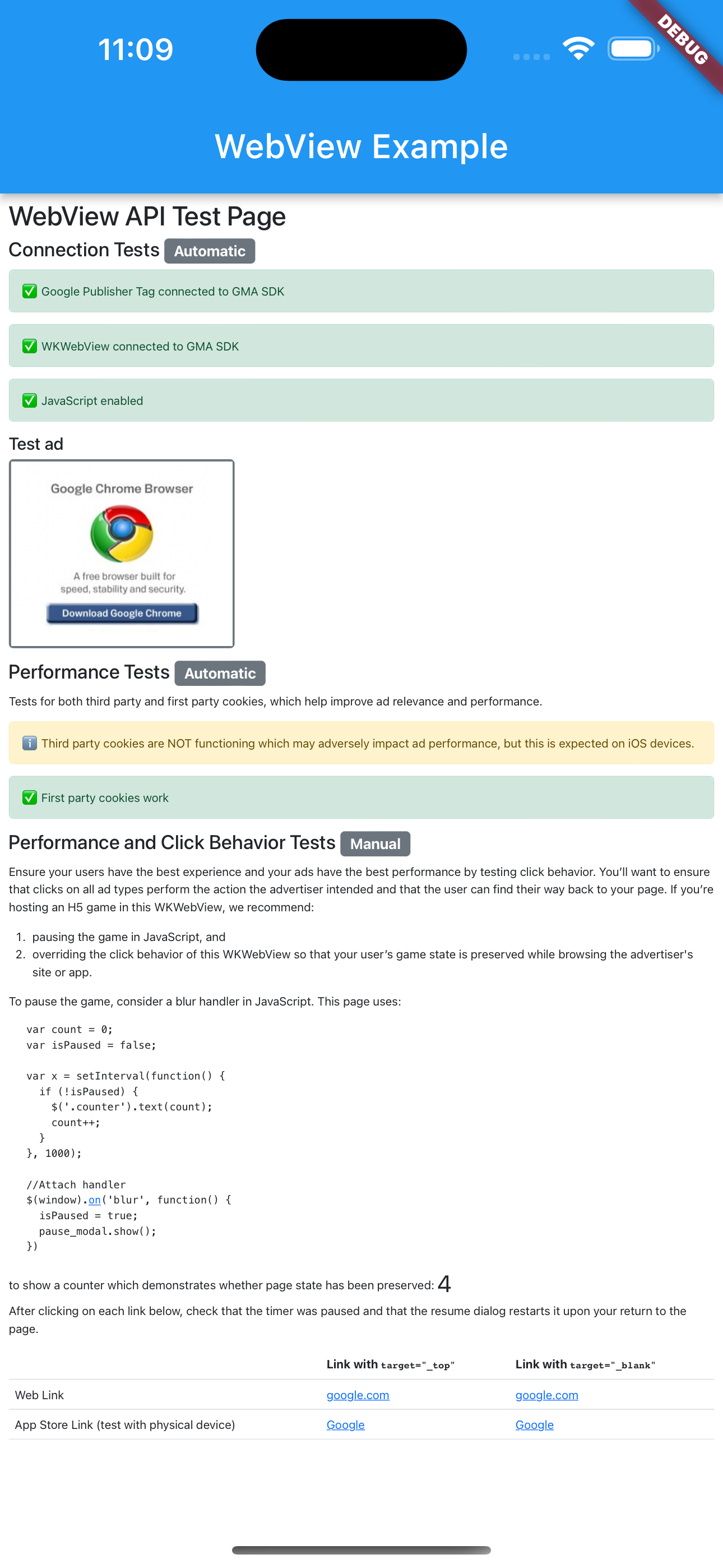
URL ทดสอบจะแสดงแถบสถานะสีเขียวสำหรับการผสานรวมที่สําเร็จหากเป็นไปตามเงื่อนไขต่อไปนี้
WebViewเชื่อมต่อกับ Google Mobile Ads Flutter Plugin แล้ว- เปิดใช้ JavaScript แล้ว
- คุกกี้ของบุคคลที่สามทำงาน (ไม่คาดว่าจะทำงานในอุปกรณ์ iOS)
- การทำงานของคุกกี้ของบุคคลที่หนึ่ง
ดูซอร์สโค้ดของ URL ทดสอบของเรา จากนั้นคุณจะแทนที่ URL ทดสอบด้วย URL ของคุณได้ นอกจากนี้ คุณยังใช้เครื่องมือพร็อกซี เช่น Charles เพื่อบันทึกการเข้าชม HTTPS ของแอปและตรวจสอบคำขอโฆษณาเพื่อหาพารามิเตอร์ &scar= ได้ด้วย