

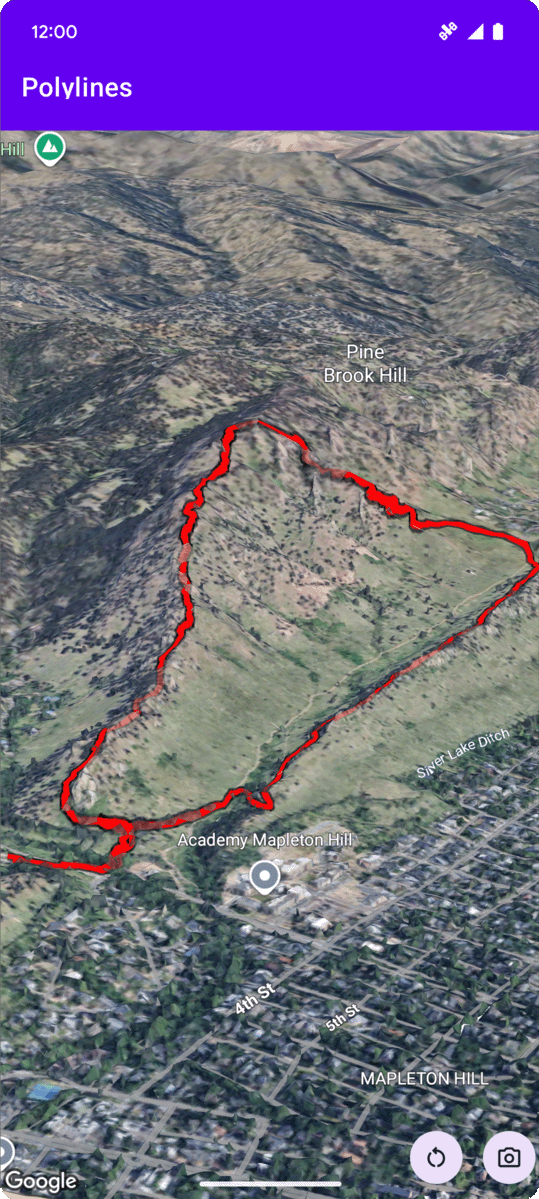
下列程式碼範例說明如何呼叫 addPolyline 方法,在 3D 空間中新增折線並放置。如要使用這個程式碼範例,請按照「設定」和「在應用程式中加入 3D 地圖」中的操作說明,在 Android Studio 專案中設定基本 3D 地圖。接著,將下列程式碼新增至 MainActivity.kt 檔案:
// Add imports
import com.google.android.gms.maps3d.model.latLngAltitude

...

// Add to the onMap3DViewReady method, after the googleMap3D object has been initialized
googleMap3D.setCamera(
    camera {
        center = latLngAltitude {
            latitude = 40.029349
            longitude = -105.300354
            altitude = 1833.9
        }
        heading = 326.0
        tilt = 75.0
        range = 3757.0
    }
)
internal val trailLocations = """
    40.0201040, -105.2976640
    40.0201080, -105.2976450
    40.0201640, -105.2975120
    40.0202200, -105.2973740
    40.0202500, -105.2972760
    40.0202960, -105.2971410
    40.0203080, -105.2970990
    40.0203320, -105.2970070
    40.0203640, -105.2969400
    40.0203710, -105.2969250
    40.0203770, -105.2969220
    40.0203910, -105.2969130
    40.0203940, -105.2969120
    40.0204200, -105.2969130
    40.0204630, -105.2968910
    40.0205270, -105.2968280
    40.0206030, -105.2967570
    40.0206590, -105.2966100
    40.0206990, -105.2964870
""".trimIndent().split("\n").map {
    val (lat, lng) = it.split(",")
    latLngAltitude {
        latitude = lat.toDouble()
        longitude = lng.toDouble()
        altitude = 0.0  // The trail will be clamped to the ground
    }
}

val trailPolylineOptions = polylineOptions {
    coordinates = trailLocations
    strokeColor = Color.RED
    strokeWidth = 7.0
    altitudeMode = AltitudeMode.CLAMP_TO_GROUND
    zIndex = 5
    drawsOccludedSegments = true
}

googleMap3D.addPolyline(trailPolylineOptions)
監聽折線點擊事件
如要監聽折線上的點擊事件,請在折線物件上呼叫 setClickListener。以下範例說明如何在折線上設定點擊事件監聽器:
polyline.setClickListener {
    lifecycleScope.launch(Dispatchers.Main) {
        Toast.makeText(this@PolylinesActivity, "Hiking time!", Toast.LENGTH_SHORT).show()
    }
}
請注意,點擊處理常式不會在主 (或 UI) 執行緒上執行。如要變更 UI (例如顯示 Toast 訊息),請切換至 Main 執行緒。如果是 Kotlin,您可以使用 lifecycleScope.launch(Dispatchers.Main) 達成此效果。