
Google Apps Script is a cloud-based scripting environment included with Google Workspace as a core service. It is available to all users by default. Within a Google Workspace organization, users can build scripts ranging from spreadsheet macros to full integrations, such as Google Workspace add-ons.
Because Apps Script projects automatically create Google Cloud projects, administrators benefit from understanding the lifecycle and management of these projects. This guide explains how default Cloud projects work, how to audit and manage them, and how to establish formal governance for Apps Script projects in your organization.
Types of Google Cloud projects used by Apps Script
Every Apps Script project uses Google Cloud to manage authorization, advanced services, and other project settings. To configure and manage these settings, every Apps Script project has an associated Google Cloud project:
- Default Cloud projects: Apps Script creates a default Cloud project automatically when a user creates and runs a script project. Default Cloud projects work well for everyday or single-user scripts.
- Standard Cloud projects: Users can create and manage their own standard Cloud project for complex, commercial-grade, or published applications.
This guide focuses on governing the default Cloud projects that Apps Script creates automatically.
About default Cloud projects
Default Cloud projects created by Apps Script are hidden
by default. Most users cannot locate, view, or update them in the
Google Cloud console. Only administrators and domain users with the
resourcemanager.projects.list permission on the parenting Google Cloud
folder can view and configure default projects. To grant these permissions, see
Assign permissions for Google Cloud projects.
Each default Cloud project has an Identity and Access Management (IAM)
policy with a single entry. That entry is a Google service account that acts as
the owner of the project. This service account is always
appsdev-apps-dev-script-auth@system.gserviceaccount.com.
For Google Workspace organizations, default Cloud projects reside in the following folder path within the Resource Manager hierarchy:
Organization root > system-gsuite > apps-script
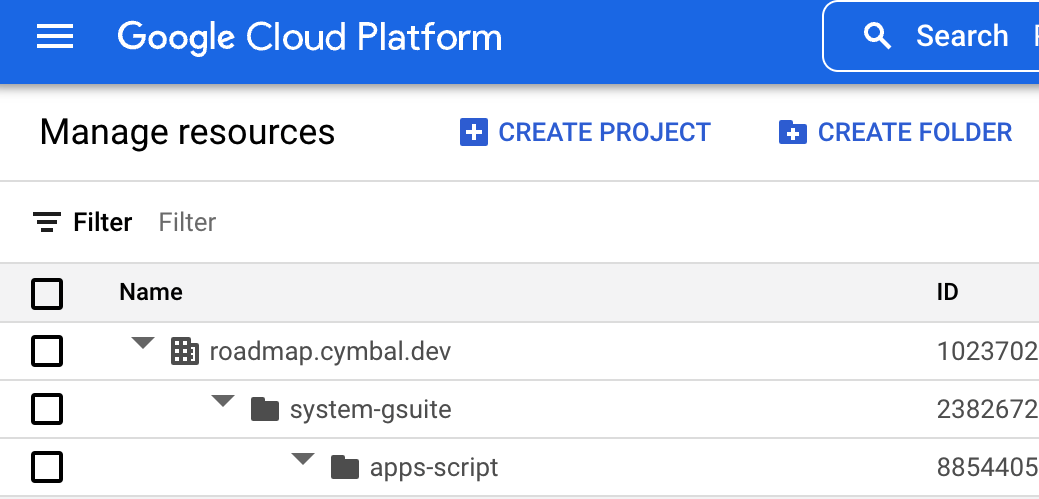
For non-Google Workspace accounts, default Cloud projects are unparented in the Resource Manager hierarchy. For more details about viewing these folders and projects in the Google Cloud console, see View or edit Google Cloud projects and Default Cloud projects.
Common sources of default Cloud projects
Standalone Apps Script projects create default Cloud projects automatically. However, most default Cloud projects in an organization originate from container-bound scripts. Bound scripts are attached to a Google Workspace file, such as a Google Sheets spreadsheet. Users access them by clicking Extensions > Apps Script. Bound scripts are commonly used for macros, reporting, and workflow automation.
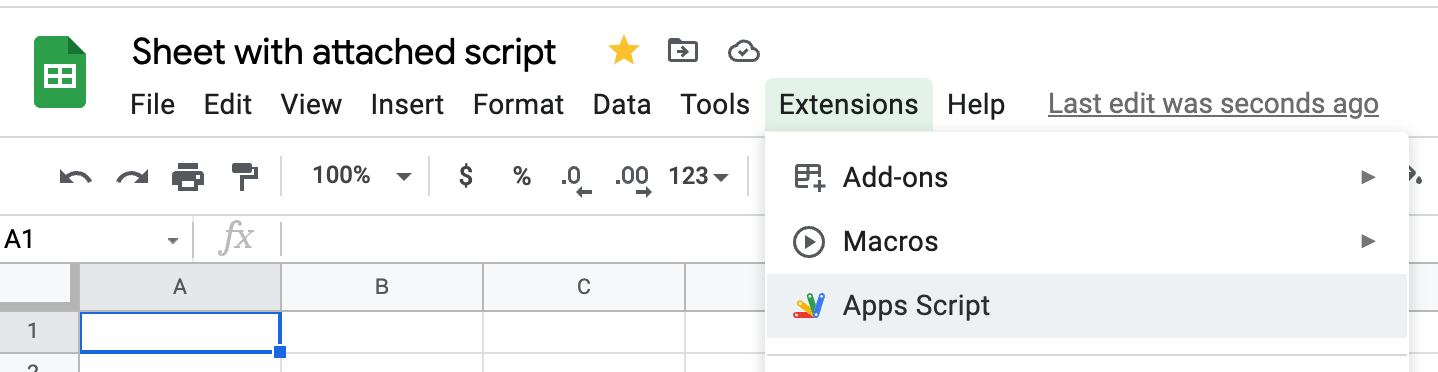
When someone in your organization develops a useful bound script, other users often make copies of that spreadsheet for their own tasks. For example, a user might share a script that generates a weekly status report. Each copy of the spreadsheet includes a copy of the bound script. When a user runs the script in their copy, Apps Script creates a new default Cloud project. As a result, the number of default Cloud projects can grow quickly to thousands of projects in large organizations. The default Cloud project is only created when the user first invokes the script.
Audit default Cloud projects
You can audit default Cloud projects across your organization using the
gcloud command-line tool, the Cloud Resource Manager API, the
Drive audit log, or an automated monitoring script.
List projects using the gcloud command-line tool
Default projects reside in the
Organization root > system-gsuite > apps-script folder hierarchy. You can use
the gcloud command-line tool to list all projects that have the apps-script
folder as their parent:
- In the Google Cloud console, go to IAM & Admin
> Manage Resources. Locate the folder
ID of the
apps-scriptfolder undersystem-gsuite. For step-by-step instructions, see View or edit default Cloud projects. Run the following command in Cloud Shell, replacing
FOLDER_IDwith yourapps-scriptfolder ID:gcloud projects list --filter='parent.id:FOLDER_ID'
The command output includes the NAME of each project. This name matches the
name of the associated Apps Script project unless someone renamed
the script after creation. Default project IDs begin with sys-.
List projects using the Cloud Resource Manager API
You can also query the Cloud Resource Manager API to
list all default Cloud projects in your organization. Filter your
query by projects located within the
Organization root > system-gsuite > apps-script parent folder. Alternatively,
filter by projects where the IAM policy owner is the service account
appsdev-apps-dev-script-auth@system.gserviceaccount.com.
List projects using the Drive audit log
Standalone Apps Script projects are stored as files in Google Drive. You can inspect project creation events in the Drive audit log in the Google Admin console. This log helps you identify who in your organization creates standalone Apps Script projects. For step-by-step filtering instructions, see View Apps Script audit logs.
Automate detection of new default projects
You can combine the Cloud Resource Manager API with the Reports API to review newly created default Cloud projects automatically. This approach correlates new projects with Drive file creation and OAuth token audit events that occurred within 30 seconds of project creation.
Running this check on an hourly schedule lets you notify administrators by email whenever a user triggers the creation of a new default Cloud project. The notification can include the following details:
- The email address of the user who triggered the event.
- The names and IDs of the associated files, such as a standalone script or a Sheets spreadsheet with a bound script.
- The OAuth client IDs and granted OAuth scopes.
For a complete implementation, see the Sample script: Detect new default Cloud projects section in this guide.
Manage default Cloud projects
Use the following controls to manage the creation and lifecycle of default Cloud projects in your organization.
Prevent creation of new default projects
When users have access to Apps Script, you cannot prevent Apps Script from creating default Cloud projects when users create and run new scripts. To prevent users from creating default Cloud projects, you must turn off the Apps Script service for those users, organizational units (OUs), or groups.
Turn off Apps Script for users
Google Workspace administrators can turn Apps Script on or off for users by OU or group without turning off Google Drive. For more information, see Turn off Apps Script.
Before turning off Apps Script for users, evaluate how the change affects the following groups:
- Users of internal tools powered by Apps Script: Users can no longer run internal tools when the underlying script executes under the user's own credentials. Affected tools include Google Sheets macros, reporting spreadsheets, and internal web apps. Scripts bound to Sheets spreadsheets are typically the largest source of default Cloud projects in an organization and are the most frequently affected.
- Creators and editors of internal tools: Users can no longer open or edit their scripts in the Apps Script editor. In addition, if a user authors an Apps Script web app that executes under the author's credentials, other users can no longer run that web app.
Delete default projects
Default Cloud projects are deleted under the following conditions:
- User deletion or project switch: When a user deletes their script project, deletes the file to which the script is bound, or switches the script to use a different Cloud project, Apps Script deletes the associated default Cloud project and its settings.
- Administrator deletion: Administrators with project deletion permissions can shut down a specific default Cloud project to stop script executions. For instructions, see Turn off a specific Apps Script project.
- Automatic inactivity cleanup: Apps Script automatically deletes default Cloud projects when their associated scripts have not run for 180 days or more.
Governance recommendations
Consider the following best practices to establish governance for internal Apps Script projects in your Google Workspace organization:
- Require a naming convention for standalone projects: Establish a policy
that requires users to include a clear identifier, such as
Apps Script, in the name of standalone Apps Script projects. This practice helps IT teams distinguish script projects from other Cloud projects. - Monitor and enforce OAuth scope policies: Monitor OAuth grants in the Admin console or use a third-party monitoring tool that checks OAuth access granted by users. Enforce policies based on users, groups, and requested OAuth scopes. Configure alerts or automatic token revocation when non-compliant scopes are granted. For instructions, see Monitor & restrict data access.
Audit and allowlist external URLs for
UrlFetchApp: Scripts can use theUrlFetchAppservice to make HTTP requests to external endpoints. These requests could export data from Gmail or Drive outside your organization. Configure an allowlist of approved external domains in the Admin console. For details, see Control access to external domains and Allow only certain external connections for Apps Script and Sheets.Appoint an Apps Script governance team: Designate a team to oversee internal script development and lifecycle management:
- Establish review policies: Define which internal projects are permitted
by default and which require security review before deployment. For example,
require reviews for scripts that send or retrieve external data using
UrlFetchAppor JDBC, or scripts that request high-risk OAuth scopes. Require developers to declare all external URLs, databases, and scopes for approval. - Manage project ownership and lifecycle: Audit projects created by employees who leave the organization. Regularly check in with active project owners to confirm whether existing scripts are still needed.
- Publish internal guidance: Share governance policies on an internal site and offer support channels, such as office hours or a Google Chat space, for developer questions.
- Promote approved internal solutions: Catalog approved scripts on an internal directory and allowlist vetted solutions for internal distribution as published add-ons or Google Chat apps.
- Establish review policies: Define which internal projects are permitted
by default and which require security review before deployment. For example,
require reviews for scripts that send or retrieve external data using
Sample script: Detect new default Cloud projects
The following sample script uses the Cloud Resource Manager API and the
Reports API (AdminReports advanced service) to identify default
Cloud projects created within a configurable time window, such as the
past 60 minutes. The script emails a report containing correlated
Drive file creation and edit events and OAuth token authorization
events that occurred within 30 seconds of project creation.
Before you begin
To run this sample script, complete the following setup steps:
- Create a new standalone Apps Script project and associate it with a standard Cloud project.
- In the Google Cloud console, enable the Cloud Resource Manager API and the Admin SDK API in your standard Cloud project.
- In the Apps Script editor, enable the Admin SDK API
(
reports_v1) advanced service with the identifierAdminReports. - Copy the following
appsscript.jsonmanifest andmain.gscode into your script project. Replace<your-email-here@your-email.com>with the recipient email address for the report. - Set up a time-driven installable trigger to run
getNewProjectsat your chosen interval, such as every 60 minutes.
appsscript.json
{
  "timeZone": "America/New_York",
  "exceptionLogging": "STACKDRIVER",
  "runtimeVersion": "V8",
  "dependencies": {
    "enabledAdvancedServices": [
      {
        "userSymbol": "AdminReports",
        "version": "reports_v1",
        "serviceId": "admin"
      }
    ]
  },
  "oauthScopes": [
    "https://www.googleapis.com/auth/cloud-platform",
    "https://www.googleapis.com/auth/script.external_request",
    "https://www.googleapis.com/auth/admin.reports.audit.readonly",
    "https://www.googleapis.com/auth/script.send_mail"
  ]
}
main.gs
// Example code for listing and reporting on default Apps Script Cloud projects.
// Sample code only - not to be used for production use cases.
//
// Setup:
// - Must use a standard Google Cloud project (not auto-generated)
// - Must enable Cloud Resource Manager API in the Google Cloud console
// - Must enable Admin SDK API in the Google Cloud console
// - Must add Admin SDK API (reports_v1) as an Apps Script advanced service
//   named "AdminReports"
// - Must set up a time-driven trigger to run getNewProjects() every
//   TIME_WINDOW_MINUTES minutes.

// How far back to look for new Cloud projects created by Apps Script (minutes).
const TIME_WINDOW_MINUTES = 60;

// Recipient email address for the governance report.
const report_email = '<your-email-here@your-email.com>';

function getNewProjects() {
  const url =
      'https://cloudresourcemanager.googleapis.com/v1/projects' +
      '?filter=projectId:sys-*';
  let email_body = '<html><body>';
  const options = {
    method: 'GET',
  };
  const res = restCall(url, options);
  if (!res.projects || !res.projects.length) {
    console.log('No Cloud projects found for your organization!');
    return;
  }
  let num_autocreated_projects = 0;
  for (let p = 0; p < res.projects.length; p++) {
    const project = res.projects[p];
    const project_id = project.projectId;
    const project_create_time = project.createTime;
    const project_create_dt = new Date(project_create_time);
    const proj = getIamPolicy(project_id);
    const now = new Date();
    const time_window = new Date(now.getTime() - (TIME_WINDOW_MINUTES * 60000));
    console.log('Checking project %d of %d', p + 1, res.projects.length);

    // Check if the Cloud project was created by Apps Script automatically.
    const defaultOwner =
        'serviceAccount:appsdev-apps-dev-script-auth@system.gserviceaccount.com';
    if (proj.bindings && proj.bindings[0].members[0] === defaultOwner) {
      // Check if the project was created within the configured time window.
      if (project_create_dt >= time_window) {
        num_autocreated_projects++;
        email_body +=
            '<div><b>Project details:</b><br>' +
            JSON.stringify(project) +
            '<br><br>';
        const drive_events = getRelatedDriveEvents(project_create_dt);
        const token_events = getRelatedTokenEvents(project_create_dt);
        if (drive_events.length || token_events.length) {
          for (let dei = 0; dei < drive_events.length; dei++) {
            const activity = drive_events[dei];
            email_body +=
                '<div style="margin-left:25px;">' +
                '<b>Possibly related Drive create/edit event from</b> ' +
                activity.actor.email +
                ' at ' +
                activity.id.time +
                '. Details: ' +
                JSON.stringify(activity.events[0].parameters) +
                '</div><br>';
          }
          for (let tei = 0; tei < token_events.length; tei++) {
            const activity = token_events[tei];
            email_body +=
                '<div style="margin-left:25px;">' +
                '<b>Possibly related token auth event from</b> ' +
                activity.actor.email +
                ' at ' +
                activity.id.time +
                '. Details: ' +
                JSON.stringify(activity.events[0].parameters) +
                '</div><br>';
          }
        } else {
          email_body +=
              '<div style="margin-left:25px;">' +
              'No related Drive or Token events found for this project' +
              '</div>';
        }
        email_body += '</div><br>';
      }
    }
  }
  email_body += '</body></html>';
  if (num_autocreated_projects === 0) {
    console.log(
        'Did not find any recently created Cloud projects from Apps Script'
    );
    return;
  }
  const email_opts = {
    htmlBody: email_body,
    noReply: true,
  };
  MailApp.sendEmail(
      report_email,
      'New autocreated Cloud projects',
      '',
      email_opts
  );
  console.log(email_body);
}

function getIamPolicy(projectId) {
  const baseUrl = 'https://cloudresourcemanager.googleapis.com/v1/projects';
  const url = `${baseUrl}/${projectId}:getIamPolicy`;
  const options = {
    method: 'POST',
  };
  return restCall(url, options);
}

function restCall(url, options) {
  options.headers = {
    'Authorization': `Bearer ${ScriptApp.getOAuthToken()}`,
    'Content-Type': 'application/json',
  };
  let obj = {};
  do {
    const res = UrlFetchApp.fetch(url, options);
    if (res.getResponseCode() > 300) {
      return obj;
    }
    const data = JSON.parse(res.getContentText());
    options.pageToken = data.nextPageToken;
    obj = {...obj, ...data};
  } while (options.pageToken);
  return obj;
}

function getRelatedDriveEvents(event_dt) {
  // New files (such as copied scripts).
  const create_events = getRelatedEventsByAppAndEventName(
      'drive',
      'create',
      event_dt
  );
  // Edited files (such as spreadsheets updated when a bound script first runs).
  const edit_events = getRelatedEventsByAppAndEventName(
      'drive',
      'edit',
      event_dt
  );
  if (edit_events.length) {
    for (let i = 0; i < edit_events.length; i++) {
      create_events.push(edit_events[i]);
    }
  }
  return create_events;
}

function getRelatedTokenEvents(event_dt) {
  // OAuth tokens granted.
  return getRelatedEventsByAppAndEventName('token', 'authorize', event_dt);
}

function getRelatedDriveEventsByApp(event_name, event_dt) {
  return getRelatedEventsByAppAndEventName('drive', event_name, event_dt);
}

function getRelatedTokenEventsByApp(event_name, event_dt) {
  return getRelatedEventsByAppAndEventName('token', event_name, event_dt);
}

function getRelatedEventsByAppAndEventName(
    application_name,
    event_name,
    event_dt
) {
  // Retrieve matching audit events within 30 seconds of project creation.
  const results = [];
  const start_dt = new Date(event_dt.getTime() - 30000);
  const end_dt = new Date(event_dt.getTime() + 30000);
  const userKey = 'all';
  const optionalArgs = {
    eventName: event_name,
    maxResults: 50,
    startTime: start_dt.toISOString(),
    endTime: end_dt.toISOString(),
  };
  const response = AdminReports.Activities.list(
      userKey,
      application_name,
      optionalArgs
  );
  const activities = response.items;
  if (activities && activities.length > 0) {
    for (let i = 0; i < activities.length; i++) {
      results.push(activities[i]);
    }
  }
  return results;
}