

本页面介绍了如何设置命令并以 Google Chat 应用的身份响应命令。
命令有助于用户发现和使用 Chat 应用的主要功能。只有 Chat 应用才能看到命令的内容。例如,如果用户发送包含斜杠命令的消息,则只有用户和 Chat 应用才能看到该消息。
如需确定是否应构建命令,并了解如何设计 用户互动,请参阅定义所有用户 历程。
Chat 应用命令的类型
您可以将 Chat 应用命令构建为斜杠命令、快速命令或消息操作。 如需使用每种类型的命令,用户可以执行以下操作:-
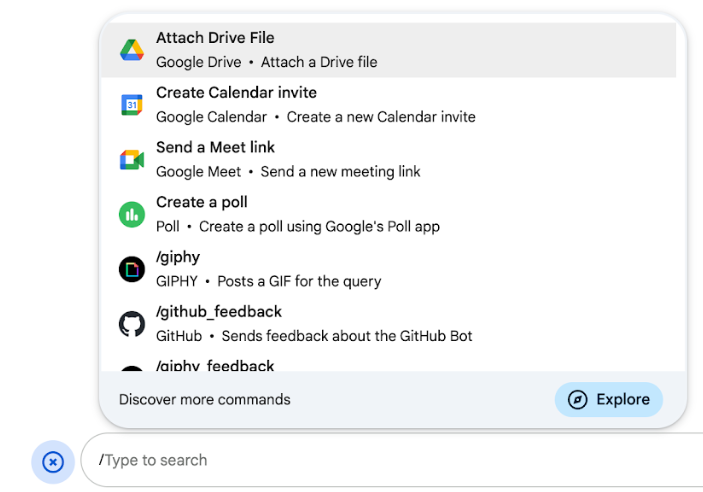
斜杠命令:用户可以从菜单中选择斜杠命令,也可以输入斜杠 (
/),然后输入预定义的文本,例如/about。 Chat 应用通常需要斜杠命令的参数文本。如果您的 Chat 应用需要用户提供其他输入 ,请创建斜杠命令。例如,您可以创建一个名为
/search的斜杠命令,该命令会在用户输入要搜索的短语(例如/search receipts)后运行。 -
快速命令 :用户可以通过从 Chat 消息的回复 区域打开菜单来使用命令。如需使用命令,用户可以点击添加
 ,然后从菜单中选择一个命令。
如果您的 Chat 应用可以立即响应用户 ,而无需等待其他输入,请创建快速命令。例如,您可以创建一个名为 随机图片 的快速命令,该命令会立即响应并显示一张图片。
-
消息操作 ( 开发者预览版) 用户可以通过将鼠标悬停在消息上并 点击三点状菜单来使用消息操作。如需使用命令,用户可以打开三点状菜单,然后从菜单中选择 一个命令。
如果您的 Chat 应用可以根据消息的上下文执行操作,请创建消息操作。
以下图片展示了用户如何发现斜杠命令、快速命令和消息操作的菜单:

前提条件
HTTP
一个扩展 Google Chat 的 Google Workspace 插件。如需构建一个, 请完成 HTTP 快速入门。
Apps 脚本
一个扩展 Google Chat 的 Google Workspace 插件。如需构建一个, 请完成 Apps 脚本快速入门。
设置命令
本部分介绍了如何完成以下步骤来设置命令:
命名并说明命令
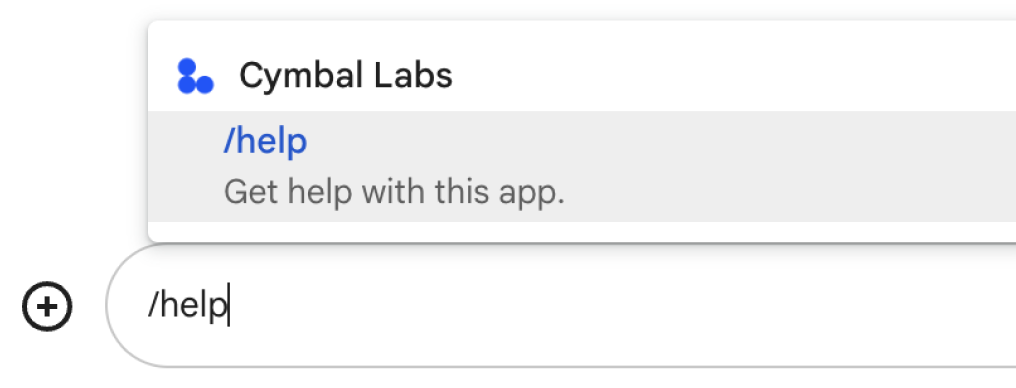
命令的名称是用户输入或选择以调用 Chat 应用的内容。名称下方还会显示简短说明,以进一步提示用户如何使用该命令:
为命令选择名称和说明时,请考虑以下建议:
为命令命名:
- 使用简短、描述性强且可操作的字词或短语,让用户清楚了解命令。
例如,不要使用名称
Create a reminder,而应使用Remind me。 - 考虑为命令使用唯一或常用名称。如果您的命令描述的是典型的互动或功能,则可以使用用户识别和预期的常用名称,例如
Settings或Feedback。否则,请尝试使用唯一的命令 名称,因为如果您的命令名称与其他 Chat 应用的命令名称相同,用户 必须过滤类似命令才能找到并使用您的命令。
说明命令:
- 保持说明简短明了,以便用户了解使用该命令时的预期结果。
- 告知用户该命令是否有任何格式要求。例如,如果您
创建的斜杠命令需要参数文本,请将说明设置为类似
Remind me to do [something] at [time]的内容。 - 告知用户 Chat 应用是回复空间中的所有人,还是
私下回复调用该命令的用户。例如,对于快速命令
About,您可以将其描述为Learn about this app (Only visible to you)。
在 Google Cloud 控制台中配置命令
如需创建斜杠命令、快速命令或消息操作,您需要在 Google Chat API 的 Chat 应用配置中指定有关命令或操作的信息。
如需在 Google Chat API 中配置命令,请完成以下步骤:
在 Google Cloud 控制台中,依次点击“菜单”图标 > API 和服务 > 已启用的 API 和服务 > Google Chat API
点击配置 。
在连接设置下,前往触发器并指定端点 详细信息。您必须在下一部分中使用此触发器来响应命令。
- HTTP 端点网址:您可以在此处指定一个通用 HTTP 端点网址 。 或者,如需为不同的触发器使用不同的 HTTP 端点,请直接在应用命令 字段中指定端点。
- Apps 脚本:输入 Apps 脚本部署 ID。默认情况下,系统会调用
onAppCommand函数。如需使用其他 Apps 脚本函数,请在应用命令 字段中指定自定义函数名称。
在命令 下,点击添加命令 。
输入有关该命令的以下信息:
- 命令 ID :一个介于 1 到 1000 之间的数字,您的 Chat 应用使用该数字来识别命令并返回响应。
- 说明 :用于描述如何使用和设置命令格式的文本。说明最多可以包含 50 个字符。
- 命令类型:选择快速命令、斜杠命令或消息操作。
- 为命令指定名称:
- 快速命令名称 :用户从菜单中选择以调用命令的显示名称。最多可以包含 50 个字符,并且可以包含特殊字符。例如,
Remind me。 - 斜杠命令名称 :用户在消息中输入以调用命令的文本。必须以斜杠开头,仅包含文本,且最多可以包含 50 个字符。例如,
/remindMe。 - 消息操作名称
( 开发者预览版)
用户从
菜单中选择以调用消息操作的显示名称。最多可以包含 50 个字符,并且可以包含特殊字符。例如,
Remind me。
- 快速命令名称 :用户从菜单中选择以调用命令的显示名称。最多可以包含 50 个字符,并且可以包含特殊字符。例如,
可选:加载通知消息: ( 开发者预览版) 在消息操作执行期间向用户显示的 Toast 通知消息。仅适用于不打开对话框的消息操作。
可选:如果您希望 Chat 应用通过对话框响应命令,请选中打开对话框 复选框。
点击保存 。
该命令现已为 Chat 应用配置完毕。
响应命令
当用户使用命令时,您的 Chat 应用
会收到一个 事件对象。
事件载荷包含一个
appCommandPayload
对象,其中包含有关所调用命令的详细信息(包括命令
ID 和命令类型),以便您可以返回适当的响应。
事件对象会发送到您在配置应用命令
触发器时指定的 HTTP 端点或 Apps 脚本
函数。

/help,以说明如何获取支持。以下代码展示了一个 Chat 应用的示例,该应用使用文本消息回复斜杠命令 /about。如需响应斜杠命令,Chat 应用会处理来自应用命令 触发器的事件对象。当事件对象的载荷包含斜杠
命令 ID 时,Chat 应用会返回包含 createMessageAction 对象的 DataActions
操作:
Node.js
Python
Java
Apps 脚本
如需使用此代码示例,请将 ABOUT_COMMAND_ID 替换为您在 Chat API 中配置命令时指定的命令 ID。
响应消息操作
以下代码展示了一个 Chat 应用的示例,该应用使用文本消息回复消息操作提醒我 。如需响应消息操作,Chat 应用会处理来自应用命令 触发器的事件对象。当事件对象的载荷包含
消息操作命令 ID 时,Chat 应用会返回包含 createMessageAction
对象的
DataActions操作:
Node.js
/**
 * Responds to an APP_COMMAND interaction event from Google Chat.
 *
 * @param {Object} event The interaction event from Google Chat.
 * @param {Object} res The HTTP response object.
 * @return {Object} The JSON response message with a confirmation.
 */
function onAppCommand(event, res) {
  // Collect the command ID and type from the event metadata.
  const {appCommandId, appCommandType} =
    event.chat.appCommandPayload.appCommandMetadata;

  if (appCommandType === 'MESSAGE_ACTION' &&
      appCommandId === REMIND_ME_COMMAND_ID) {

    // Message actions can access the context of the message they were
    // invoked on, such as the text or sender of that message.
    const messageText = event.chat.appCommandPayload.message.text;

    // Return a response that includes details from the original message.
    return res.json({
      "hostAppDataAction": {
        "chatDataAction": {
          "createMessageAction": {
            "message": {
              "text": `Setting a reminder for message: "${messageText}"`
            }
          }
        }
      }
    });
  }
}
Python
def on_app_command(event):
    """Responds to an APP_COMMAND interaction event from Google Chat.

    Args:
        event (dict): The interaction event from Google Chat.

    Returns:
        dict: The JSON response message with a confirmation.
    """
    # Collect the command ID and type from the event metadata.
    payload = event.get('chat', {}).get('appCommandPayload', {})
    metadata = payload.get('appCommandMetadata', {})
    if metadata.get('appCommandType') == 'MESSAGE_ACTION' and \
       metadata.get('appCommandId') == REMIND_ME_COMMAND_ID:

        # Message actions can access the context of the message they were
        # invoked on, such as the text or sender of that message.
        message_text = payload.get('message', {}).get('text')

        # Return a response that includes details from the original message.
        return {
            "hostAppDataAction": {
                "chatDataAction": {
                    "createMessageAction": {
                        "message": {
                            "text": f'Setting a reminder for message: "{message_text}"'
                        }
                    }
                }
            }
        }
Java
/**
 * Responds to an APP_COMMAND interaction event from Google Chat.
 *
 * @param event The interaction event from Google Chat.
 * @param response The HTTP response object.
 */
void onAppCommand(JsonObject event, HttpResponse response) throws Exception {
  // Collect the command ID and type from the event metadata.
  JsonObject payload = event.getAsJsonObject("chat").getAsJsonObject("appCommandPayload");
  JsonObject metadata = payload.getAsJsonObject("appCommandMetadata");
  String appCommandType = metadata.get("appCommandType").getAsString();

  if (appCommandType.equals("MESSAGE_ACTION")) {
    int commandId = metadata.get("appCommandId").getAsInt();
    if (commandId == REMIND_ME_COMMAND_ID) {
      // Message actions can access the context of the message they were
      // invoked on, such as the text or sender of that message.
      String messageText = payload.getAsJsonObject("message").get("text").getAsString();

      // Return a response that includes details from the original message.
      JsonObject responseMessage = new JsonObject();
      responseMessage.addProperty("text", "Setting a reminder for message: " + messageText);

      JsonObject createMessageAction = new JsonObject();
      createMessageAction.add("message", responseMessage);

      JsonObject chatDataAction = new JsonObject();
      chatDataAction.add("createMessageAction", createMessageAction);

      JsonObject hostAppDataAction = new JsonObject();
      hostAppDataAction.add("chatDataAction", chatDataAction);

      JsonObject finalResponse = new JsonObject();
      finalResponse.add("hostAppDataAction", hostAppDataAction);

      response.getWriter().write(finalResponse.toString());
    }
  }
}
Apps 脚本
/**
 * Responds to an APP_COMMAND interaction event in Google Chat.
 *
 * @param {Object} event The interaction event from Google Chat.
 * @return {Object} The JSON response message with a confirmation.
 */
function onAppCommand(event) {
  // Collect the command ID and type from the event metadata.
  const {appCommandId, appCommandType} =
    event.chat.appCommandPayload.appCommandMetadata;

  if (appCommandType === 'MESSAGE_ACTION' &&
      appCommandId === REMIND_ME_COMMAND_ID) {

    // Message actions can access the context of the message they were
    // invoked on, such as the text or sender of that message.
    const messageText = event.chat.appCommandPayload.message.text;

    // Return a response that includes details from the original message.
    return CardService.newChatResponseBuilder()
        .setText("Setting a reminder for message: " + messageText)
        .build();
  }
}
如需使用此代码示例,请将 REMIND_ME_COMMAND_ID 替换为您在 Chat API 中
配置命令时指定的命令 ID
。
测试命令
如需测试命令和代码,请参阅 测试 Google Chat 应用的互动功能。
如需了解如何在 Chat 界面中测试和使用命令, 请参阅 Google Chat 帮助文档中的在 Google Chat 中使用应用 。