

Page Summary
-
Google Apps Script enhances Google Sheets by adding custom menus, dialogs, sidebars, and functions, and by integrating with other Google services.
-
Apps Script interacts with Google Sheets by manipulating two-dimensional arrays representing spreadsheet cells, rows, and columns.
-
You can programmatically create, read, and edit Google Sheets using Apps Script APIs.
-
Custom menus, dialog boxes, and sidebars can be added to customize the Google Sheets user interface.
-
Apps Script enables connection between Google Forms and Google Sheets, allowing for form creation based on spreadsheet data and triggered actions on form submission.
Use Google Apps Script to extend Sheets. Add custom menus, dialogs, and sidebars to Sheets. Write custom functions for Sheets, and integrate it with other Google services like Google Calendar, Google Drive, and Gmail.
Most scripts designed for Sheets manipulate arrays to interact with the cells, rows, and columns in a spreadsheet. If you're not familiar with arrays in JavaScript, Codecademy offers a great training module for arrays. This course wasn't developed by and isn't associated with Google.
For a quick introduction to using Apps Script with Sheets, see the 5-minute quickstart guide for Macros, Menus, and Custom Functions.
Get started
Apps Script includes special APIs to programmatically create, read, and edit Sheets. Apps Script interacts with Sheets in two ways: any script can create or modify a spreadsheet if the script's user has appropriate permissions for it, and a script can also be bound to a spreadsheet. Bound scripts have special abilities to alter the user interface or respond when the spreadsheet is opened. To create a bound script, select Extensions > Apps Script from within Sheets.
The Spreadsheet service treats Sheets as a grid, operating with two-dimensional arrays. To retrieve data from the spreadsheet, get access to the spreadsheet where the data is stored, get the range that holds the data, and then get the values of the cells. Apps Script facilitates data access by reading structured data in the spreadsheet and creating JavaScript objects for them.
Read data
Suppose you have a list of product names and product numbers that you store in a spreadsheet, as shown in the following image.
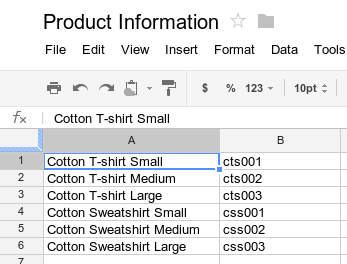
The following example shows how to retrieve and log the product names and product numbers.
function logProductInfo() {
  const sheet = SpreadsheetApp.getActiveSheet();
  const data = sheet.getDataRange().getValues();
  for (let i = 0; i < data.length; i++) {
    Logger.log('Product name: ' + data[i][0]);
    Logger.log('Product number: ' + data[i][1]);
  }
}
View logs
To view the data that has been logged, at the top of the script editor, click Execution log.
Write data
To store data, such as a new product name and number to the spreadsheet, add the following code to the end of the script.
function addProduct() {
  const sheet = SpreadsheetApp.getActiveSheet();
  sheet.appendRow(['Cotton Sweatshirt XL', 'css004']);
}
The preceding code appends a new row at the bottom of the spreadsheet, with the values specified. If you run this function, a new row is added to the spreadsheet.
Custom menus and user interfaces
Customize Sheets by adding custom menus, dialogs, and sidebars. To learn the basics of creating menus, see the guide to menus. To learn about customizing the content of a dialog, see the guide to HTML service.
Attach a script function to an image or drawing within a spreadsheet; the function executes when a user clicks on the image or drawing. To learn more, see Images and Drawings in Sheets.
If you're planning to publish your custom interface as part of an add-on, follow the style guide for consistency with the style and layout of the Sheets editor.
Connect to Google Forms
Connect Google Forms with Sheets through the
Forms and
Spreadsheet services. This feature automatically
creates a Google Form based on data in a spreadsheet.
Apps Script also lets you use triggers, such
as onFormSubmit to perform a specific action after a user responds to the
form. To learn more about connecting Sheets to Forms, try the
Managing Responses for Forms 5-minute
quickstart.
Format data
The Range class has methods like
setBackground
to access and modify the format of a cell or range of cells. The following
example sets the font style of a range:
function formatMySpreadsheet() {
  // Set the font style of the cells in the range of B2:C2 to be italic.
  const ss = SpreadsheetApp.getActiveSpreadsheet();
  const sheet = ss.getSheets()[0];
  const cell = sheet.getRange('B2:C2');
  cell.setFontStyle('italic');
}
Data validation
Access existing data-validation rules in Sheets or create new rules. For example, the following sample shows how to set a data-validation rule that allows only numbers between 1 and 100 on a cell.
function validateMySpreadsheet() {
  // Set a rule for the cell B4 to be a number between 1 and 100.
  const cell = SpreadsheetApp.getActive().getRange('B4');
  const rule = SpreadsheetApp.newDataValidation()
     .requireNumberBetween(1, 100)
     .setAllowInvalid(false)
     .setHelpText('Number must be between 1 and 100.')
     .build();
  cell.setDataValidation(rule);
}
For more details on working with data-validation rules, see
SpreadsheetApp.newDataValidation,
DataValidationBuilder,
and Range.setDataValidation
Charts
Embed charts in a spreadsheet that represent the data in a specific range. The
following example generates an embedded bar chart, assuming you have chartable
data in cells A1:B15:
function newChart() {
  // Generate a chart representing the data in the range of A1:B15.
  const ss = SpreadsheetApp.getActiveSpreadsheet();
  const sheet = ss.getSheets()[0];

  const chart = sheet.newChart()
     .setChartType(Charts.ChartType.BAR)
     .addRange(sheet.getRange('A1:B15'))
     .setPosition(5, 5, 0, 0)
     .build();

  sheet.insertChart(chart);
}
To learn more about embedding a chart into your spreadsheet, see
EmbeddedChart and specific chart
builders, such as
EmbeddedPieChartBuilder.
Custom functions in Google Sheets
A custom function is similar to a built-in spreadsheet
function like =SUM(A1:A5) except that you define the function's behavior with
Apps Script. For example, you could create a custom function,
in2mm(), that converts a value from inches to millimeters, then use the
formula in your spreadsheet by typing =in2mm(A1) or =in2mm(10) into a cell.
To learn more about custom functions, try the Menus and Custom Functions 5-minute quickstart, or take a look at the more in-depth guide to custom functions.
Macros
Macros are another way of executing Apps Script code from the Sheets UI. Unlike custom functions, you activate them with a keyboard shortcut or through the Sheets menu. For more information, see Sheets Macros.
Add-ons for Google Sheets
Add-ons are specially packaged Apps Script projects that run inside Sheets and can be installed from the Sheets add-on store. If you've developed a script for Sheets and want to share it, Apps Script lets you publish your script as an add-on so other users can install it.
Performance and scaling
As your datasets grow, you might experience performance issues. To optimize your spreadsheet and scripts:
- Follow best practices: Read the Best Practices guide for tips on minimizing service calls and using batch operations.
- Optimize formulas: If your spreadsheet is laggy due to complex formulas
(like
VLOOKUP,ARRAYFORMULA, orIMPORTRANGE), consider using Apps Script to perform these calculations in memory and write the results back in batches. - Consider database alternatives: For very large datasets (approaching 10 million cells) or high-frequency data entry (e.g., many connected forms), consider using Google Cloud SQL using JDBC or BigQuery.
Triggers
Scripts that are bound to a Sheets
file can use simple triggers like the functions
onOpen() and onEdit() to respond automatically when a user who has edit
access to the spreadsheet opens or edits the spreadsheet.
Like simple triggers, installable triggers let
Sheets run a function automatically when a certain event occurs.
Installable triggers, however, offer more flexibility than simple triggers and
support the following events: open, edit, change, form submit, and time-driven
(clock).