
Email annotations bring email messages in the Promotions tab to life with images, deals, promo codes, and expiration dates. When you annotate emails, Gmail users can view and interact with your promotions directly from their inbox. From the Promotions tab, users can click annotated text or images to learn more about a promotion without opening the email.
This document explains how to annotate emails. Email annotations use email markup—structured data in your email's HTML that Gmail reads to generate rich previews, deal badges, and deal cards in the Promotions tab using JSON-LD and Microdata. To learn more about email markup, review the Get started guide. For a list of markup fields that you can use in email annotations, see the Email promotions reference documentation.
Types of email annotations
You can annotate emails to display the following features in the Promotions tab:
- Product carousel: Displays two to ten clickable product
image cards using multiple
PromotionCardobjects. - Single image preview: Displays one clickable
product or promotional image card using a single
PromotionCardobject. - Deal annotation: Displays a promotional badge, discount
code, or expiration date next to the email subject line using a
DiscountOfferobject. - Deal card: Displays a visual summary card of your offer with
an action link in the Promotions tab and at the top of the opened email
using a
DiscountOfferobject with an offer URL.
You can use a deal annotation or deal card on its own, or combine a
DiscountOffer object with one or more PromotionCard objects in the same
email to display both a deal badge and image previews. Use the following
properties to specify prices, percentage discounts, and discount or coupon codes
in your markup:
- Item price and discounted price: Use the
price,priceCurrency, anddiscountValueproperties in aPromotionCardobject.discountValueis the numeric currency amount that Gmail subtracts fromprice. - Percentage discount: Use the
descriptionproperty, such as"20% off", in aDiscountOfferobject. - Discount or coupon code: Use the
discountCodeproperty, such as"20TODAY", in aDiscountOfferobject.
Annotations might not be visible to all recipients. They display only in the Promotions tab for consumer Gmail accounts, and visibility depends on user account settings, sender quality filters, frequency limits, and active offer dates. For details, see the Troubleshoot guide and FAQ.
Create a product carousel
Product carousels display multiple image previews for a promotion, such as the following:

A product carousel requires at least two and up to ten image previews. Each image in the carousel must have a unique URL and use the same aspect ratio.
Figure 1 shows three image cards with headlines and discounted prices. To also
display a deal badge above your product carousel, include a
DiscountOffer object
alongside your
PromotionCard objects, as
shown in the product carousel with deal badge
example.
To create a product carousel:
- In your marketing email platform, create an email and open the email's HTML editor.
In the
headsection, add your markup. For each image in your product carousel, add aPromotionCardobject:JSON-LD
<!DOCTYPE html PUBLIC "-//W3C//DTD HTML 4.01//EN"> <html> <head> <script type="application/ld+json"> [ { "@context": "http://schema.org/", "@type": "PromotionCard", "image": "IMAGE_URL1", "url": "PROMO_URL1", "headline": "HEADLINE1", "price": PRICE1, "priceCurrency": "PRICE_CURRENCY1", "discountValue": DISCOUNT_VALUE1, "position": POSITION1 }, { "@context": "http://schema.org/", "@type": "PromotionCard", "image": "IMAGE_URL2", "url": "PROMO_URL2", "headline": "HEADLINE2", "price": PRICE2, "priceCurrency": "PRICE_CURRENCY2", "discountValue": DISCOUNT_VALUE2, "position": POSITION2 } ] </script> </head> <body> <!-- The message of your email --> </body> </html>Microdata
<!DOCTYPE html PUBLIC "-//W3C//DTD HTML 4.01//EN"> <html> <head> <!-- Build the first image preview in your product carousel: --> <div itemscope itemtype="http://schema.org/PromotionCard"> <meta itemprop="image" content="IMAGE_URL1"/> <meta itemprop="url" content="PROMO_URL1"/> <meta itemprop="headline" content="HEADLINE1"/> <meta itemprop="price" content="PRICE1"/> <meta itemprop="priceCurrency" content="PRICE_CURRENCY1"/> <meta itemprop="discountValue" content="DISCOUNT_VALUE1"/> <meta itemprop="position" content="POSITION1"/> </div> <!-- Build the second image preview in your product carousel: --> <div itemscope itemtype="http://schema.org/PromotionCard"> <meta itemprop="image" content="IMAGE_URL2"/> <meta itemprop="url" content="PROMO_URL2"/> <meta itemprop="headline" content="HEADLINE2"/> <meta itemprop="price" content="PRICE2"/> <meta itemprop="priceCurrency" content="PRICE_CURRENCY2"/> <meta itemprop="discountValue" content="DISCOUNT_VALUE2"/> <meta itemprop="position" content="POSITION2"/> </div> </head> <body> <!-- The message of your email --> </body> </html>For each
PromotionCardobject, replace the following placeholders. For optional properties, either provide a valid value or remove the property from your markup.Required properties:
IMAGE_URL: The URL to your image in PNG, JPG, or JPEG format, such ashttps://www.example.com/image1.png. The supported aspect ratios for product carousels are 4:5, 1:1, and 1.91:1. Every card in a product carousel must use a unique image URL and share the same aspect ratio.PROMO_URL: The landing page URL for the product or promotion. When users click the image from the Promotions tab, they visit this URL.
Optional properties:
HEADLINE: A one- or two-line description of the product or promotion that displays under the preview image. If you includeheadlineon a card in a product carousel, you must includeheadlineon every card in the carousel, or headlines don't display on any card.PRICE: The numeric price of the item as a positive number without a currency symbol, such as100or24.99. If you includeprice, you must also includepriceCurrency. In a product carousel, you must includepriceandpriceCurrencyon every card in the carousel for prices to display on any card.PRICE_CURRENCY: The currency of the price in three-letter ISO 4217 format, such asUSD. You must includepriceCurrencywhenever you setprice; it determines the currency symbol that Gmail displays withprice. If you omitprice, Gmail ignorespriceCurrency.DISCOUNT_VALUE: The numeric currency amount that Gmail subtracts frompriceto calculate and display an adjusted price next to the crossed-out original price. To usediscountValue, you must also providepriceandpriceCurrency, anddiscountValuemust be a positive number less than or equal toprice. Don't enter a percentage discount or coupon code in this field. To display a percentage discount or discount code, add aDiscountOfferobject and set itsdescriptionanddiscountCodeproperties, as shown in the product carousel with a deal badge example.For example, if
priceis100,priceCurrencyisUSD, anddiscountValueis25, the card displays$75next to a crossed-out$100.POSITION: A unique positive integer, such as1or2, that specifies the display order of the card in the carousel.
In the
bodytag, write the message for your email.Before sending your campaign, validate your code and see a preview of how your product carousel looks.
Example: Product carousel with a deal badge
The following example combines a DiscountOffer deal annotation with three
PromotionCard objects to display a deal badge, promo code, and a three-card
product carousel. When testing this example, set availabilityEnds to a future
date and time so active-offer features render:
JSON-LD
<!DOCTYPE html PUBLIC "-//W3C//DTD HTML 4.01//EN">
<html>
<head>
<script type="application/ld+json">
[
{
"@context": "http://schema.org/",
"@type": "DiscountOffer",
"description": "20% off sitewide",
"discountCode": "20TODAY",
"availabilityStarts": "2028-08-24T18:44:37-07:00",
"availabilityEnds": "2028-09-23T18:44:37-07:00"
},
{
"@context": "http://schema.org/",
"@type": "PromotionCard",
"image": "https://www.example.com/socks-striped.png",
"url": "https://www.example.com/deals/socks-striped",
"headline": "Striped crew socks",
"price": 15,
"priceCurrency": "USD",
"discountValue": 3,
"position": 1
},
{
"@context": "http://schema.org/",
"@type": "PromotionCard",
"image": "https://www.example.com/socks-polka.png",
"url": "https://www.example.com/deals/socks-polka",
"headline": "Polka dot ankle socks",
"price": 12,
"priceCurrency": "USD",
"discountValue": 2.4,
"position": 2
},
{
"@context": "http://schema.org/",
"@type": "PromotionCard",
"image": "https://www.example.com/socks-argyle.png",
"url": "https://www.example.com/deals/socks-argyle",
"headline": "Argyle dress socks",
"price": 18,
"priceCurrency": "USD",
"discountValue": 3.6,
"position": 3
}
]
</script>
</head>
<body>
<p>Use code 20TODAY for 20% off all socks!</p>
</body>
</html>
Microdata
<!DOCTYPE html PUBLIC "-//W3C//DTD HTML 4.01//EN">
<html>
  <head>
    <div itemscope itemtype="http://schema.org/DiscountOffer">
      <meta itemprop="description" content="20% off sitewide"/>
      <meta itemprop="discountCode" content="20TODAY"/>
      <meta itemprop="availabilityStarts"
            content="2028-08-24T18:44:37-07:00"/>
      <meta itemprop="availabilityEnds"
            content="2028-09-23T18:44:37-07:00"/>
    </div>
    <div itemscope itemtype="http://schema.org/PromotionCard">
      <meta itemprop="image"
            content="https://www.example.com/socks-striped.png"/>
      <meta itemprop="url"
            content="https://www.example.com/deals/socks-striped"/>
      <meta itemprop="headline" content="Striped crew socks"/>
      <meta itemprop="price" content="15"/>
      <meta itemprop="priceCurrency" content="USD"/>
      <meta itemprop="discountValue" content="3"/>
      <meta itemprop="position" content="1"/>
    </div>
    <div itemscope itemtype="http://schema.org/PromotionCard">
      <meta itemprop="image"
            content="https://www.example.com/socks-polka.png"/>
      <meta itemprop="url"
            content="https://www.example.com/deals/socks-polka"/>
      <meta itemprop="headline" content="Polka dot ankle socks"/>
      <meta itemprop="price" content="12"/>
      <meta itemprop="priceCurrency" content="USD"/>
      <meta itemprop="discountValue" content="2.4"/>
      <meta itemprop="position" content="2"/>
    </div>
    <div itemscope itemtype="http://schema.org/PromotionCard">
      <meta itemprop="image"
            content="https://www.example.com/socks-argyle.png"/>
      <meta itemprop="url"
            content="https://www.example.com/deals/socks-argyle"/>
      <meta itemprop="headline" content="Argyle dress socks"/>
      <meta itemprop="price" content="18"/>
      <meta itemprop="priceCurrency" content="USD"/>
      <meta itemprop="discountValue" content="3.6"/>
      <meta itemprop="position" content="3"/>
    </div>
  </head>

  <body>
    <p>Use code 20TODAY for 20% off all socks!</p>
  </body>
</html>
Create a single image preview
Single image preview annotations display one image to showcase an important product or promotion in the Gmail Promotions tab, such as the following:
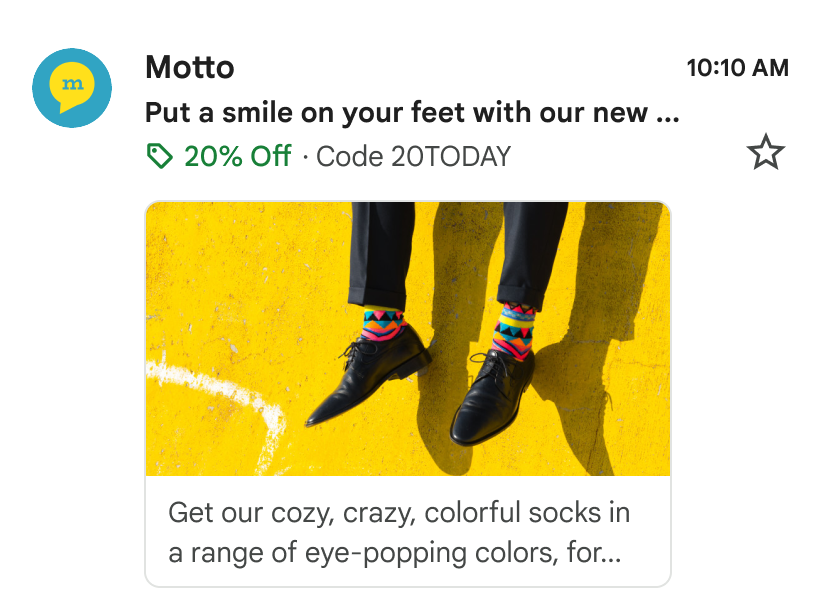
You can use a single PromotionCard object to display one image. All
recipients must receive the same image and image URL. For more information, see
the FAQ.
To create a single image preview:
- In your marketing email platform, create an email and open the email's HTML editor.
In the
headsection, add aPromotionCardobject:JSON-LD
<!DOCTYPE html PUBLIC "-//W3C//DTD HTML 4.01//EN">
<html>
  <head>
    <script type="application/ld+json">
      [
        {
          "@context": "http://schema.org/",
          "@type": "PromotionCard",
          "image": "IMAGE_URL",
          "url": "PROMO_URL",
          "headline": "HEADLINE",
          "price": PRICE,
          "priceCurrency": "PRICE_CURRENCY",
          "discountValue": DISCOUNT_VALUE
        }
      ]
    </script>
  </head>

  <body>
    <!-- The message of your email -->
  </body>
</html>
Microdata
<!DOCTYPE html PUBLIC "-//W3C//DTD HTML 4.01//EN">
<html>
  <head>
    <!-- Build the single image preview: -->
    <div itemscope itemtype="http://schema.org/PromotionCard">
      <meta itemprop="image"
            content="IMAGE_URL"/>
      <meta itemprop="url" content="PROMO_URL"/>
      <meta itemprop="headline"
            content="HEADLINE"/>
      <meta itemprop="price" content="PRICE"/>
      <meta itemprop="priceCurrency"
            content="PRICE_CURRENCY"/>
      <meta itemprop="discountValue"
            content="DISCOUNT_VALUE"/>
    </div>
  </head>

  <body>
    <!-- The message of your email -->
  </body>
</html>
Replace the following placeholders. For optional properties, either provide a valid value or remove the property from your markup.
Required properties:
IMAGE_URL: The URL for the preview image in PNG, JPG, or JPEG format, such ashttps://www.example.com/image.png. The required aspect ratio for a single image preview is 1.91:1.PROMO_URL: The URL that directs users to the promotion when they click the preview image.
Optional properties:
HEADLINE: A one- or two-line description of the promotion that displays under the preview image.PRICE: The numeric price of the item as a positive number without a currency symbol, such as100or49.95. If you includeprice, you must also includepriceCurrency.PRICE_CURRENCY: The currency of the price in three-letter ISO 4217 format, such asUSD. You must includepriceCurrencywhenever you setprice; it determines the currency symbol that Gmail displays withprice. If you omitprice, Gmail ignorespriceCurrency.DISCOUNT_VALUE: The numeric currency amount that Gmail subtracts frompriceto calculate and display an adjusted price next to the crossed-out original price. To usediscountValue, you must also providepriceandpriceCurrency, anddiscountValuemust be a positive number less than or equal toprice. Don't enter a percentage discount or coupon code in this field. To display a percentage discount or discount code, add aDiscountOfferobject and set itsdescriptionanddiscountCodeproperties, as shown in the single image preview with a deal badge example.For example, if
priceis100,priceCurrencyisUSD, anddiscountValueis20, the card displays$80next to a crossed-out$100.
In the
bodytag, write the message for your email.Before sending your campaign, validate your code and see a preview of how your single image preview looks.
Example: Single image preview with a deal badge
The following example combines a DiscountOffer object and a PromotionCard
object to display a 20% off deal badge, the promo code 20TODAY, and a
single image preview with a discounted price. Keep availabilityEnds set to a
future date and time when testing:
JSON-LD
<!DOCTYPE html PUBLIC "-//W3C//DTD HTML 4.01//EN">
<html>
  <head>
    <script type="application/ld+json">
      [
        {
          "@context": "http://schema.org/",
          "@type": "DiscountOffer",
          "description": "20% off",
          "discountCode": "20TODAY",
          "availabilityStarts": "2028-08-24T18:44:37-07:00",
          "availabilityEnds": "2028-09-23T18:44:37-07:00"
        },
        {
          "@context": "http://schema.org/",
          "@type": "PromotionCard",
          "image": "https://www.example.com/running-shoes.png",
          "url": "https://www.example.com/deals/running-shoes",
          "headline": "Lightweight running shoes",
          "price": 100,
          "priceCurrency": "USD",
          "discountValue": 20
        }
      ]
    </script>
  </head>

  <body>
    <p>Save 20% on lightweight running shoes with code 20TODAY.</p>
  </body>
</html>
Microdata
<!DOCTYPE html PUBLIC "-//W3C//DTD HTML 4.01//EN">
<html>
  <head>
    <div itemscope itemtype="http://schema.org/DiscountOffer">
      <meta itemprop="description" content="20% off"/>
      <meta itemprop="discountCode" content="20TODAY"/>
      <meta itemprop="availabilityStarts"
            content="2028-08-24T18:44:37-07:00"/>
      <meta itemprop="availabilityEnds"
            content="2028-09-23T18:44:37-07:00"/>
    </div>
    <div itemscope itemtype="http://schema.org/PromotionCard">
      <meta itemprop="image"
            content="https://www.example.com/running-shoes.png"/>
      <meta itemprop="url"
            content="https://www.example.com/deals/running-shoes"/>
      <meta itemprop="headline" content="Lightweight running shoes"/>
      <meta itemprop="price" content="100"/>
      <meta itemprop="priceCurrency" content="USD"/>
      <meta itemprop="discountValue" content="20"/>
    </div>
  </head>

  <body>
    <p>Save 20% on lightweight running shoes with code 20TODAY.</p>
  </body>
</html>
Create a deal annotation
Make your email stand out with a deal annotation. This feature adds a promotional badge directly to your email in the inbox, calling out key information such as a discount offer, promo code, or expiration date right next to your subject line, as shown in the deal annotation example.

To enable deal annotations, follow these steps:
Add the schema to your email's HTML: In your marketing email platform, open the HTML editor for your campaign. In the
headsection, add aDiscountOfferobject with the following structure:JSON-LD
<!DOCTYPE html PUBLIC "-//W3C//DTD HTML 4.01//EN">
<html>
  <head>
    <script type="application/ld+json">
      [{
        "@context": "http://schema.org/",
        "@type": "DiscountOffer",
        "description": "DESCRIPTION",
        "discountCode": "DISCOUNT_CODE",
        "availabilityStarts": "START_DATE_TIME",
        "availabilityEnds": "END_DATE_TIME"
      }]
    </script>
  </head>

  <body>
    <!-- The message of your email -->
  </body>
</html>
Microdata
<!DOCTYPE html PUBLIC "-//W3C//DTD HTML 4.01//EN">
<html>
  <head>
    <div itemscope itemtype="http://schema.org/DiscountOffer">
      <meta itemprop="description"
            content="DESCRIPTION"/>
      <meta itemprop="discountCode"
            content="DISCOUNT_CODE"/>
      <meta itemprop="availabilityStarts"
            content="START_DATE_TIME"/>
      <meta itemprop="availabilityEnds"
            content="END_DATE_TIME"/>
    </div>
  </head>

  <body>
    <!-- The message of your email -->
  </body>
</html>
Customize the deal annotation properties: Update the values in your markup to match your promotion. Remove any optional properties that you don't use.
Required values: Include at least one of
description,discountCode, oravailabilityEndsto generate a deal annotation.DESCRIPTION: A concise summary of your offer, up to 45 characters. For offer validation, state a quantifiable discount in English using one of the following formats:- Percentage off: A percentage paired with
offorsave, such as20% off,50% off sitewide, orSave 20% - Amount off: A currency symbol such as
$,£, or€and a numeric amount without thousands commas, paired withofforsave, such as$25 offorSave up to £2000 - Buy one, get one: A phrase such as
Buy 1 get 1 free,Buy 2 get 1 50% off, orBOGO - Free shipping: A phrase such as
Free shipping,Free delivery, or$0 delivery fee
- Percentage off: A percentage paired with
DISCOUNT_CODE: The promo code that a user applies at checkout. The code must be 4 to 20 characters long and contain only uppercase letters fromAtoZand numbers from0to9with no spaces or special characters, such as20TODAY.END_DATE_TIME: The end date and time of the promotion in ISO 8601 format,YYYY-MM-DDTHH:MM:SS±HH:MM, including seconds and a timezone offset with a colon, such as2028-09-23T18:44:37-07:00. Set a future date and time when testing so expiration labels and active-offer features render.
Optional value:
START_DATE_TIME: The start date and time of the promotion in ISO 8601 format,YYYY-MM-DDTHH:MM:SS±HH:MM, such as2028-08-24T18:44:37-07:00.
Write your email message: In the
<body>tag, write the message and design the layout for your email as you normally would.Validate and preview your deal annotation: Before sending your campaign, validate your code and see a preview of how your deal annotation looks.
Example: Deal annotation
The following example creates a deal annotation badge for 20% off with promo
code 20TODAY. Keep availabilityEnds set to a future date and time when
testing:
JSON-LD
<!DOCTYPE html PUBLIC "-//W3C//DTD HTML 4.01//EN">
<html>
  <head>
    <script type="application/ld+json">
      [
        {
          "@context": "http://schema.org/",
          "@type": "DiscountOffer",
          "description": "20% off",
          "discountCode": "20TODAY",
          "availabilityStarts": "2028-08-24T18:44:37-07:00",
          "availabilityEnds": "2028-09-23T18:44:37-07:00"
        }
      ]
    </script>
  </head>

  <body>
    <p>Take 20% off your order with code 20TODAY.</p>
  </body>
</html>
Microdata
<!DOCTYPE html PUBLIC "-//W3C//DTD HTML 4.01//EN">
<html>
  <head>
    <div itemscope itemtype="http://schema.org/DiscountOffer">
      <meta itemprop="description" content="20% off"/>
      <meta itemprop="discountCode" content="20TODAY"/>
      <meta itemprop="availabilityStarts"
            content="2028-08-24T18:44:37-07:00"/>
      <meta itemprop="availabilityEnds"
            content="2028-09-23T18:44:37-07:00"/>
    </div>
  </head>

  <body>
    <p>Take 20% off your order with code 20TODAY.</p>
  </body>
</html>
Create a deal card
Deal cards are visual summaries of your promotions that Gmail generates. They can appear in the Promotions tab and within the email, giving your offers maximum visibility, as shown in the deal card example.
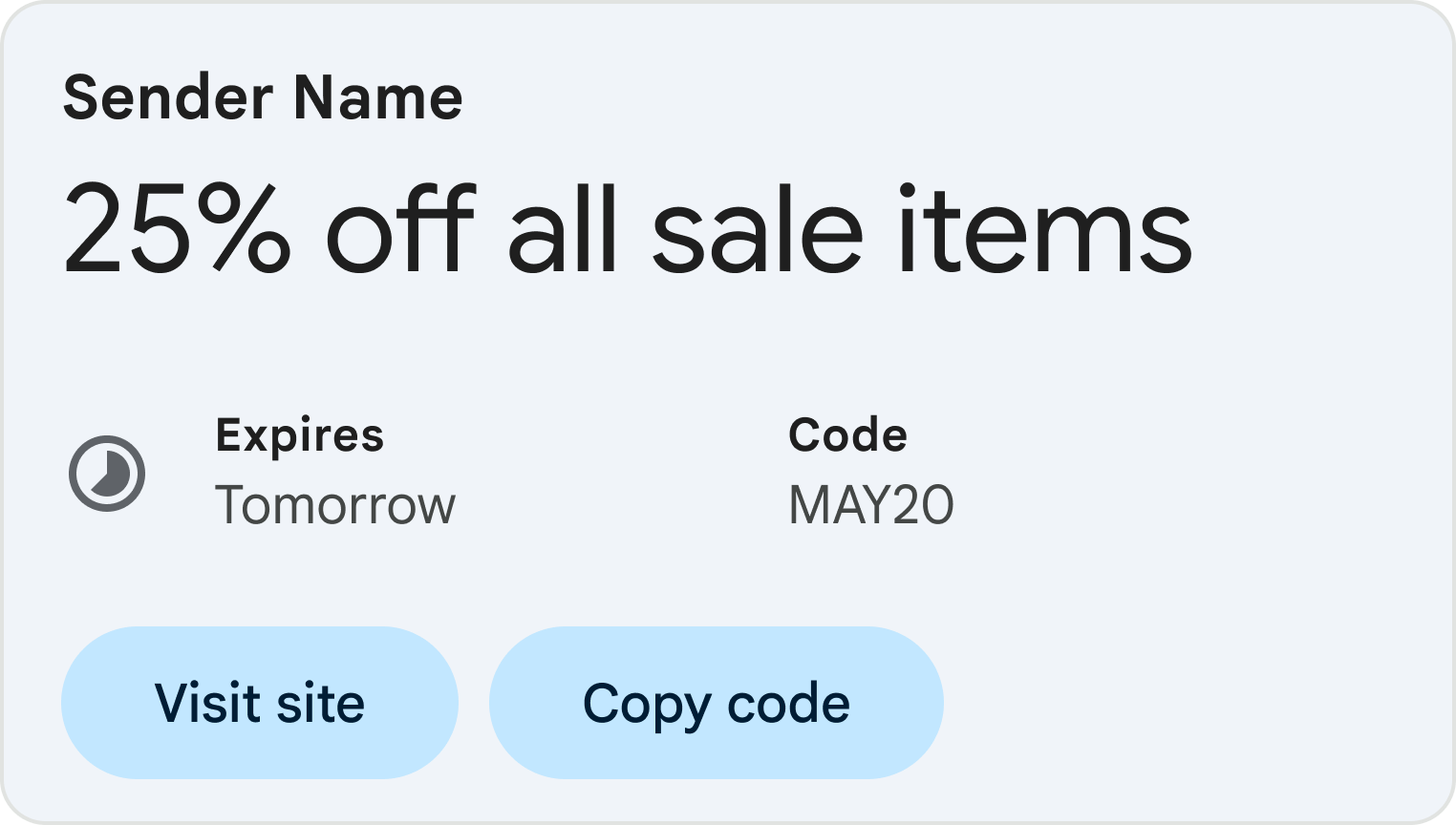
To enable deal cards, follow these steps:
Add the schema to your email's HTML: In your marketing email platform, open the HTML editor for your campaign. In the
headsection, add aDiscountOfferobject with the following structure:JSON-LD
<!DOCTYPE html PUBLIC "-//W3C//DTD HTML 4.01//EN">
<html>
  <head>
    <script type="application/ld+json">
      [{
        "@context": "http://schema.org/",
        "@type": "DiscountOffer",
        "description": "DESCRIPTION",
        "discountCode": "DISCOUNT_CODE",
        "availabilityStarts": "START_DATE_TIME",
        "availabilityEnds": "END_DATE_TIME",
        "freeShippingDescription": "SHIPPING",
        "offerPageUrl": "OFFER_PAGE_URL",
        "merchantHomepageUrl": "HOMEPAGE_URL"
      }]
    </script>
  </head>

  <body>
    <!-- The message of your email -->
  </body>
</html>
Microdata
<!DOCTYPE html PUBLIC "-//W3C//DTD HTML 4.01//EN">
<html>
  <head>
    <div itemscope itemtype="http://schema.org/DiscountOffer">
      <meta itemprop="description"
            content="DESCRIPTION"/>
      <meta itemprop="discountCode"
            content="DISCOUNT_CODE"/>
      <meta itemprop="availabilityStarts"
            content="START_DATE_TIME"/>
      <meta itemprop="availabilityEnds"
            content="END_DATE_TIME"/>
      <meta itemprop="freeShippingDescription"
            content="SHIPPING"/>
      <meta itemprop="offerPageUrl"
            content="OFFER_PAGE_URL"/>
      <meta itemprop="merchantHomepageUrl"
            content="HOMEPAGE_URL"/>
    </div>
  </head>

  <body>
    <!-- The message of your email -->
  </body>
</html>
Customize the deal card properties: Update the values in your markup to match your promotion. Remove any optional properties that you don't use.
Required values:
DESCRIPTION: A concise summary of your offer, up to 45 characters. Format the description using one of the supported English discount patterns listed in Create a deal annotation, such as25% offor$25 off orders over $100.At least one of the following URLs: Provide an offer page URL if available.
OFFER_PAGE_URL: The URL for this specific offer landing page. ProvidingofferPageUrladds a Shop now button to the deal card. If you provide both URLs, Gmail usesofferPageUrl.HOMEPAGE_URL: The URL for your main homepage. Use this property if a dedicated offer landing page is unavailable. When you set this property withoutofferPageUrl, it adds a Visit site button to the deal card.
Recommended optional values:
DISCOUNT_CODE: The promo code that a user applies at checkout. The code must be 4 to 20 characters long and contain only uppercase letters fromAtoZand numbers from0to9with no spaces or special characters, such asMAY2028.START_DATE_TIME: The start date and time of the promotion in ISO 8601 format,YYYY-MM-DDTHH:MM:SS±HH:MM, such as2028-05-01T00:00:00-07:00.END_DATE_TIME: The end date and time of the promotion in ISO 8601 format,YYYY-MM-DDTHH:MM:SS±HH:MM, such as2028-05-31T23:59:59-07:00. Set a future date and time when testing so deal card action buttons render.SHIPPING: An additional free shipping perk, up to 45 characters, such asFree shipping on all orders. Don't combine this property with adescriptionthat already describes free shipping.
Write your email message: In the
<body>tag, write the message and design the layout for your email as you normally would.Validate and preview your deal card: Before sending your campaign, validate your code and see a preview of how your deal card looks.
Example: Deal card
The following example creates a deal card for 25% off with promo code
MAY2028, free shipping details, and a Shop now link. Keep
availabilityEnds set to a future date and time when testing:
JSON-LD
<!DOCTYPE html PUBLIC "-//W3C//DTD HTML 4.01//EN">
<html>
  <head>
    <script type="application/ld+json">
      [
        {
          "@context": "http://schema.org/",
          "@type": "DiscountOffer",
          "description": "25% off",
          "discountCode": "MAY2028",
          "availabilityStarts": "2028-05-01T00:00:00-07:00",
          "availabilityEnds": "2028-05-31T23:59:59-07:00",
          "freeShippingDescription": "Free shipping on orders over $50",
          "offerPageUrl": "https://www.example.com/may-sale",
          "merchantHomepageUrl": "https://www.example.com"
        }
      ]
    </script>
  </head>

  <body>
    <p>
      Enjoy 25% off and free shipping on orders over $50 with code MAY2028.
    </p>
  </body>
</html>
Microdata
<!DOCTYPE html PUBLIC "-//W3C//DTD HTML 4.01//EN">
<html>
  <head>
    <div itemscope itemtype="http://schema.org/DiscountOffer">
      <meta itemprop="description" content="25% off"/>
      <meta itemprop="discountCode" content="MAY2028"/>
      <meta itemprop="availabilityStarts"
            content="2028-05-01T00:00:00-07:00"/>
      <meta itemprop="availabilityEnds"
            content="2028-05-31T23:59:59-07:00"/>
      <meta itemprop="freeShippingDescription"
            content="Free shipping on orders over $50"/>
      <meta itemprop="offerPageUrl"
            content="https://www.example.com/may-sale"/>
      <meta itemprop="merchantHomepageUrl"
            content="https://www.example.com"/>
    </div>
  </head>

  <body>
    <p>
      Enjoy 25% off and free shipping on orders over $50 with code MAY2028.
    </p>
  </body>
</html>
Related topics
- Preview and validate your markup in the Preview your annotations tool.
- View the reference documentation to learn about the available email markup fields.
- Learn about best practices for email annotations.
- Resolve common implementation issues in the Troubleshoot guide and FAQ.