
หน้านี้อธิบายวิธีตั้งค่าและตอบกลับคำสั่งในฐานะแอป Google Chat
คำสั่งจะช่วยให้ผู้ใช้ค้นพบและใช้ฟีเจอร์หลักของแอป Chat ได้ โดยมีเพียงแอป Chat เท่านั้นที่จะเห็นเนื้อหาของคำสั่ง ตัวอย่างเช่น หากผู้ใช้ส่งข้อความที่มีคำสั่งเครื่องหมายทับ ระบบจะแสดงข้อความดังกล่าวต่อผู้ใช้และแอป Chat เท่านั้น
หากต้องการตัดสินใจว่าจะสร้างคำสั่งหรือไม่ และทำความเข้าใจวิธีออกแบบ การโต้ตอบของผู้ใช้ โปรดดูกำหนดเส้นทางของผู้ใช้ทั้งหมด
ประเภทของคำสั่งแอป Chat
คุณสร้างคำสั่งแอป Chat เป็นคำสั่งเครื่องหมายทับ คำสั่งด่วน หรือการดำเนินการกับข้อความได้ หากต้องการใช้คำสั่งแต่ละประเภท ผู้ใช้สามารถทำสิ่งต่อไปนี้ได้-
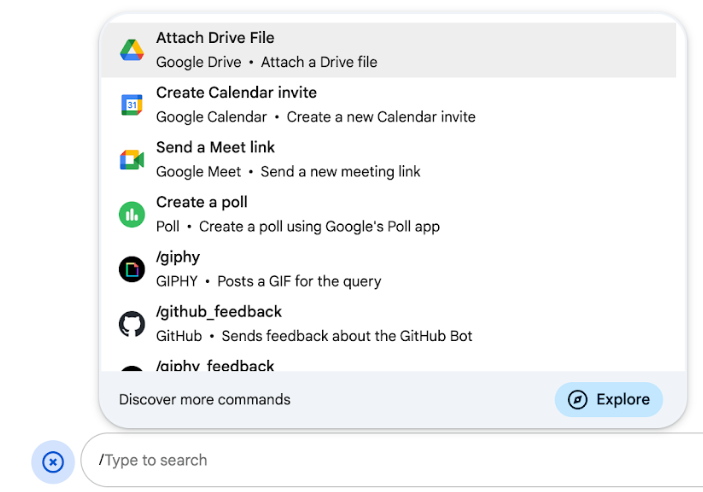
คำสั่งเครื่องหมายทับ: ผู้ใช้สามารถเลือกคำสั่งเครื่องหมายทับจากเมนูหรือพิมพ์เครื่องหมายทับ (
/) แล้วตามด้วยข้อความที่กำหนดไว้ล่วงหน้า เช่น/aboutโดยปกติแล้วแอปแชทจะกำหนดให้ต้องมีข้อความอาร์กิวเมนต์สำหรับคำสั่งเครื่องหมายทับสร้างคำสั่งเครื่องหมายทับ หากแอป Chat ของคุณต้องใช้ข้อมูลเพิ่มเติม จากผู้ใช้ เช่น คุณสามารถสร้างคำสั่งเครื่องหมายทับที่ชื่อ
/searchซึ่งจะทำงานหลังจากที่ผู้ใช้ป้อนวลีที่จะ ค้นหา เช่น/search receipts -
คำสั่งด่วน: ผู้ใช้ใช้คำสั่งโดยเปิดเมนูจากส่วนตอบกลับ ของข้อความ Chat หากต้องการใช้คำสั่ง ผู้ใช้จะต้องคลิกเพิ่ม
 และ
เลือกคำสั่งจากเมนู
และ
เลือกคำสั่งจากเมนู
สร้างคำสั่งด่วนหากแอป Chat ตอบกลับผู้ใช้ได้ทันทีโดยไม่ต้องรอข้อมูลเพิ่มเติม ตัวอย่างเช่น คุณสร้างคำสั่งด่วนที่ชื่อรูปภาพแบบสุ่มซึ่ง ตอบกลับด้วยรูปภาพได้ทันที
-
การดำเนินการกับข้อความ: ( เวอร์ชันตัวอย่างสำหรับนักพัฒนาซอฟต์แวร์) ผู้ใช้จะใช้การดำเนินการกับข้อความได้โดยวางเมาส์เหนือข้อความ แล้วคลิกเมนู 3 จุด หากต้องการใช้คำสั่ง ผู้ใช้จะเปิดเมนู 3 จุดและเลือก คำสั่งจากเมนู
สร้างการดำเนินการของข้อความหากแอป Chat สามารถดำเนินการตามบริบทของข้อความได้
รูปภาพต่อไปนี้แสดงวิธีที่ผู้ใช้ค้นพบเมนูสำหรับคำสั่งเครื่องหมายทับและคำสั่งด่วน รวมถึงการดำเนินการกับข้อความ

ข้อกำหนดเบื้องต้น
Node.js
แอป Google Chat ที่รับและตอบกลับเหตุการณ์การโต้ตอบ หากต้องการสร้างแอป Chat แบบอินเทอร์แอกทีฟโดยใช้บริการ HTTP ให้ทำตามการเริ่มต้นอย่างรวดเร็วนี้
Apps Script
แอป Google Chat ที่รับและตอบกลับเหตุการณ์การโต้ตอบ หากต้องการสร้าง แอป Chat แบบอินเทอร์แอกทีฟใน Apps Script ให้ทำตามการเริ่มต้นอย่างรวดเร็วนี้
Python
แอป Google Chat ที่รับและตอบกลับเหตุการณ์การโต้ตอบ หากต้องการสร้างแอป Chat แบบอินเทอร์แอกทีฟโดยใช้บริการ HTTP ให้ทำตามการเริ่มต้นอย่างรวดเร็วนี้
Java
แอป Google Chat ที่รับและตอบกลับเหตุการณ์การโต้ตอบ หากต้องการสร้างแอป Chat แบบอินเทอร์แอกทีฟโดยใช้บริการ HTTP ให้ทำตามการเริ่มต้นอย่างรวดเร็วนี้
ตั้งค่าคำสั่ง
ส่วนนี้จะอธิบายวิธีทําตามขั้นตอนต่อไปนี้เพื่อตั้งค่า คําสั่ง
- สร้างชื่อและคำอธิบายสำหรับคำสั่ง
- กำหนดค่าคำสั่งในคอนโซล Google Cloud
ตั้งชื่อและอธิบายคำสั่ง
ชื่อของคำสั่งคือสิ่งที่ผู้ใช้พิมพ์หรือเลือกเพื่อเรียกใช้แอป Chat คำอธิบายสั้นๆ จะปรากฏใต้ชื่อเพื่อแจ้งให้ ผู้ใช้ทราบเพิ่มเติมเกี่ยวกับวิธีใช้คำสั่ง
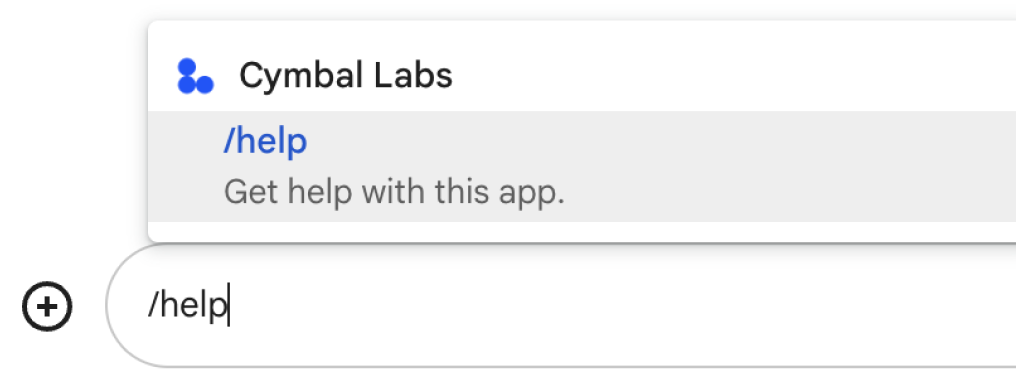
เมื่อเลือกชื่อและคำอธิบายสำหรับคำสั่ง ให้พิจารณาคำแนะนำต่อไปนี้
วิธีตั้งชื่อคำสั่ง
- ใช้คำหรือวลีที่สั้น สื่อความหมาย และนำไปใช้ได้จริงเพื่อให้คำสั่งชัดเจนสำหรับผู้ใช้
เช่น แทนที่จะใช้ชื่อ
Create a reminderให้ใช้Remind me - พิจารณาใช้ชื่อที่ไม่ซ้ำกันหรือชื่อทั่วไปสำหรับคำสั่ง หากคำสั่งอธิบายการโต้ตอบหรือฟีเจอร์ทั่วไป คุณสามารถใช้ชื่อทั่วไปที่ผู้ใช้รู้จักและคาดหวังได้ เช่น
SettingsหรือFeedbackไม่เช่นนั้น ให้ลองใช้ชื่อคำสั่งที่ไม่ซ้ำกัน เนื่องจากหากชื่อคำสั่งของคุณเหมือนกับแอป Chat อื่นๆ ผู้ใช้จะต้องกรองคำสั่งที่คล้ายกันเพื่อค้นหาและใช้คำสั่งของคุณ
วิธีอธิบายคำสั่ง
- เขียนคำอธิบายให้สั้นและชัดเจนเพื่อให้ผู้ใช้ทราบว่าจะเกิดอะไรขึ้นเมื่อใช้คำสั่ง
- แจ้งให้ผู้ใช้ทราบหากมีข้อกำหนดในการจัดรูปแบบคำสั่ง เช่น หากคุณ
สร้างคำสั่งเครื่องหมายทับ ที่ต้องใช้ข้อความอาร์กิวเมนต์ ให้ตั้งค่าคำอธิบายเป็นข้อความที่คล้ายกับ
Remind me to do [something] at [time] - แจ้งให้ผู้ใช้ทราบว่าแอป Chat จะตอบกลับทุกคนในพื้นที่ทำงาน หรือ
ตอบกลับแบบส่วนตัวไปยังผู้ใช้ที่เรียกใช้คำสั่ง เช่น สำหรับคำสั่งด่วน
Aboutคุณอาจอธิบายว่าLearn about this app (Only visible to you)
กำหนดค่าคำสั่งในคอนโซล Google Cloud
หากต้องการสร้างคำสั่งเครื่องหมายทับ คำสั่งด่วน หรือการกระทำกับข้อความ คุณต้องระบุ ข้อมูลเกี่ยวกับคำสั่งหรือการกระทำในการกำหนดค่าของแอป Chat สำหรับ Google Chat API
หากต้องการกำหนดค่าคำสั่งใน Google Chat API ให้ทำตามขั้นตอนต่อไปนี้
ในคอนโซล Google Cloud ให้คลิกเมนู > API และบริการ > API และบริการที่เปิดใช้ > Google Chat API
คลิกการกำหนดค่า
ในส่วนคำสั่ง ให้คลิกเพิ่มคำสั่ง
ป้อนรหัส คำอธิบาย ประเภท และชื่อคำสั่ง
- รหัสคำสั่ง: ตัวเลขตั้งแต่ 1 ถึง 1000 ที่แอป แชทใช้เพื่อจดจำคำสั่งและ แสดงคำตอบ
- คำอธิบาย: ข้อความที่อธิบายว่าคำสั่งทำอะไร คำอธิบายมีความยาวได้ไม่เกิน 50 อักขระและมีอักขระพิเศษได้
- ประเภทคำสั่ง: เลือกคำสั่งด่วน คำสั่งเครื่องหมายทับ หรือการดำเนินการกับข้อความ
- ระบุชื่อสำหรับคำสั่ง
- ชื่อคำสั่งด่วน: ชื่อที่แสดงซึ่งผู้ใช้เลือกจากเมนู
เพื่อเรียกใช้คำสั่ง มีความยาวได้สูงสุด 50 อักขระและมี
อักขระพิเศษ เช่น
Remind me - ชื่อคำสั่งเครื่องหมายทับ: ข้อความที่ผู้ใช้พิมพ์เพื่อเรียกใช้คำสั่งในข้อความ
ต้องขึ้นต้นด้วยเครื่องหมายทับ มีเฉพาะข้อความ และ
มีความยาวได้สูงสุด 50 อักขระ เช่น
/remindMe - ชื่อการดำเนินการกับข้อความ:
( เวอร์ชันตัวอย่างสำหรับนักพัฒนาซอฟต์แวร์)
ชื่อที่แสดงซึ่งผู้ใช้เลือกจาก
เมนูเพื่อเรียกใช้การดำเนินการกับข้อความ มีความยาวได้สูงสุด 50 อักขระและมี
อักขระพิเศษ ตัวอย่างเช่น
Remind me
- ชื่อคำสั่งด่วน: ชื่อที่แสดงซึ่งผู้ใช้เลือกจากเมนู
เพื่อเรียกใช้คำสั่ง มีความยาวได้สูงสุด 50 อักขระและมี
อักขระพิเศษ เช่น
ไม่บังคับ: ข้อความแจ้งการโหลด ( เวอร์ชันตัวอย่างสำหรับนักพัฒนาซอฟต์แวร์) ข้อความแจ้งแบบข้อความโทสต์ที่จะแสดงต่อผู้ใช้ขณะที่ระบบดำเนินการตามข้อความ ใช้ได้เฉพาะ กับการดำเนินการกับข้อความที่ไม่เปิดกล่องโต้ตอบ
ไม่บังคับ: หากต้องการให้แอป Chat ตอบกลับคำสั่งด้วยกล่องโต้ตอบ ให้เลือกช่องทำเครื่องหมายเปิดกล่องโต้ตอบ
คลิกบันทึก
ตอนนี้กำหนดค่าคำสั่งสำหรับแอป Chat แล้ว
ตอบกลับคำสั่ง
เมื่อผู้ใช้ใช้คำสั่ง แอป Chat จะได้รับเหตุการณ์การโต้ตอบ เพย์โหลดของเหตุการณ์มีข้อมูลเมตาพร้อมรายละเอียดเกี่ยวกับคำสั่งที่เรียกใช้ (รวมถึงรหัสคำสั่งและประเภทคำสั่ง) เพื่อให้คุณส่งคืนการตอบกลับที่เหมาะสมได้

/helpแบบส่วนตัวเพื่ออธิบายวิธีรับการสนับสนุนหากต้องการตอบสนองต่อคำสั่งแต่ละประเภท คุณต้องจัดการประเภทเหตุการณ์และออบเจ็กต์ข้อมูลเมตาที่แตกต่างกันในเพย์โหลดของเหตุการณ์ ดังนี้
| ประเภทคำสั่ง | ประเภทของกิจกรรม | ข้อมูลเมตาของคำสั่ง |
|---|---|---|
| คำสั่งเครื่องหมายทับ | MESSAGE |
message.slashCommand
หรือ message.annotation.slashCommand |
| คำสั่งด่วน | APP_COMMAND |
appCommandMetadata
|
| การดำเนินการกับข้อความ | APP_COMMAND |
appCommandMetadata
|
หากต้องการดูวิธีตอบกลับคำสั่งด้วยข้อความ โปรดดูส่วนต่อไปนี้
ตอบกลับคำสั่งเครื่องหมายทับ
โค้ดต่อไปนี้แสดงตัวอย่างแอป Chat ที่ตอบกลับคำสั่งเครื่องหมายทับ /about แอป Chat
จะจัดการMESSAGEเหตุการณ์การโต้ตอบ ตรวจหาว่าเหตุการณ์การโต้ตอบ
มีรหัสคำสั่งที่ตรงกันหรือไม่ และส่งข้อความส่วนตัวกลับมา
Node.js
Apps Script
Python
Java
แทนที่ ABOUT_COMMAND_ID ด้วยรหัสคำสั่งที่คุณ
ระบุเมื่อกำหนดค่าคำสั่งในคอนโซล Google Cloud
ตอบกลับคำสั่งสั้นๆ
โค้ดต่อไปนี้แสดงตัวอย่างแอป Chat ที่ตอบกลับคำสั่งด่วน Help แอป Chat
จะจัดการAPP_COMMANDเหตุการณ์การโต้ตอบ ตรวจหาว่าเหตุการณ์การโต้ตอบ
มีรหัสคำสั่งที่ตรงกันหรือไม่ และส่งข้อความส่วนตัวกลับมา
Node.js
Apps Script
Python
Java
แทนที่ HELP_COMMAND_ID ด้วยรหัสคำสั่งที่คุณ
ระบุเมื่อกำหนดค่าคำสั่งในคอนโซล Google Cloud
ตอบกลับการดำเนินการกับข้อความ
โค้ดต่อไปนี้แสดงตัวอย่างแอป Chat ที่
ตอบกลับการดำเนินการกับข้อความ Remind me แอป Chat
จะจัดการAPP_COMMANDเหตุการณ์การโต้ตอบ ตรวจหาว่าเหตุการณ์การโต้ตอบ
มีรหัสคำสั่งที่ตรงกันหรือไม่ และส่งข้อความส่วนตัวกลับมา
Node.js
/**
 * Responds to an APP_COMMAND interaction event from Google Chat.
 *
 * @param {Object} event The interaction event from Google Chat.
 * @param {Object} res The HTTP response object.
 * @return {Object} The JSON response message with a confirmation.
 */
function handleAppCommand(event, res) {
  // Collect the command ID and type from the event metadata.
  const {appCommandId, appCommandType} = event.appCommandMetadata;

  // Use appCommandType to detect message actions.
  if (appCommandType === 'MESSAGE_ACTION' &&
      appCommandId === REMIND_ME_COMMAND_ID) {

    // Message actions can access the context of the message they were
    // invoked on, such as the text or sender of that message.
    const messageText = event.message.text;

    // Return a response that includes details from the original message.
    return res.send({
      text: `Setting a reminder for this message: "${messageText}"`
    });
  }
}
Apps Script
/**
 * Responds to an APP_COMMAND interaction event in Google Chat.
 *
 * @param {Object} event The interaction event from Google Chat.
 * @return {Object} The JSON response message with a confirmation.
 */
function onAppCommand(event) {
  // Collect the command ID and type from the event metadata.
  const {appCommandId, appCommandType} = event.appCommandMetadata;

  if (appCommandType === 'MESSAGE_ACTION' &&
      appCommandId === REMIND_ME_COMMAND_ID) {

    // Message actions can access the context of the message they were
    // invoked on, such as the text or sender of that message.
    const messageText = event.message.text;

    // Return a response that includes details from the original message.
    return { "text": "Setting a reminder for message: " + messageText };
  }
}
Python
def handle_app_command(event):
    """Responds to an APP_COMMAND interaction event from Google Chat.

    Args:
        event (dict): The interaction event from Google Chat.

    Returns:
        dict: The JSON response message with a confirmation.
    """
    # Collect the command ID and type from the event metadata.
    metadata = event.get('appCommandMetadata', {})
    if metadata.get('appCommandType') == 'MESSAGE_ACTION' and \
       metadata.get('appCommandId') == REMIND_ME_COMMAND_ID:

        # Message actions can access the context of the message they were
        # invoked on, such as the text or sender of that message.
        message_text = event.get('message', {}).get('text')

        # Return a response that includes details from the original message.
        return {
            "text": f'Setting a reminder for message: "{message_text}"'
        }
Java
/**
 * Responds to an APP_COMMAND interaction event from Google Chat.
 *
 * @param event The interaction event from Google Chat.
 * @param response The HTTP response object.
 */
void handleAppCommand(JsonObject event, HttpResponse response) throws Exception {
  // Collect the command ID and type from the event metadata.
  JsonObject metadata = event.getAsJsonObject("appCommandMetadata");
  String appCommandType = metadata.get("appCommandType").getAsString();

  if (appCommandType.equals("MESSAGE_ACTION")) {
    int commandId = metadata.get("appCommandId").getAsInt();
    if (commandId == REMIND_ME_COMMAND_ID) {
      // Message actions can access the context of the message they were
      // invoked on, such as the text or sender of that message.
      String messageText = event.getAsJsonObject("message").get("text").getAsString();

      // Return a response that includes details from the original message.
      JsonObject responseMessage = new JsonObject();
      responseMessage.addProperty("text", "Setting a reminder for message: " + messageText);
      response.getWriter().write(responseMessage.toString());
    }
  }
}
แทนที่ REMIND_ME_COMMAND_ID ด้วยรหัสคำสั่งที่คุณ
ระบุเมื่อกำหนดค่าคำสั่งในคอนโซล Google Cloud
ทดสอบคำสั่ง
หากต้องการทดสอบคำสั่งและโค้ด โปรดดูทดสอบฟีเจอร์แบบอินเทอร์แอกทีฟสำหรับแอป Google Chat
หากต้องการดูวิธีทดสอบและใช้คำสั่งใน UI ของ Chat โปรดดูใช้แอปใน Google Chat ในเอกสารประกอบของศูนย์ช่วยเหลือของ Google Chat