预览链接

为避免用户在 Google Chat 中分享链接时切换上下文,您的 Chat 应用可以通过在消息中附加 卡片预览链接,卡片中会提供更多 信息,并让用户可以直接在 Google Chat 中采取行动。

例如,假设有一个 Google Chat 聊天室,其中包含公司的所有客服人员以及一个名为 Case-y 的 Chat 应用。专员经常在 Chat 聊天室中分享客户服务工单的链接,每次分享时,他们的同事都必须打开工单链接才能查看详细信息,例如受让人、状态和主题。同样,如果有人想要接手工单或更改状态,则需要打开链接。

借助链接预览功能,聊天室中的 Chat 应用 Case-y 可以在有人分享工单链接时附加一张卡片,其中显示分配对象、状态和主题。通过卡片上的按钮,客服人员可以直接从聊天信息流中接手工单并更改状态。

当有人在其消息中添加链接时,系统会显示一个芯片,告知他们 Chat 应用可能会预览该链接。
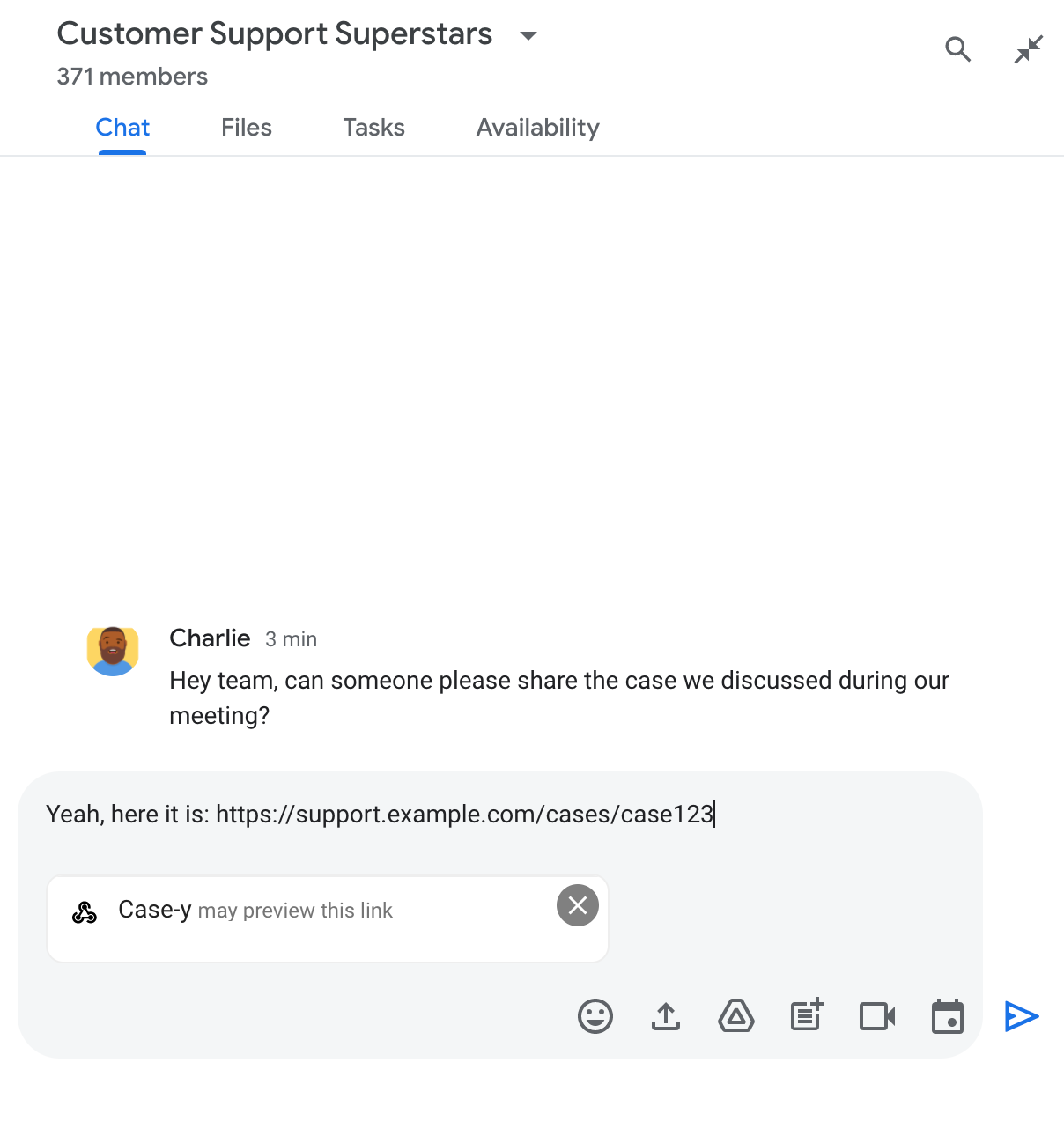
表示某个 Chat 应用可能会预览链接的提示

发送消息后,链接会发送到 Chat 应用,然后该应用会生成卡片并将其附加到用户的消息中。
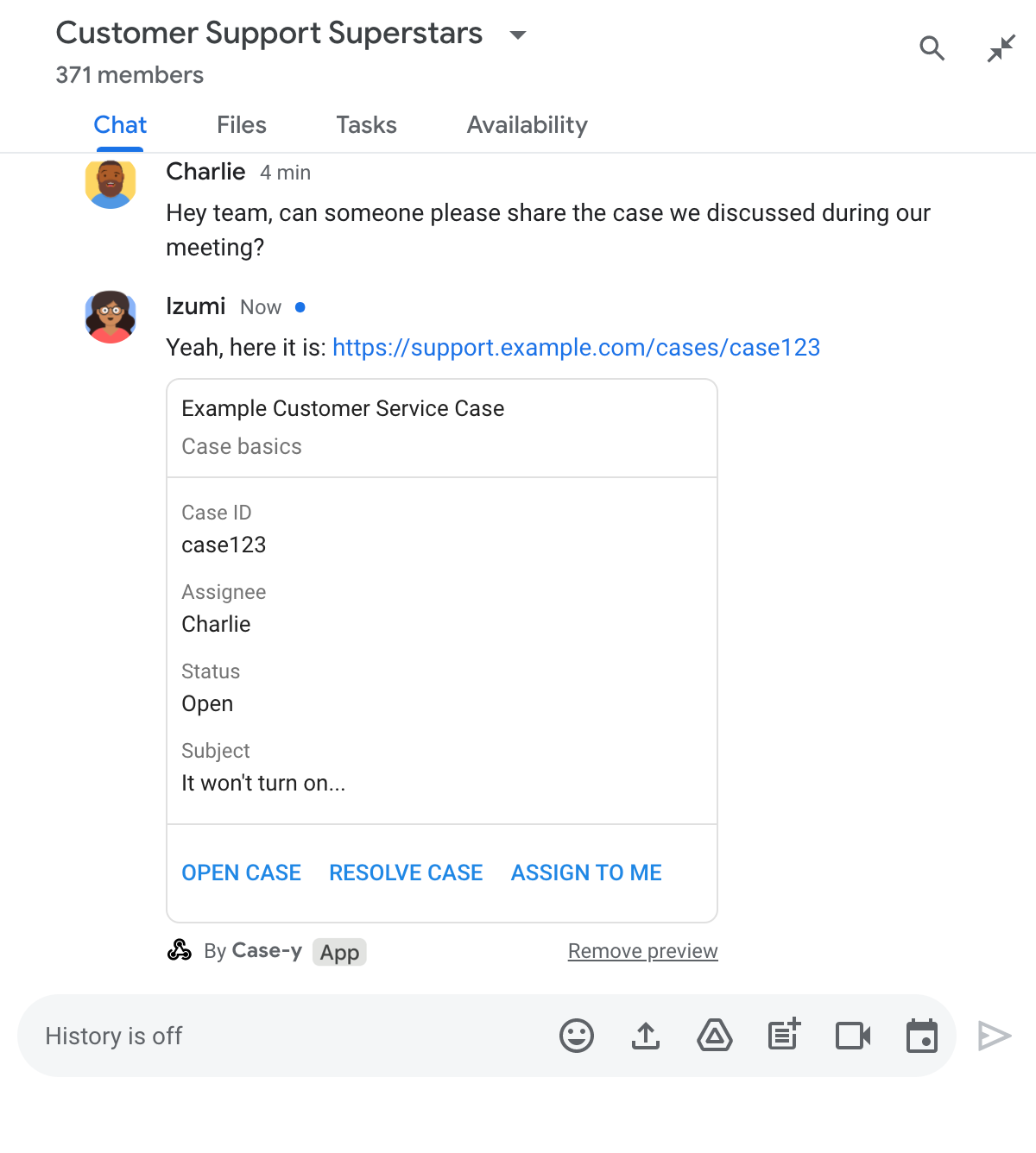
Chat 应用通过将卡片附加到消息来预览链接

除了链接之外,卡片还提供了有关链接的其他信息,包括按钮等互动元素。您的 Chat 应用可以响应用户互动(例如点击按钮)来更新附加的卡片。

如果有人不希望 Chat 应用通过在消息中附加卡片来预览其 链接,他们可以点击预览芯片上的 来阻止预览。用户可以随时点击移除预览 来移除附加的卡片。

前提条件

Node.js

一个接收和响应互动事件的 Google Chat 应用。如需使用 互动式 Chat 应用,请完成此快速入门

Python

一个接收和响应互动事件的 Google Chat 应用。如需使用 互动式 Chat 应用,请完成此快速入门

Java

一个接收和响应互动事件的 Google Chat 应用。如需使用 互动式 Chat 应用,请完成此快速入门

Apps 脚本

一个接收和响应互动事件的 Google Chat 应用。如需在 Apps 脚本中创建互动式 Chat 应用,请完成此 快速入门

在 Google Cloud 控制台中的 Chat 应用配置页面上,将特定链接(例如 example.comsupport.example.comsupport.example.com/cases/)注册为网址格式,以便 Chat 应用可以预览这些链接。
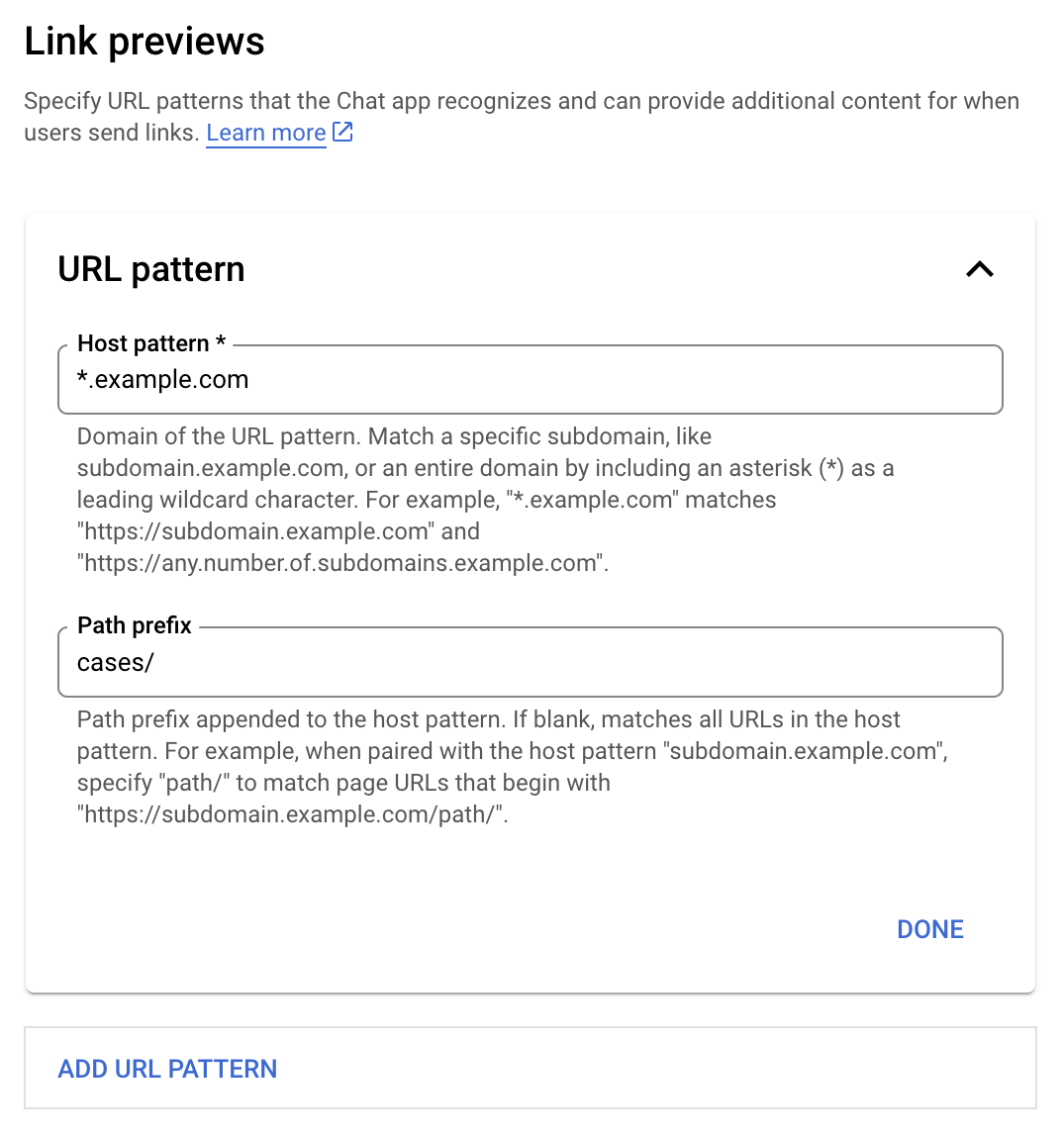
“链接预览”配置菜单

  1. 打开 Google Cloud 控制台
  2. 点击“Google Cloud”旁边的向下箭头 ,然后打开 Chat 应用的项目。
  3. 在搜索字段中,输入 Google Chat API,然后点击 Google Chat API
  4. 依次点击管理 > 配置
  5. 在“链接预览”下,添加或修改网址格式。
    1. 如需为新的网址格式配置链接预览,请点击添加网址格式
    2. 如需修改现有网址格式的配置,请点击向下箭头
  6. 主机模式 字段中,输入网址格式的网域。Chat 应用将预览指向此网域的链接。

    如需让 Chat 应用预览特定子网域(例如 subdomain.example.com)的链接,请添加该子网域。

    如需让 Chat 应用预览整个网域的链接,请指定一个通配符,并使用星号 (*) 作为子网域。 例如,*.example.comsubdomain.example.comany.number.of.subdomains.example.com 匹配。

  7. 路径前缀 字段中,输入要附加到主机模式网域的路径。

    如需匹配主机模式网域中的所有网址,请将路径前缀 留空。

    例如,如果主机模式为 support.example.com,如需匹配托管在 support.example.com/cases/ 的工单的网址,请输入 cases/

  8. 点击完成

  9. 点击保存

现在,每当有人在包含您的 Chat 应用的 Chat 聊天室的消息中添加与链接预览网址格式匹配的链接时,您的应用都会预览该链接。

为给定链接配置链接预览后,您的 Chat 应用可以通过附加更多信息来识别和预览该链接。

在包含您的 Chat 应用的 Chat 聊天室中,当有人发送的消息包含与链接预览网址格式匹配的链接时,您的 Chat 应用 会收到 MESSAGE互动事件。互动事件的 JSON 载荷包含 matchedUrl 字段:

JSON

message: {
  matchedUrl: {
    url: "https://support.example.com/cases/case123"
  },
  ... // other message attributes redacted
}

通过检查 MESSAGE 事件载荷中是否存在 matchedUrl 字段,您的 Chat 应用可以向包含预览链接的消息添加信息。您的 Chat 应用可以回复基本文本消息,也可以附加卡片。

使用文本消息回复

对于基本响应,您的 Chat 应用可以通过回复指向链接的 简单文本消息来预览链接。此示例附加了一条消息,其中重复了与链接预览网址格式匹配的链接网址。

Node.js

node/preview-link/index.js
// Reply with a text message for URLs of the subdomain "text"
if (event.message.matchedUrl.url.includes("text.example.com")) {
  return {
    text: 'event.message.matchedUrl.url: ' + event.message.matchedUrl.url
  };
}

Python

python/preview-link/main.py
# Reply with a text message for URLs of the subdomain "text"
if 'text.example.com' in event.get('message').get('matchedUrl').get('url'):
  return {
    'text': 'event.message.matchedUrl.url: ' +
            event.get('message').get('matchedUrl').get('url')
  }

Java

java/preview-link/src/main/java/com/google/chat/preview/App.java
// Reply with a text message for URLs of the subdomain "text"
if (event.at("/message/matchedUrl/url").asText().contains("text.example.com")) {
  return new Message().setText("event.message.matchedUrl.url: " +
    event.at("/message/matchedUrl/url").asText());
}

Apps 脚本

apps-script/preview-link/preview-link.gs
// Reply with a text message for URLs of the subdomain "text"
if (event.message.matchedUrl.url.includes("text.example.com")) {
  return {
    text: 'event.message.matchedUrl.url: ' + event.message.matchedUrl.url
  };
}

如需将 卡片附加到预览的链接, 请返回 ActionResponse 类型为 UPDATE_USER_MESSAGE_CARDS 的 。此示例附加了一张基本卡片。
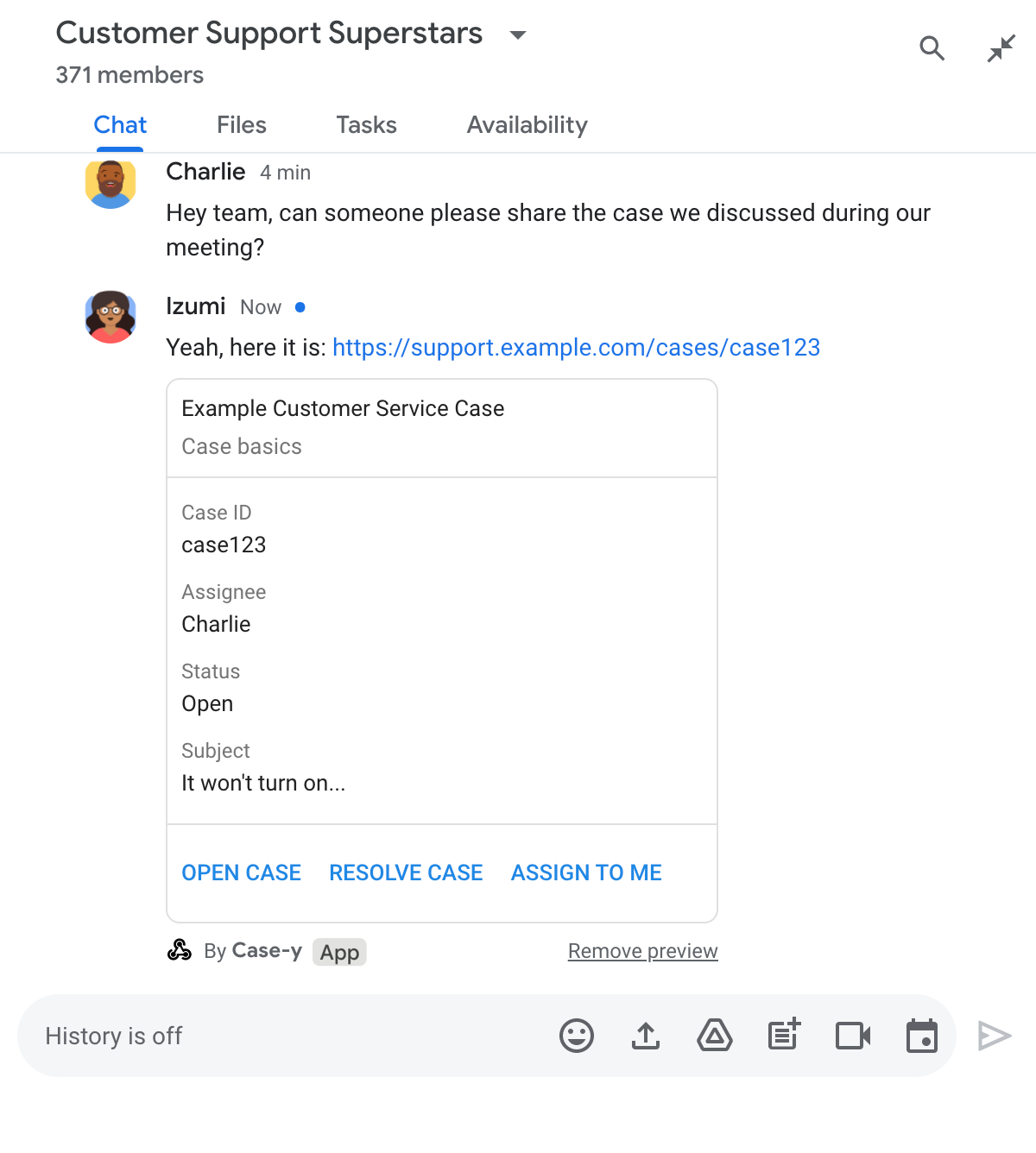
Chat 应用通过将卡片附加到消息来预览链接

Node.js

node/preview-link/index.js
// Attach a card to the message for URLs of the subdomain "support"
if (event.message.matchedUrl.url.includes("support.example.com")) {
  // A hard-coded card is used in this example. In a real-life scenario,
  // the case information would be fetched and used to build the card.
  return {
    actionResponse: { type: 'UPDATE_USER_MESSAGE_CARDS' },
    cardsV2: [{
      cardId: 'attachCard',
      card: {
        header: {
          title: 'Example Customer Service Case',
          subtitle: 'Case basics',
        },
        sections: [{ widgets: [
          { decoratedText: { topLabel: 'Case ID', text: 'case123'}},
          { decoratedText: { topLabel: 'Assignee', text: 'Charlie'}},
          { decoratedText: { topLabel: 'Status', text: 'Open'}},
          { decoratedText: { topLabel: 'Subject', text: 'It won\'t turn on...' }},
          { buttonList: { buttons: [{
            text: 'OPEN CASE',
            onClick: { openLink: {
              url: 'https://support.example.com/orders/case123'
            }},
          }, {
            text: 'RESOLVE CASE',
            onClick: { openLink: {
              url: 'https://support.example.com/orders/case123?resolved=y',
            }},
          }, {
            text: 'ASSIGN TO ME',
            onClick: { action: { function: 'assign'}}
          }]}}
        ]}]
      }
    }]
  };
}

Python

python/preview-link/main.py
# Attach a card to the message for URLs of the subdomain "support"
if 'support.example.com' in event.get('message').get('matchedUrl').get('url'):
  # A hard-coded card is used in this example. In a real-life scenario,
  # the case information would be fetched and used to build the card.
  return {
    'actionResponse': { 'type': 'UPDATE_USER_MESSAGE_CARDS' },
    'cardsV2': [{
      'cardId': 'attachCard',
      'card': {
        'header': {
          'title': 'Example Customer Service Case',
          'subtitle': 'Case basics',
        },
        'sections': [{ 'widgets': [
          { 'decoratedText': { 'topLabel': 'Case ID', 'text': 'case123'}},
          { 'decoratedText': { 'topLabel': 'Assignee', 'text': 'Charlie'}},
          { 'decoratedText': { 'topLabel': 'Status', 'text': 'Open'}},
          { 'decoratedText': { 'topLabel': 'Subject', 'text': 'It won\'t turn on...' }},
          { 'buttonList': { 'buttons': [{
            'text': 'OPEN CASE',
            'onClick': { 'openLink': {
              'url': 'https://support.example.com/orders/case123'
            }},
          }, {
            'text': 'RESOLVE CASE',
            'onClick': { 'openLink': {
              'url': 'https://support.example.com/orders/case123?resolved=y',
            }},
          }, {
            'text': 'ASSIGN TO ME',
            'onClick': { 'action': { 'function': 'assign'}}
          }]}}
        ]}]
      }
    }]
  }

Java

java/preview-link/src/main/java/com/google/chat/preview/App.java
// Attach a card to the message for URLs of the subdomain "support"
if (event.at("/message/matchedUrl/url").asText().contains("support.example.com")) {
  // A hard-coded card is used in this example. In a real-life scenario,
  // the case information would be fetched and used to build the card.
  return new Message()
    .setActionResponse(new ActionResponse()
      .setType("UPDATE_USER_MESSAGE_CARDS"))
    .setCardsV2(List.of(new CardWithId()
      .setCardId("attachCard")
      .setCard(new GoogleAppsCardV1Card()
        .setHeader(new GoogleAppsCardV1CardHeader()
          .setTitle("Example Customer Service Case")
          .setSubtitle("Case basics"))
        .setSections(List.of(new GoogleAppsCardV1Section().setWidgets(List.of(
          new GoogleAppsCardV1Widget().setDecoratedText(new GoogleAppsCardV1DecoratedText()
            .setTopLabel("Case ID")
            .setText("case123")),
          new GoogleAppsCardV1Widget().setDecoratedText(new GoogleAppsCardV1DecoratedText()
            .setTopLabel("Assignee")
            .setText("Charlie")),
          new GoogleAppsCardV1Widget().setDecoratedText(new GoogleAppsCardV1DecoratedText()
            .setTopLabel("Status")
            .setText("Open")),
          new GoogleAppsCardV1Widget().setDecoratedText(new GoogleAppsCardV1DecoratedText()
            .setTopLabel("Subject")
            .setText("It won't turn on...")),
          new GoogleAppsCardV1Widget()
            .setButtonList(new GoogleAppsCardV1ButtonList().setButtons(List.of(
              new GoogleAppsCardV1Button()
                .setText("OPEN CASE")
                .setOnClick(new GoogleAppsCardV1OnClick()
                  .setOpenLink(new GoogleAppsCardV1OpenLink()
                    .setUrl("https://support.example.com/orders/case123"))),
              new GoogleAppsCardV1Button()
                .setText("RESOLVE CASE")
                .setOnClick(new GoogleAppsCardV1OnClick()
                  .setOpenLink(new GoogleAppsCardV1OpenLink()
                    .setUrl("https://support.example.com/orders/case123?resolved=y"))),
              new GoogleAppsCardV1Button()
                .setText("ASSIGN TO ME")
                .setOnClick(new GoogleAppsCardV1OnClick()
                  .setAction(new GoogleAppsCardV1Action().setFunction("assign")))))))))))));
}

Apps 脚本

此示例通过返回 卡片 JSON来发送卡片消息。 您还可以使用 Apps 脚本卡片服务

apps-script/preview-link/preview-link.gs
// Attach a card to the message for URLs of the subdomain "support"
if (event.message.matchedUrl.url.includes("support.example.com")) {
  // A hard-coded card is used in this example. In a real-life scenario,
  // the case information would be fetched and used to build the card.
  return {
    actionResponse: { type: 'UPDATE_USER_MESSAGE_CARDS' },
    cardsV2: [{
      cardId: 'attachCard',
      card: {
        header: {
          title: 'Example Customer Service Case',
          subtitle: 'Case basics',
        },
        sections: [{ widgets: [
          { decoratedText: { topLabel: 'Case ID', text: 'case123'}},
          { decoratedText: { topLabel: 'Assignee', text: 'Charlie'}},
          { decoratedText: { topLabel: 'Status', text: 'Open'}},
          { decoratedText: { topLabel: 'Subject', text: 'It won\'t turn on...' }},
          { buttonList: { buttons: [{
            text: 'OPEN CASE',
            onClick: { openLink: {
              url: 'https://support.example.com/orders/case123'
            }},
          }, {
            text: 'RESOLVE CASE',
            onClick: { openLink: {
              url: 'https://support.example.com/orders/case123?resolved=y',
            }},
          }, {
            text: 'ASSIGN TO ME',
            onClick: { action: { function: 'assign'}}
          }]}}
        ]}]
      }
    }]
  };
}

当用户与链接预览卡片互动时(例如点击卡片上的按钮),您的 Chat 应用可以更新该卡片。

如需更新卡片,您的 Chat 应用 必须处理 CARD_CLICKED 互动事件,并返回 actionResponse ,具体取决于发送包含链接预览的消息的用户:

  • 如果用户发送了消息,请将 actionResponse.type 设置为 UPDATE_USER_MESSAGE_CARDS
  • 如果 Chat 应用发送了消息,请将 actionResponse.type 设置为 UPDATE_MESSAGE

如需确定是谁发送了消息,您可以使用互动事件的 message.sender.type 字段来查看发送者是 HUMAN 用户还是 BOT

以下示例展示了当用户点击分配给我 按钮时,Chat 应用如何通过更新卡片的受让人 字段并停用该按钮来更新链接预览。

聊天应用预览链接,其中包含附加到消息的卡片的更新版本

Node.js

node/preview-link/index.js
/**
 * Updates a card that was attached to a message with a previewed link.
 *
 * @param {Object} event The event object from Chat.
 *
 * @return {Object} Response from the Chat app. Either a new card attached to
 * the message with the previewed link, or an update to an existing card.
 */
function onCardClick(event) {
  // To respond to the correct button, checks the button's actionMethodName.
  if (event.action.actionMethodName === 'assign') {
    // A hard-coded card is used in this example. In a real-life scenario,
    // an actual assign action would be performed before building the card.

    // Checks whether the message event originated from a human or a Chat app
    // and sets actionResponse.type to "UPDATE_USER_MESSAGE_CARDS if human or
    // "UPDATE_MESSAGE" if Chat app.
    const actionResponseType = event.message.sender.type === 'HUMAN' ?
      'UPDATE_USER_MESSAGE_CARDS' :
      'UPDATE_MESSAGE';

    // Returns the updated card that displays "You" for the assignee
    // and that disables the button.
    return {
      actionResponse: { type: actionResponseType },
      cardsV2: [{
        cardId: 'attachCard',
        card: {
          header: {
            title: 'Example Customer Service Case',
            subtitle: 'Case basics',
          },
          sections: [{ widgets: [
            { decoratedText: { topLabel: 'Case ID', text: 'case123'}},
            // The assignee is now "You"
            { decoratedText: { topLabel: 'Assignee', text: 'You'}},
            { decoratedText: { topLabel: 'Status', text: 'Open'}},
            { decoratedText: { topLabel: 'Subject', text: 'It won\'t turn on...' }},
            { buttonList: { buttons: [{
              text: 'OPEN CASE',
              onClick: { openLink: {
                url: 'https://support.example.com/orders/case123'
              }},
            }, {
              text: 'RESOLVE CASE',
              onClick: { openLink: {
                url: 'https://support.example.com/orders/case123?resolved=y',
              }},
            }, {
              text: 'ASSIGN TO ME',
              // The button is now disabled
              disabled: true,
              onClick: { action: { function: 'assign'}}
            }]}}
          ]}]
        }
      }]
    };
  }
}

Python

python/preview-link/main.py
def on_card_click(event: dict) -> dict:
  """Updates a card that was attached to a message with a previewed link."""
  # To respond to the correct button, checks the button's actionMethodName.
  if 'assign' == event.get('action').get('actionMethodName'):
    # A hard-coded card is used in this example. In a real-life scenario,
    # an actual assign action would be performed before building the card.

    # Checks whether the message event originated from a human or a Chat app
    # and sets actionResponse.type to "UPDATE_USER_MESSAGE_CARDS if human or
    # "UPDATE_MESSAGE" if Chat app.
    actionResponseType = 'UPDATE_USER_MESSAGE_CARDS' if \
      event.get('message').get('sender').get('type') == 'HUMAN' else \
      'UPDATE_MESSAGE'

    # Returns the updated card that displays "You" for the assignee
    # and that disables the button.
    return {
      'actionResponse': { 'type': actionResponseType },
      'cardsV2': [{
        'cardId': 'attachCard',
        'card': {
          'header': {
            'title': 'Example Customer Service Case',
            'subtitle': 'Case basics',
          },
          'sections': [{ 'widgets': [
            { 'decoratedText': { 'topLabel': 'Case ID', 'text': 'case123'}},
            # The assignee is now "You"
            { 'decoratedText': { 'topLabel': 'Assignee', 'text': 'You'}},
            { 'decoratedText': { 'topLabel': 'Status', 'text': 'Open'}},
            { 'decoratedText': { 'topLabel': 'Subject', 'text': 'It won\'t turn on...' }},
            { 'buttonList': { 'buttons': [{
              'text': 'OPEN CASE',
              'onClick': { 'openLink': {
                'url': 'https://support.example.com/orders/case123'
              }},
            }, {
              'text': 'RESOLVE CASE',
              'onClick': { 'openLink': {
                'url': 'https://support.example.com/orders/case123?resolved=y',
              }},
            }, {
              'text': 'ASSIGN TO ME',
              # The button is now disabled
              'disabled': True,
              'onClick': { 'action': { 'function': 'assign'}}
            }]}}
          ]}]
        }
      }]
    }

Java

java/preview-link/src/main/java/com/google/chat/preview/App.java
// Updates a card that was attached to a message with a previewed link.
Message onCardClick(JsonNode event) {
  // To respond to the correct button, checks the button's actionMethodName.
  if (event.at("/action/actionMethodName").asText().equals("assign")) {
    // A hard-coded card is used in this example. In a real-life scenario,
    // an actual assign action would be performed before building the card.

    // Checks whether the message event originated from a human or a Chat app
    // and sets actionResponse.type to "UPDATE_USER_MESSAGE_CARDS if human or
    // "UPDATE_MESSAGE" if Chat app.
    String actionResponseType =
      event.at("/message/sender/type").asText().equals("HUMAN")
      ? "UPDATE_USER_MESSAGE_CARDS" : "UPDATE_MESSAGE";

    // Returns the updated card that displays "You" for the assignee
    // and that disables the button.
    return new Message()
    .setActionResponse(new ActionResponse()
      .setType(actionResponseType))
    .setCardsV2(List.of(new CardWithId()
      .setCardId("attachCard")
      .setCard(new GoogleAppsCardV1Card()
        .setHeader(new GoogleAppsCardV1CardHeader()
          .setTitle("Example Customer Service Case")
          .setSubtitle("Case basics"))
        .setSections(List.of(new GoogleAppsCardV1Section().setWidgets(List.of(
          new GoogleAppsCardV1Widget().setDecoratedText(new GoogleAppsCardV1DecoratedText()
            .setTopLabel("Case ID")
            .setText("case123")),
          new GoogleAppsCardV1Widget().setDecoratedText(new GoogleAppsCardV1DecoratedText()
            .setTopLabel("Assignee")
            // The assignee is now "You"
            .setText("You")),
          new GoogleAppsCardV1Widget().setDecoratedText(new GoogleAppsCardV1DecoratedText()
            .setTopLabel("Status")
            .setText("Open")),
          new GoogleAppsCardV1Widget().setDecoratedText(new GoogleAppsCardV1DecoratedText()
            .setTopLabel("Subject")
            .setText("It won't turn on...")),
          new GoogleAppsCardV1Widget()
            .setButtonList(new GoogleAppsCardV1ButtonList().setButtons(List.of(
              new GoogleAppsCardV1Button()
                .setText("OPEN CASE")
                .setOnClick(new GoogleAppsCardV1OnClick()
                  .setOpenLink(new GoogleAppsCardV1OpenLink()
                    .setUrl("https://support.example.com/orders/case123"))),
              new GoogleAppsCardV1Button()
                .setText("RESOLVE CASE")
                .setOnClick(new GoogleAppsCardV1OnClick()
                  .setOpenLink(new GoogleAppsCardV1OpenLink()
                    .setUrl("https://support.example.com/orders/case123?resolved=y"))),
              new GoogleAppsCardV1Button()
                .setText("ASSIGN TO ME")
                // The button is now disabled
                .setDisabled(true)
                .setOnClick(new GoogleAppsCardV1OnClick()
                  .setAction(new GoogleAppsCardV1Action().setFunction("assign")))))))))))));
  }
  return null;
}

Apps 脚本

此示例通过返回 卡片 JSON来发送卡片消息。 您还可以使用 Apps 脚本卡片服务

apps-script/preview-link/preview-link.gs
/**
 * Updates a card that was attached to a message with a previewed link.
 *
 * @param {Object} event The event object from Chat.
 *
 * @return {Object} Response from the Chat app. Either a new card attached to
 * the message with the previewed link, or an update to an existing card.
 */
function onCardClick(event) {
  // To respond to the correct button, checks the button's actionMethodName.
  if (event.action.actionMethodName === 'assign') {
    // A hard-coded card is used in this example. In a real-life scenario,
    // an actual assign action would be performed before building the card.

    // Checks whether the message event originated from a human or a Chat app
    // and sets actionResponse.type to "UPDATE_USER_MESSAGE_CARDS if human or
    // "UPDATE_MESSAGE" if Chat app.
    const actionResponseType = event.message.sender.type === 'HUMAN' ?
      'UPDATE_USER_MESSAGE_CARDS' :
      'UPDATE_MESSAGE';

    // Returns the updated card that displays "You" for the assignee
    // and that disables the button.
    return {
      actionResponse: { type: actionResponseType },
      cardsV2: [{
        cardId: 'attachCard',
        card: {
          header: {
            title: 'Example Customer Service Case',
            subtitle: 'Case basics',
          },
          sections: [{ widgets: [
            { decoratedText: { topLabel: 'Case ID', text: 'case123'}},
            // The assignee is now "You"
            { decoratedText: { topLabel: 'Assignee', text: 'You'}},
            { decoratedText: { topLabel: 'Status', text: 'Open'}},
            { decoratedText: { topLabel: 'Subject', text: 'It won\'t turn on...' }},
            { buttonList: { buttons: [{
              text: 'OPEN CASE',
              onClick: { openLink: {
                url: 'https://support.example.com/orders/case123'
              }},
            }, {
              text: 'RESOLVE CASE',
              onClick: { openLink: {
                url: 'https://support.example.com/orders/case123?resolved=y',
              }},
            }, {
              text: 'ASSIGN TO ME',
              // The button is now disabled
              disabled: true,
              onClick: { action: { function: 'assign'}}
            }]}}
          ]}]
        }
      }]
    };
  }
}

限制和注意事项

为 Chat 应用配置链接预览时,请注意以下限制和注意事项:

  • 每个 Chat 应用最多支持 5 个网址格式的链接预览。
  • Chat 应用会为每条消息预览一个链接。如果一条消息中包含多个可预览的链接,则只会预览第一个可预览的链接。
  • Chat 应用只会预览以 https:// 开头的链接,因此 https://support.example.com/cases/ 会预览,但 support.example.com/cases/ 不会预览。
  • 除非消息包含发送给 Chat 应用的其他信息(例如 斜杠命令),否则链接预览只会将链接网址发送给 Chat 应用。
  • 如果用户发布链接,Chat 应用只有在用户与卡片互动(例如点击按钮)时才能更新链接预览卡片。您无法对 Message 资源调用 Chat API 的 update() 方法来异步更新用户的消息。
  • Chat 应用必须为聊天室中的所有人预览链接,因此 消息必须省略 privateMessageViewer 字段。

在实现链接预览时,您可能需要通过读取应用的日志来调试 Chat 应用。如需读取日志, 请访问 Google Cloud 控制台中的 Logs Explorer